> For the complete documentation index, see [llms.txt](https://docs.animaldietformulator.com/llms.txt). Markdown versions of documentation pages are available by appending `.md` to page URLs; this page is available as [Markdown](https://docs.animaldietformulator.com/animal-diet-formulator/recipes/formulation.md).
# Formulation
Formulate your recipe by adding ingredients and balance it by adjusting the amounts.
Start formulating recipes by going to the Recipes page.
To go to the page, follow the steps mentioned[ here.](#recipes-list)
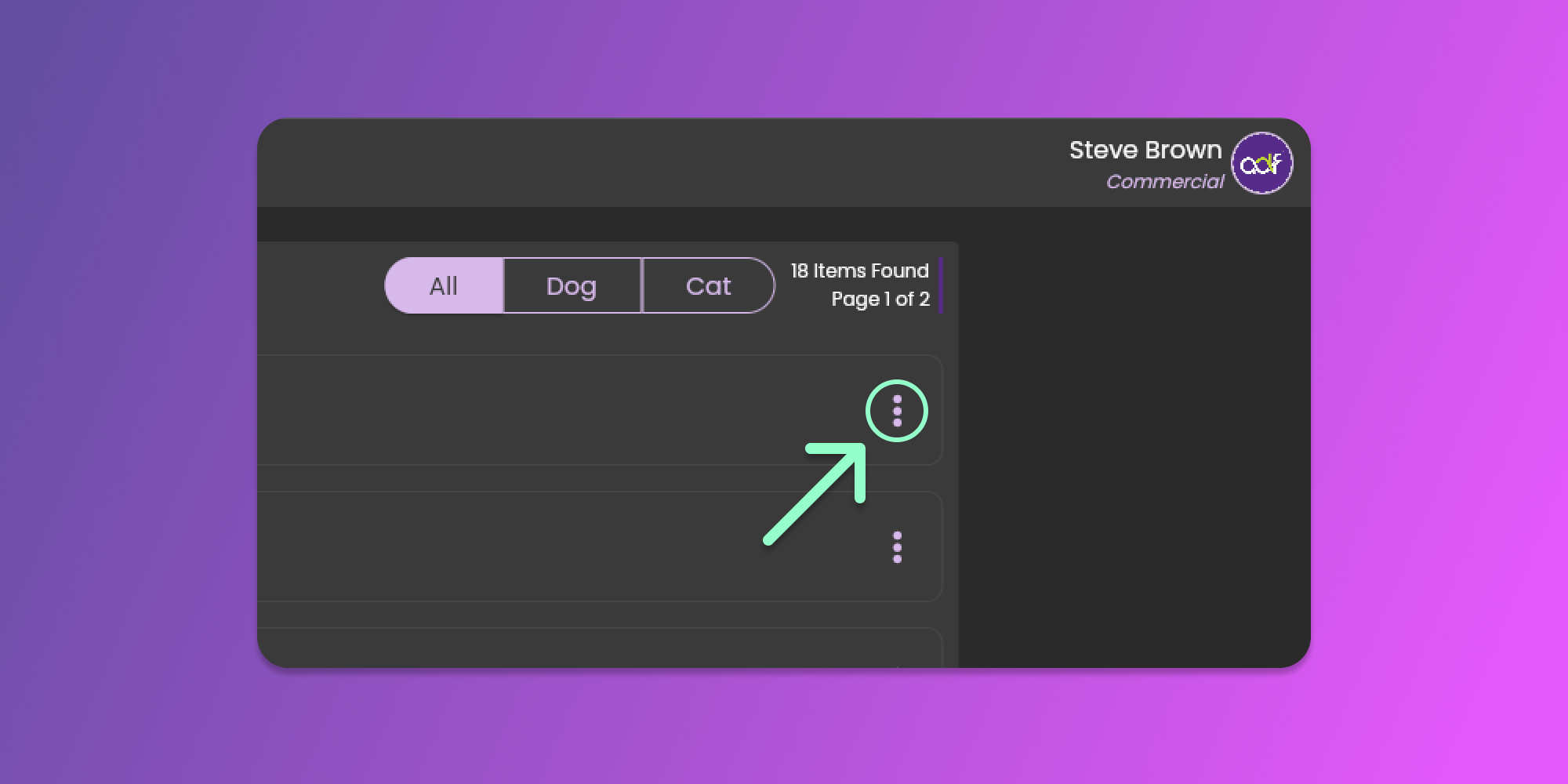
You can see the list of created recipes when you are on the recipes page. Click the three horizontal dots icon (known as Item Menu) to show the action options for the specific item. See the image below.
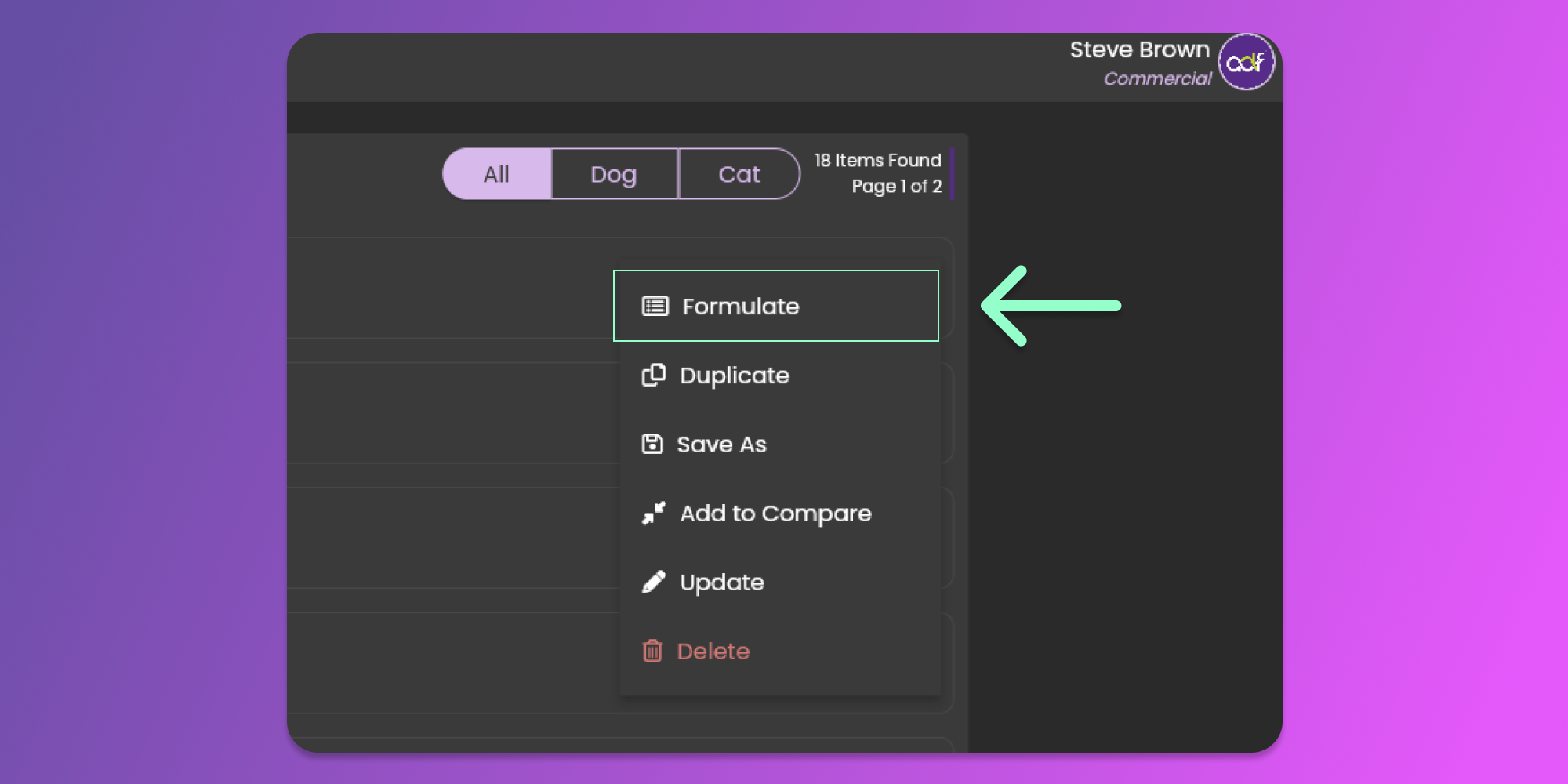
After clicking the horizontal dots icon, click the "Formulation" button to formulate the recipe.
{% hint style="info" %}
Clicking the Recipe Name in the list will also allow you to formulate the Recipe.
{% endhint %}
{% hint style="info" %}
After you create the recipe, you will be redirected to the formulation page.
{% endhint %}
{% hint style="info" %}
In the dashboard, clicking the recipe name will also redirect you to the formulation page.
{% endhint %}
Before you start formulating, we would like you to get familiar with the 3 Formulation sections on the Formulation page. The sections are the [Ingredients Section](#ingredients-section), [Formulation Menu Section](#formulation-section), and [Nutrients Section](#nutrients-section).
{% hint style="info" %}
Please be reminded that some of the features will be hidden based on your current subscription.
{% endhint %}
### Ingredients Section
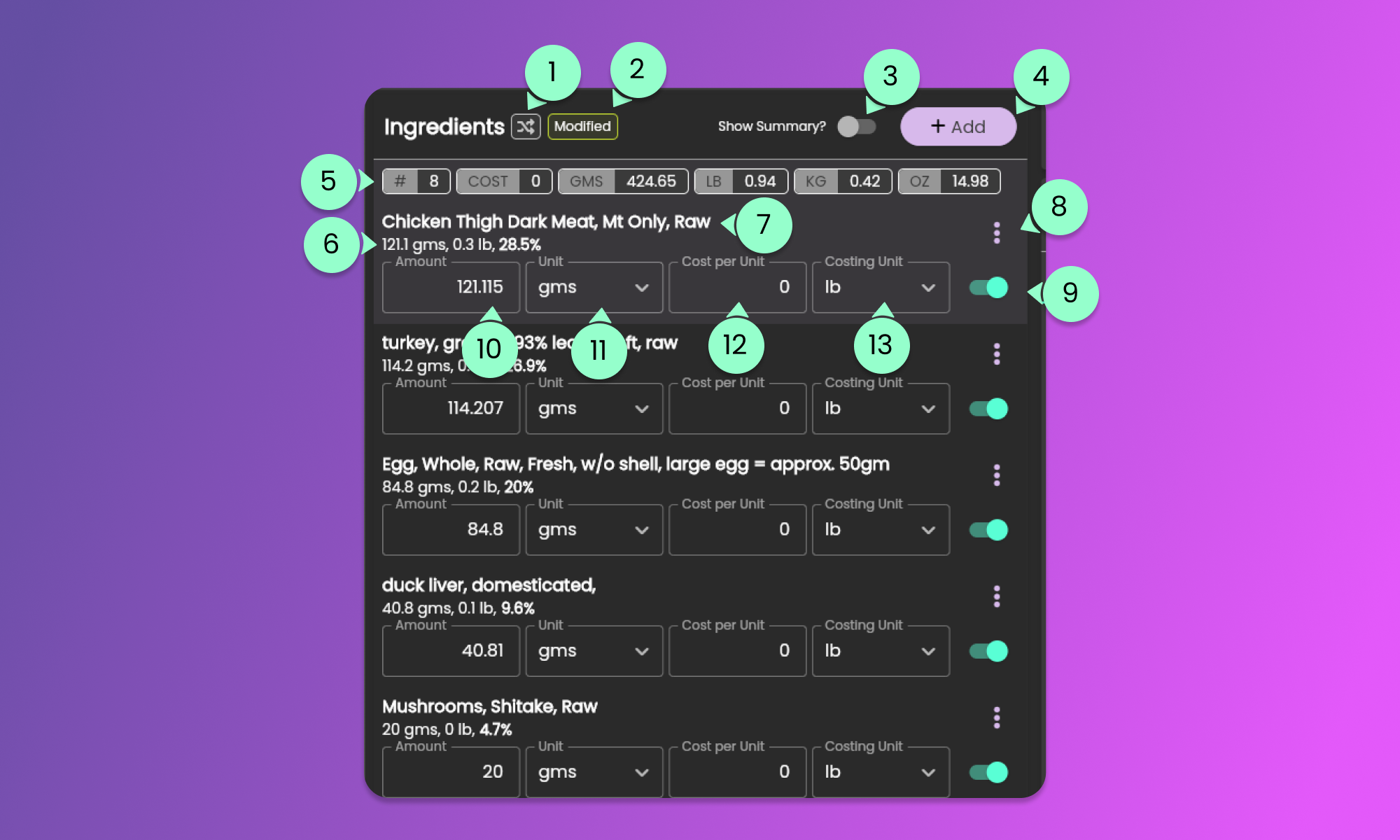
This section will allow you to manage the ingredients for the current Recipe. See the image below for a key to the Ingredients Section functions.
1. Sorting Tag
* This will indicate the current sorting applied to the ingredients. To learn more about sorting click [here](/animal-diet-formulator/recipes/ingredients-sorting.md).
2. Modified Tag
* This tag indicates that the current recipe has been modified.
3. Show summary toggle
* This toggle button will allow you to show or hide a compressed list of ingredients and basic measurements. This toggle is also available in the Formulation View Settings.
4. Add Ingredients
* Clicking the button will show a pop-up containing the ingredients list for you to add to your current recipe. Clicking the ingredient from the list will select the ingredient that you want to add. To learn more on how to manage the ingredients list, please click [here](/animal-diet-formulator/ingredients.md).
5. Recipe Summary
* This scrollable horizontal list of tags shows the total weight based on the indicated unit. This section will allow monitoring of the current weight of your recipe.
6. Ingredient Weights
* This information will show the current weight of the specific ingredient
7. Ingredient Name
* This section contains the name of the ingredient.
8. Ingredient Menu
* Clicking this icon will show the Ingredient Menu. To learn more about the ingredients menu, click [here](/animal-diet-formulator/recipes/recipe-ingredients.md).
9. Ingredient Toggle
* This toggle button will enable or disable the ingredient for the specific recipe. This is helpful to easily view the effect on the recipe when you remove an ingredient.
10. Ingredient Weight Input
* This form will allow you to modify the weight of the ingredient. Below are the basic keyboard shortcuts to easily adjust the weight.
* (Ctrl *⊞* or Cmd ) + Arrow Up (Increase the weight by 1)
* (Ctrl *⊞* or Cmd ) + Arrow Down (Decrease the weight by 1)
* (Ctrl *⊞* or Cmd ) + Left Shift + Arrow Up (Increase the weight by 10)
* (Ctrl *⊞* or Cmd ) + Left Shift + Arrow Down (Decrease the weight by 10)
* (Ctrl *⊞* or Cmd ) + Left Shift + (Alt *⊞* or Opt ) + Arrow Up (Increase the weight by 100)
* (Ctrl *⊞* or Cmd ) + Left Shift + (Alt *⊞* or Opt ) + Arrow Down (Decrease the weight by 100)
11. Ingredient Weight Unit
* This will indicate the current unit of weight provided for each ingredient. Clicking the field will show a list of Units that are available for you to use. To learn more about measurements, click [here](/animal-diet-formulator/measurements.md).
12. Costing per Unit (Commercial Subscription Only)
* This form will allow you to provide the cost of ingredients per Costing Unit field. Please be reminded that the currency of the field is dynamic and will base on your default currency.
13. Costing Unit (Commercial Subscription Only)
* This field will indicate the current unit for Costing. Clicking the field will show a list of Units that are available for you to use. To learn more about measurements, click [here](/animal-diet-formulator/measurements.md).
### Formulation Menu Section
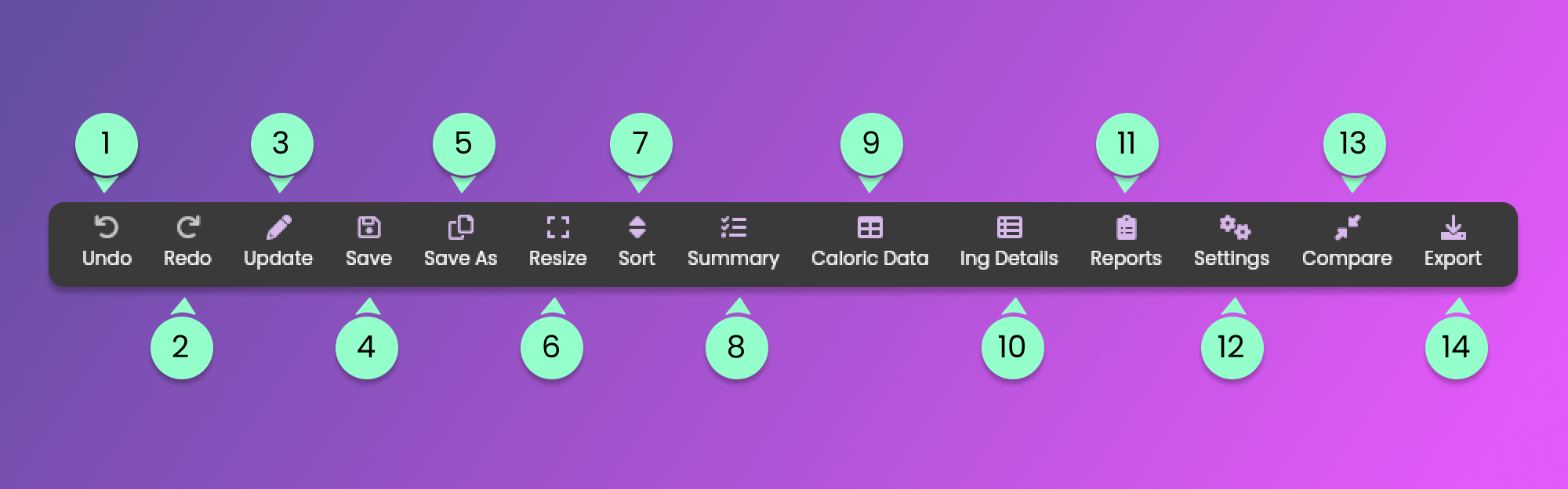
The tools above the Formulation page will assist you in formulating the recipe.
1. Undo
* This button will undo the changes that you have done.
2. Redo
* Use this button if you wish to reverse an undo action.
3. Update
* This button will show the form for you to update the recipe information. Click [here](/animal-diet-formulator/recipes.md#updating-recipes) to learn more about updating the recipe.
4. Save
* This button will save the current recipe to the server database. It includes the recipe information, ingredients, and other related information about the recipe.
5. Save As
* This button will save a new recipe with the current recipe information. This will ask for the new Recipe Name. Click [here ](/animal-diet-formulator/recipes.md#save-as-new-recipe)to learn more about saving as a new recipe.
6. Resize
* This button will allow you to resize the recipe to a specific weight and unit. Click [here](/animal-diet-formulator/recipes/recipe-resize.md) to learn more about resizing the recipe.
7. Sort
* This button will allow you to sort the ingredients. Click [here](/animal-diet-formulator/recipes/ingredients-sorting.md) to learn more about sorting recipe ingredients.
8. Summary
* This button will allow you to view the summary by Main Categories. Click [here](/animal-diet-formulator/recipes/ingredient-summary.md) to learn more about Recipe's Ingredient Summary.
9. Caloric Data
* This button will show you the Caloric Data applied to the Recipe. It will also allow you to provide the desired percentage to adjust the nutrients. Click [here](/animal-diet-formulator/recipes/caloric-data.md) to learn more.
10. Ingredient Details
* This button will show the detailed percentage or values of each nutrient per ingredient. Click [here](/animal-diet-formulator/recipes/ingredient-nutrients-details.md) to learn more.
11. Reports
* This button will allow you to create and download PDF or Excel Report for you to print the recipe. Click [here](/animal-diet-formulator/recipes/reports.md) to learn more about Recipe Reports.
12. View Settings
* This button will allow you to toggle the view of the Ingredients Section and Nutrients Section. To learn more click [here](/animal-diet-formulator/recipes/formulation-view-settings.md).
13. Compare Recipes
* This button will allow you to add the current recipe for you to compare with other recipes. Click [here](/animal-diet-formulator/compare-recipes.md) to learn more.
14. Export Recipe
* This button will allow you to export the current recipe to an "ADF" File (.adf). This file can be imported back into the ADF software. Click [here](/animal-diet-formulator/recipes/export.md) to learn more.
### Nutrients Section
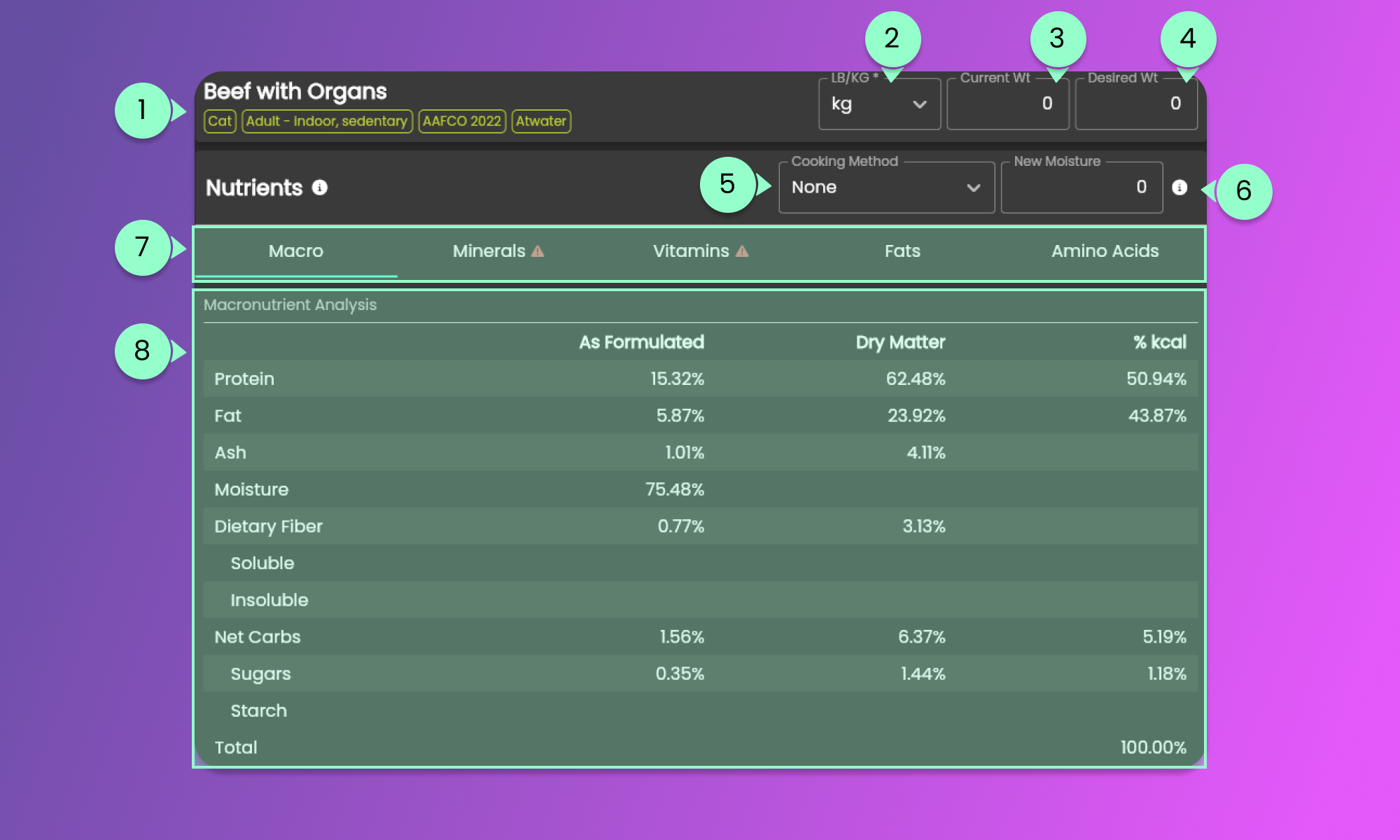
Recipe Information and Formulated Nutrients are shown in this section.
1. Ingredient Information
* This section gives an overview of the important details of the Recipe.
2. Weight Type for the Pet Weights
* This field determines the weight unit of the Desired Weight and the Current Weight of the Pet. Clicking the field will show the options for Pet Weights.
3. Current Weight of the Pet
* This field is used as a reference for the Current weight of the Pet.
4. Desired Weight of the Pet
* o The value entered in this field will be used as a reference to calculate the Feeding amount per day and other Macronutrient Analyses.
5. Cooking Method
* In this field, indicate if you want to apply a Cooking Method for your recipe. Click [here](/animal-diet-formulator/recipes/cooking-method.md) to learn more.
6. New Moisture Percentage
* o The value entered in this field will be used when applying the Cooking Method for Dehydrated and Freeze-Dried recipes.
7. Nutrient Tab Sections
* Clicking the tab header will change the tab content to the preferred Section such as the Minerals, Vitamins, and others.
8. Nutrient Information
* The contents provided here are the nutrients based on the selected Nutrient Tab Section.
This section will give you a summary of the Macro and Micro Nutrients that help you to balance your recipe.
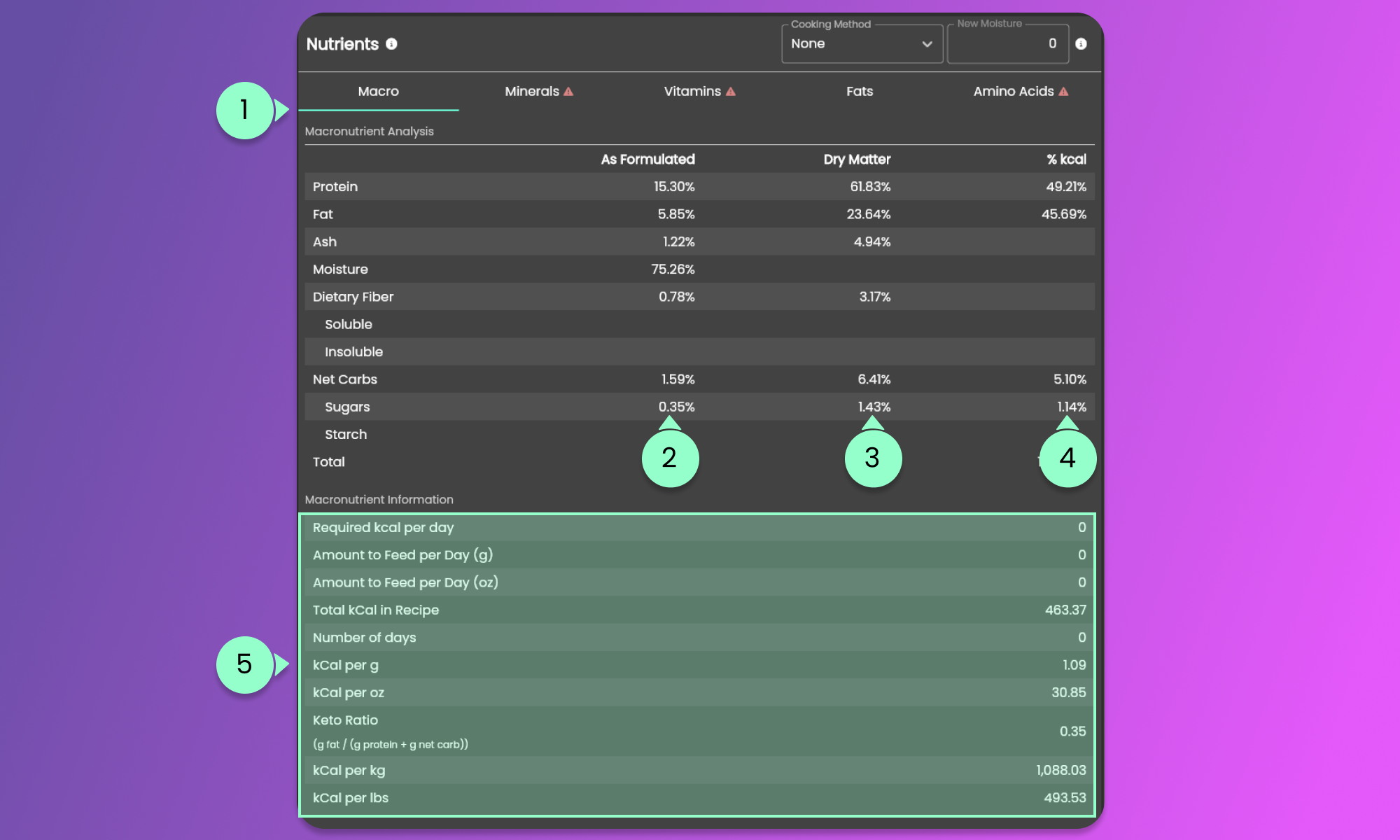
Change the view by clicking the desired Nutrient Section. The green bar (Item 1 from the below Image) will underline the selected Nutrient Section.
By default, the Macronutrients Section will be displayed, including the Macronutrient Analysis and other Macronutrient Information (Item 5 from the below Image).
The Macronutrient Analysis shows the As Formulated value (Item 2), Dry Matter - by removing moisture - (Item 3), and Percentage kcal (Item 4).
Clicking the Minerals, Vitamins, Fats, and Amino Acids will change the view to the desired section.
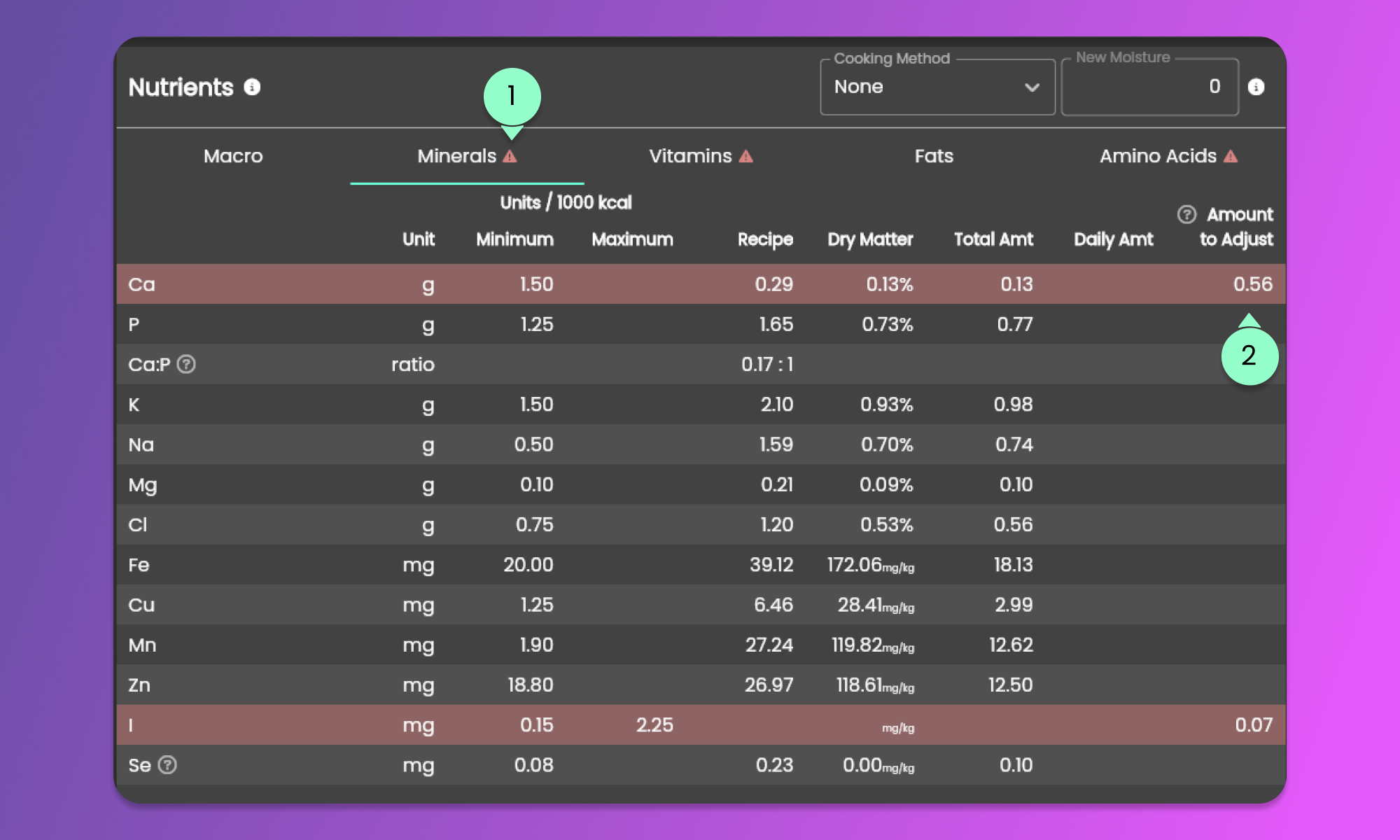
Below are the columns for each section:
1. Name of the Nutrient
2. Unit of the Nutrient
3. Minimum requirement based on the selected Standard (AAFCO or FEDIAF)
4. Maximum requirement based on the selected Standard (AAFCO or FEDIAF)
5. Value of the nutrient based on the Recipe
6. Dry Matter value based on the Recipe (This is available only for Professional and Commercial Version)
7. Total Amount value of the nutrient
8. Daily Amount needed based on the Desired Weight
9. Amount to Adjust value.
If there is a value in the Amount to Adjust column (Item 2 from the Image below) it indicates that the nutrient is not balanced.
We also added a Red Exclamation Mark in Triangle beside the Nutrient Section (Item 1 from the Image below) to indicate that the section has an unbalanced nutrient.
Double-click the "Amount to Adjust" value of a specific nutrient to list the suggested ingredients (listed in decreasing order of the content of that nutrient) to auto-balance the recipe.