Recipes

Create and formulate your balanced, biologically appropriate pet food Recipe

Recipes List

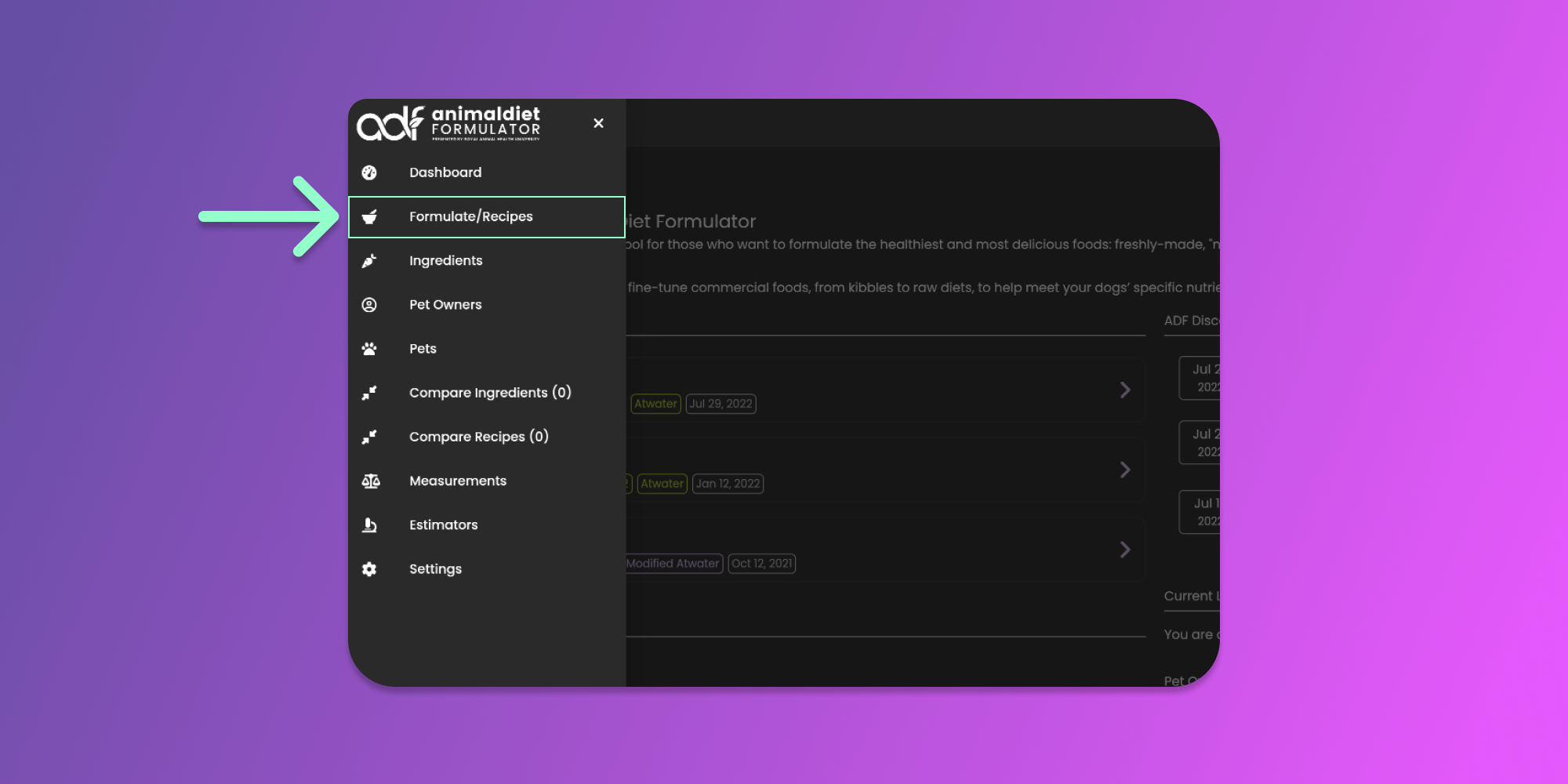
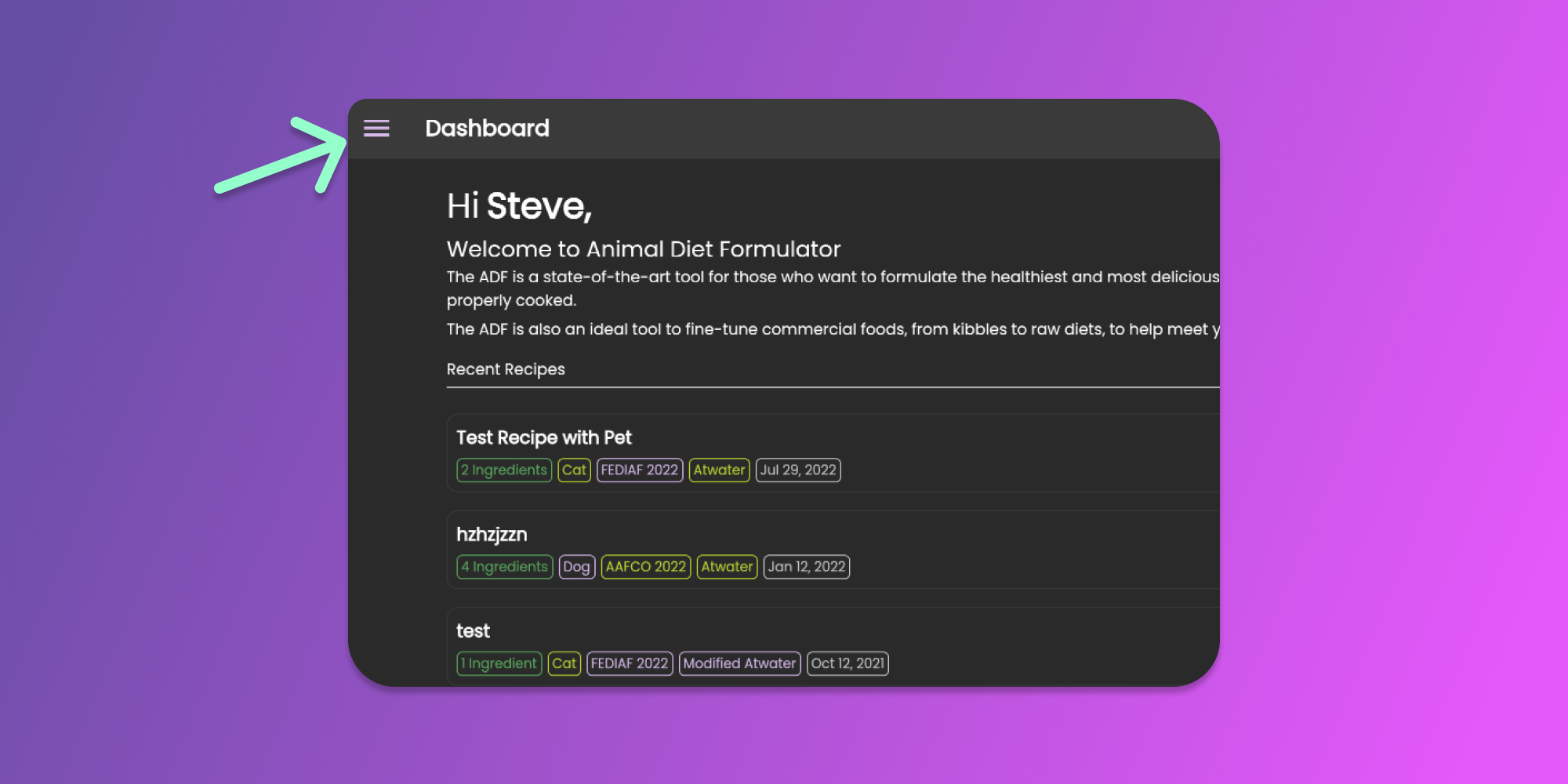
To start managing your recipes, go to Main Menu by clicking the similar icon below.

Click to Enlarge

Then click the Recipes menu item from the Main Menu.

From the Recipes page, you can now create, update or delete your recipes.

Filter the Recipes

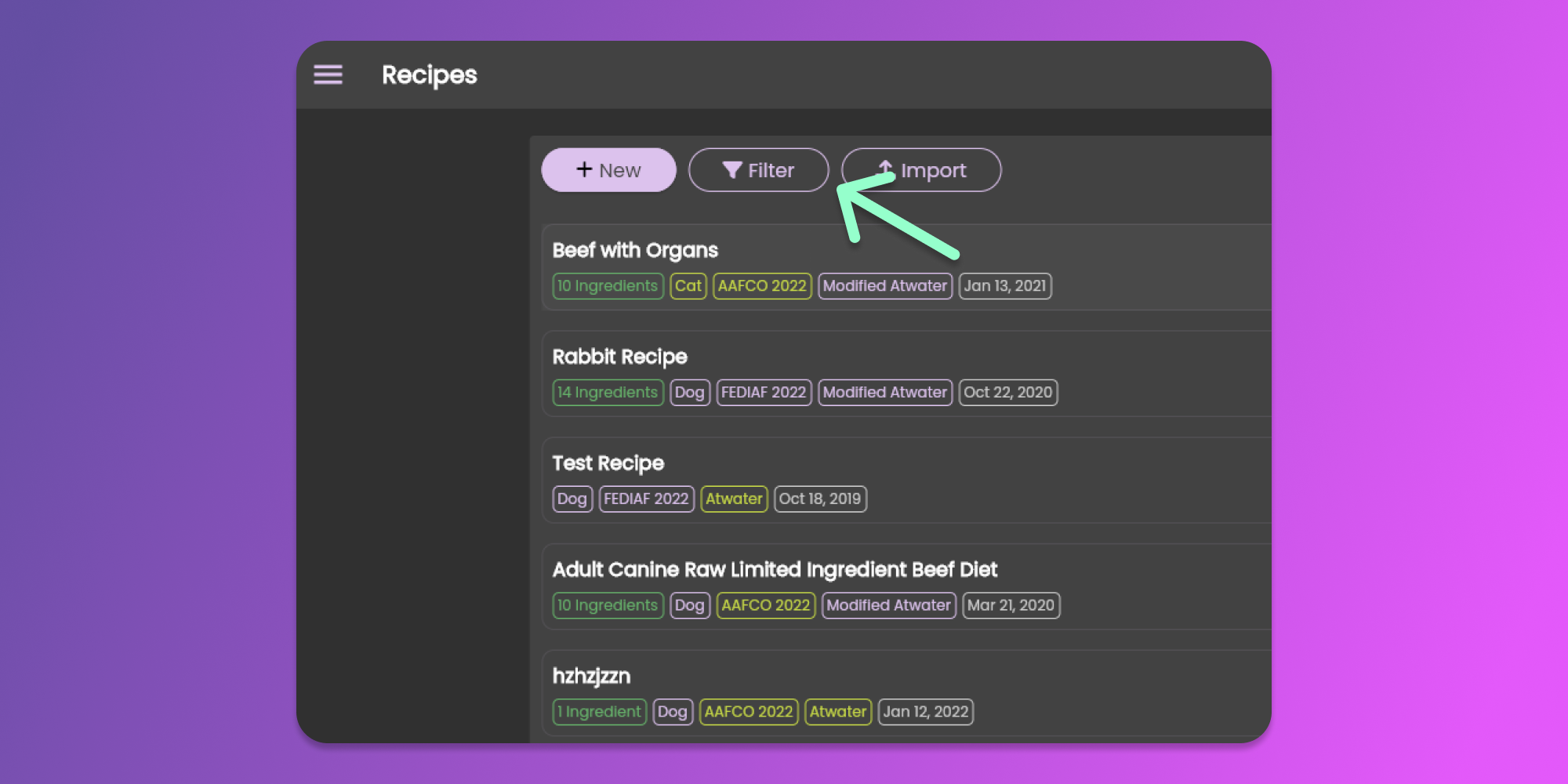
Utilize the filter feature to search for recipes to update or delete. Click the filter button similar to the image below.

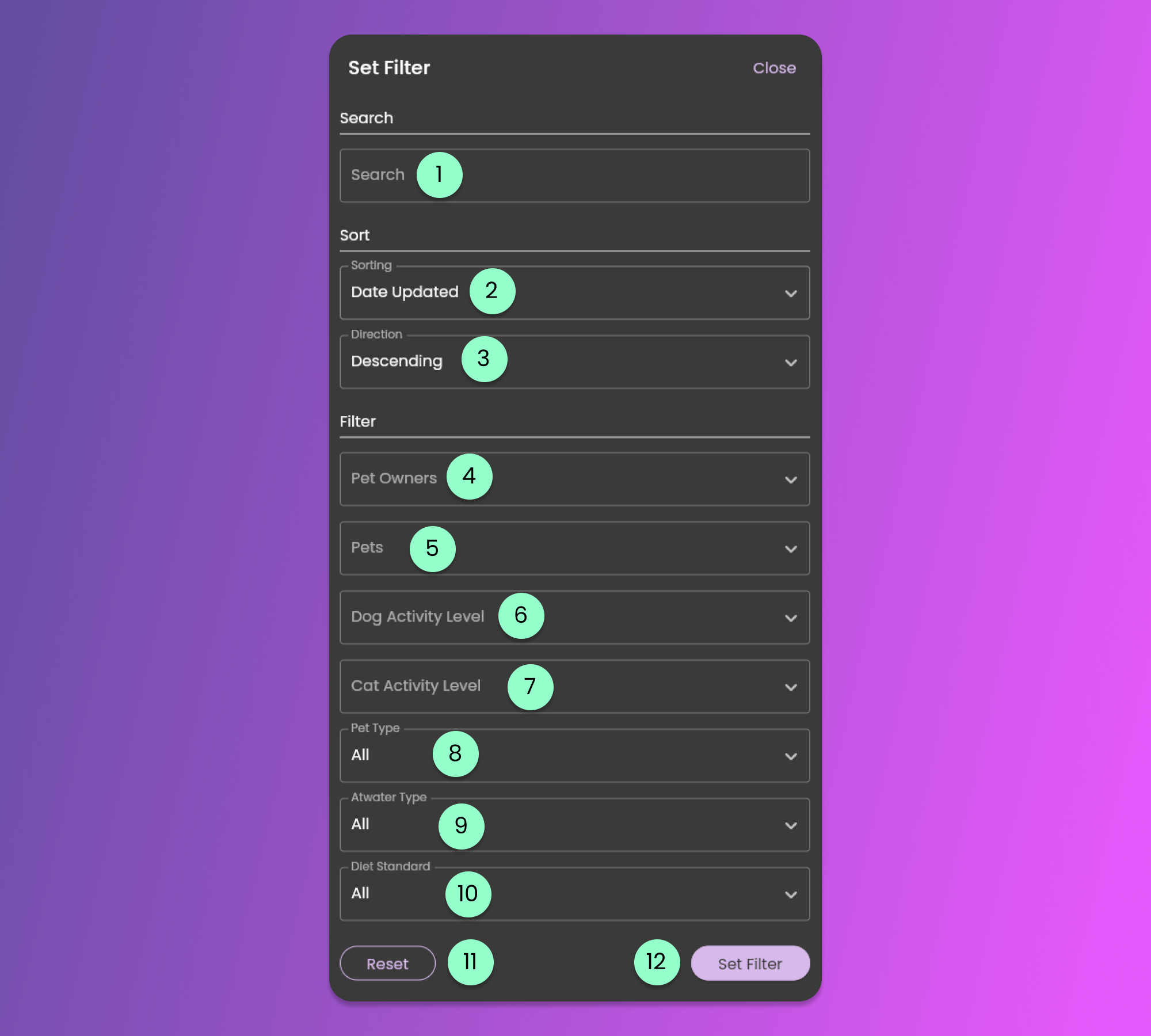
The filter form will allow you to modify the default filter settings.

The filter form contains the following fields.

  1. Search

    • This field will look for the term in the Recipe's name.

  2. Sorting

    • Using this sorting, you can sort the items based on the selected field available.

  3. Sorting Direction

    • This will control the direction of sorting based on the selected information at the Sorting field.

  4. Pet Owners

    • This will provide you with the list of Pet Owners that you created in which you can filter the recipes related to the specific pet owner/client you have.

  5. Pets

    • This will provide you with the list of Pets that you created in which you can filter recipes related to the specific pets you have.

  6. Dog Activity Level

    • This will provide you with the Activity Levels related to the Dog Pet Type.

  7. Cat Activity Level

    • This will provide you with the Activity Levels related to the Cat Pet Type.

  8. Pet Type

    • This will allow you to filter your recipes based on the Pet Type. It could be Dog, Cat, or All.

  9. Atwater Type

    • This will allow you to filter your recipes based on the Atwater Type setting of the recipes.

  10. Diet Standard

    • This will allow you to filter your recipes based on the Diet Standard that you set for each recipe.

  11. Reset

    • Clicking this button will reset all the changes made.

  12. Set Filter

    • Clicking this button will apply the preferred filters.

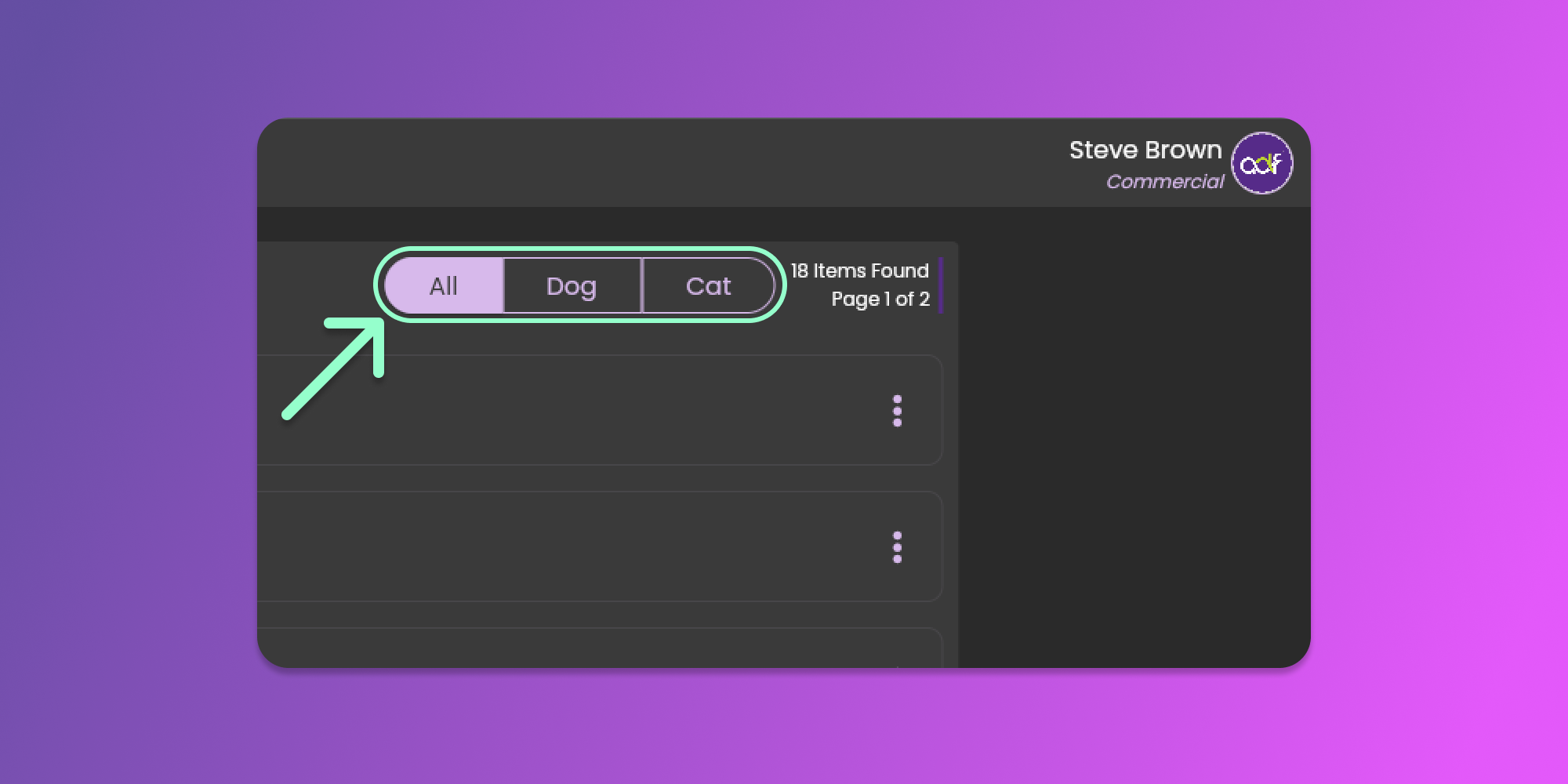
While at the listing page of Recipes, you can filter the recipe by clicking the Pet Type buttons similar to the image below.

Creating Recipes

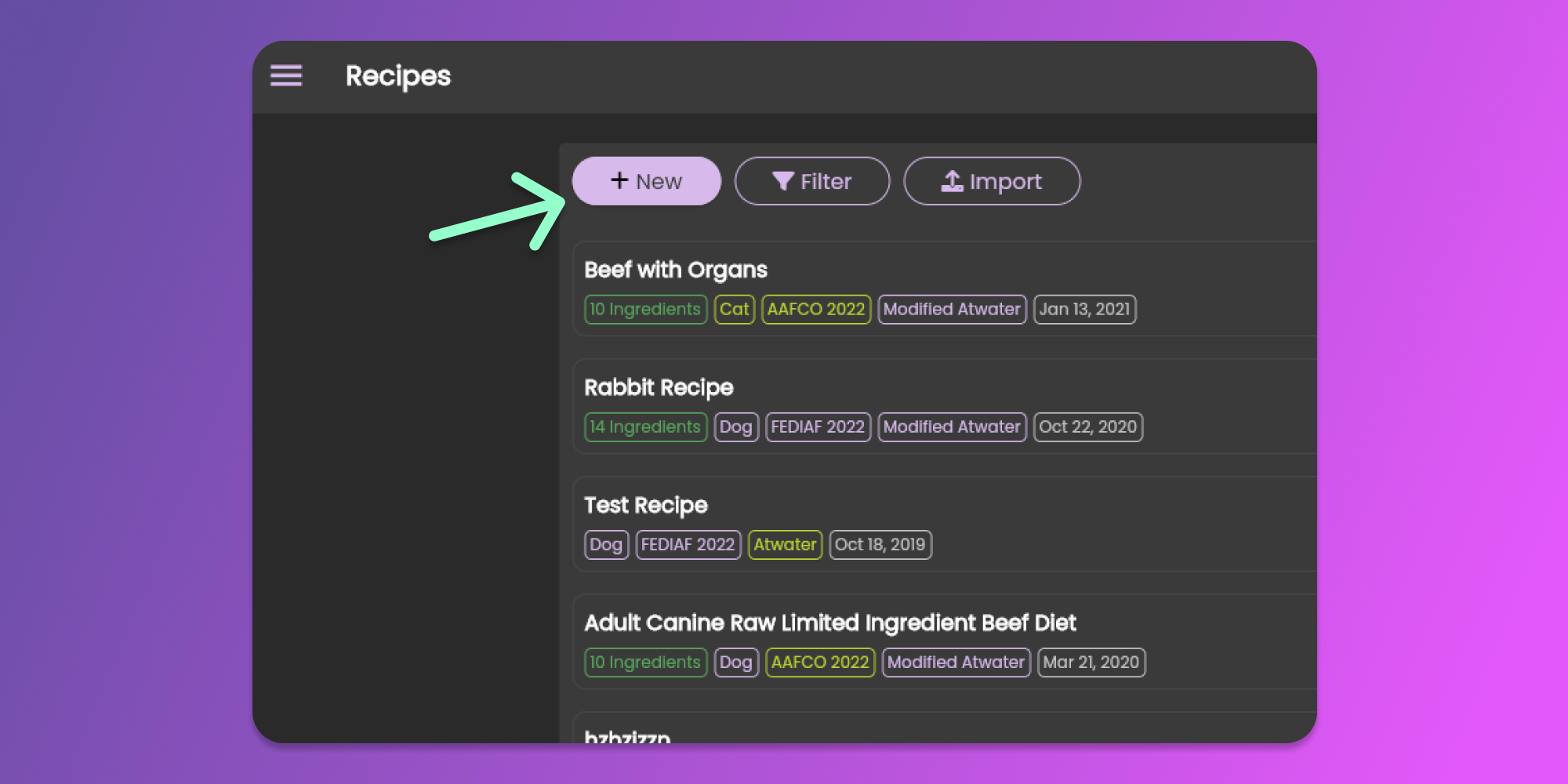
Start creating your recipes by clicking the New button at the top left corner of the page.

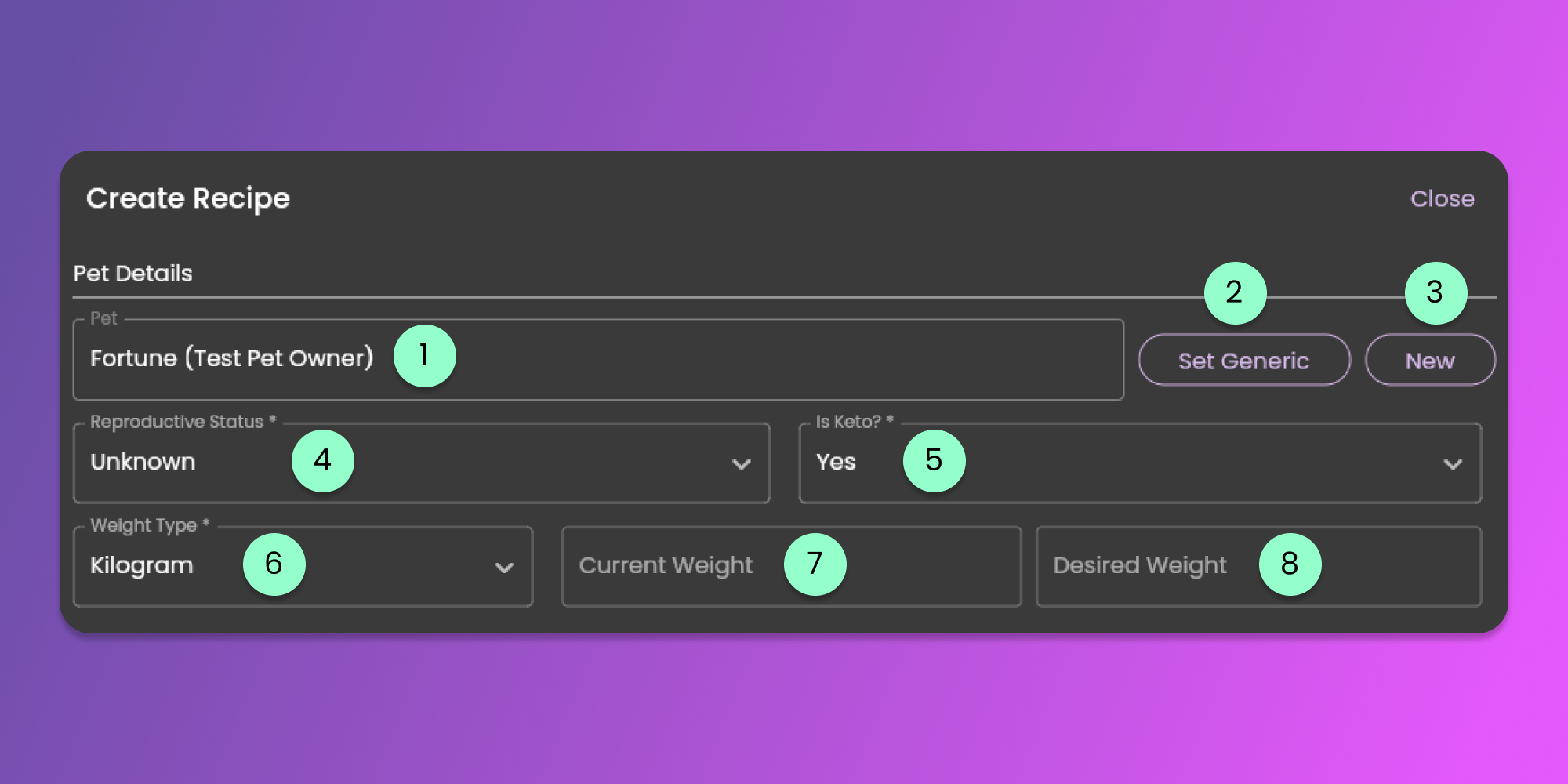
When creating the recipes, you need to provide the details mentioned in the form below. The recipe form contains 3 sections which are The Pet Details, Recipe Details, and Instructions.

The Pet Details

Most of the fields below are required when creating a recipe.

  1. Pet

    • Required. Clicking the field will show you the list of Pets that you created. The list will have the same functionalities similar to the Pets page. Click here to learn more about the Pets page.

  2. Set Generic

    • For the commercial subscription, you will have the ability to set a generic pet. Clicking the button will remove the selected pet and set it to Generic. You can still select the pet by clicking the Pet field.

  3. New Pet

    • Clicking the button will allow you to create a new Pet. After creating the pet, it will auto-select the created pet.

  4. Reproductive Status

    • Required. Clicking the field will provide the possible value for the Reproductive Status of the selected Pet. The default value is unknown.

  5. Is Keto

    • Required. This is the tag if the recipe is Keto based recipe

  6. Weight Type

    • Required. This will field will identify if the value provided in the Current Weight and Desired Weight is a Kilogram or Pounds.

  7. Current Weight

    • Optional. The current weight of the Pet.

  8. Desired Weight

    • Optional. The desired weight of the Pet. This will help the formulator to calculate the feeding amount per day.

circle-info

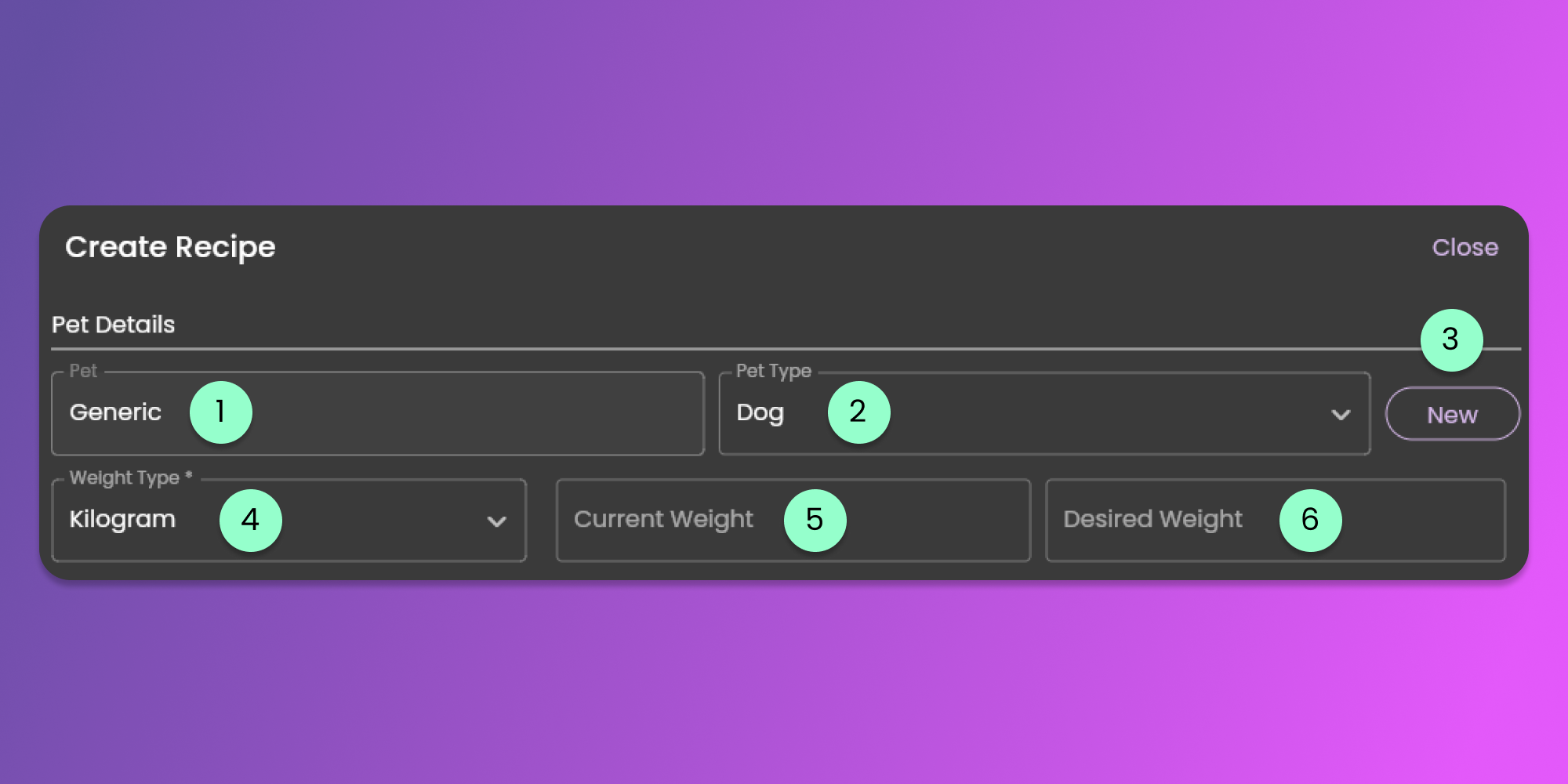
For users with a commercial subscription who selected a generic pet, below is the form for the Pet Details.

  • Pet

    • Required. Clicking the field will show you the list of Pets that you created. The list will have the same functionalities similar to the Pets page. Click here to learn more about the Pets page.

  • Pet Type

    • Since you are creating a recipe for a generic pet, you are required to set the Pet Type if it is a Dog or Cat.

  • New Pet

    • Clicking the button will allow you to create a new Pet. After creating the pet, it will auto-select the created pet.

  • Weight Type

    • Required. This will field will identify if the value provided in the Current Weight and Desired Weight is a Kilogram or Pounds.

  • Current Weight

    • Optional. The current weight of the Pet.

  • Desired Weight

    • Optional. The desired weight of the Pet. This will help the formulator to calculate the feeding amount per day.

Recipe Details

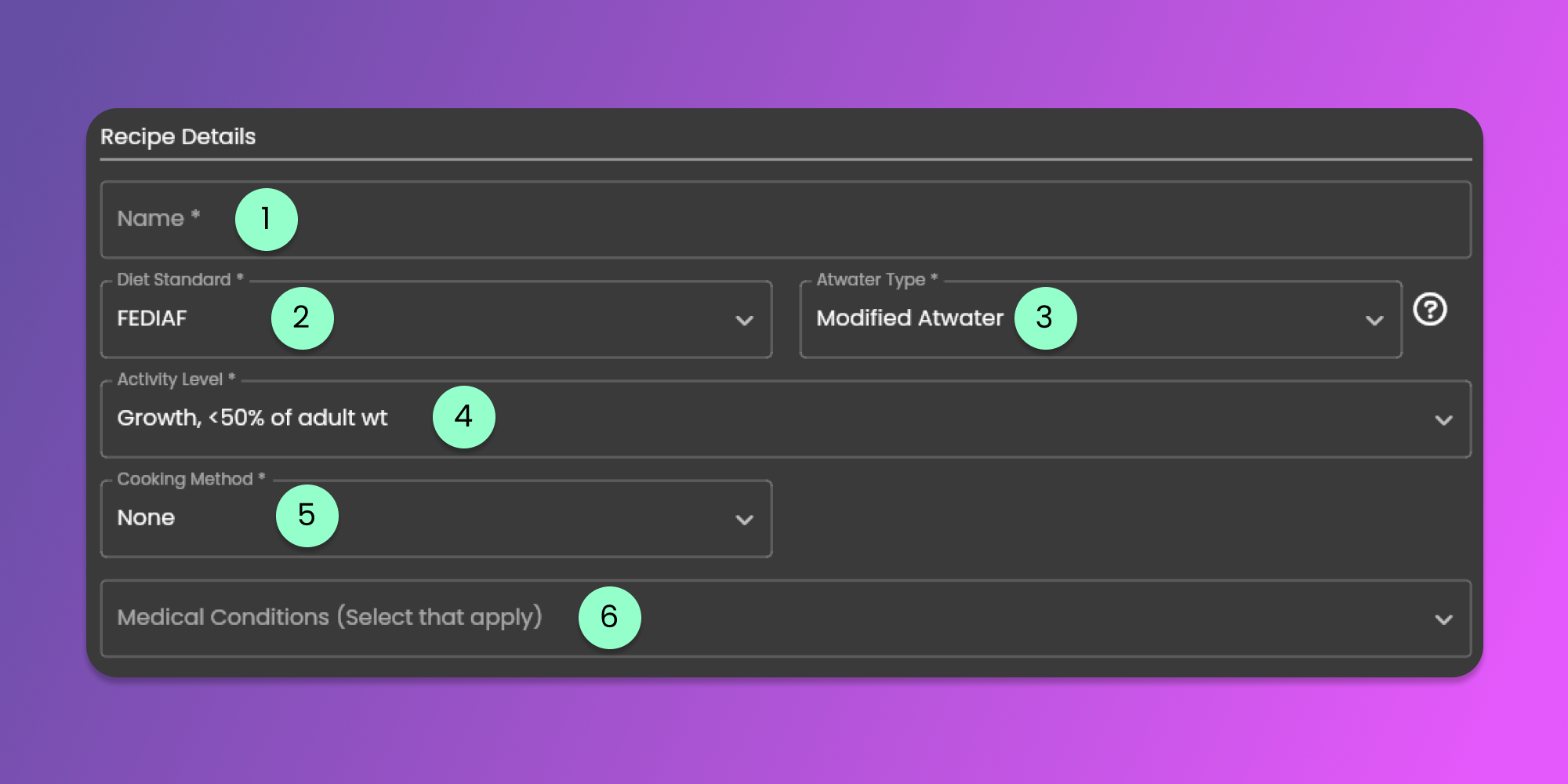
The form below will allow you to set the conditions for formulating the recipe.

  1. Name

    • Required. Name of the Recipe.

  2. Diet Standard

    • Required. Clicking the field will allow you to select your preferred standards such as AAFCO or FEDIAF.

  3. Atwater Type

    • Required. Clicking the field will allow you to select your preferred Atwater Type.

  4. Activity Level

    • Required. Clicking the field will provide a list of Activity Levels based on the Pet Type. This field will auto-select the first option when you change Pet or Pet Type in the Pet Details section.

    • Below are the Dog Activity Level Options:

    Activity Level Label

    K factor

    Type of activity

    Duration of activity

    Adult-Active

    110

    Low impact – walking

    OR outside in fenced yard or on tie out with no walking but in extreme environmental conditions

    1-3 hours/day

    OR

    Paces anxiously 1-3 hours/day

    Adult-Less Active

    95

    Leash walking; or digs outside in fenced yard

    <1 hour/day

    OR

    Paces anxiously <1 hour/day

    Adult-Indoor Sedentary

    85

    Outside in fenced yard or on tie out; no leash walks, does not dig or chase

    1-3 hours/day

    Adult-ADF Indoor Sedentary (couch potato)

    80

    Outside in fenced yard or on tie out; no leash walks, does not dig or chase

    <1 hour/day

    Adult-ADF Weight Loss

    70

    Adult-More Active

    125

    High impact – playing fetch/with other dogs, agility/other sports OR swimming

    1-3 hours/day

    OR

    Paces anxiously >3 hours/day

    Adult-Very Active

    150-175

    High impact – playing fetch/with other dogs, agility/other sports OR swimming

    OR caged laboratory dogs

    3-6 hours/day

    OR 1-3 hours/day in extreme environmental conditions

    Adult-Working Dog

    150-170

    Herding, hunting

    3-6 hours/day

    Adult-Sled Dog

    860-1240

    High activity under extreme environmental conditions – racing sled dogs in extreme cold

  5. Cooking Method.

    • Required. Clicking this field will provide a list of options for the Cooking Method. Selecting Freeze-Dried or Dehydrated will require you to provide the Retained Moisture percentage.

  6. Medical Conditions

    • Optional. This field will allow you to tag the pet with possible Medical Conditions.

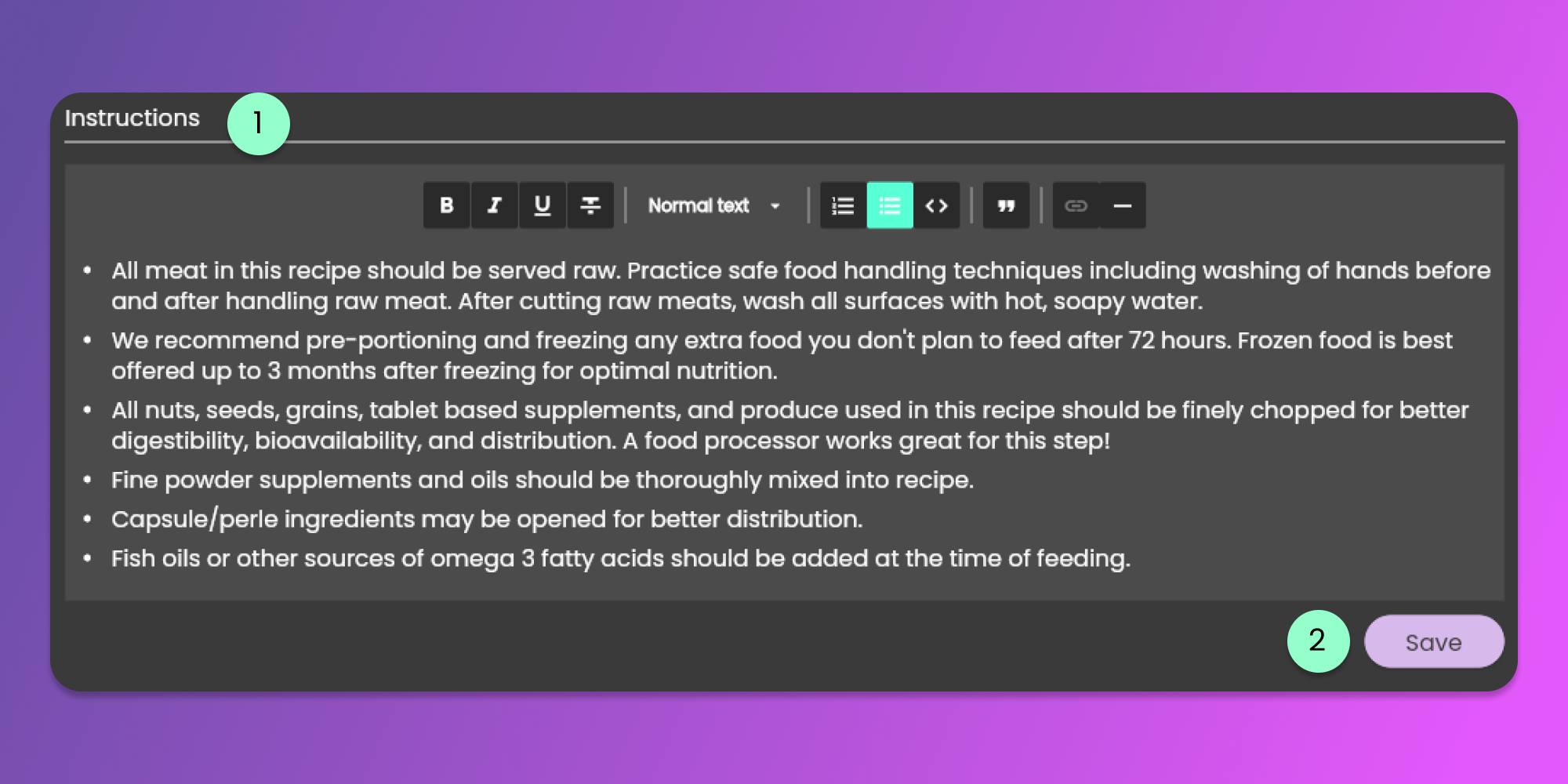
Instructions for Preparing the Recipe

  1. Instructions

    • This field will allow you to provide the details on how to prepare the recipe that you are creating. This information will be included when generating reports.

  2. Save Button

    • Click the button to Save the Measurement's Details

Updating Recipes

To update the recipe information, you need to be on the Recipes Page. To go to the recipes page, follow the steps mentioned here.

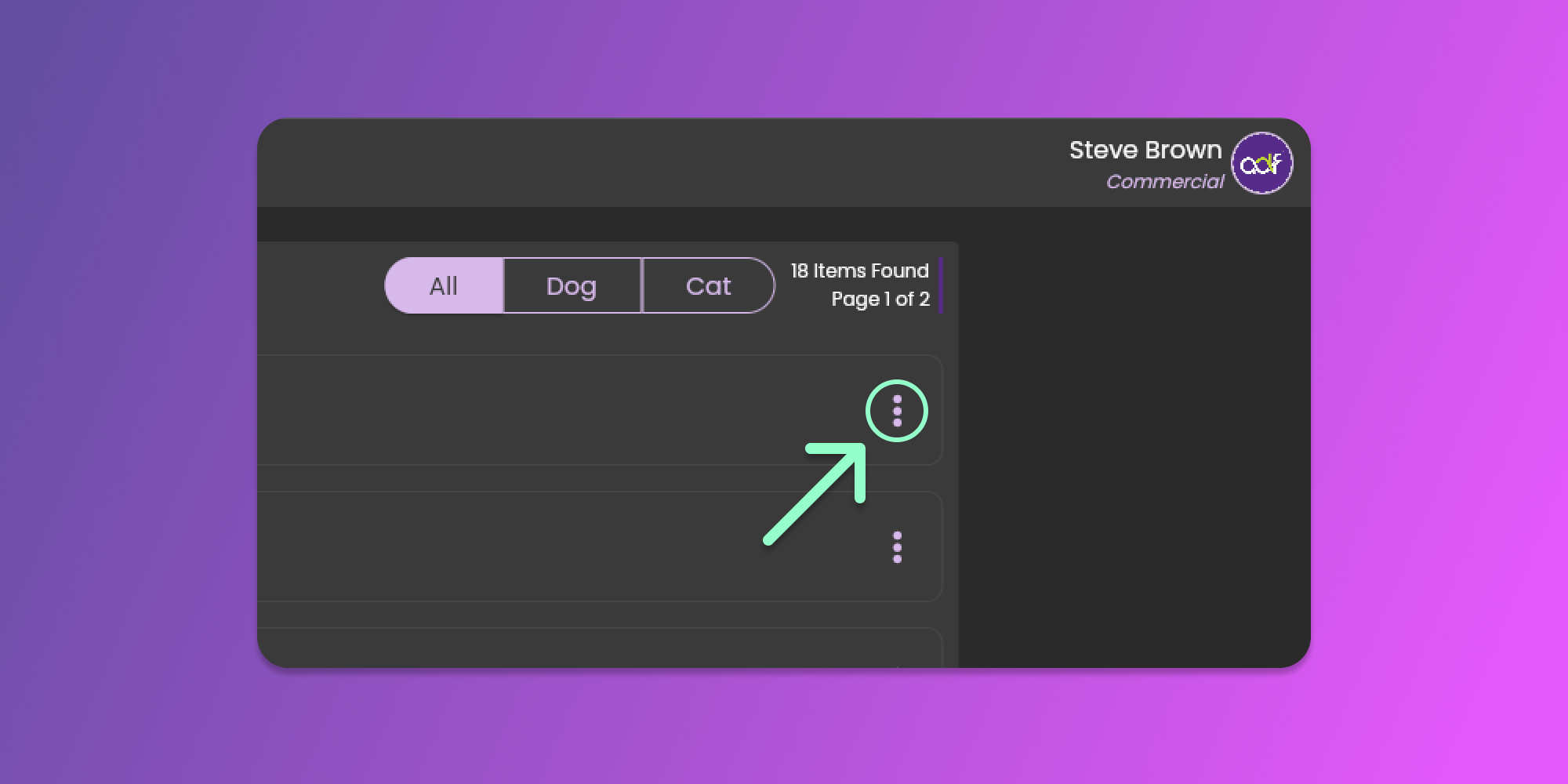
When you are on the recipes page, you can see the list of the recipes that you created. You can click the three horizontal dots icon (known as Item Menu). See the image below.

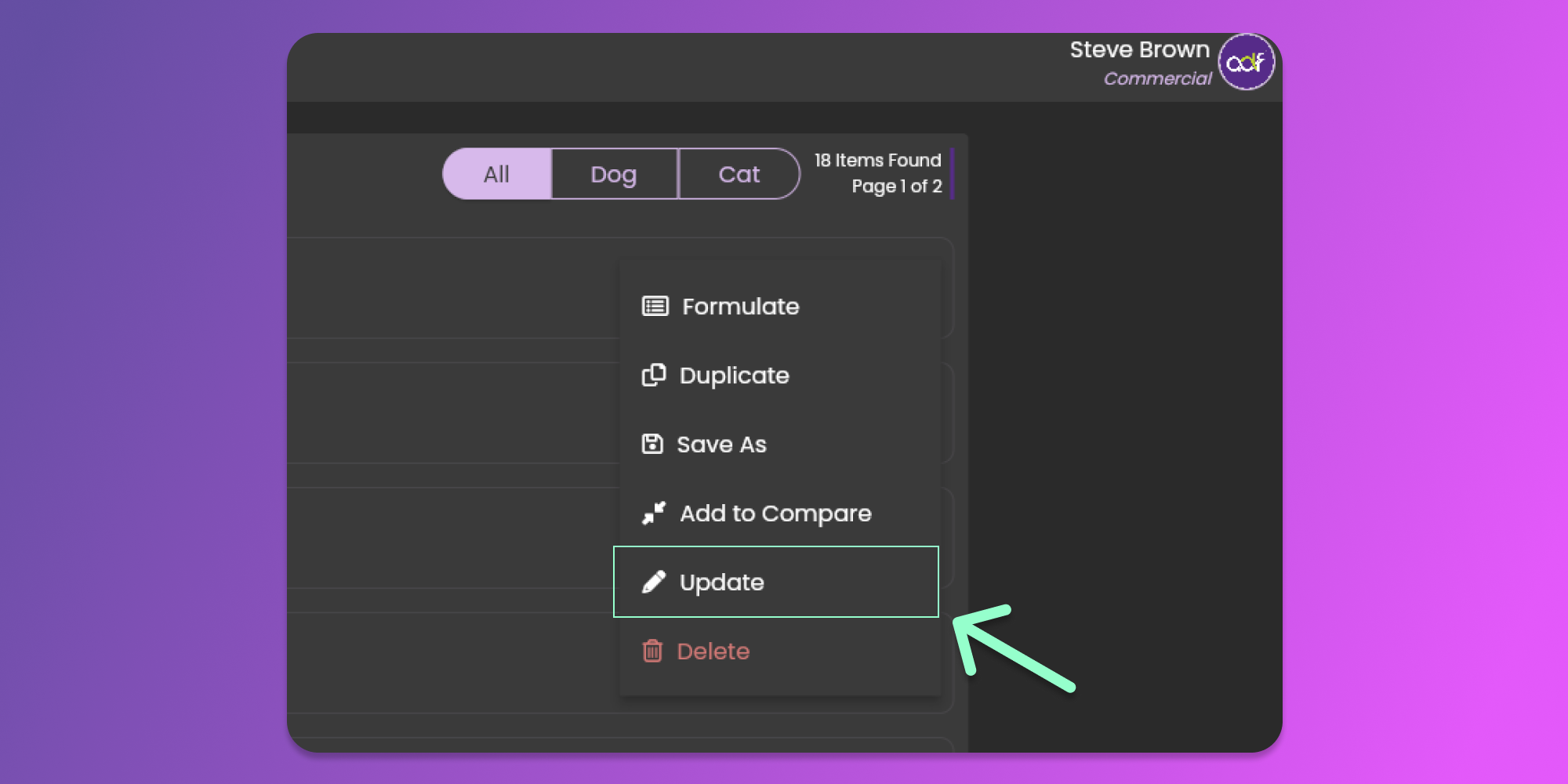
After clicking the horizontal dots icon, click the update button to view the form.

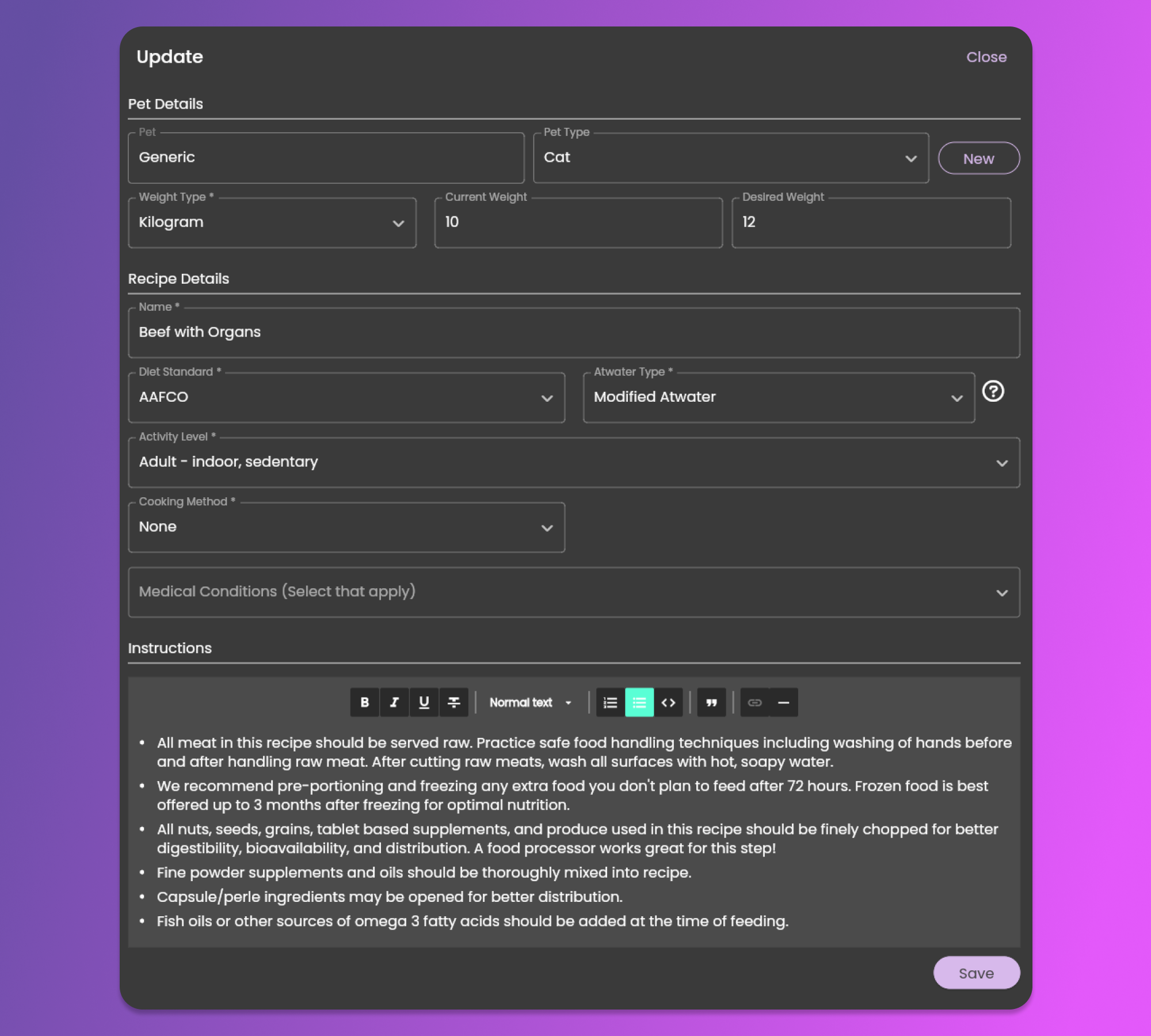
The same form used to create new Recipes will show up with pre-filled information based on the item that you want to update. See the image below.

After updating the field that you want to modify, click the save button at the bottom right part of the form.

To learn more about the fields, click here.

Deleting Recipes

Every recipe that you create consumes your allowed number of Recipes. In the event you are not using one of your recipes, we recommend deleting the unused recipe.

To do this action, similar to updating the recipe you need to be on the Recipes Page. To go to the page, follow the steps mentioned here.

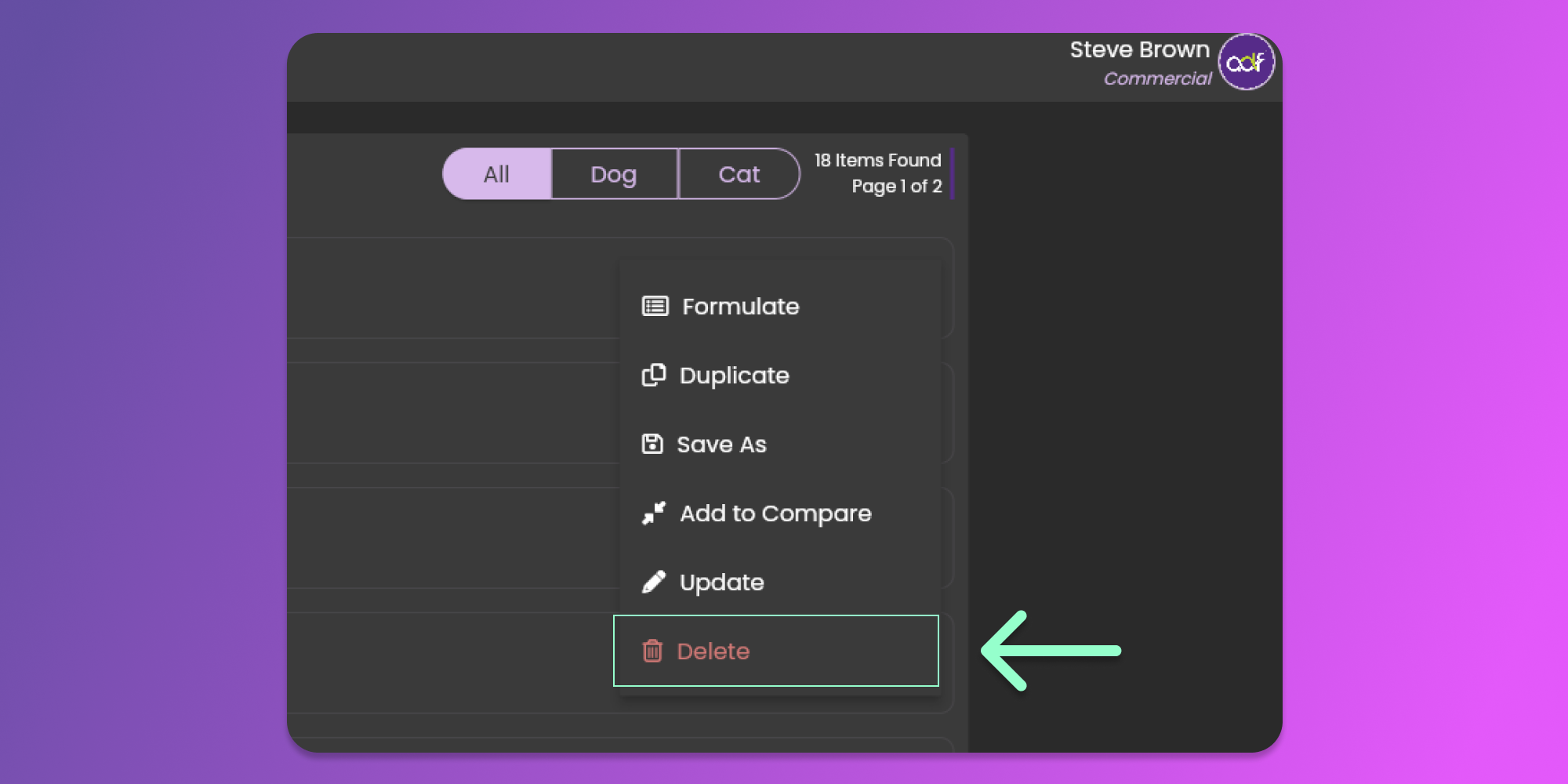
When you are on the recipes page, you can see the list of created recipes. Click the three horizontal dots icon (known as Item Menu) to show the options for the specific item. See the image below.

After clicking the horizontal dots icon, click the delete button to remove the recipe.

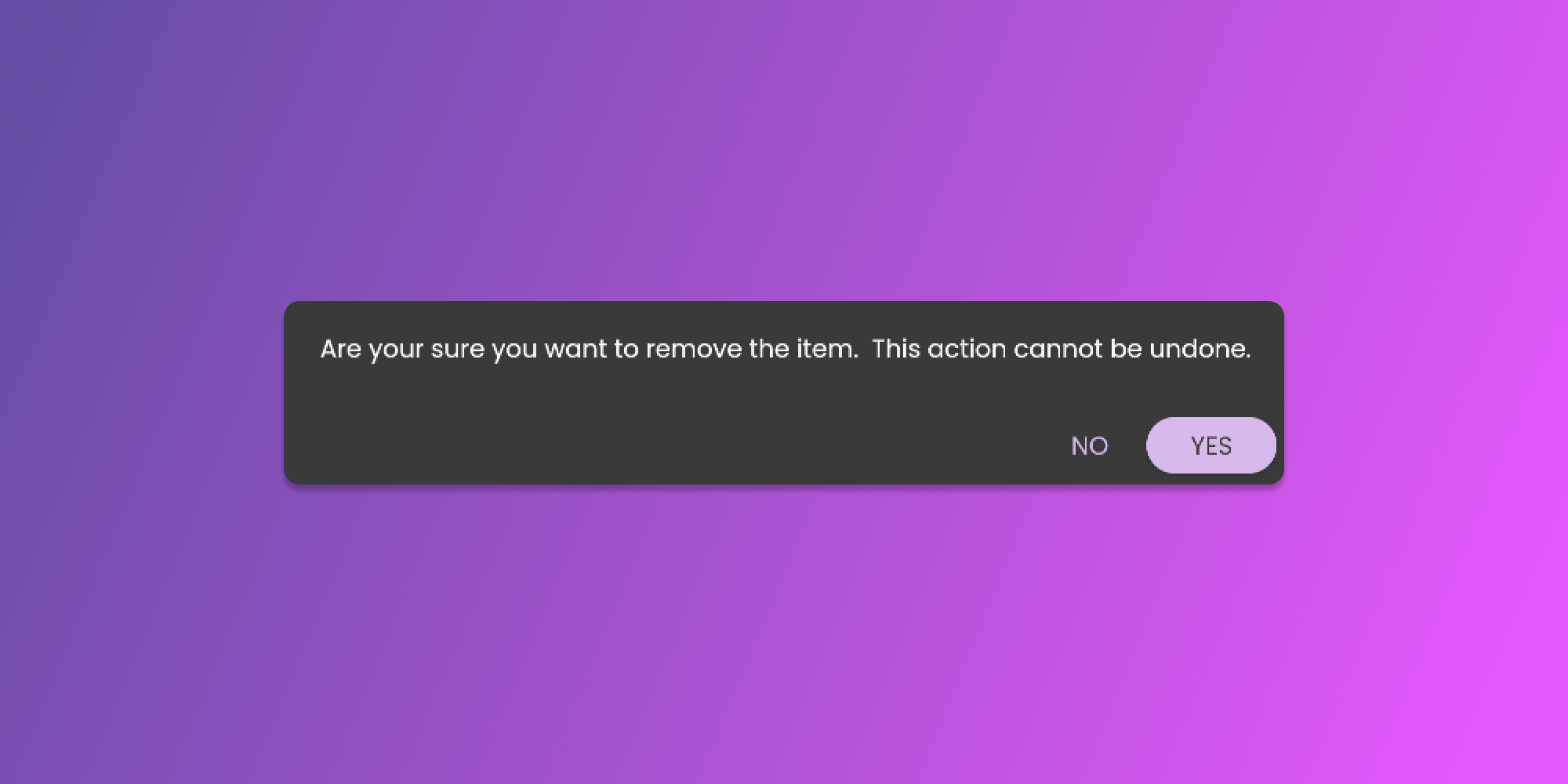
After clicking the delete button, there will be a confirmation pop-up that will require your attention before we remove the recipe. See the image below.

Duplicating Recipes

To duplicate a recipe, you need to be on the Recipes Page. To go to the page, follow the steps mentioned here.

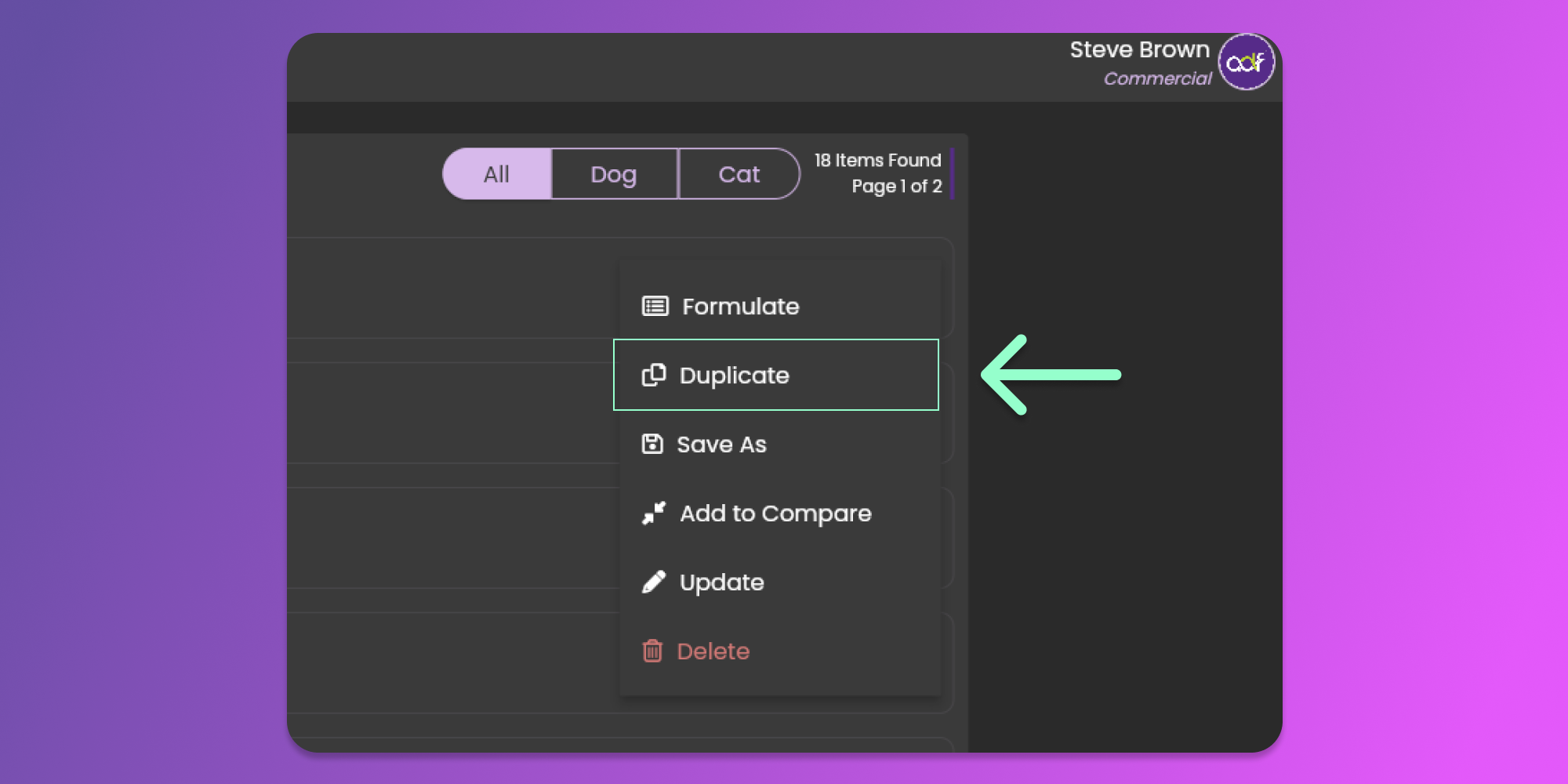
When you are on the recipes page, you can see the list of created recipes. Click the three horizontal dots icon (known as Item Menu) to show the options. See the image below.

After clicking the horizontal dots icon, select Duplicate to re-create the recipe.

After clicking the duplicate button, there will be a confirmation pop-up that will require your attention before we create the recipe. See the image below.

By confirming the duplication, the software will copy the specific recipe with a suffix of "Copy" in its name.

Save As a new Recipe

You can duplicate a recipe under a different name by using the Save As feature.

To do this action, similar to updating the recipe you need to be on the Recipes Page. To go to the page, follow the steps mentioned here.

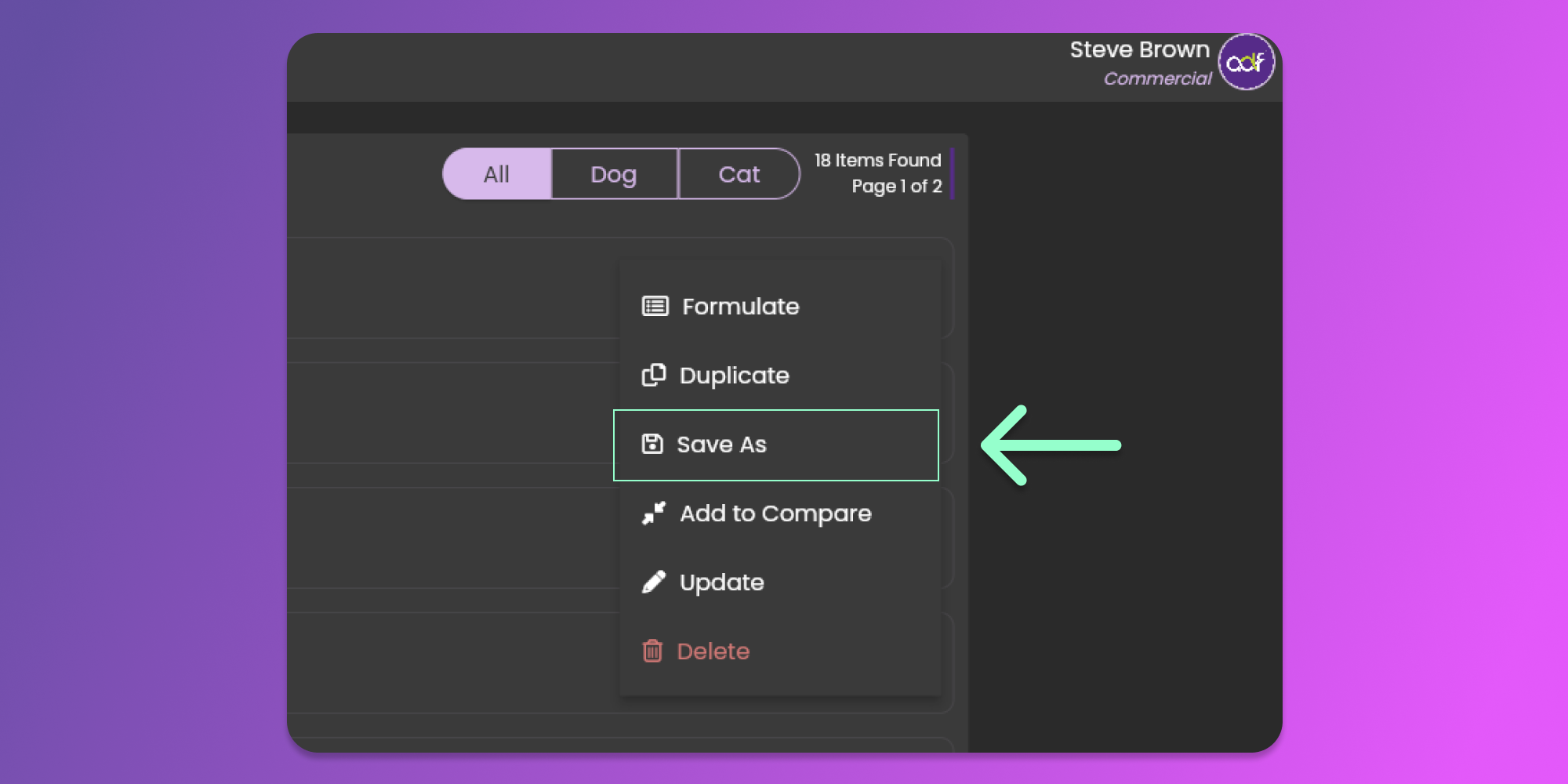
When you are on the recipes page, you can see the list of created recipes. Click the three horizontal dots icon (known as Item Menu) to show the options for the specific item. See the image below.

After clicking the horizontal dots icon, select the "Save As" button to re-create the recipe.

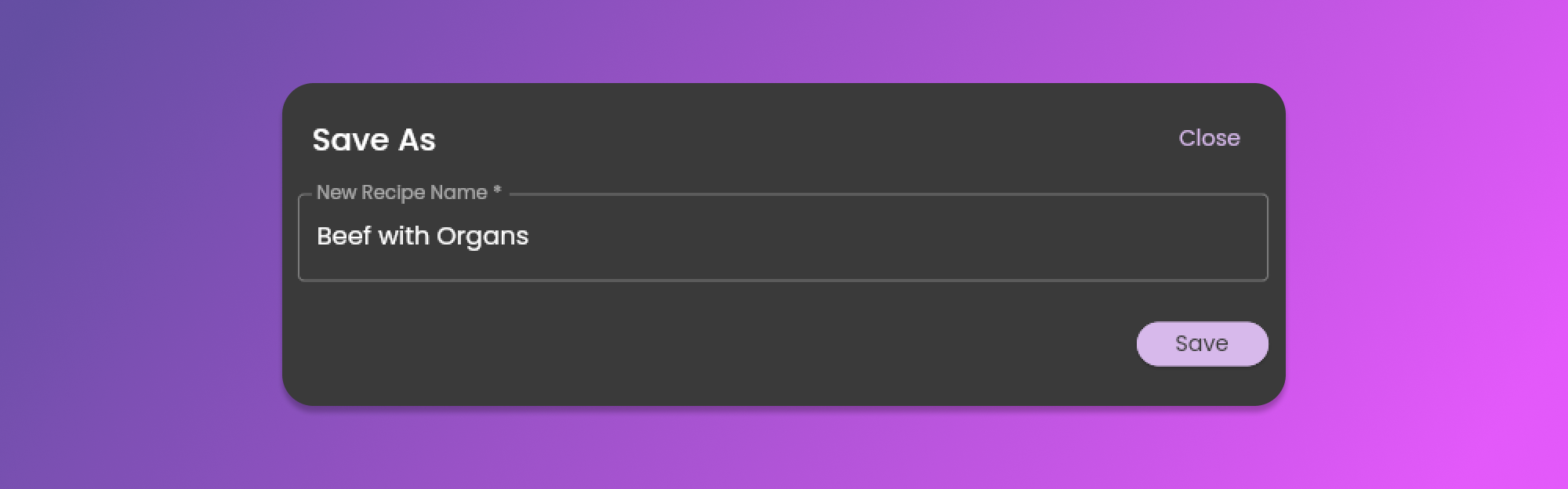
After clicking the menu item, the pop-up will ask you to provide the new name of the recipe. After you provide the name, click the Save button at the bottom right of the form to create a new recipe.

Last updated