> For the complete documentation index, see [llms.txt](https://docs.animaldietformulator.com/llms.txt). Markdown versions of documentation pages are available by appending `.md` to page URLs; this page is available as [Markdown](https://docs.animaldietformulator.com/animal-diet-formulator/recipes/recipe-ingredients.md).
# Recipe Ingredients
Below are the ingredient action options.
### Adding Ingredients
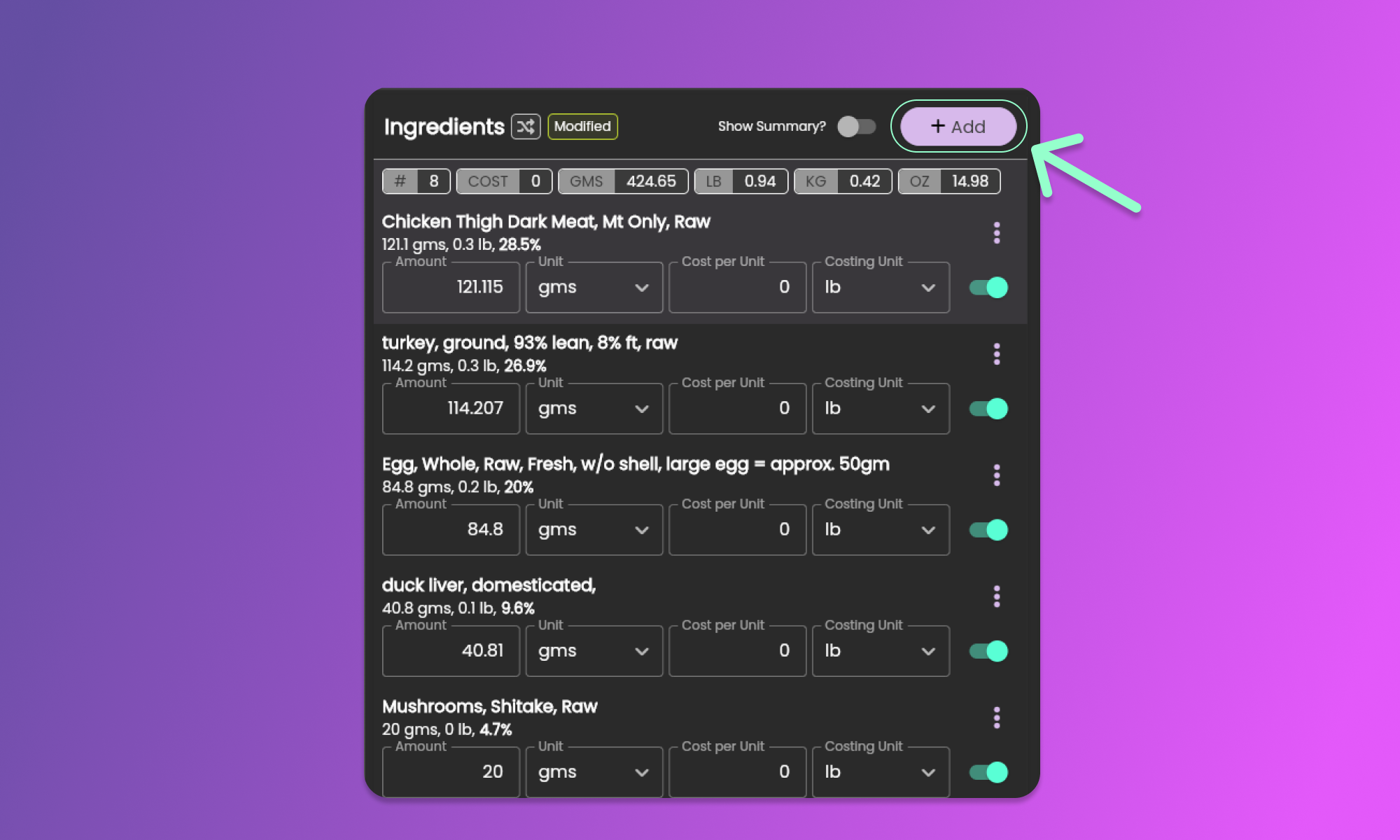
Start adding ingredients by clicking the Add button in the[ Ingredients Section](/animal-diet-formulator/recipes/formulation.md#ingredients-section). See the image below.
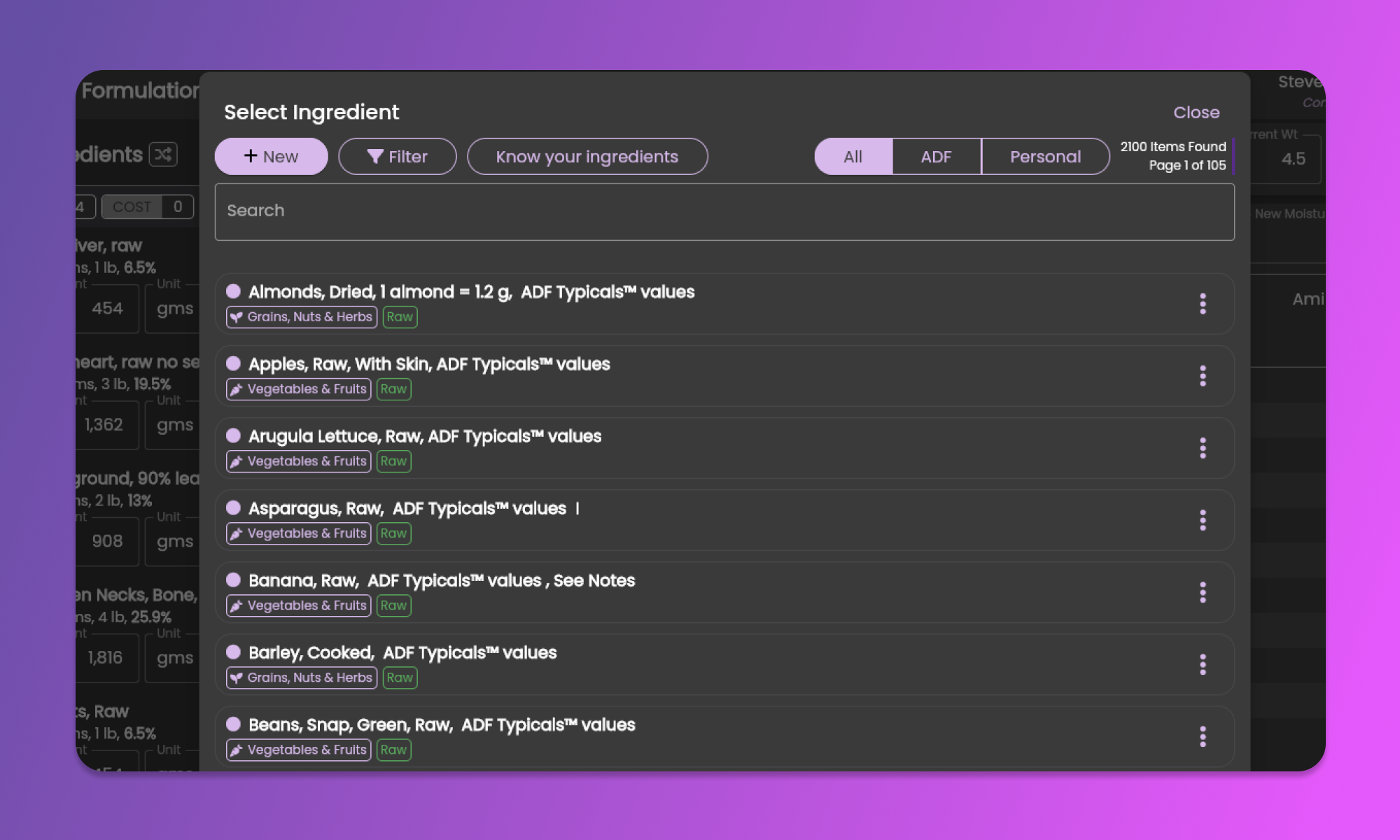
After clicking the Add button a pop-up will show containing the ingredients list. Click ingredients from the list to add to the recipe. To learn more on how to manage the ingredients list, please click [here](/animal-diet-formulator/ingredients.md).
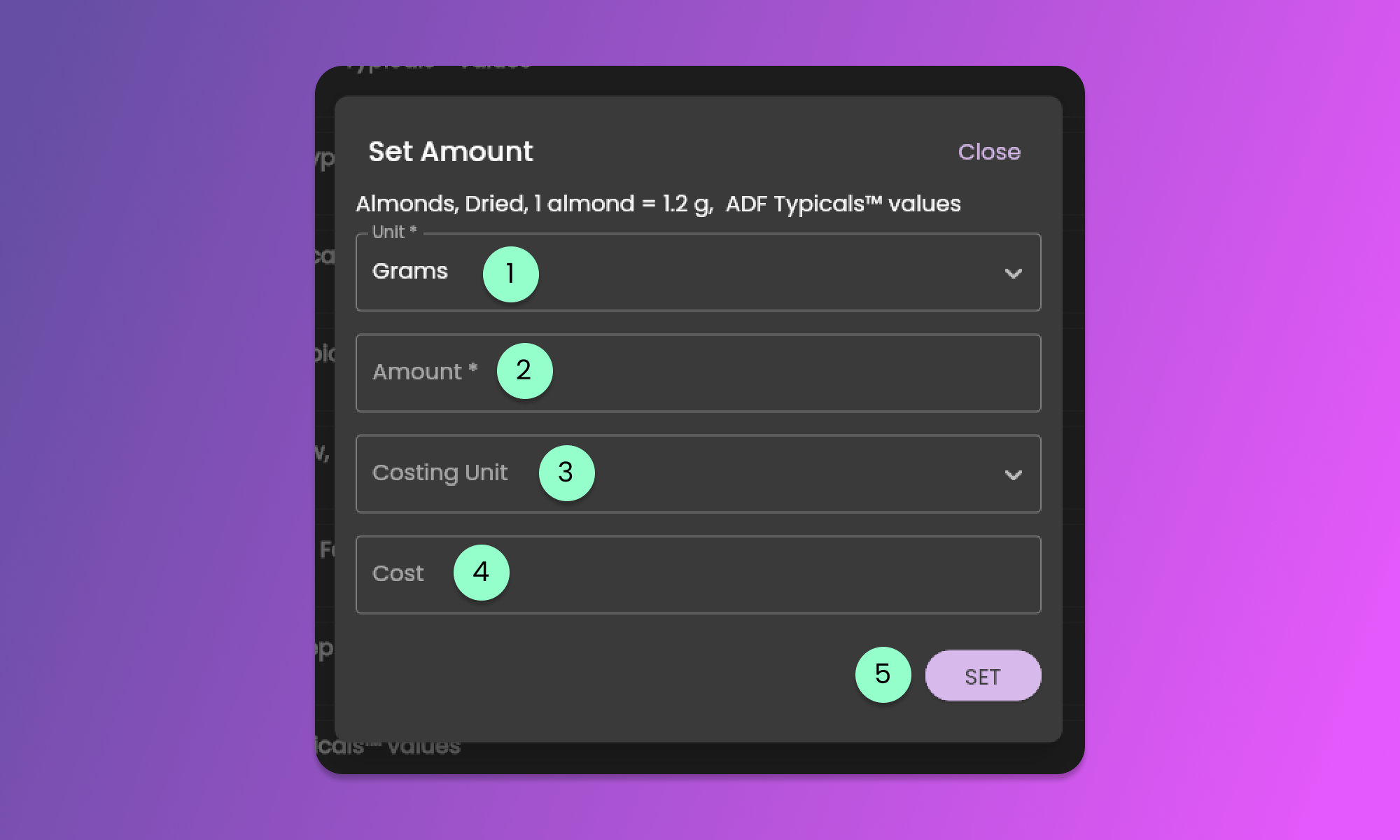
After selecting the ingredient, a pop-up will show for you to provide the weight (required) and cost (optional) of the ingredient.
1. Unit
* In this field, identify the unit of weight of the selected ingredient. Clicking here will list the measurements available for you. To add more units, please click [here](/animal-diet-formulator/measurements.md).
2. Amount
* Provide the numerical value of the weight of the selected ingredient.
3. Costing Unit
* In this field, identify the unit of the cost of the selected ingredient.
4. Cost
* Provide a numerical value here for use in calculating the whole recipe cost.
5. Set button
* This button will add the selected ingredient to the recipe together with the provided values from this form.
{% hint style="info" %}
Please be informed that you need to click the Save button from the [Formulation Menu](/animal-diet-formulator/recipes/formulation.md#formulation-menu-section) to store the recipe information.
{% endhint %}
After adding the ingredients, you will still have the option to change the information that you provided.
### Ingredient Information
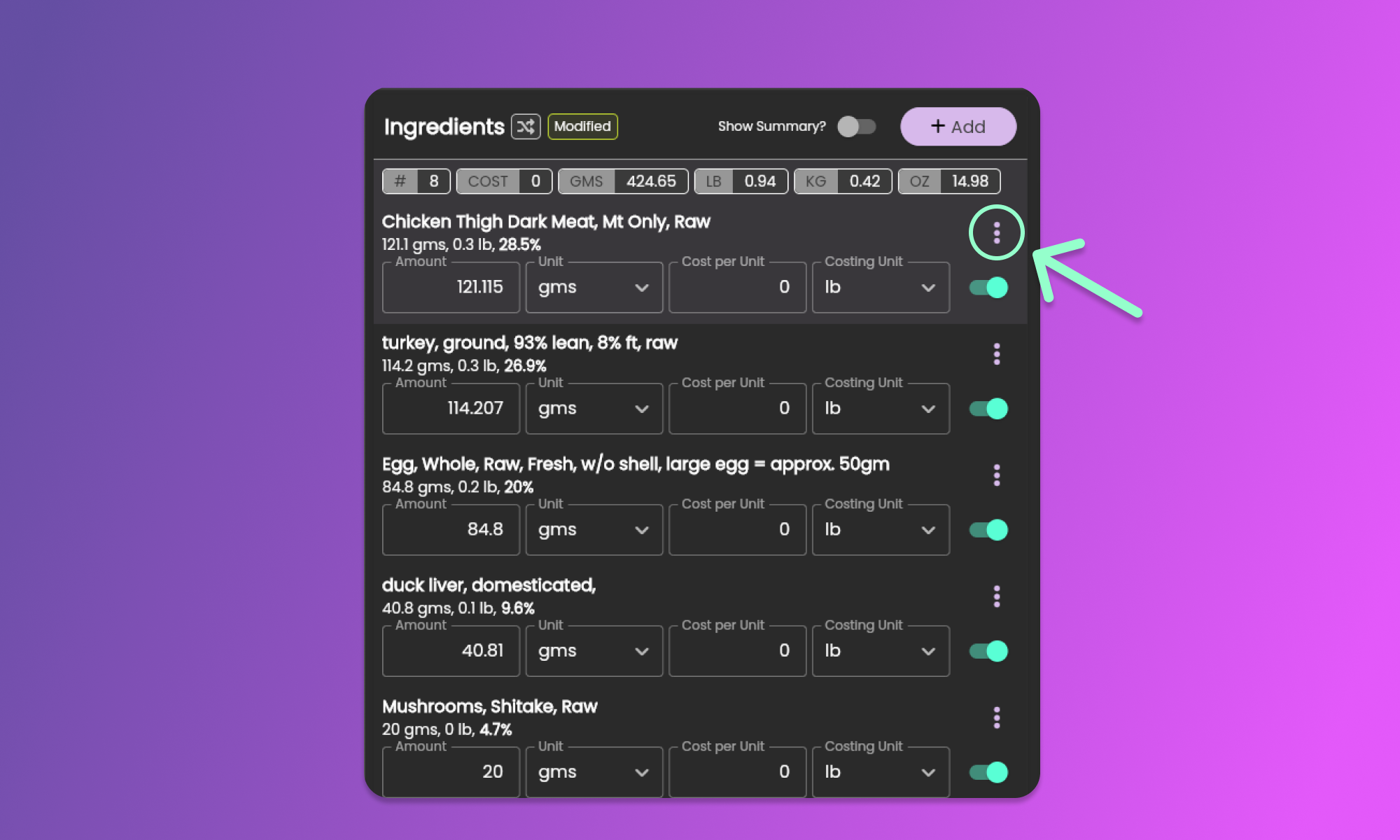
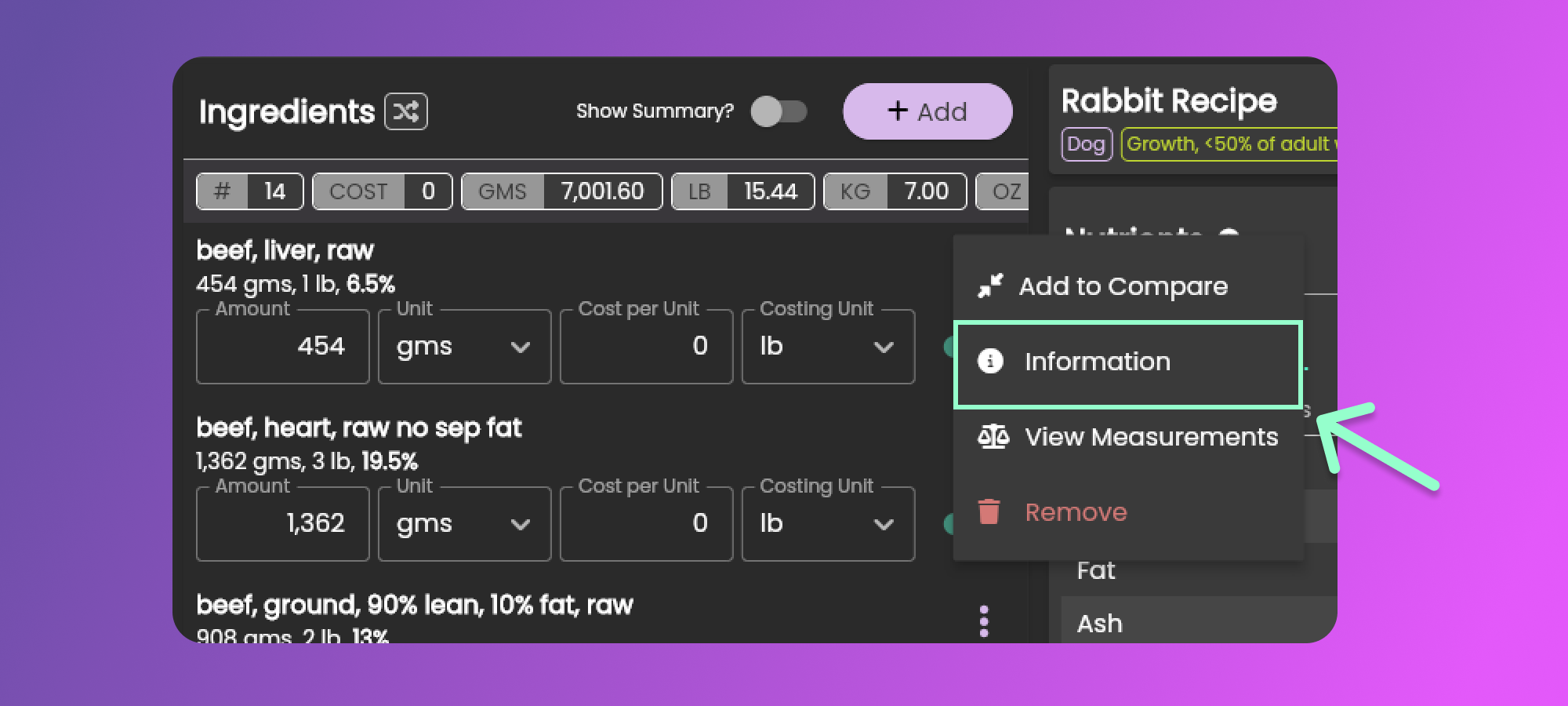
To view the specific ingredient information and nutrients while formulating, click the three vertical dots to view the Ingredient Menu.
In the ingredients Menu, click the Information menu item to view the Ingredient Information.
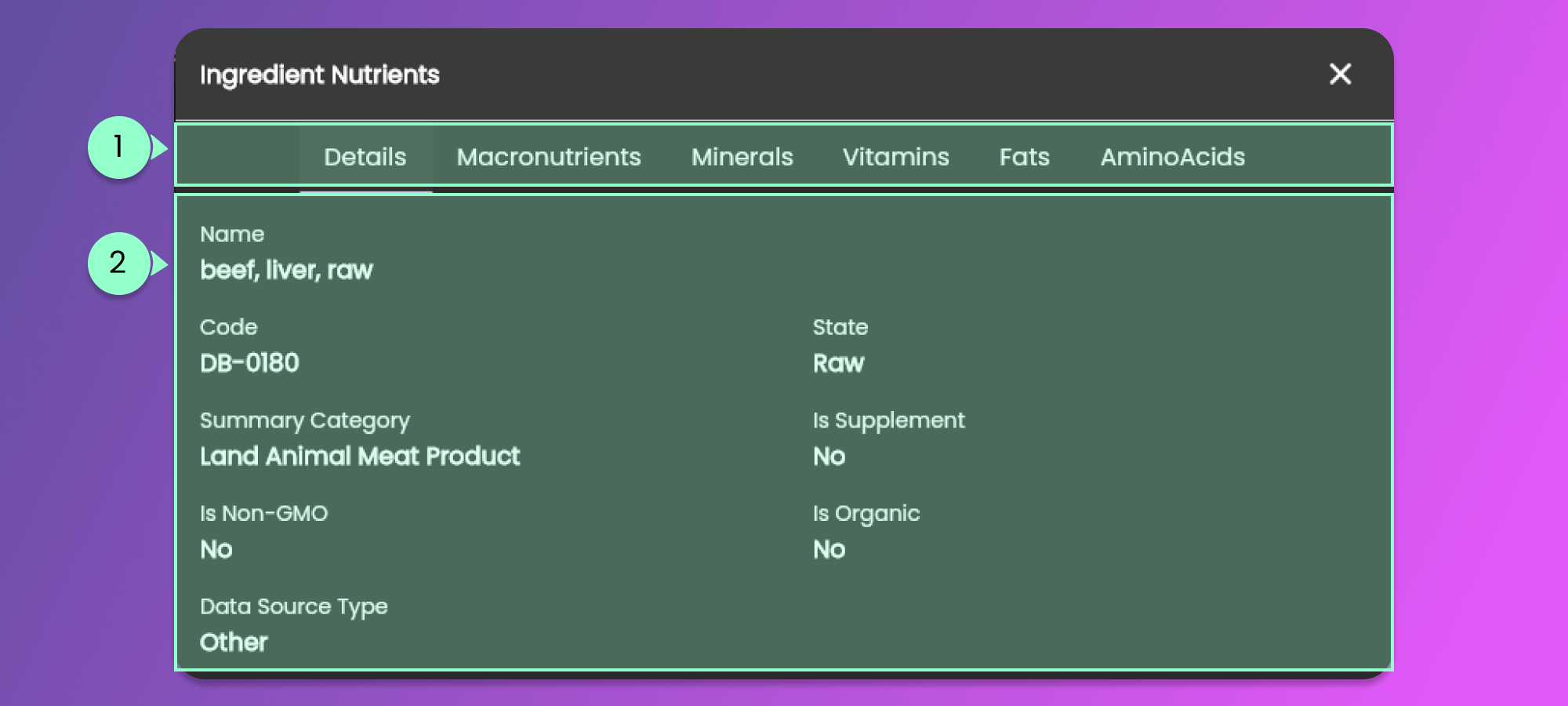
The below image is a pop-up that will show the Ingredient Information.
1. Ingredient Information Tab Buttons
* Clicking the tab buttons will change the content shown in the Tab Content.
2. Ingredient Information Tab Content
* This will display the ingredient information or the ingredient nutrients based on the selected Tab button.
### Ingredient Measurements
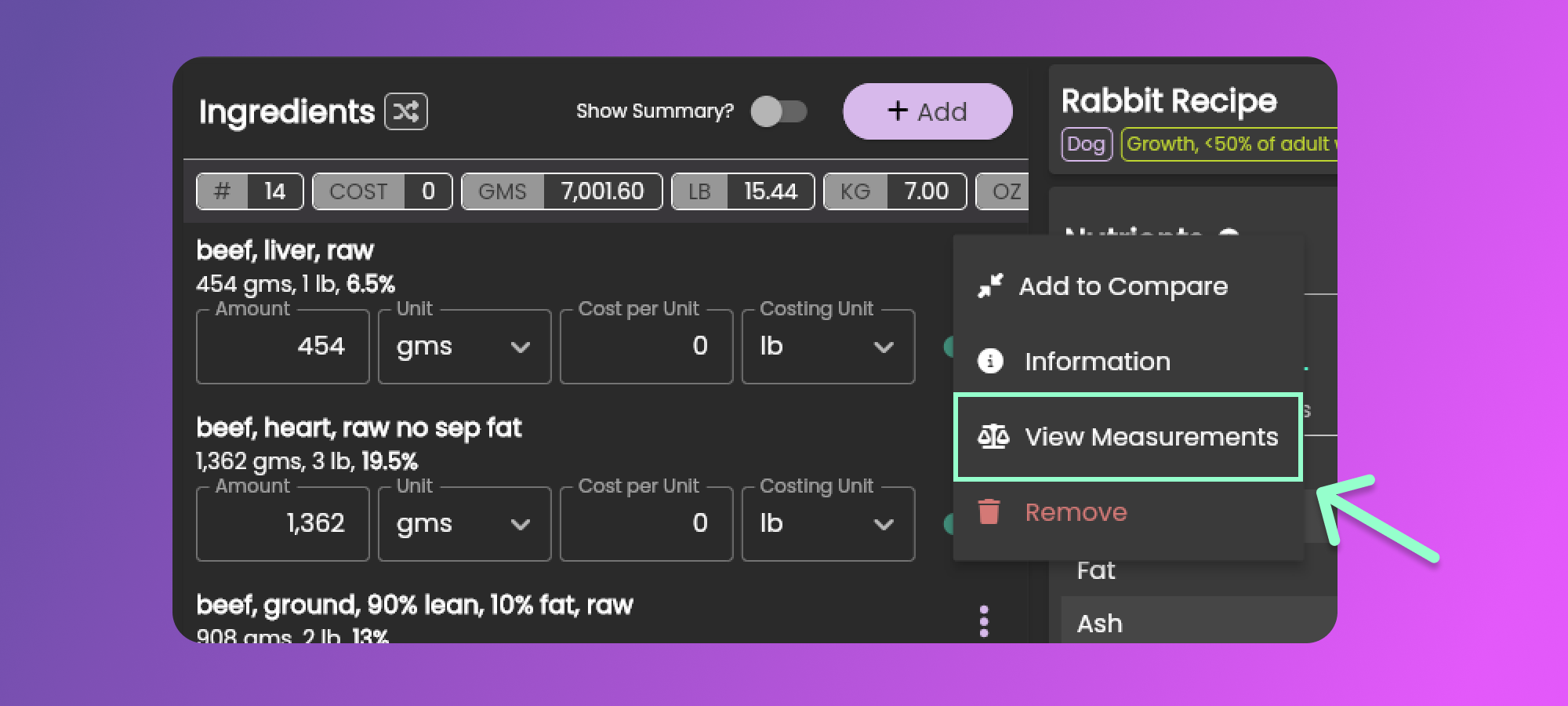
To view more measurement value of the specific ingredient, click the three vertical dots to view the Ingredient Menu.
In the Ingredients Menu, click the View Measurements menu item to view the other units of weight.
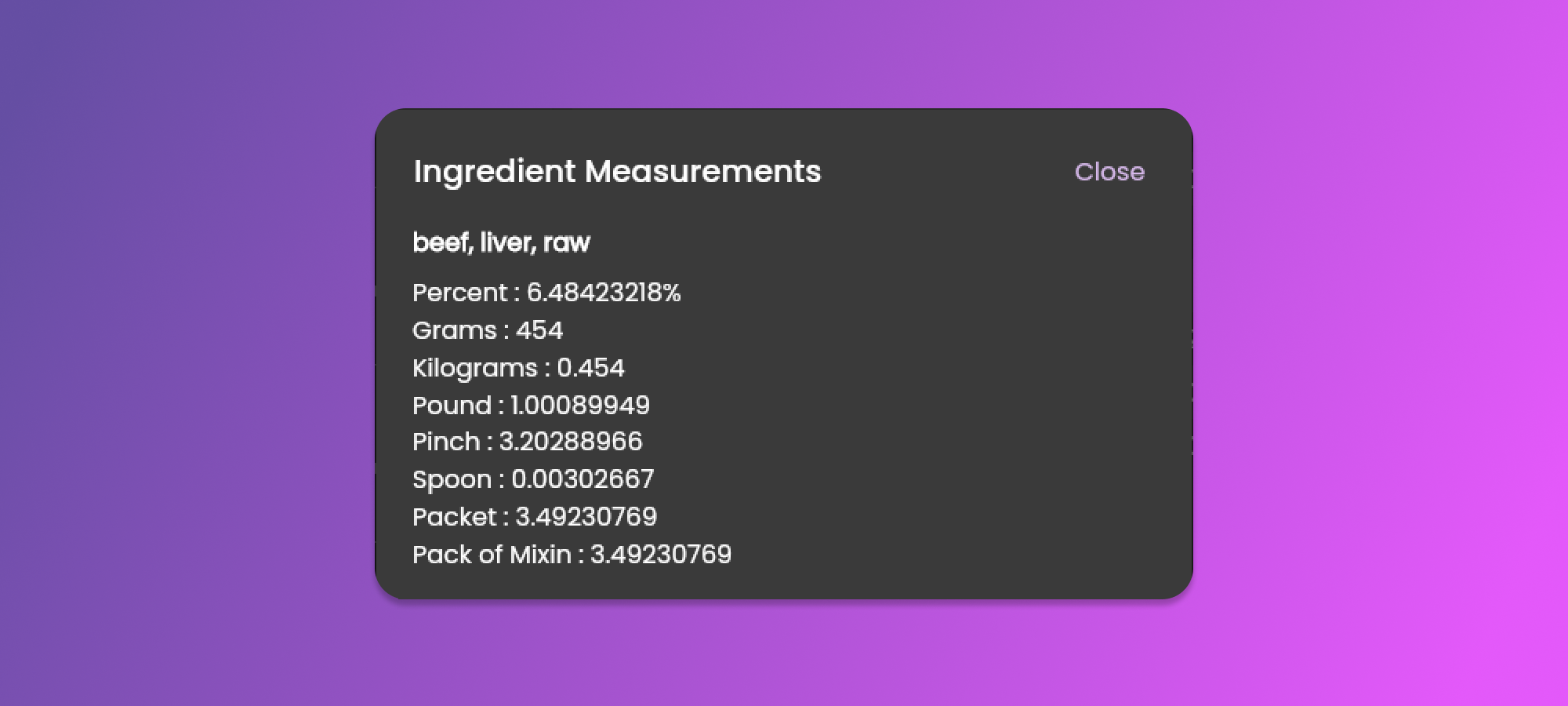
The below image is the pop-up that will appear containing the weights of the ingredients based on the available measurements.
### Add to Compare Ingredients
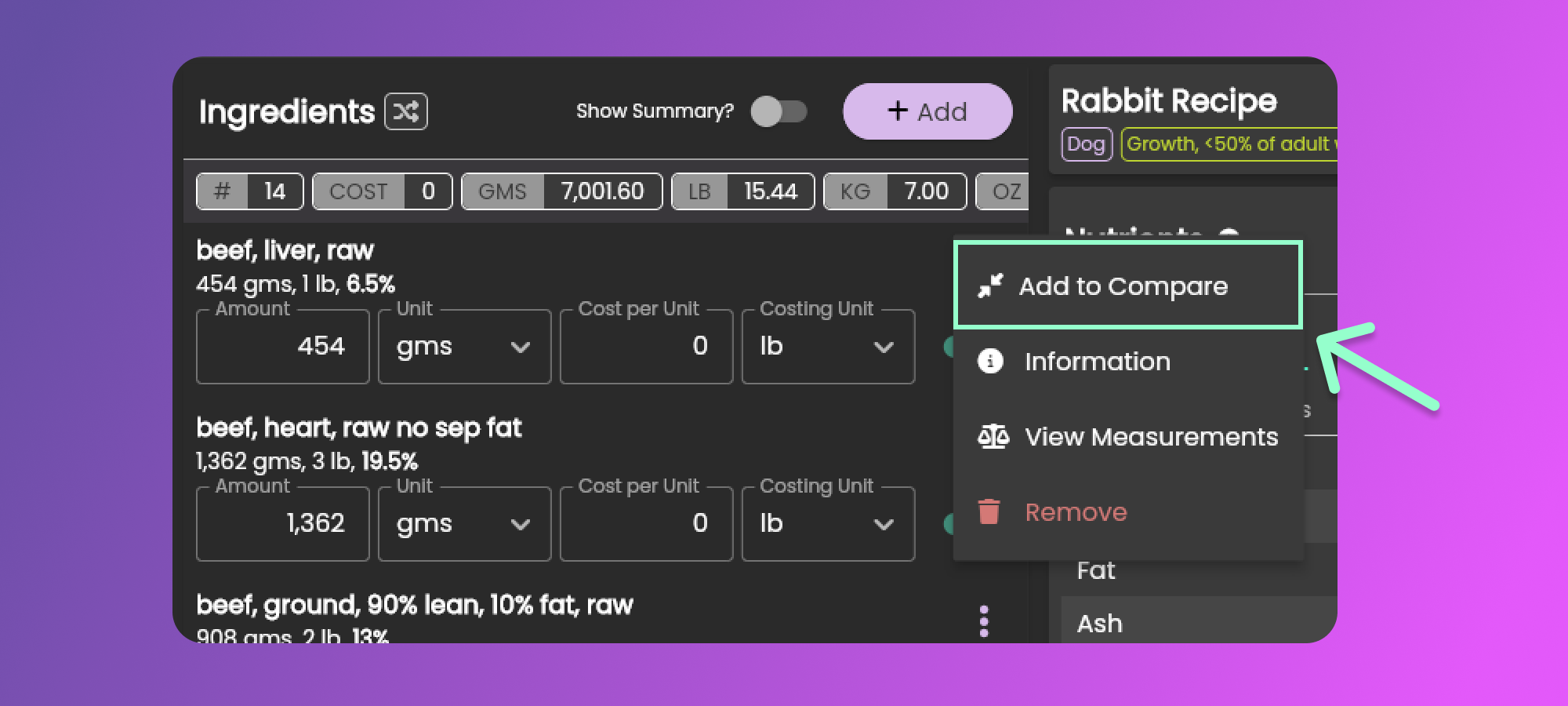
To add the ingredient for comparison with other ingredients, click the three vertical dots to view the Ingredient Menu.
In the Ingredients Menu, click the Add to Compare menu item to add the ingredient for comparison with the other ingredients.
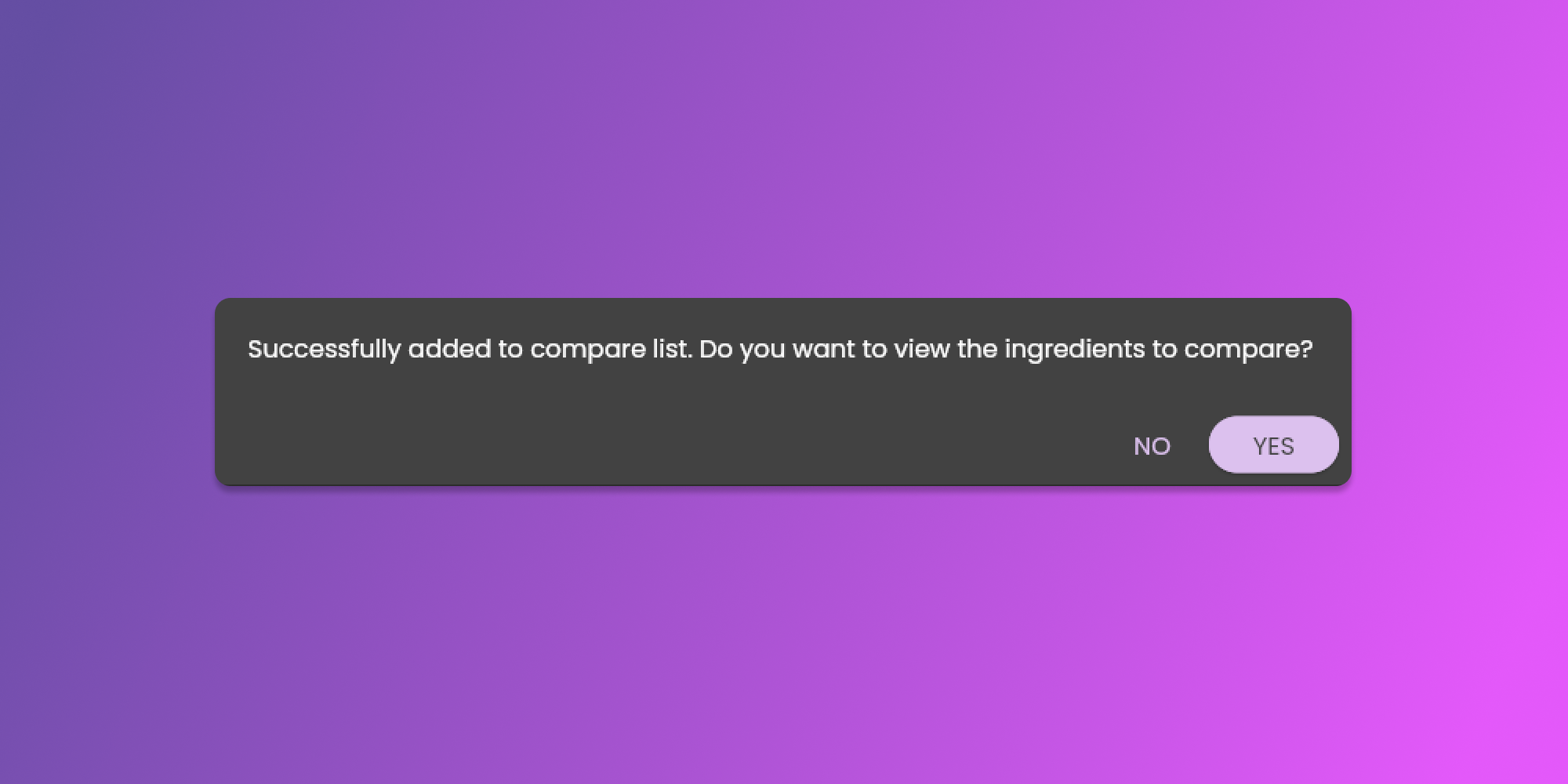
This action will add the ingredient to the list of ingredients to compare. A pop-up message will prompt you if you want to proceed to view the ingredients that you want to compare.
Clicking the Yes button will show the Compare Ingredients pop-up. Click [here](/animal-diet-formulator/compare-ingredients.md) to learn more about comparing ingredients.
### Removing Ingredients
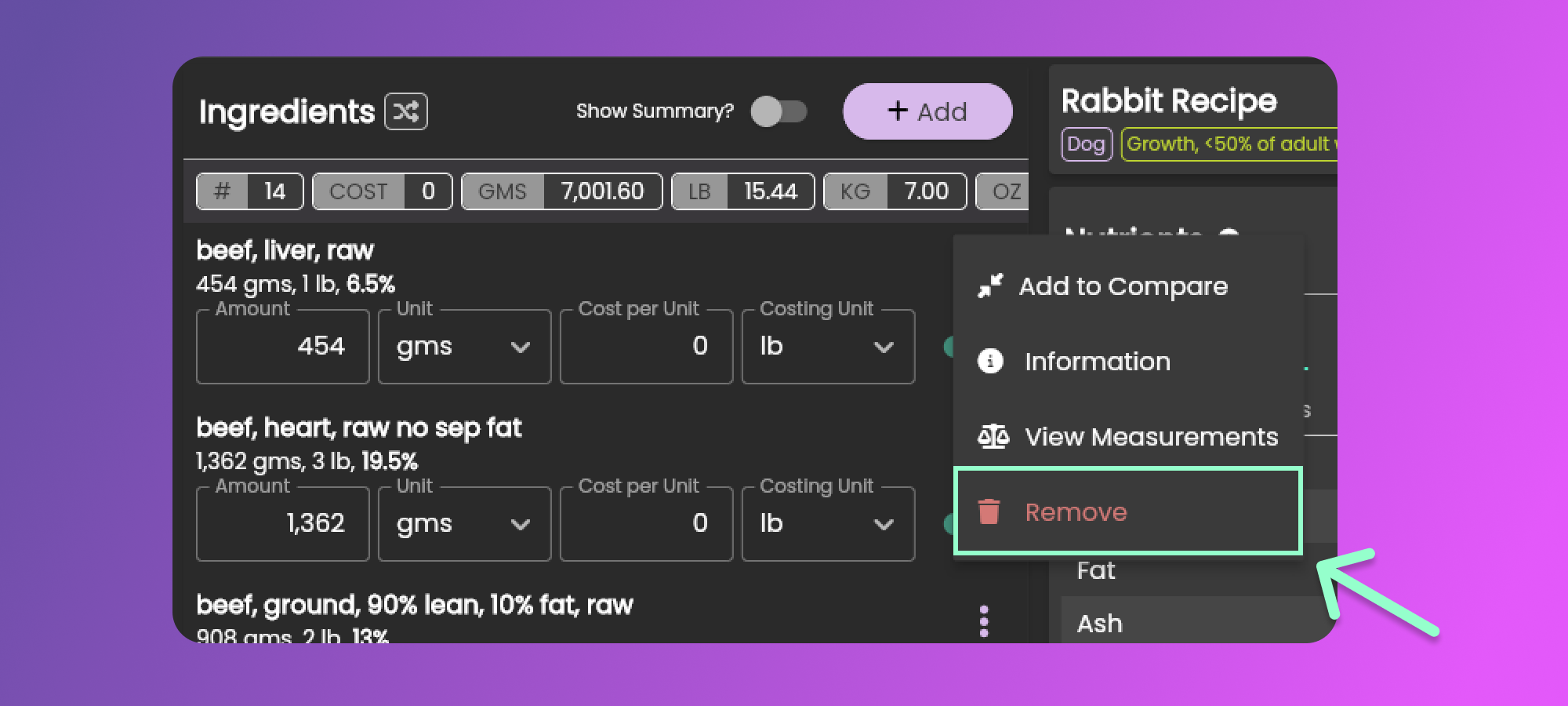
To remove the ingredients from the Recipe, click the three vertical dots to view the Ingredient Menu.
In the Ingredients Menu, you can click the Remove menu item to remove the ingredient from the Recipe.