> For the complete documentation index, see [llms.txt](https://docs.animaldietformulator.com/llms.txt). Markdown versions of documentation pages are available by appending `.md` to page URLs; this page is available as [Markdown](https://docs.animaldietformulator.com/members-area/support-tickets.md).
# Support Tickets
You can monitor all support tickets you submitted. We make every attempt to respond to your inquiries within 24 to 48 hours.
To access the support tickets please be sure that you have signed in with your account.
{% hint style="info" %}
To log in with your account, follow the steps mentioned [here](/members-area/profile/login.md).
{% endhint %}
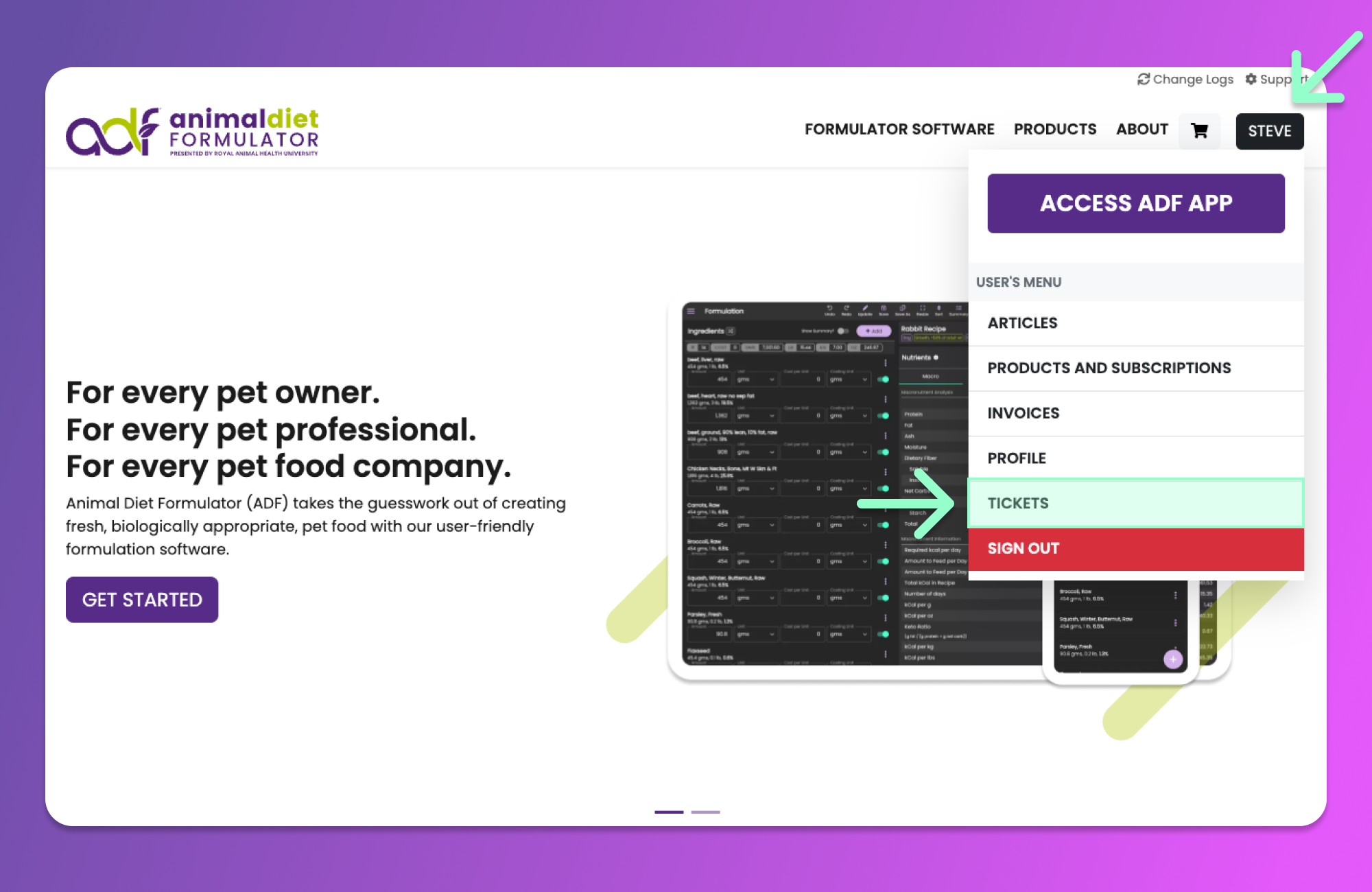
Access the User's Menu similar to the image below by hovering your mouse over your Name's button. Click the "Tickets" Menu item from the User's Menu to access the Support Tickets page.
{% hint style="info" %}
You can also access the User's Menu by going to the [User's Dashboard](/members-area/profile/user-dashboard.md).
{% endhint %}
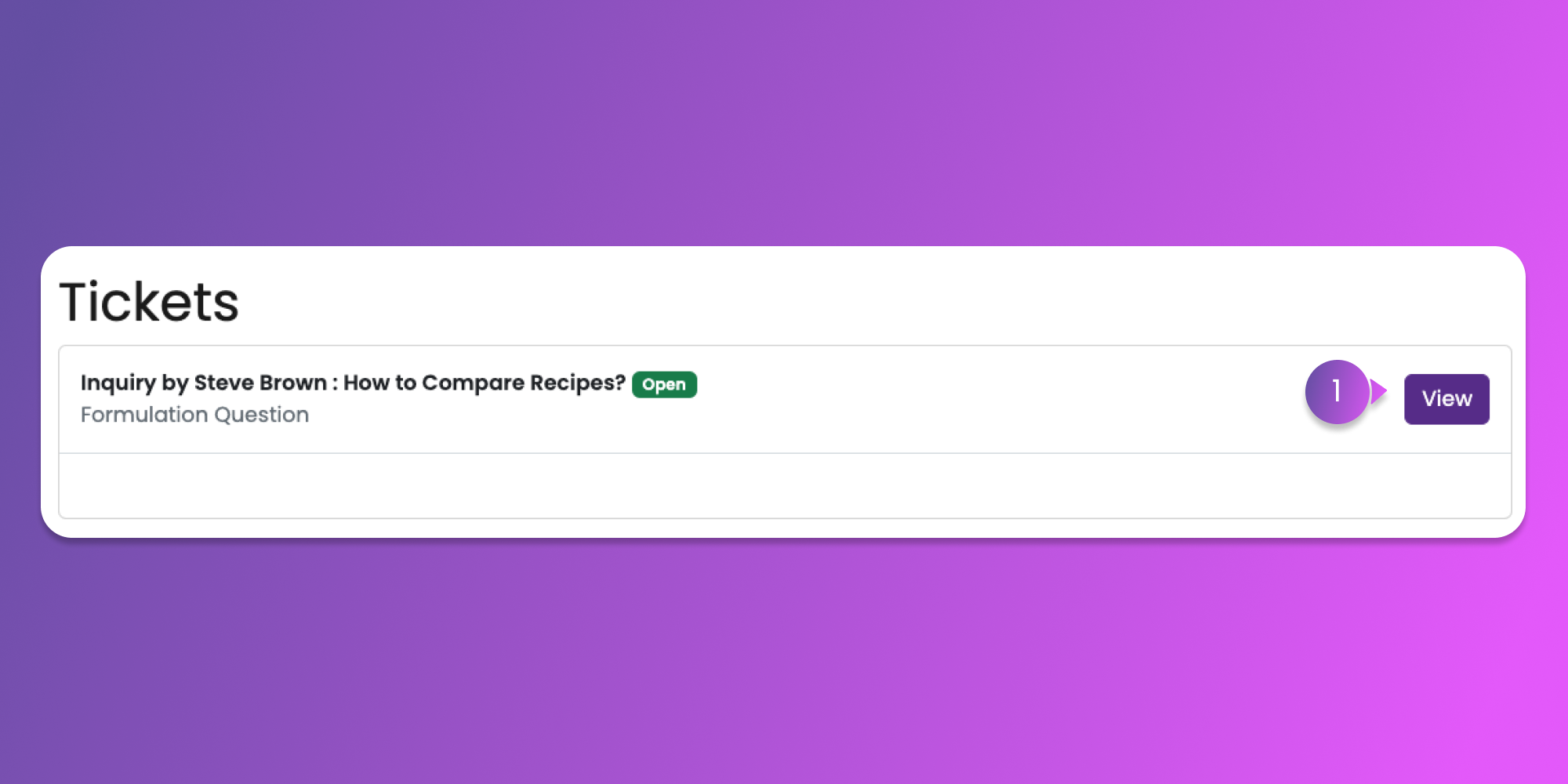
After clicking the menu item, you will be redirected to the Tickets page.
On this page, you can see the list of tickets that you have submitted and were received by the ADF Team.
For each ticket entry, there is a corresponding View button. Click the View button to read the responses by the ADF Team. You can post an update as well.
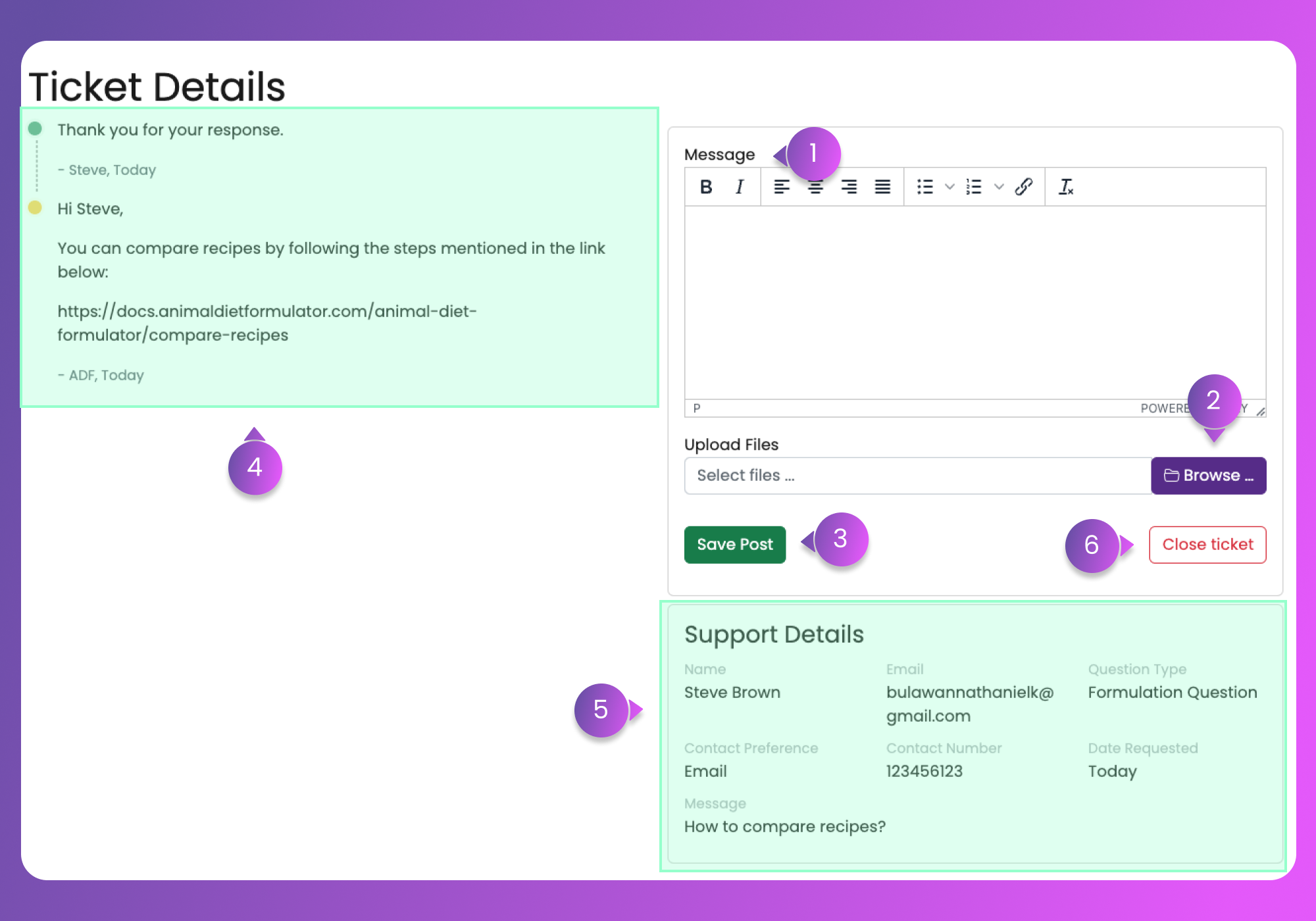
Below is the Ticket Details page where you can read the updates and post a response.
#### 1. Message
Provide your message to post as a response.
#### 2. Browse button
Click the button to attach screenshots and short videos to share with the ADF Team.
{% hint style="warning" %}
When you re-click the button and select another file, the current file will be removed.
{% endhint %}
#### 3. Save Post button
This button will submit the form with the message and any attachments that you provided.
#### 4. Update Section
This section will contain the timeline of updates posted by you and by the ADF Team.
#### 5. Support Details
This section will contain the details of the support ticket that you have submitted.
**6. Close Ticket button**
This button will allow you to close the current ticket.