> For the complete documentation index, see [llms.txt](https://docs.animaldietformulator.com/llms.txt). Markdown versions of documentation pages are available by appending `.md` to page URLs; this page is available as [Markdown](https://docs.animaldietformulator.com/animal-diet-formulator/compare-recipes.md).
# Compare Recipes
Comparing recipes will help you to understand the differences in nutrients of the two or more recipes.
## Adding Recipes
To compare recipes, you need to add recipes that you want to compare. Below are the ways to add recipes.
### 1. Add recipes through the Recipes Page
You need to be on the recipes page. Click [here](/animal-diet-formulator/recipes.md#recipes-list) to learn how to go to the recipes page.
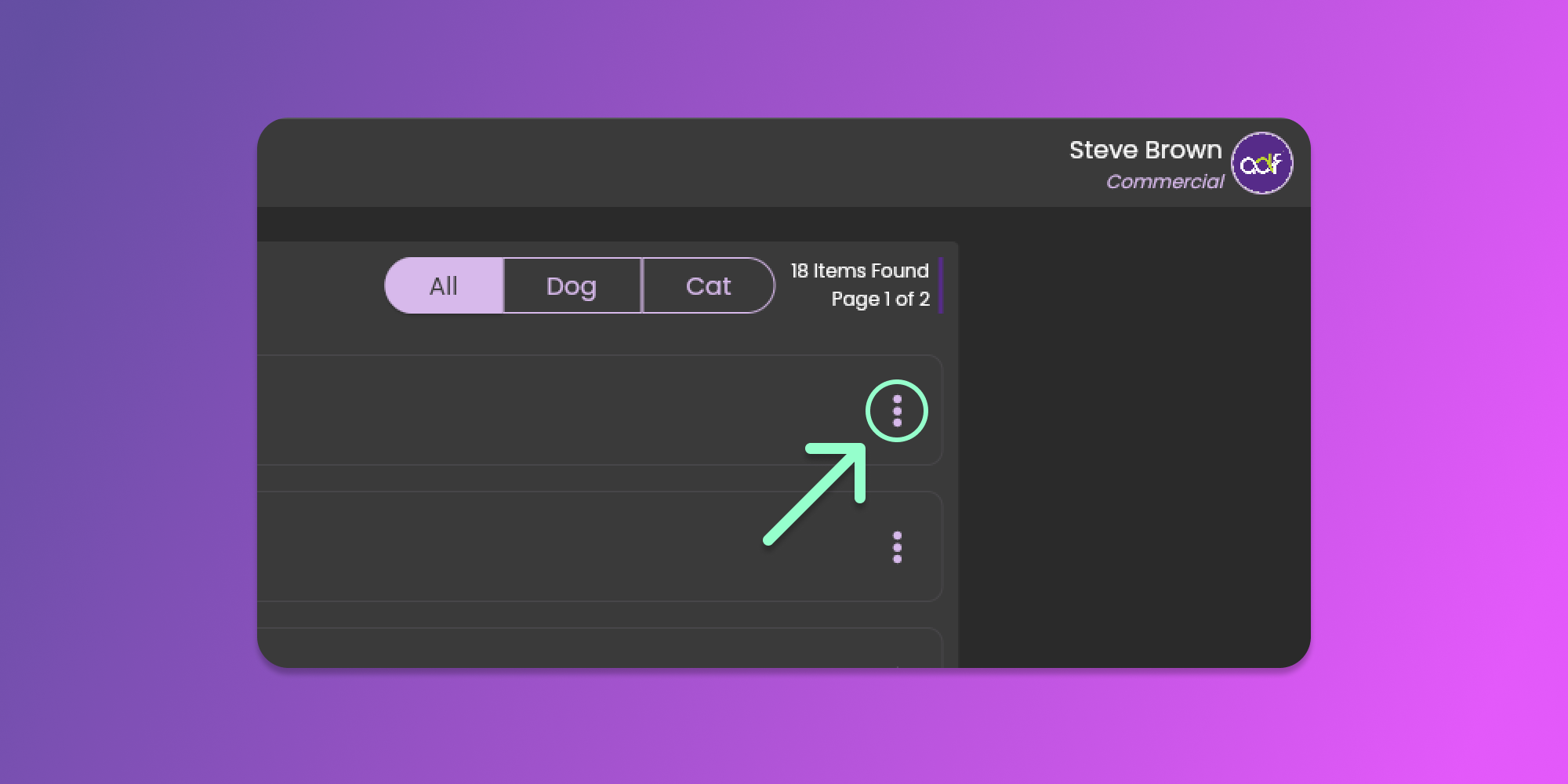
On the recipes page, click the three vertical dots to view the item menu. See the image below.
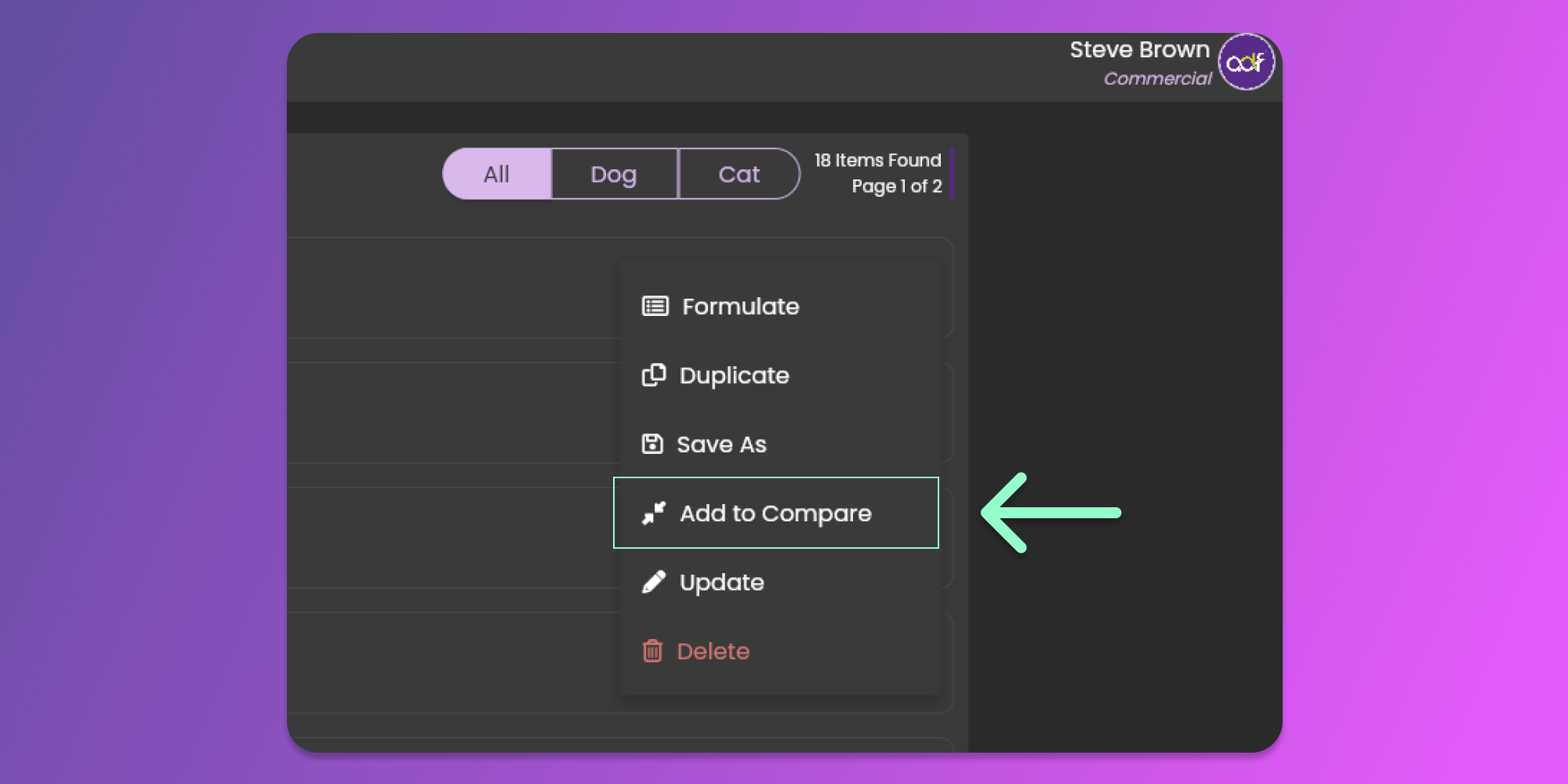
Select the Add to Compare options from the dropdown menu.
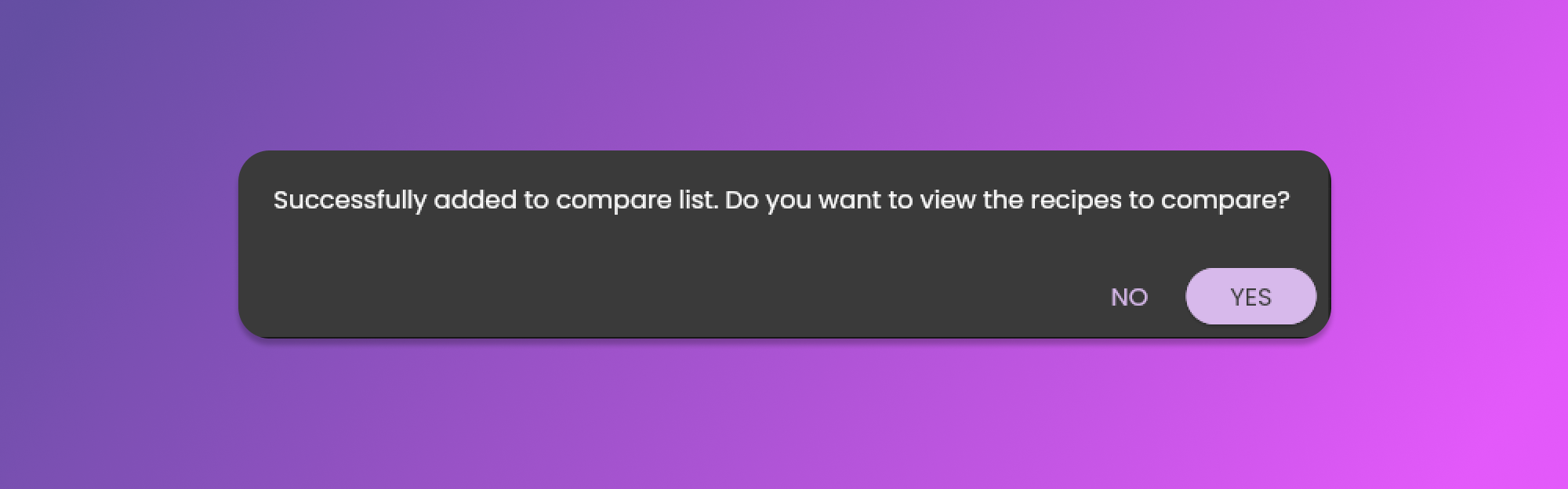
This action will add the recipes to the list of recipes to compare. A pop-up message will prompt you if you want to proceed to view the recipe that you want to compare.
### 2. Add recipes through Recipe Formulation Menu
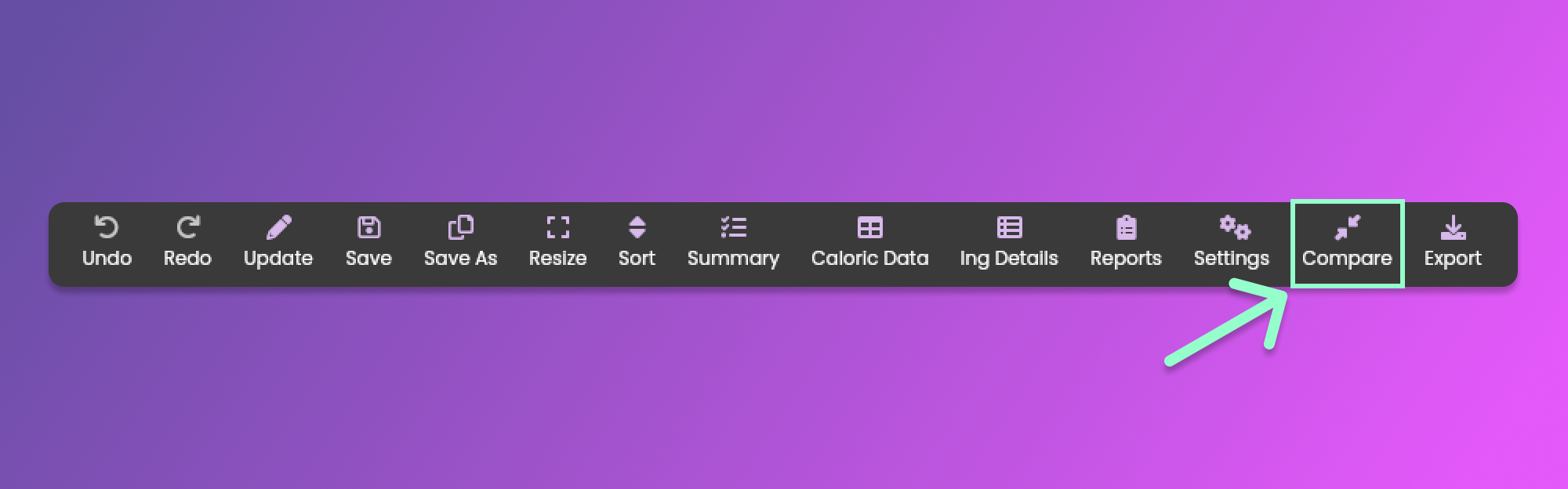
You can add the current state of the recipe to the list of recipes to compare. To do this, click the "Compare" menu item from the [Formulation Menu](/animal-diet-formulator/recipes/formulation.md#formulation-menu-section) Section.
## Compare Recipes
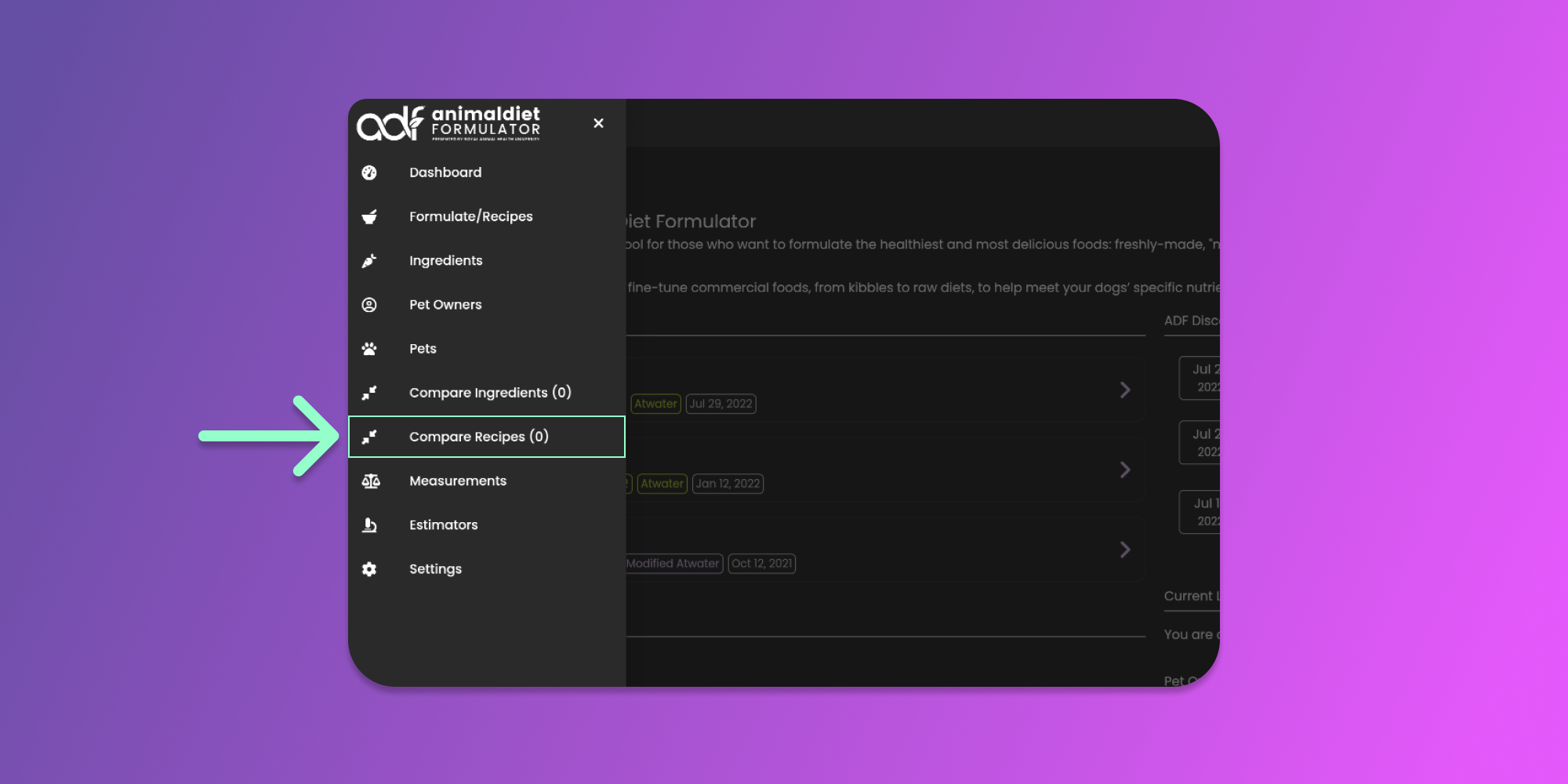
Once you add a recipe, the software will prompt you if you want to open the Compare Recipes pop-up. If you selected no, you can still open the Compare Recipes pop-up from the Main Menu Item.
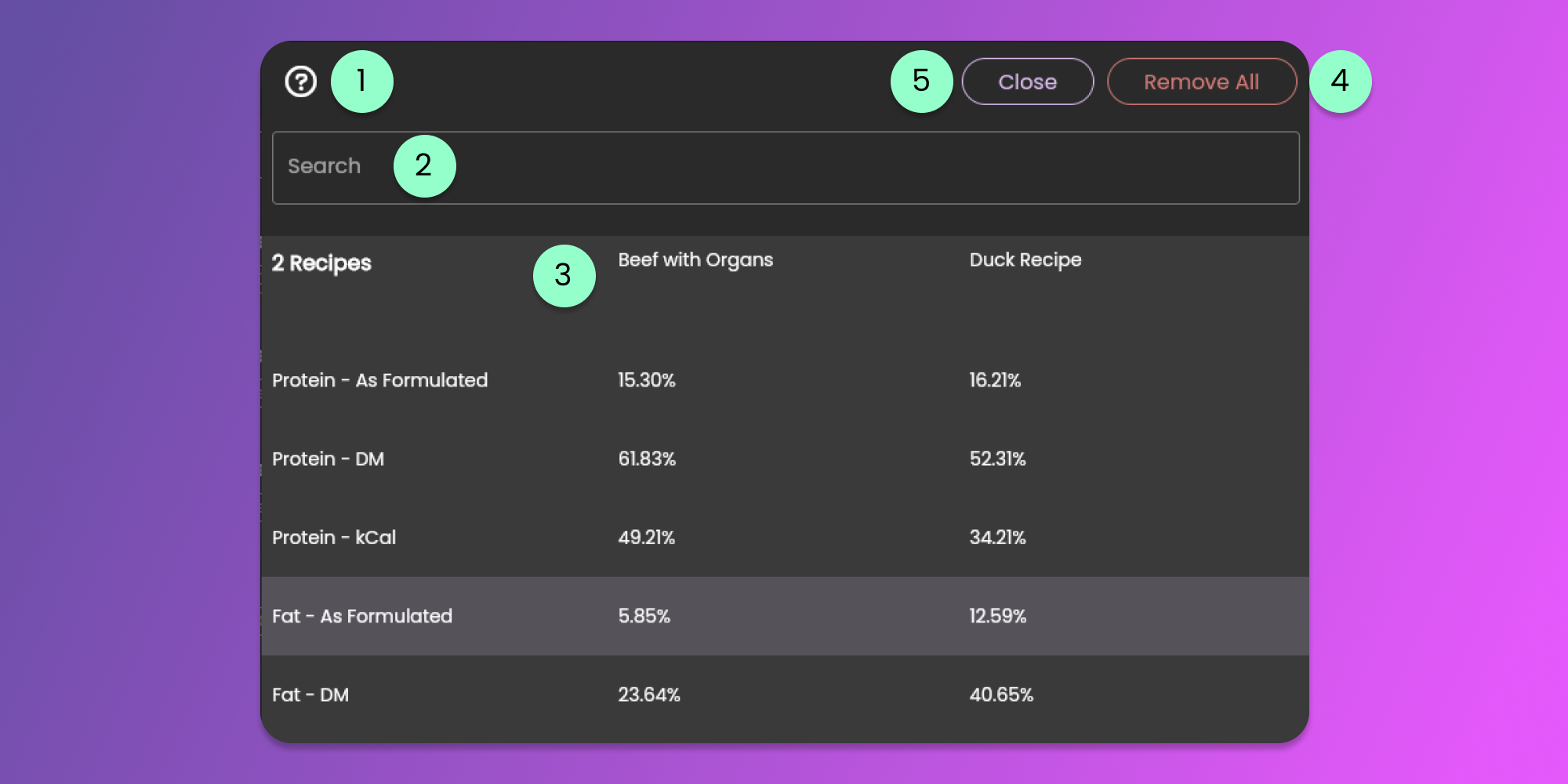
The item menu will show an indicator if there are recipes that you can compare. Clicking the menu item opens the Compare Recipes pop-up. See the image below.
1. Instruction Icon Button
* Clicking this icon will provide more details on how to use the Compare Recipes pop-up.
2. Search Bar
* Provide the name of the nutrient that you want to compare. This will filter the nutrients instead of scrolling the whole page.
3. Name of the Recipe
* Double-click the recipe name to remove the item from the list of recipes to compare
4. Remove All button
* Click the button to remove all the recipes.
5. Close button
* Click the button to close the Compare Recipes pop-up.