> For the complete documentation index, see [llms.txt](https://docs.animaldietformulator.com/llms.txt). Markdown versions of documentation pages are available by appending `.md` to page URLs; this page is available as [Markdown](https://docs.animaldietformulator.com/animal-diet-formulator/estimators.md).
# Estimators
Generate an ingredient based on a source with an estimated value for its nutrients
### Estimated Ingredients List
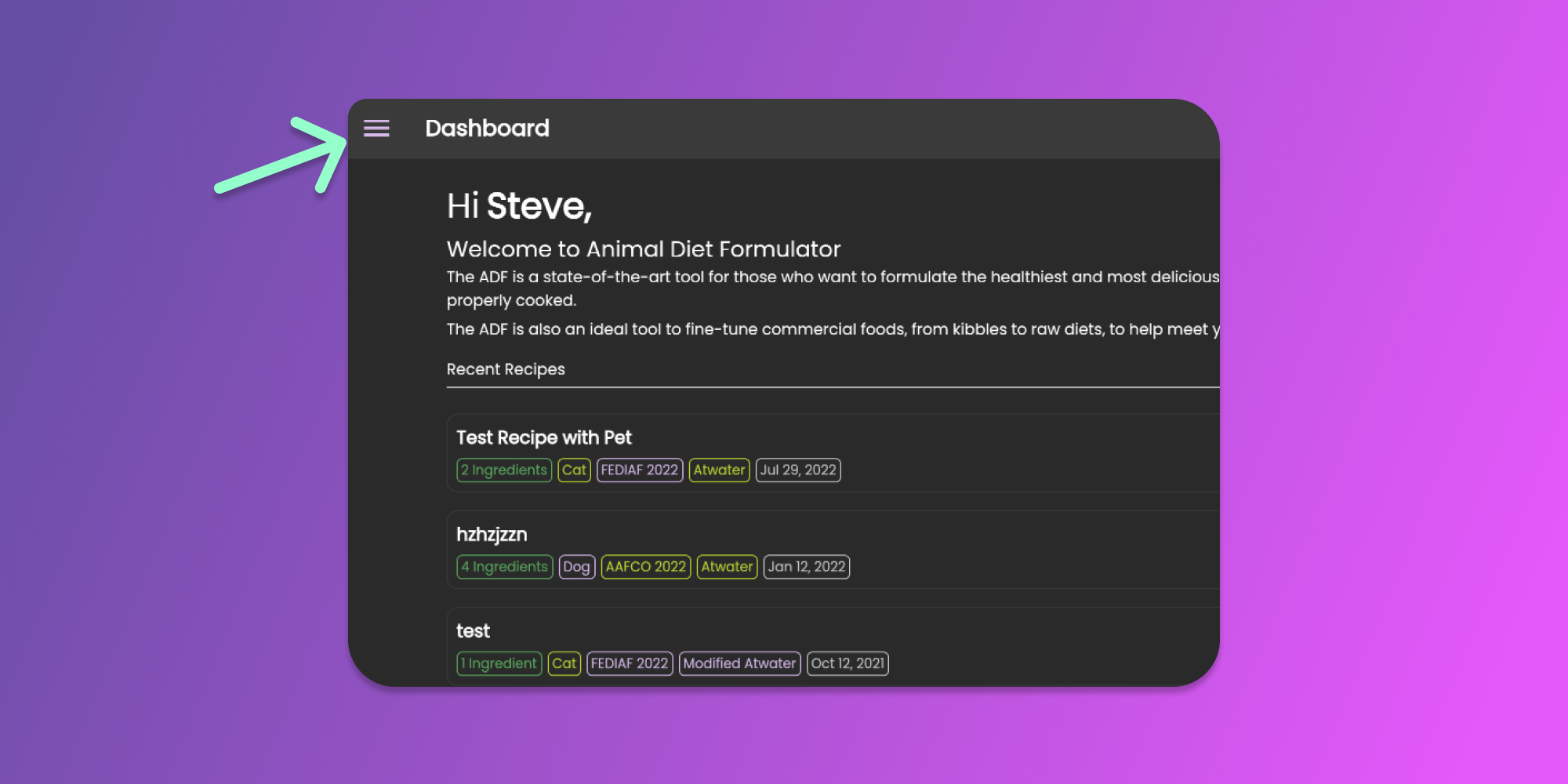
To start managing your ingredients with estimated nutrients, you can go to Main Menu by clicking the similar icon below.
Click to Enlarge
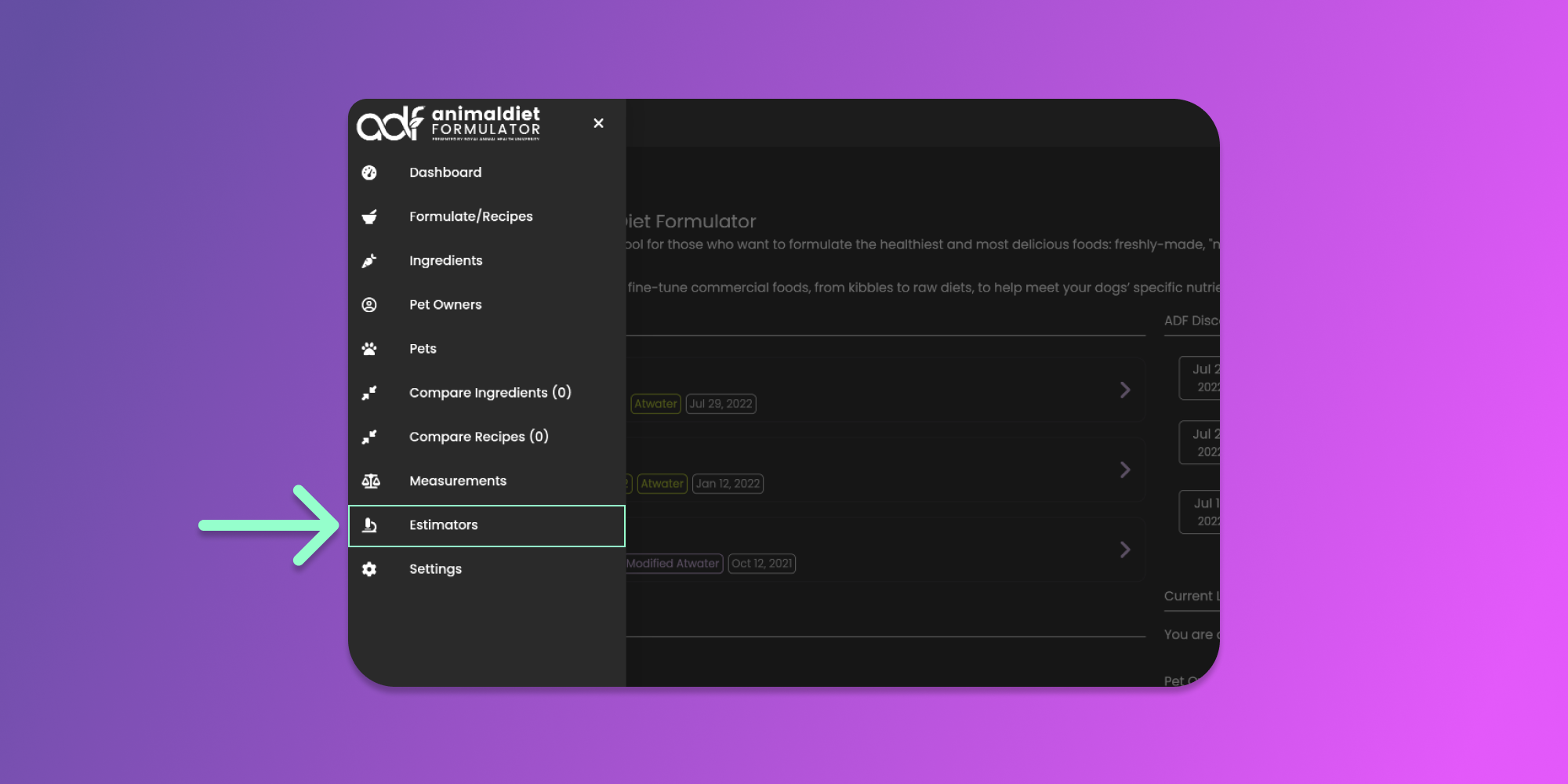
Then click the Estimators menu item from the Main Menu.
From this Estimators page, you can now create, update or delete your ingredients with estimated nutrients.
### Filter the Ingredients
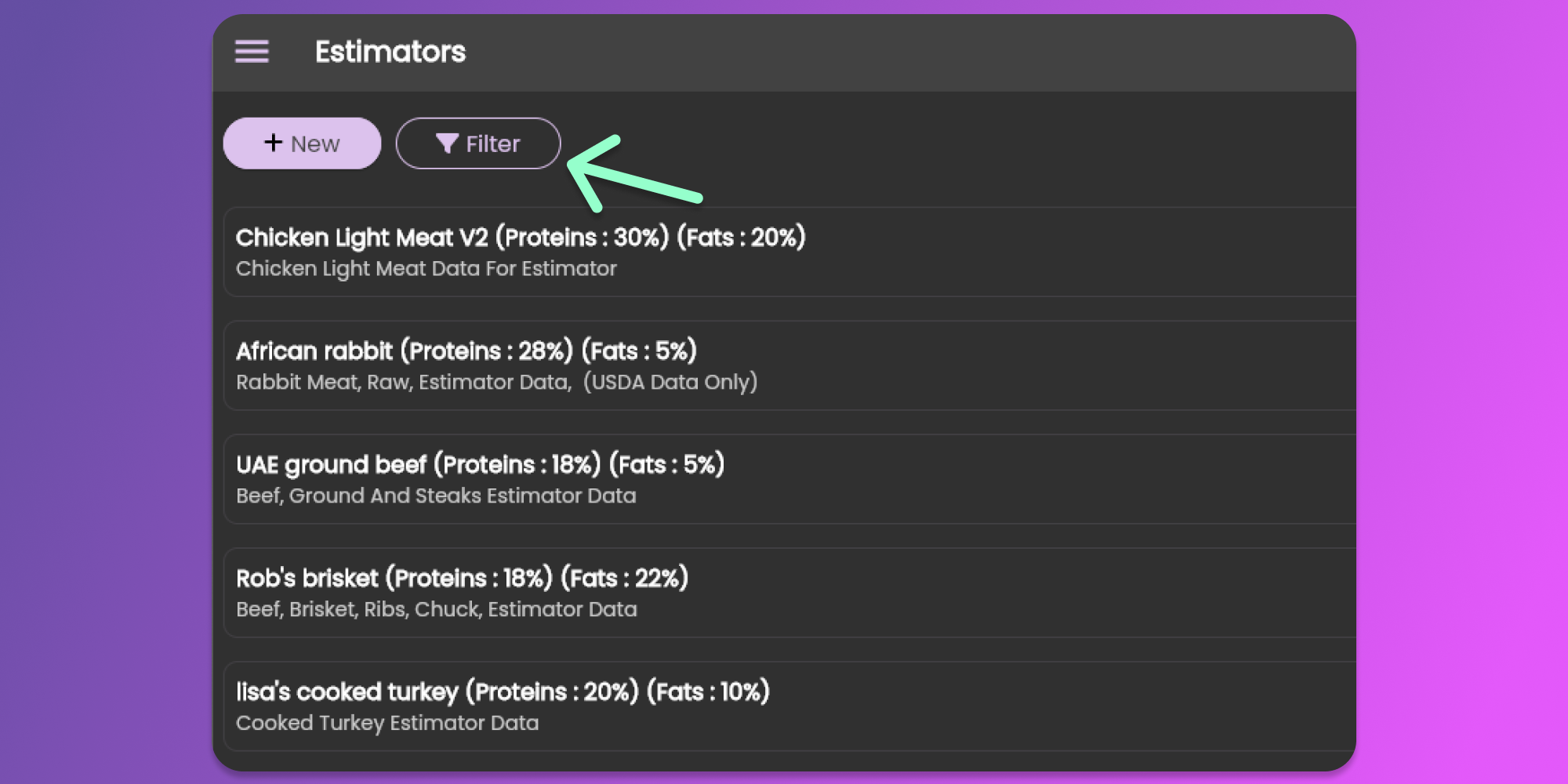
Utilize the filter feature to search for ingredients to update or delete. Click the filter button similar to the image below.
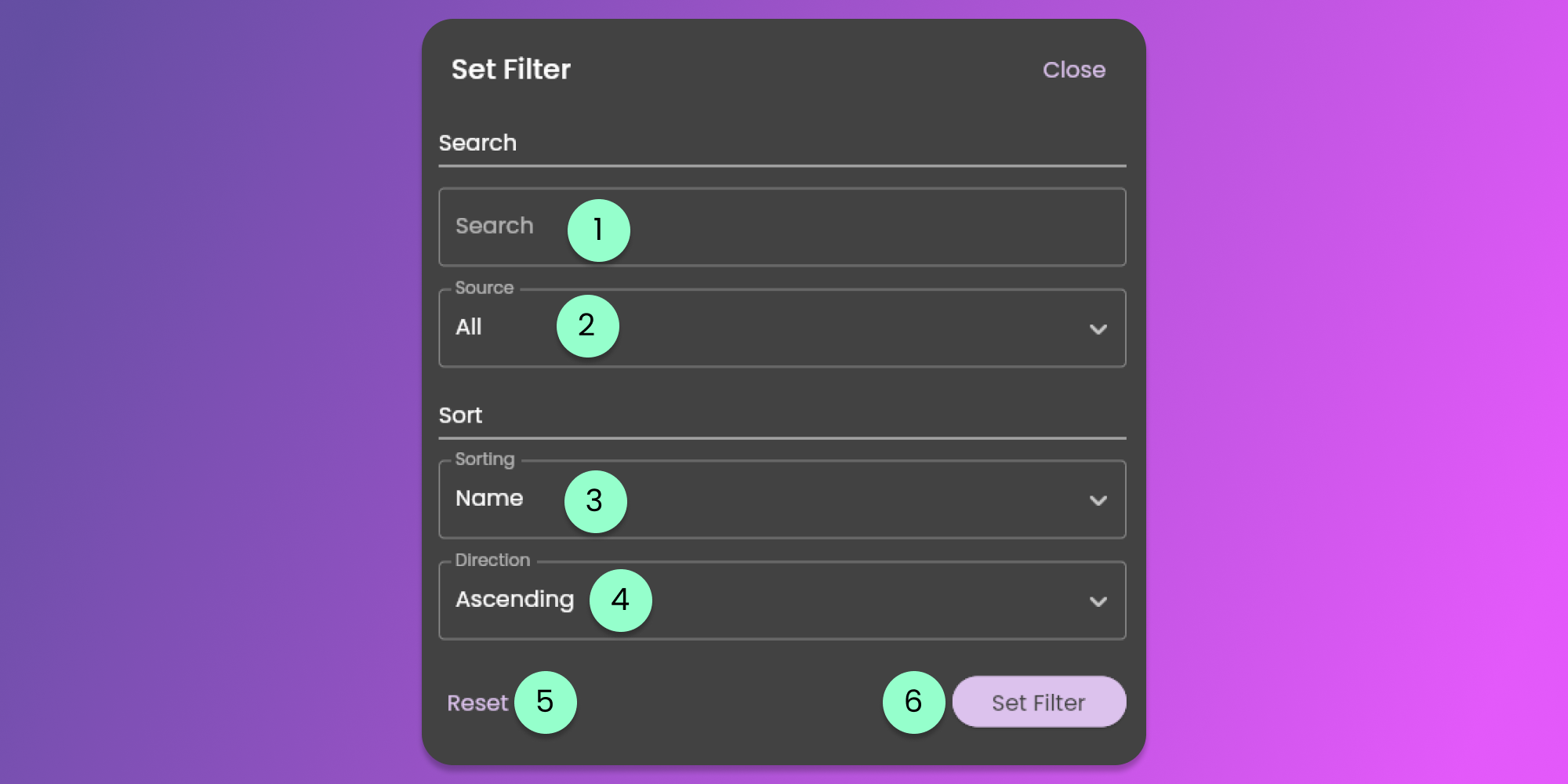
The filter form will be available for you to modify the default filter settings.
The filter form contains the following fields.
1. Search
* This field will look for the term in the ingredient's name.
2. Source
* Clicking the field will show the options for Source. This will list all available estimator sources.
3. Sorting
* Using this sorting, you can sort the items based on the selected field available.
4. Sorting Direction
* This will control the direction of sorting the selected information at the sorting field.
5. Reset
* Clicking this button will reset all the changes made.
6. Set Filter
* Clicking this button will apply the preferred filters.
### Creating Ingredients
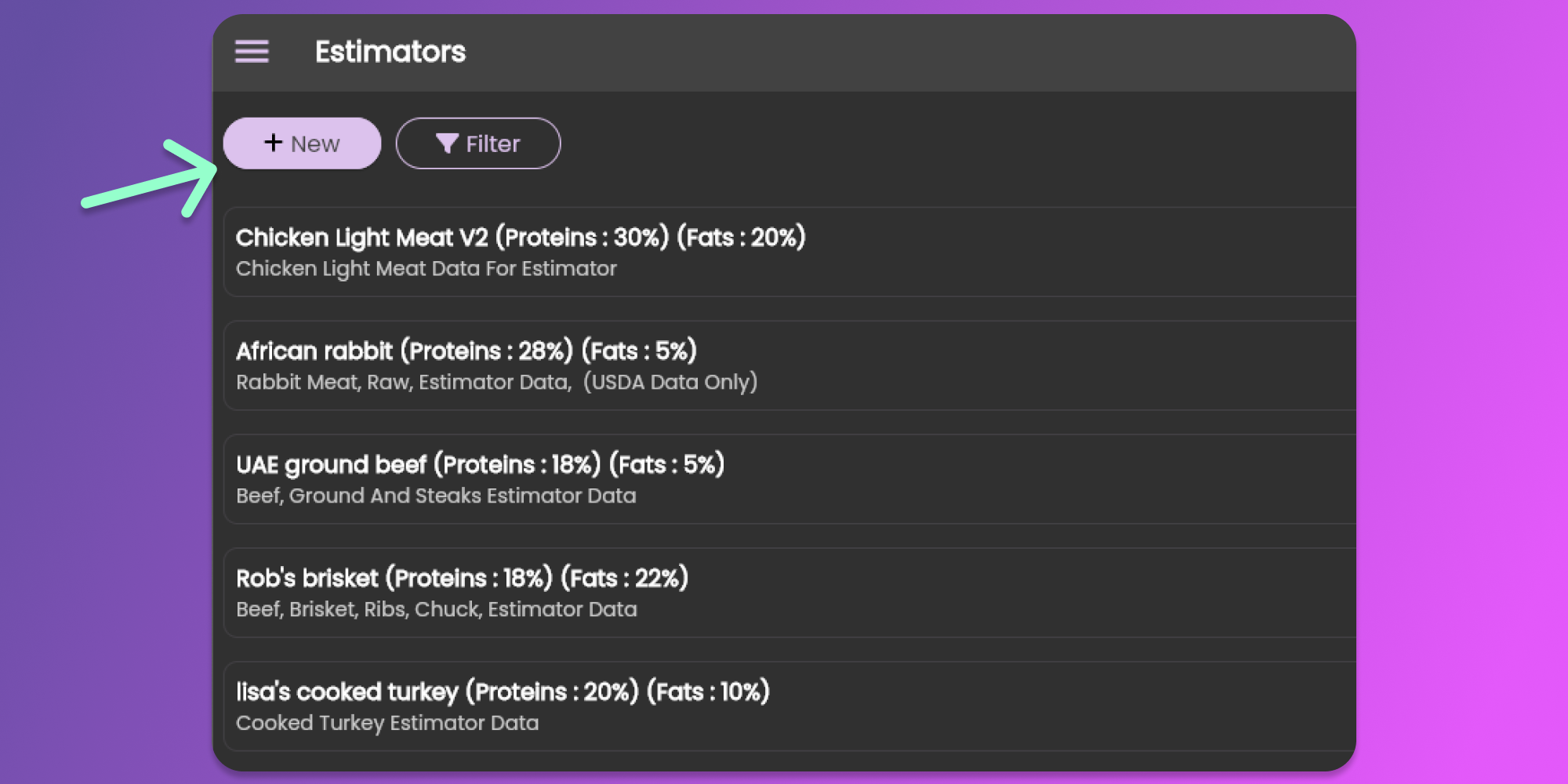
Start creating ingredients with estimated nutrients by clicking the **New** button at the top left corner of the page.
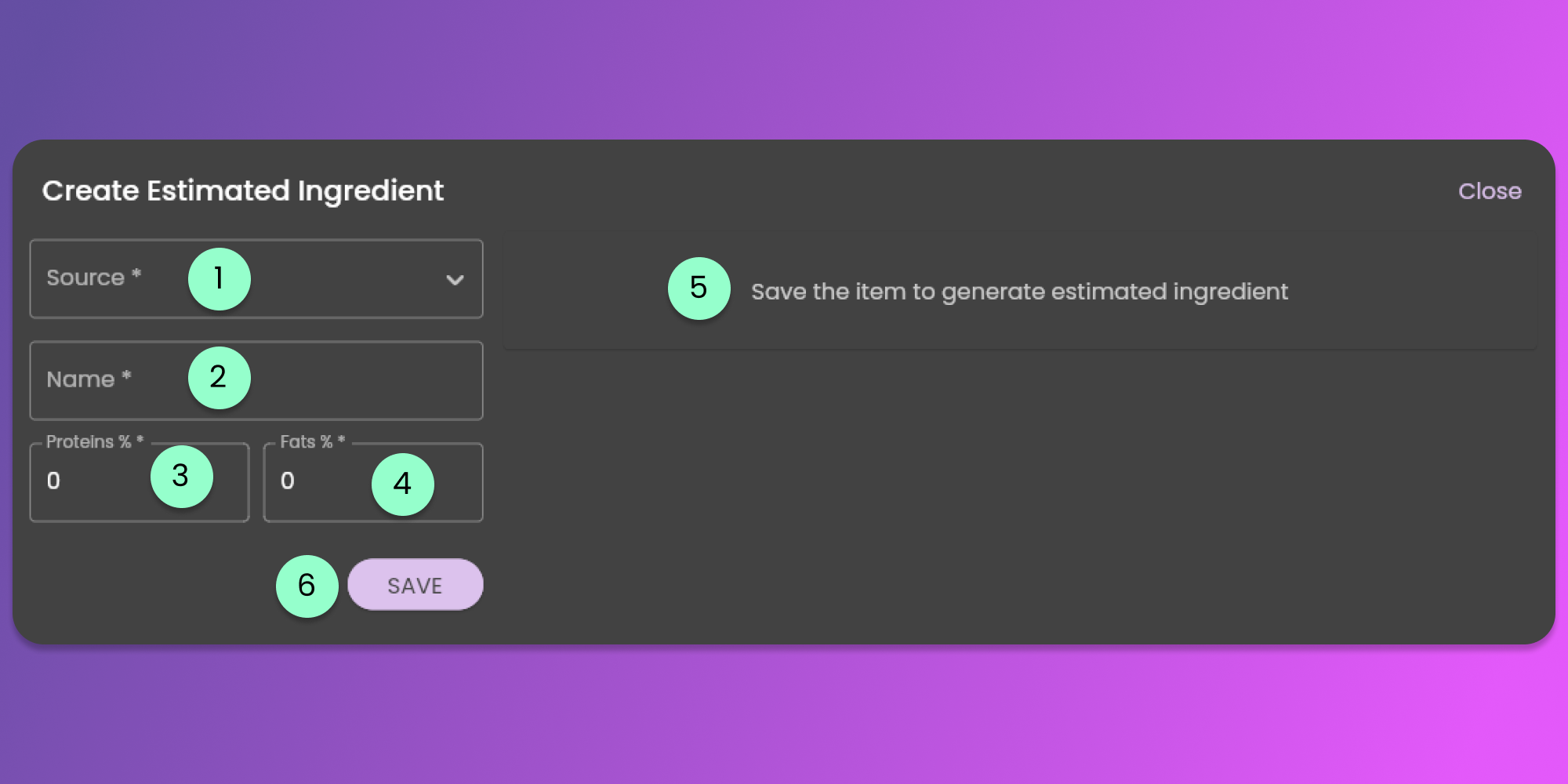
When creating the ingredients, you need to provide the details mentioned in the form below.
1. Source
* Required. Select the Estimator Source from the options that you preferred to use as a base.
2. Name
* Required. Provide the name you want to give the ingredient to easily identify the item.
3. Proteins %
* Required. Provide the amount of Protein Percentage to use for the new ingredient. Use the product-guaranteed analysis, either provided by the manufacturer or obtained through laboratory analysis.
4. Fats %
* Required. Provide the amount of Fat Percentage to use for the new ingredient. Use the product-guaranteed analysis, either provided by the manufacturer or obtained through laboratory analysis.
5. Nutrients Section
* After saving the ingredient, the estimated ingredient will be shown in this section. The software will calculate other nutrient values based on the protein and fat percentages entered, making the ingredient usable in the formulation.
6. Save Button
* Click the button to Save the Ingredient's Details
### Updating Ingredients
To update the ingredient information. You need to be on the Estimators Page. To go to the estimators' page, follow the steps mentioned [here.](#measurements-list)
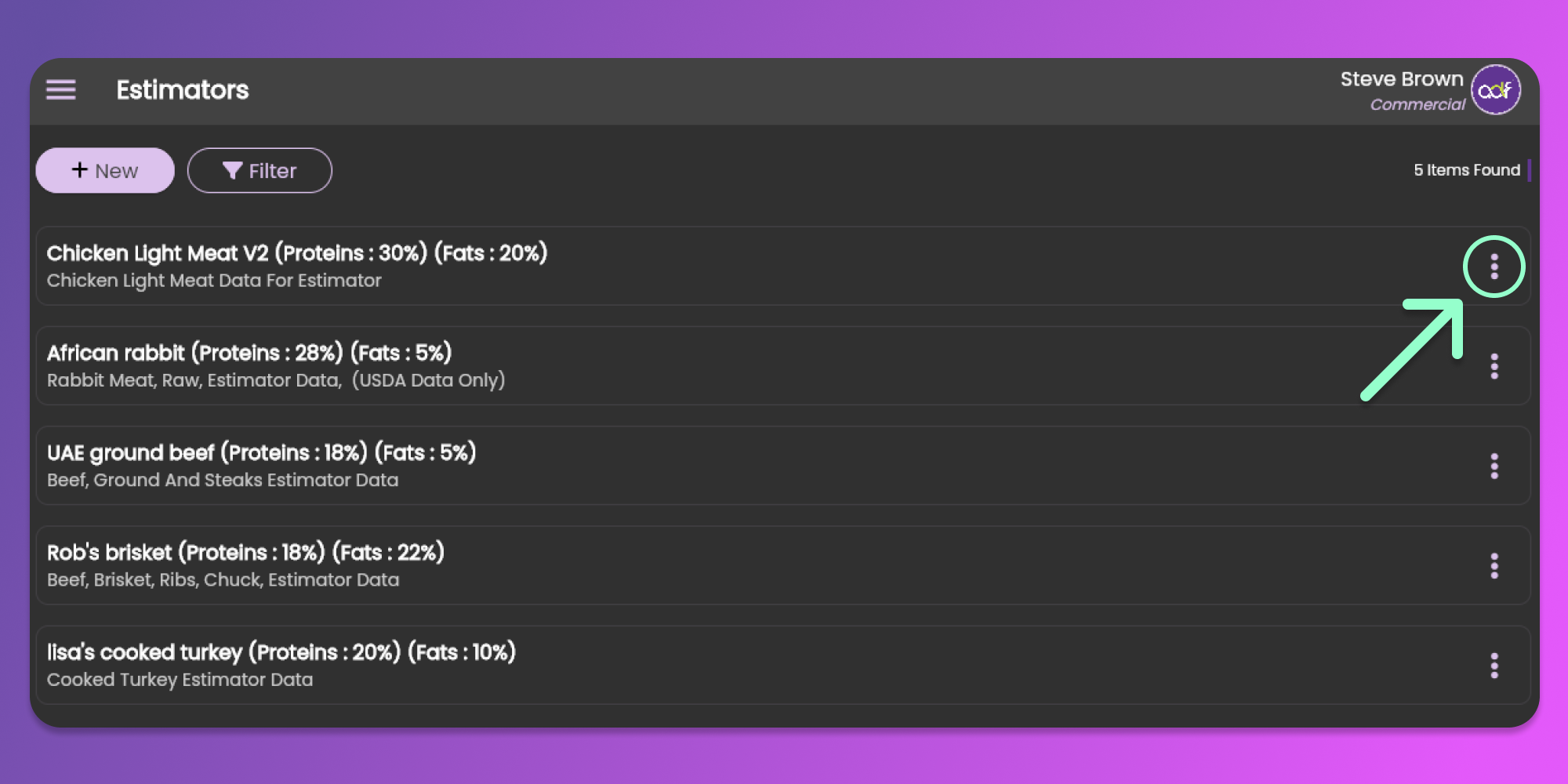
On the ingredients page, you can see the list of items that you created. Click the three horizontal dots icon (known as Item Menu). See the image below.
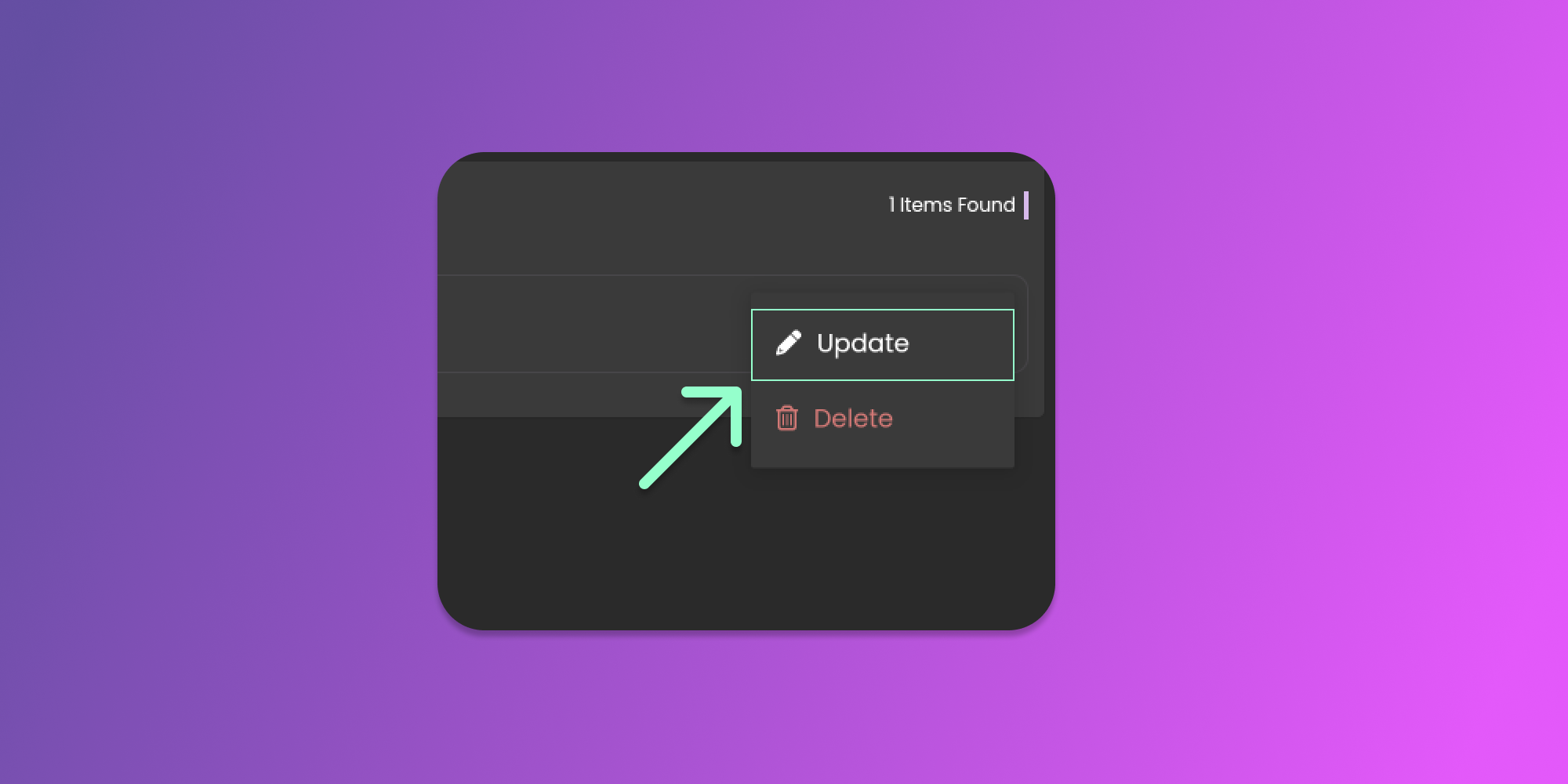
After clicking the horizontal dots icon, you can click the update button to view the form.
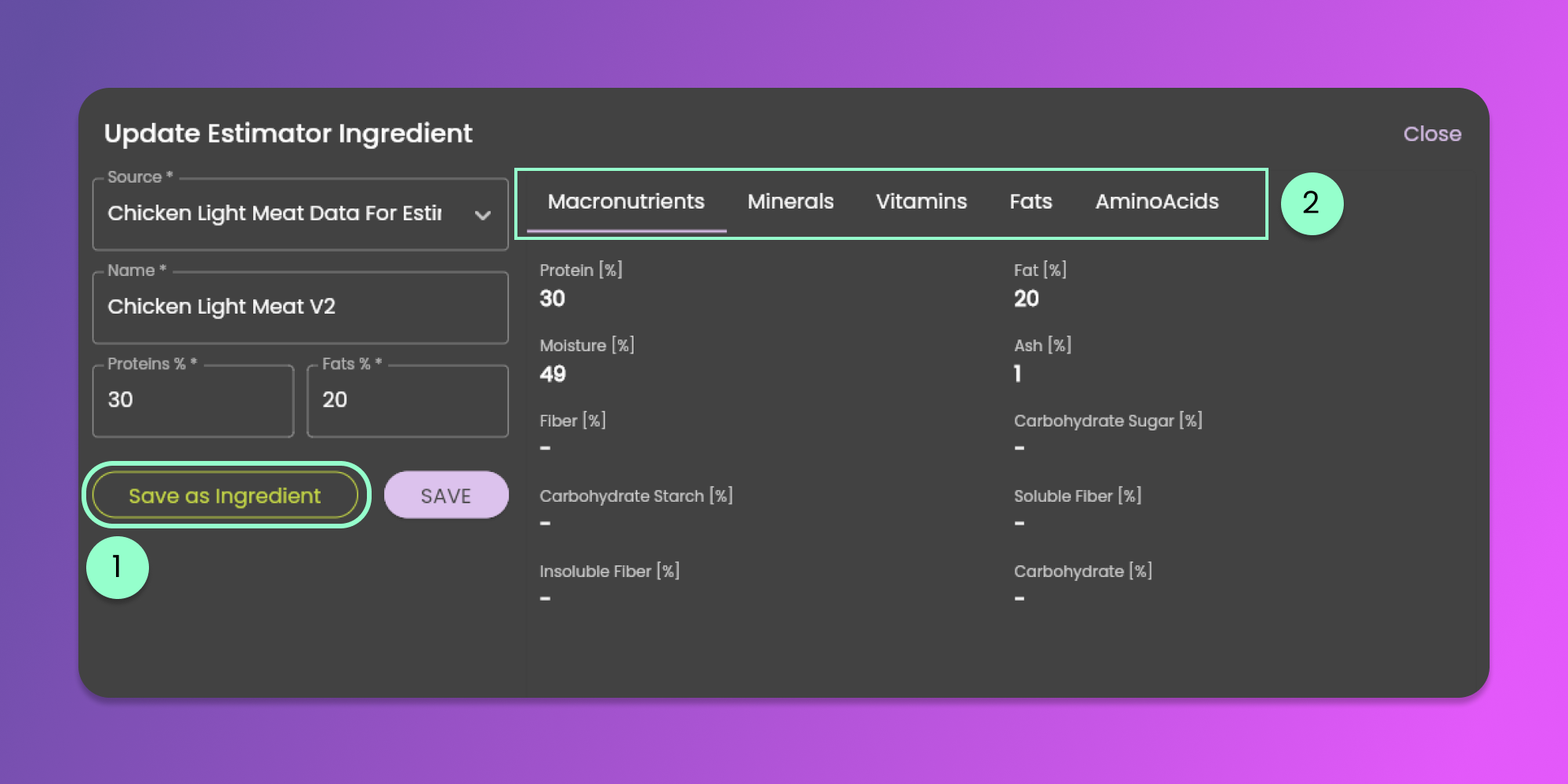
The same for creating new Ingredients, the form will show up with pre-filled information based on the item that you want to update. See the image below.
After updating the field that you want to modify, click the save button at the bottom right part of the form.
As you might notice, there are some items added when you are updating the ingredient.
1. Save as Ingredient
* This action will allow you to create a new Ingredient with the estimated nutrients that are generated at item 2. Clicking this button will open the Creating Ingredient Form. Click [here](/animal-diet-formulator/ingredients.md#creating-ingredients) to have information about the Ingredient form.
2. Nutrient Sections
* Click each Nutrient Section tab to view the estimated nutrients that are generated based on the selected Source, Proteins %, and Fats %.
### Deleting Ingredients
You can delete ingredients you are not using.
To do this action, you need to be on the Estimated Ingredients Page. To go to the page, follow the steps mentioned [here](#measurements-list).
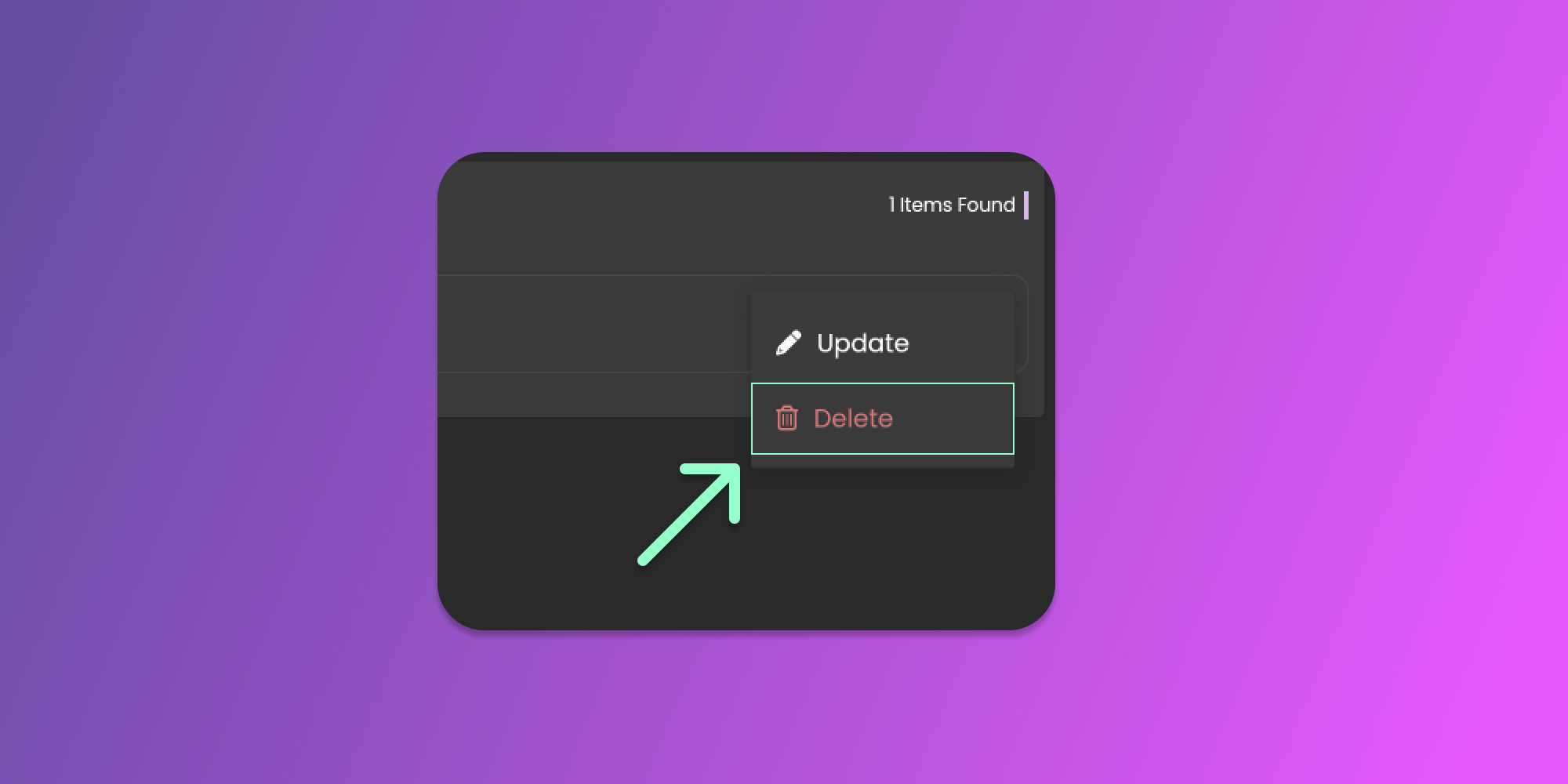
When you are on the page, you can see the list of created ingredients. Click the three horizontal dots icon (known as Item Menu) to select delete. See the image below.
After clicking the horizontal dots icon, you can click the delete button to remove the Estimator ingredient.
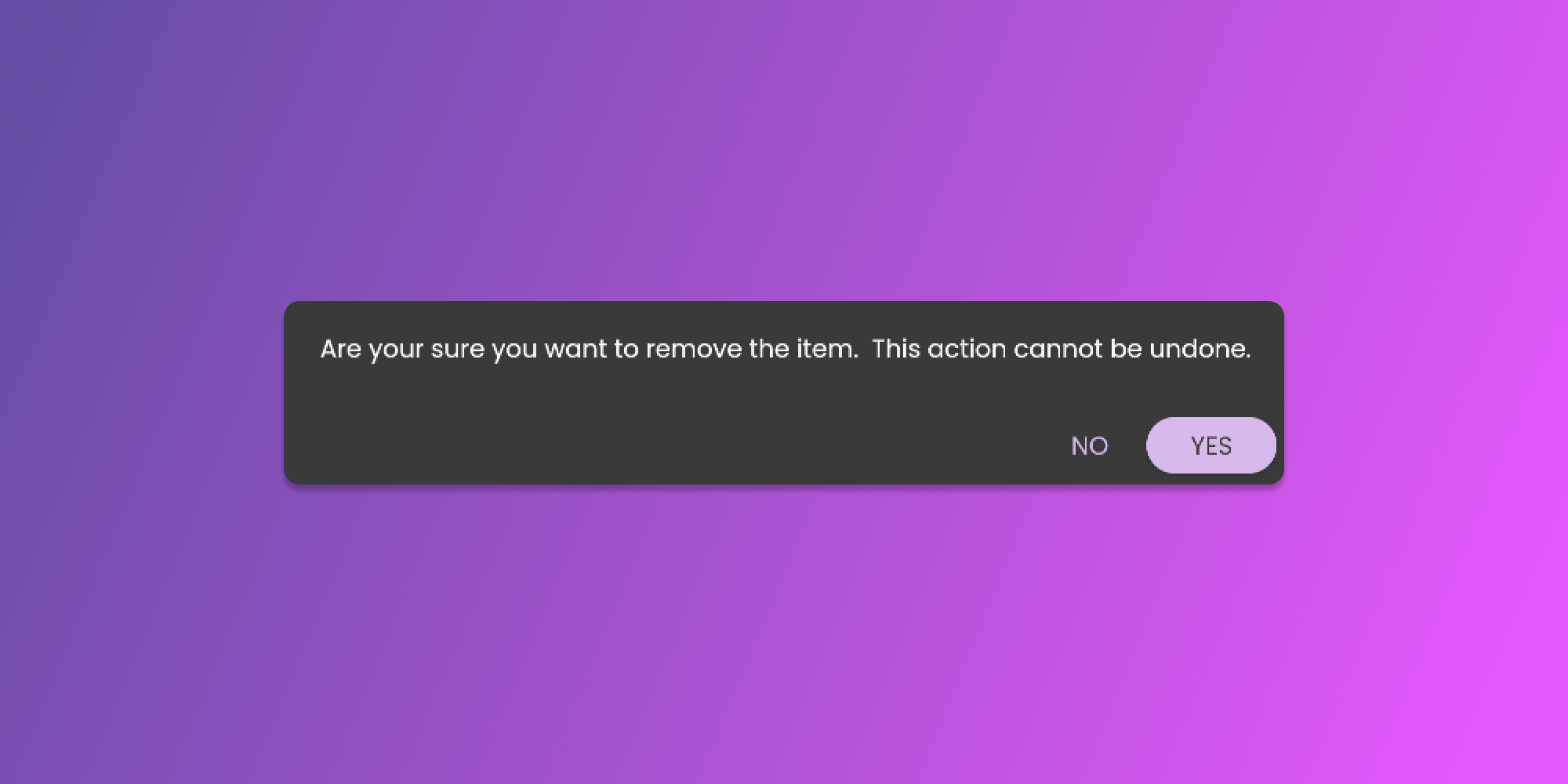
After clicking the delete button, there will be a confirmation pop-up that will require your attention before we remove the item. See the image below.