> For the complete documentation index, see [llms.txt](https://docs.animaldietformulator.com/llms.txt). Markdown versions of documentation pages are available by appending `.md` to page URLs; this page is available as [Markdown](https://docs.animaldietformulator.com/animal-diet-formulator/pets.md).
# Pets
This is the section where you can manage all of your pets.
### Pets List
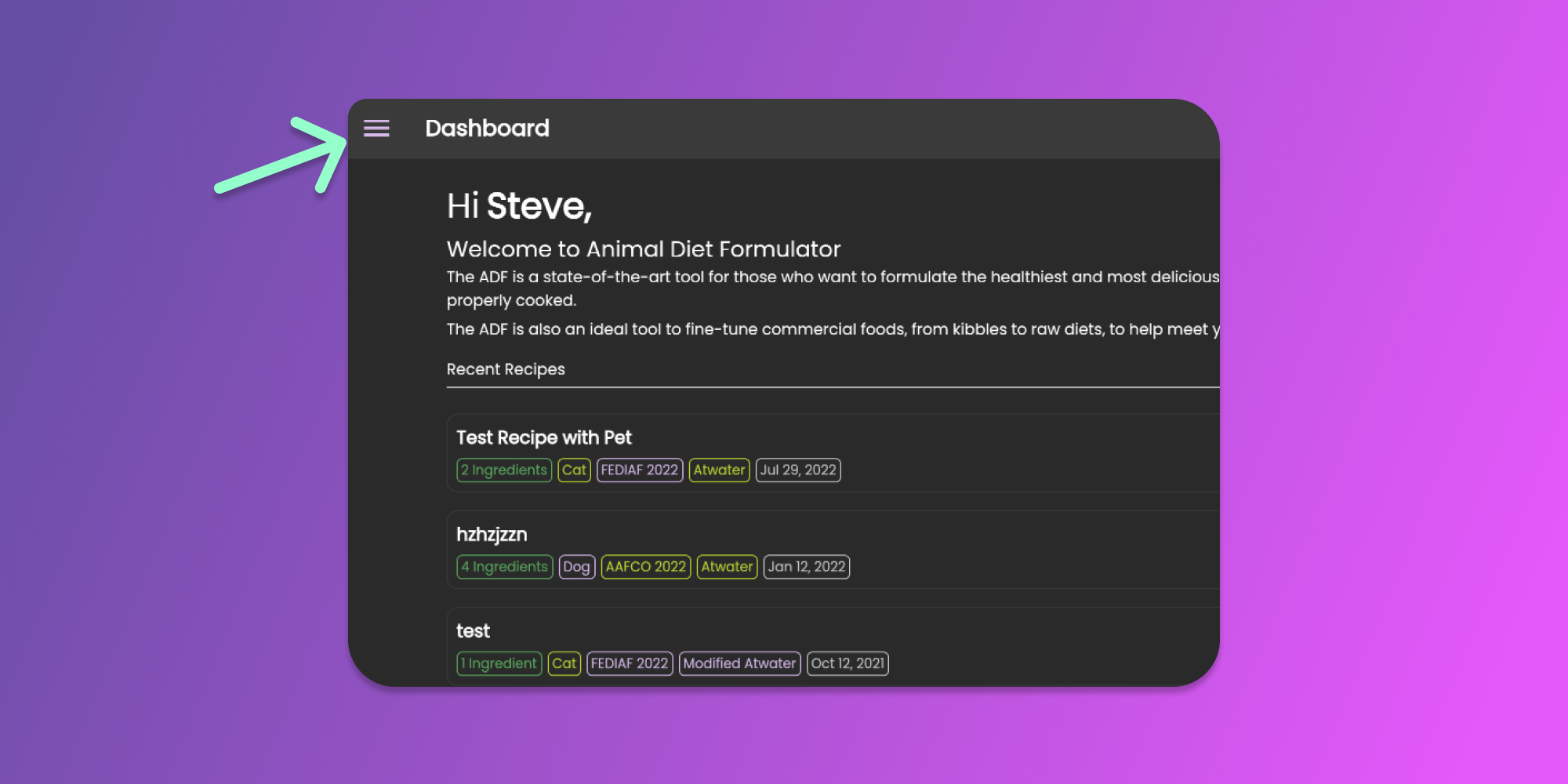
To start managing your pets, you can go to Main Menu by clicking the similar icon below.
Click to Enlarge
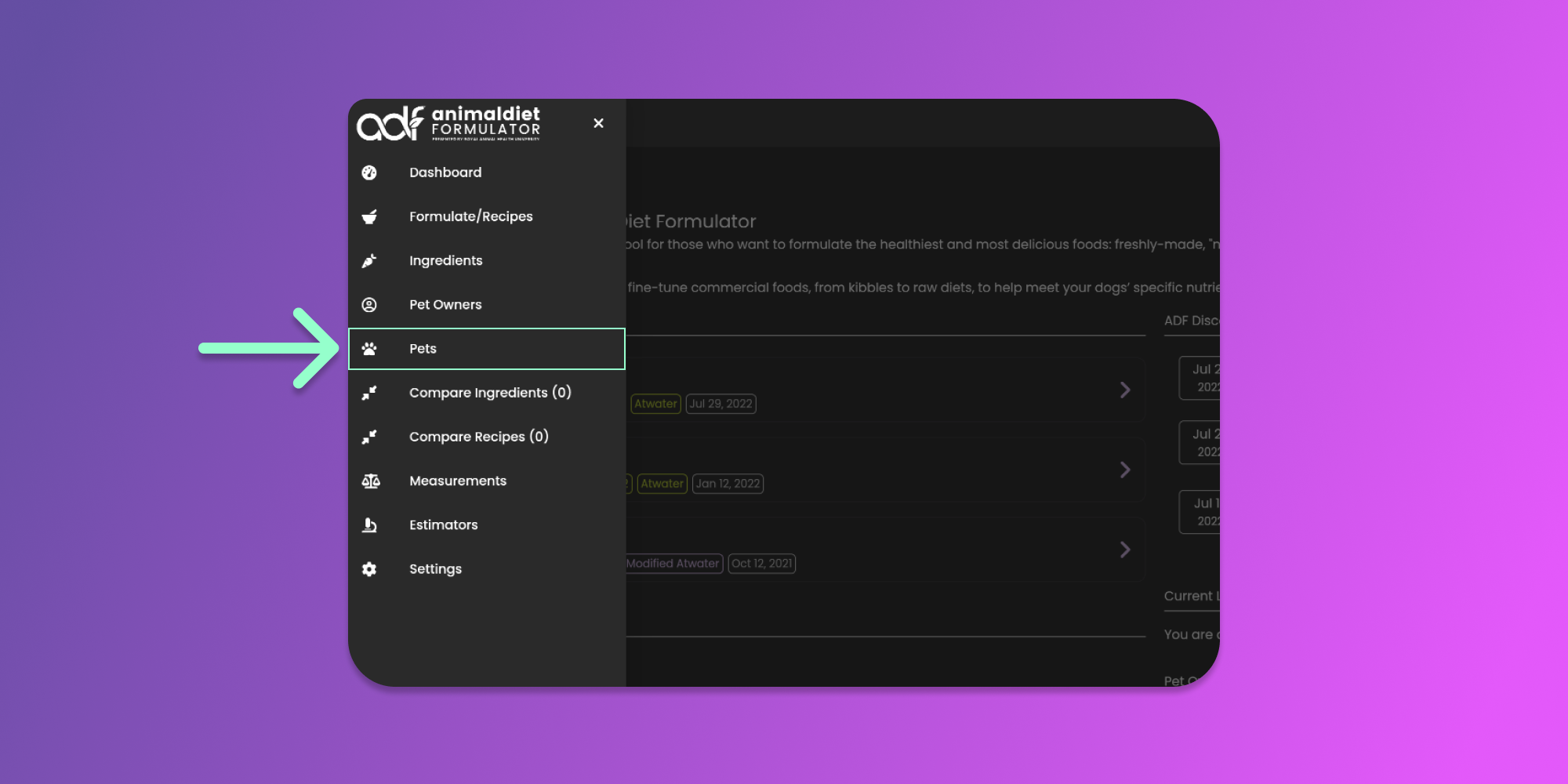
Then click the Pets menu item from the Main Menu.
From the Pets page, you can now create, update or delete your pets. This page also lists all the pets that you created.
### Filter the Pets
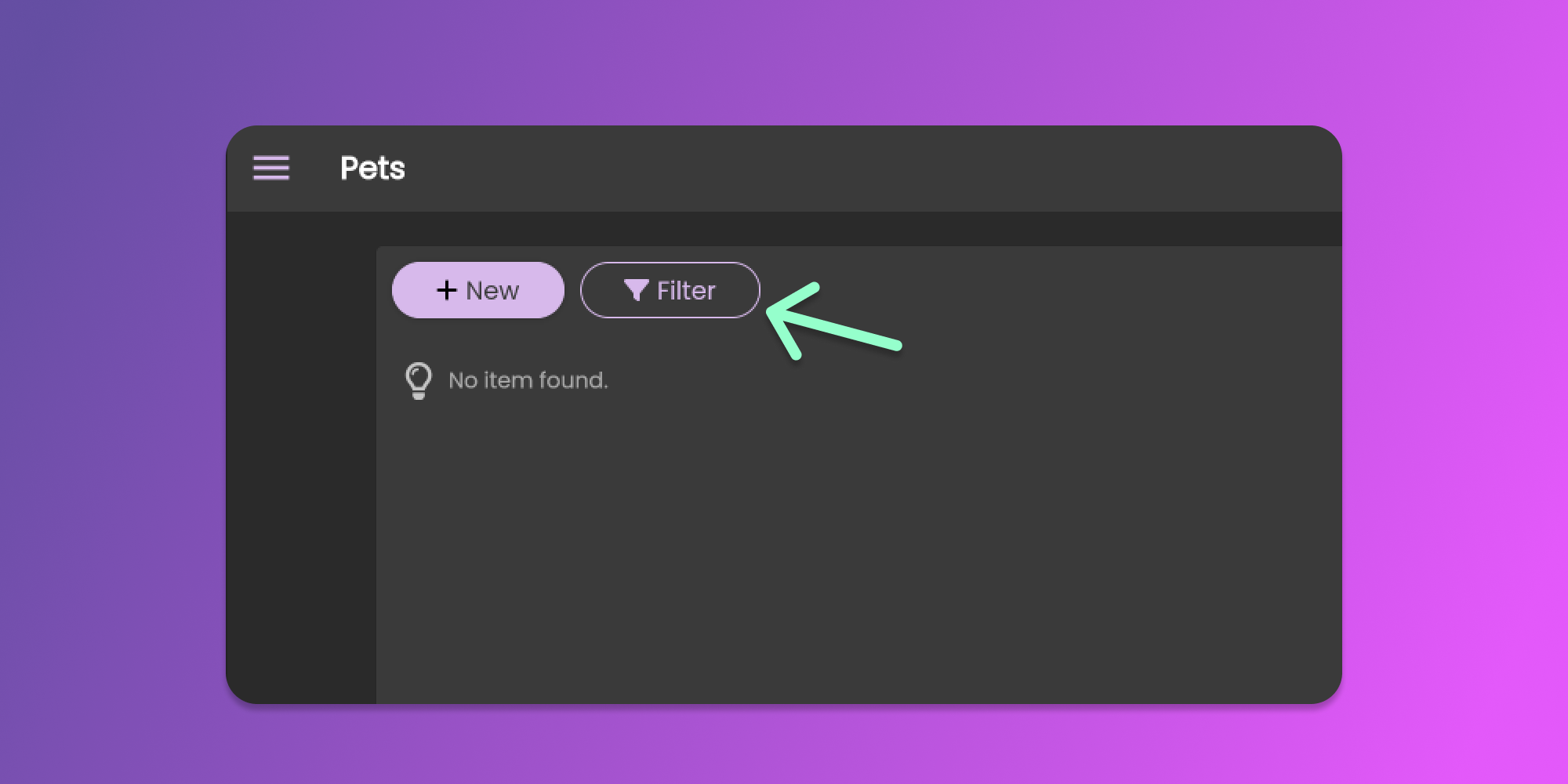
You can utilize the filter feature to search for a pet to update or delete. Click the filter button similar to the image below.
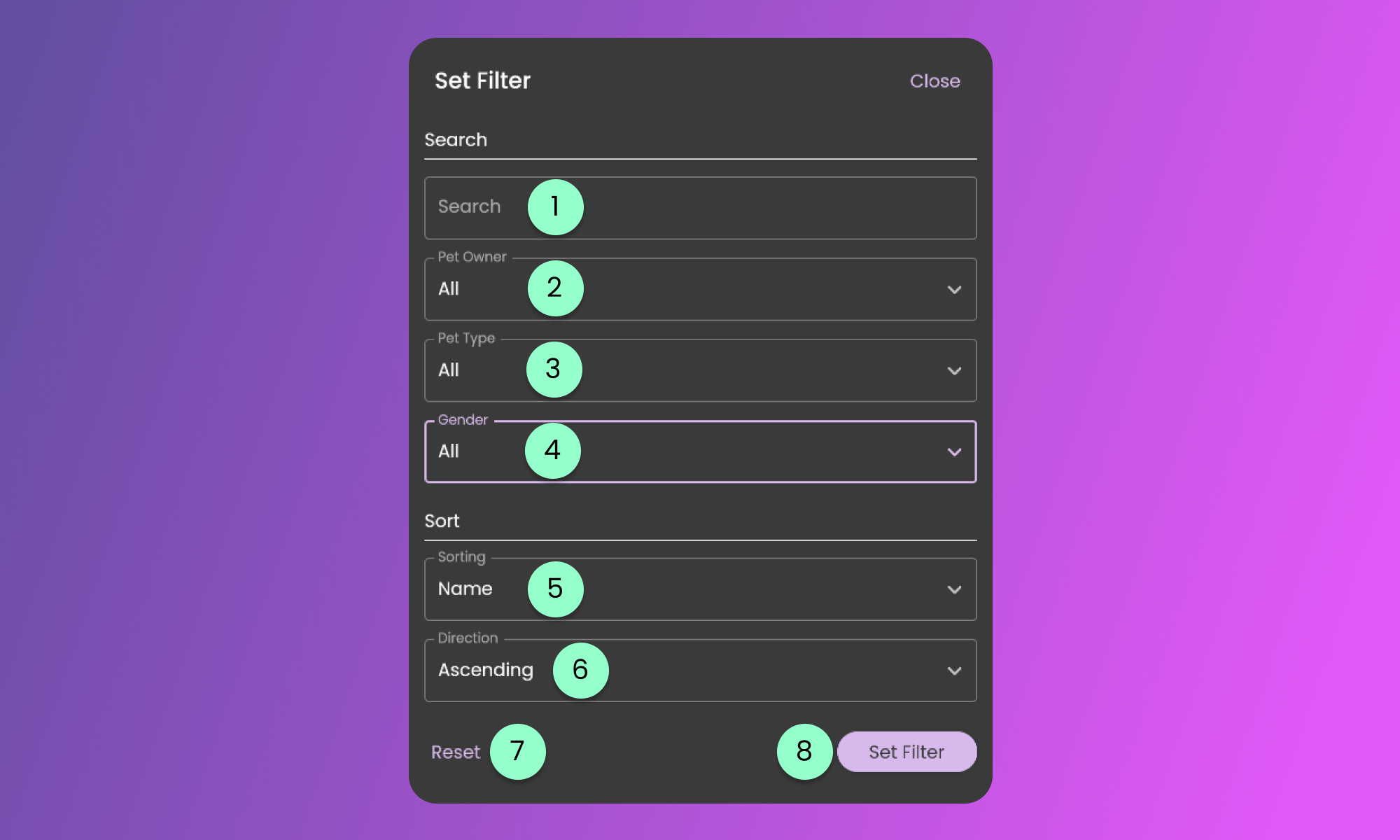
The filter form will be available for you to modify the default filter settings.
The filter form contains the following fields.
1. Search
* This field will look for the term in the pet's name.
2. Pet Owner
* Clicking the field will show a list of Pet Owners that are created in your account.
3. Pet Type
* Clicking the field will show the options for Pet Type. (All, Dog and Cat).
4. Gender
* Clicking the field will show the options for Pet's Gender. (All, Male, Female).
5. Sorting
* Using this sorting, you can sort the items based on the selected field available.
6. Sorting Direction
* This will control the direction of sorting the selected information at the sorting field.
7. Reset
* Clicking this button will reset all the changes made.
8. Set Filter
* Clicking this button will apply the preferred filters.
### Creating Pets
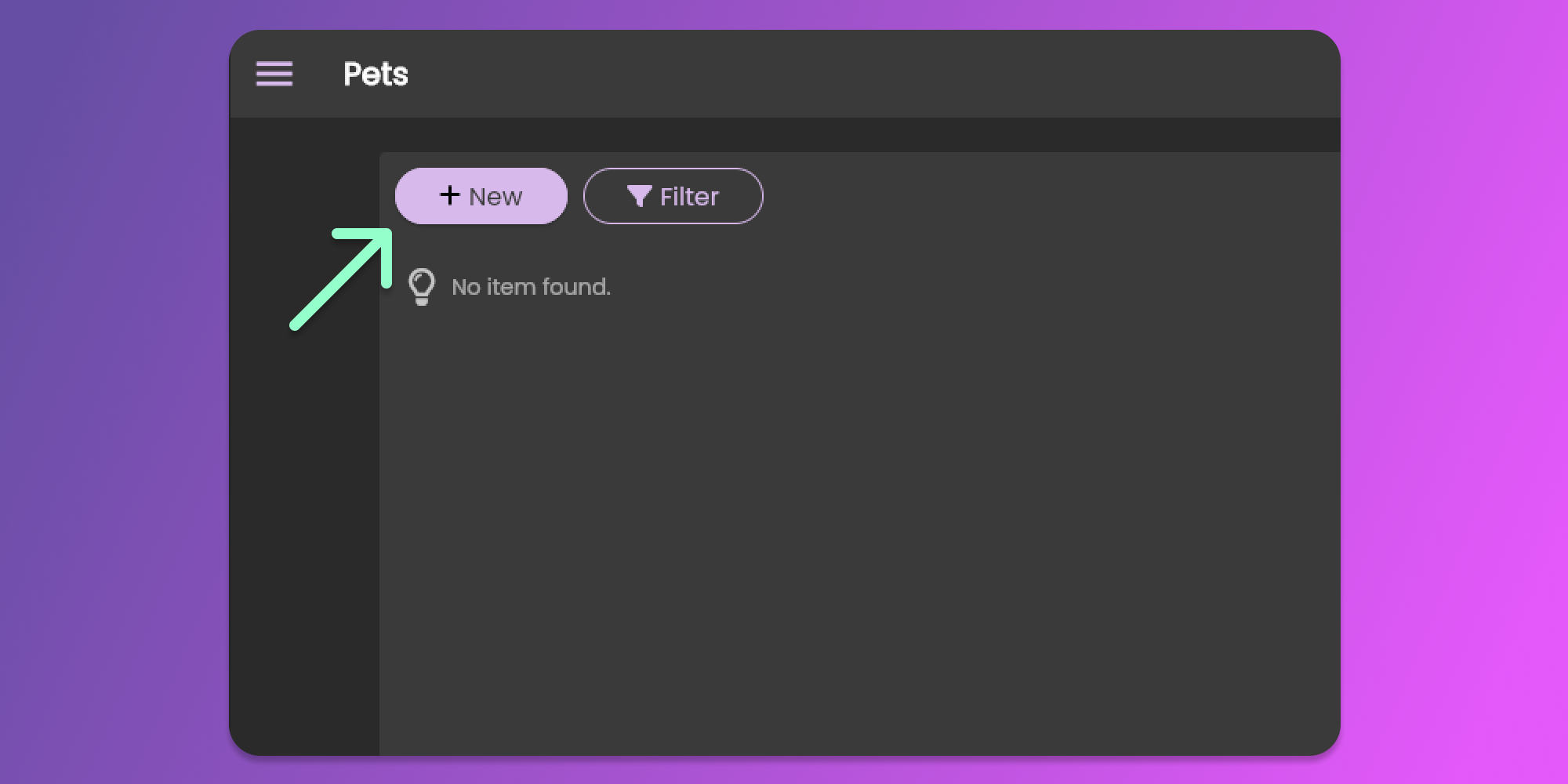
Start creating pets by clicking the **New** button at the top left corner of the page.
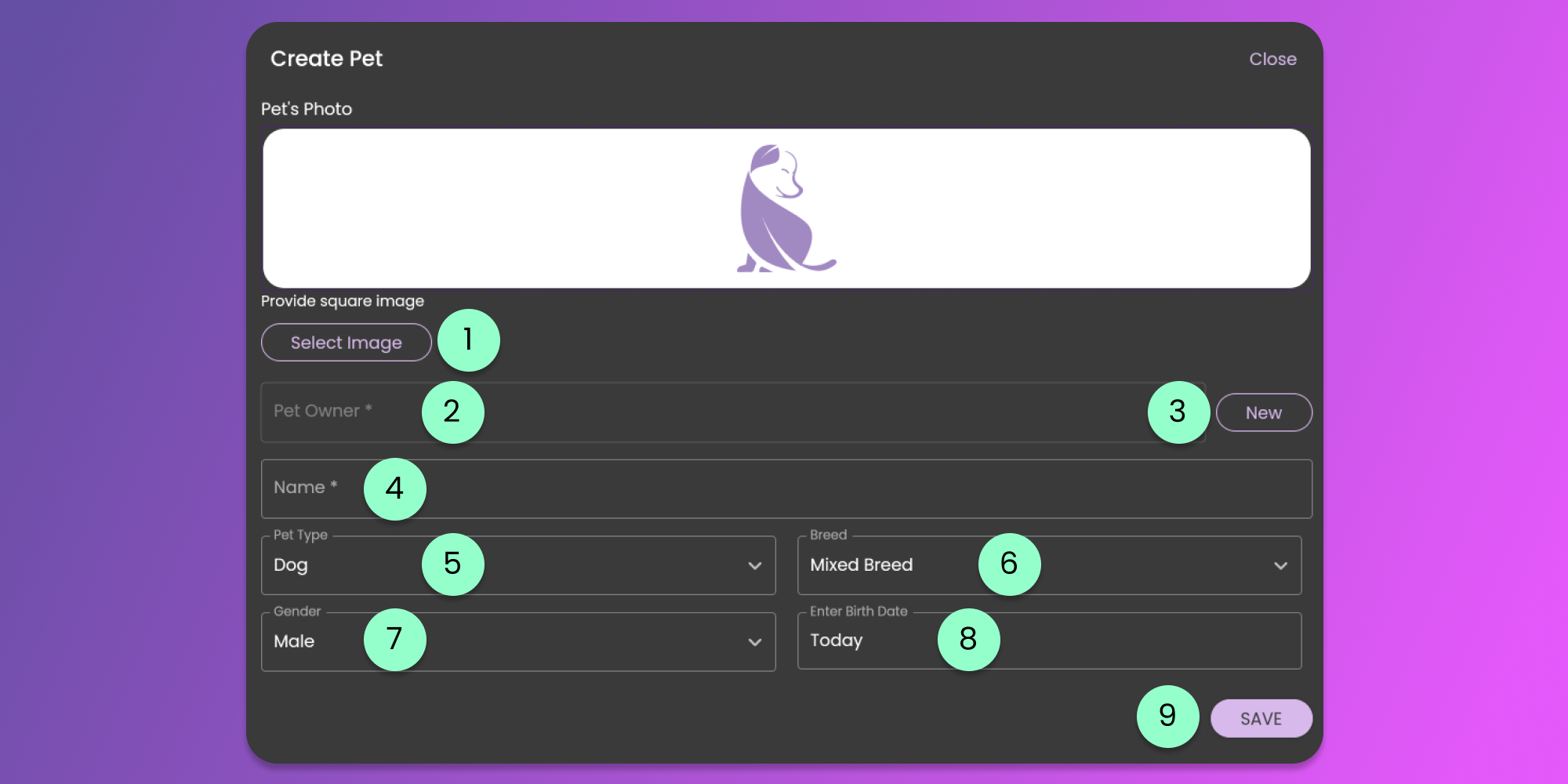
When creating pets, provide the details specified in the form below.
1. Pet's Photo
* Optional. Browse the pet's image by clicking the Select Image button. We recommend uploading less than 2MB in file size.
2. Pet Owner
* Required. This field will allow you to identify the owner of the pet. Clicking the field will provide a list of Pet Owners that you created.
3. **New** Pet Owner button
* This button will allow you to create a Pet Owner without leaving the form. Clicking this button will show the [Pet Owner's](/animal-diet-formulator/pet-owners.md#creating-pet-owners) form.
4. Name
* Required. This is will be used to identify the Pet.
5. Pet Type
* Required. Used to identify if the pet is a Dog or Cat.
6. Breed
* Required. By default, the breed will be unknown, it is preferred to provide the breed for easy identification.
7. Gender
* Required. Used to identify the gender of the pet. This will also be used in identifying the recipe's reproductive status
8. Birth Date
* Optional. The default value is the current day.
9. Save Button
* Click the button to Save the Pet's Details
{% hint style="info" %}
Pets are required for creating Pet Recipes for MPR, Individual, and Professional Version of Animal Diet Formulator. [Learn More](https://animaldietformulator.com/formulator/feature-list)
{% endhint %}
### Updating Pets
To update a pet’s information, you need to be on the Pets Page. To go to the Pets page, follow the steps [here](/animal-diet-formulator/pets.md).
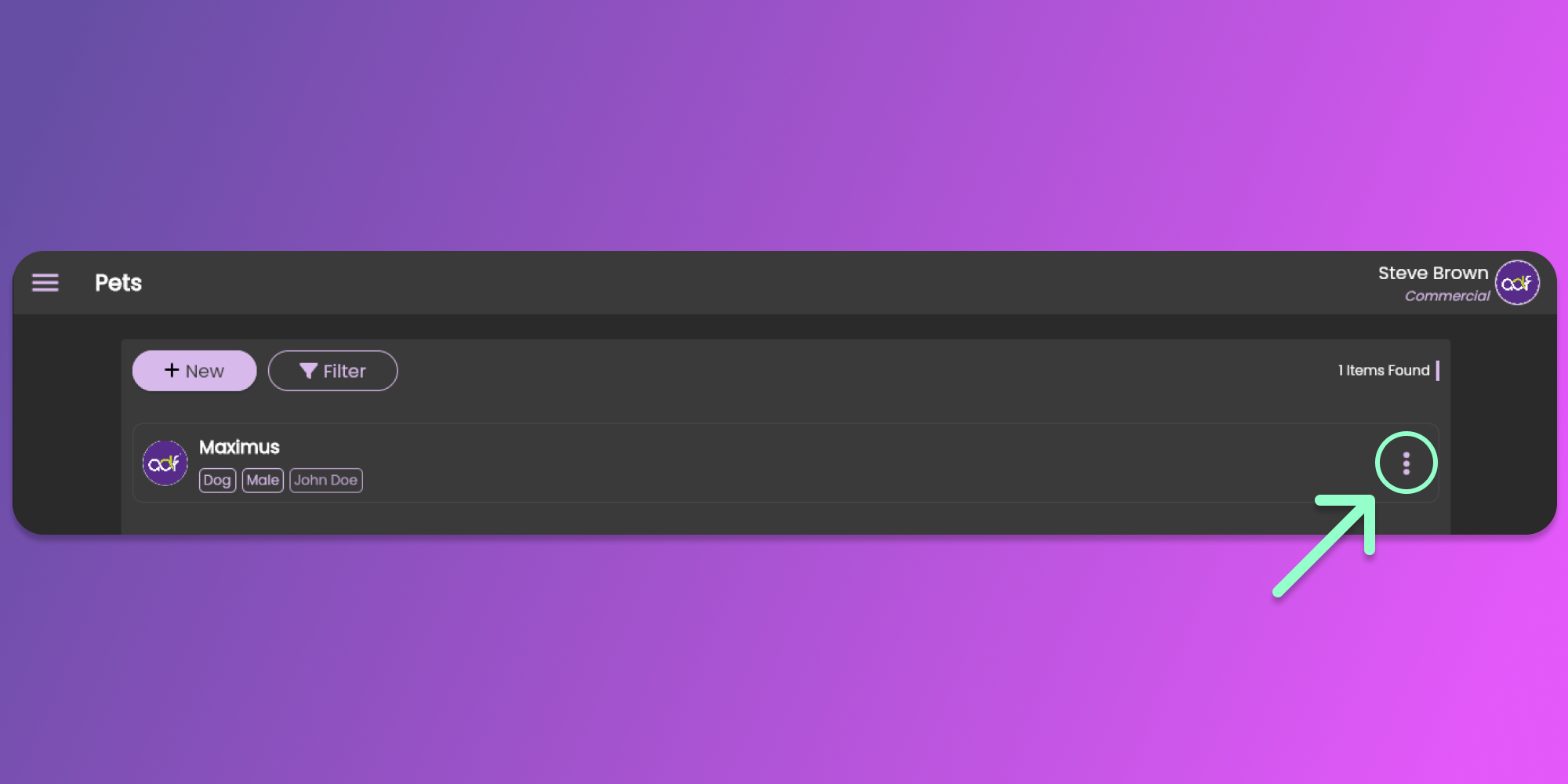
When you are already on the pets page, you can see the list of the pets that you created. You can click the three horizontal dots icon (known as Item Menu). See the image below.
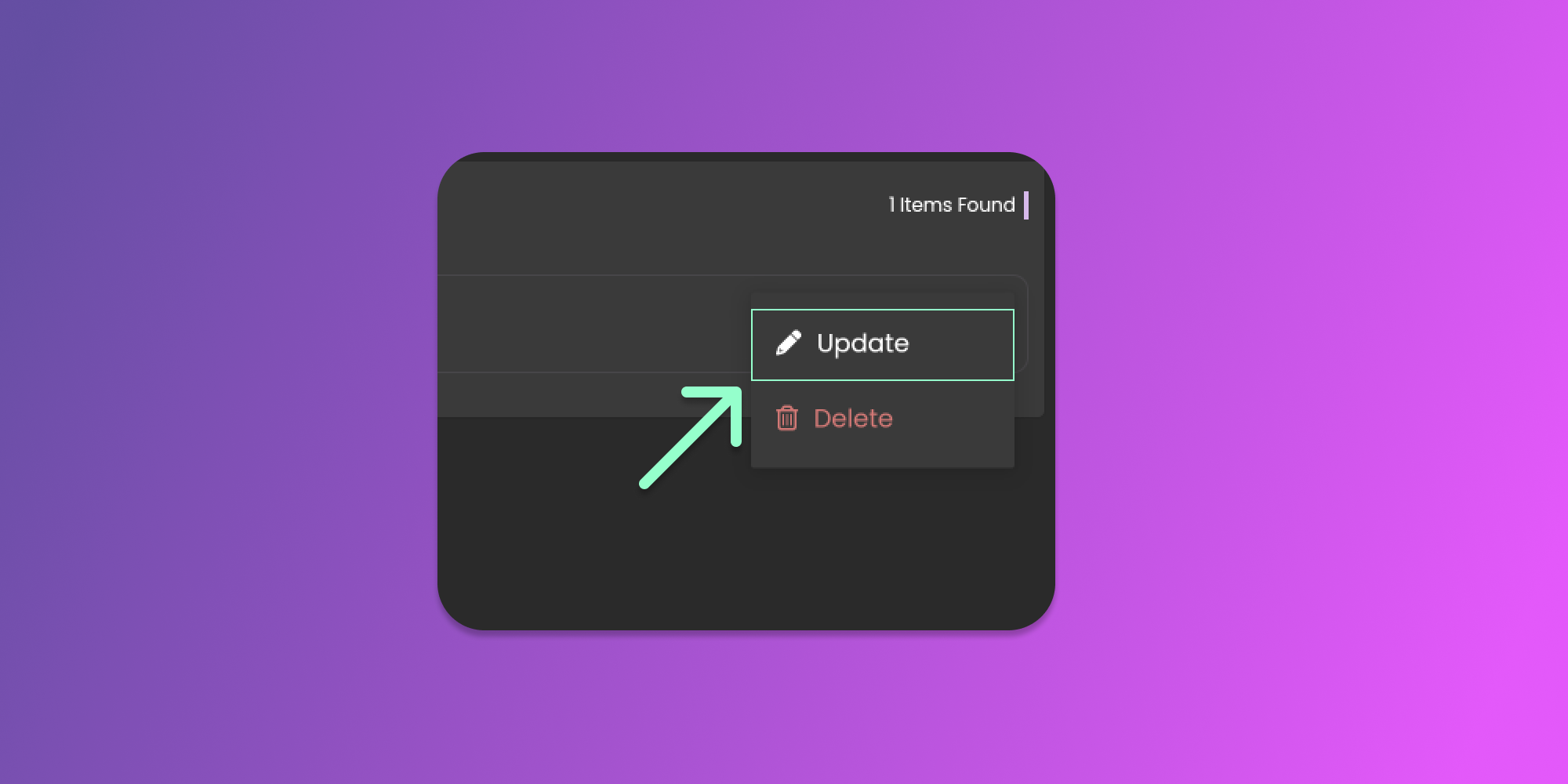
After clicking the horizontal dots icon, you can click the update button to view the form.
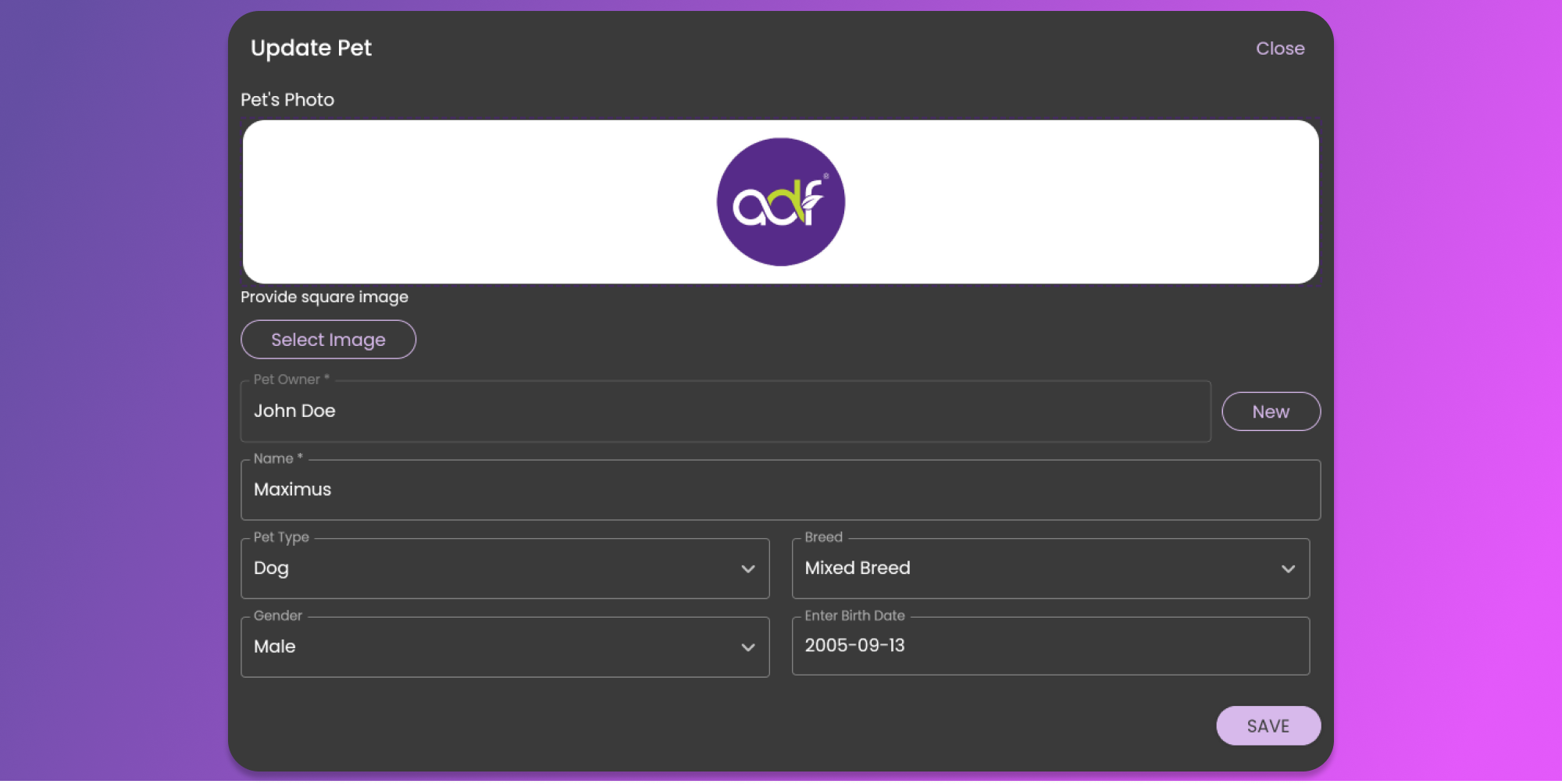
The Pet form will show pre-filled information for the Pet that you want to update. See the image below
After updating the field that you want to modify, click the save button at the bottom right part of the form.
### Deleting Pets
Every Pet you create reduces your remaining allowed number of Pets. If you are not using a Pet entry, we recommend deleting it.
To perform this action, you need to be on the Pets Page. To go to the Pets page, follow the steps [here](#pets-list).
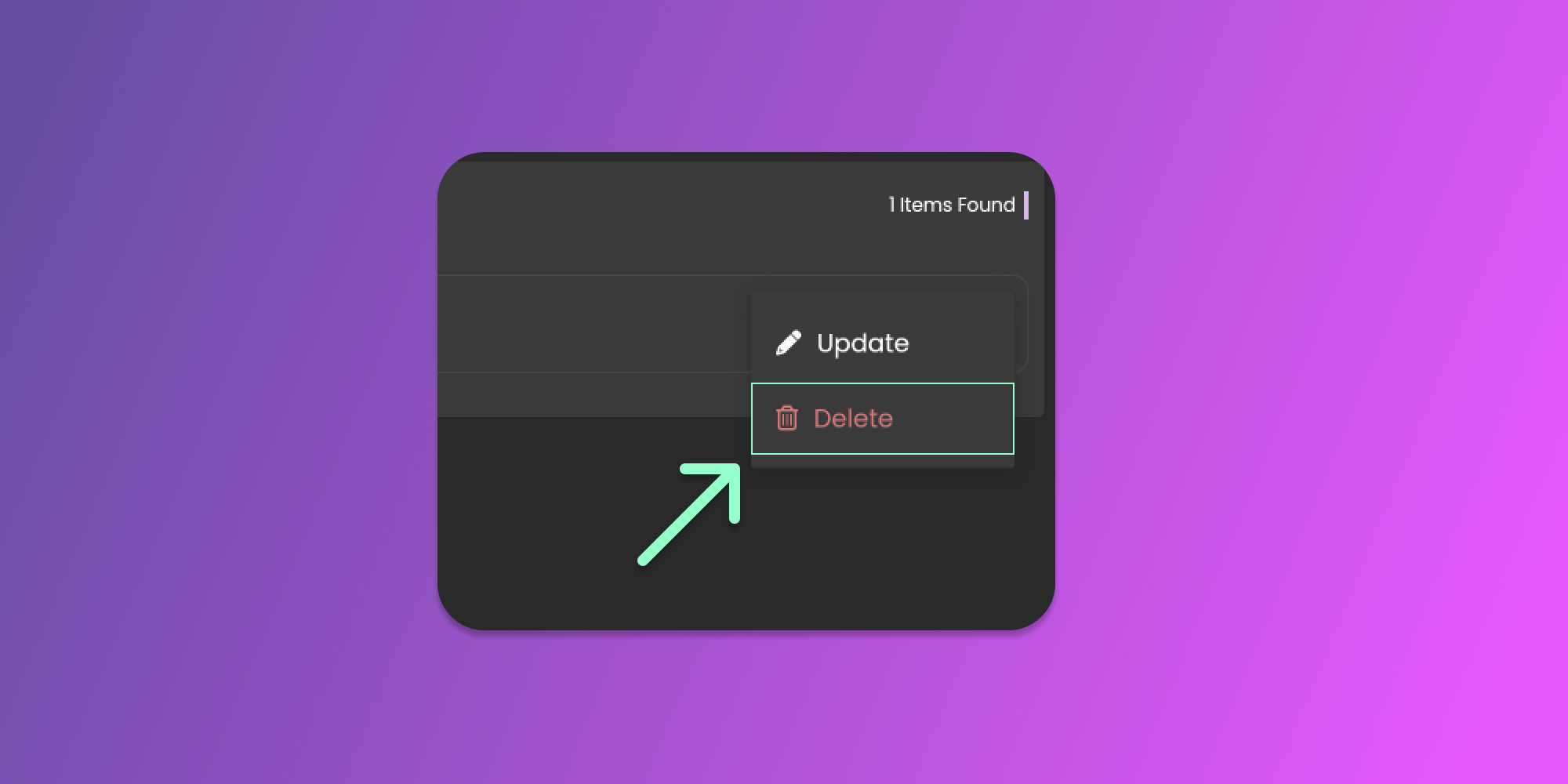
When you are on the pets page, you will see the list of created pets. You can click the three horizontal dots icon (known as Item Menu) to show action options for that pet. See the image below.
After clicking the horizontal dots icon, you can click the delete button to remove the pet.
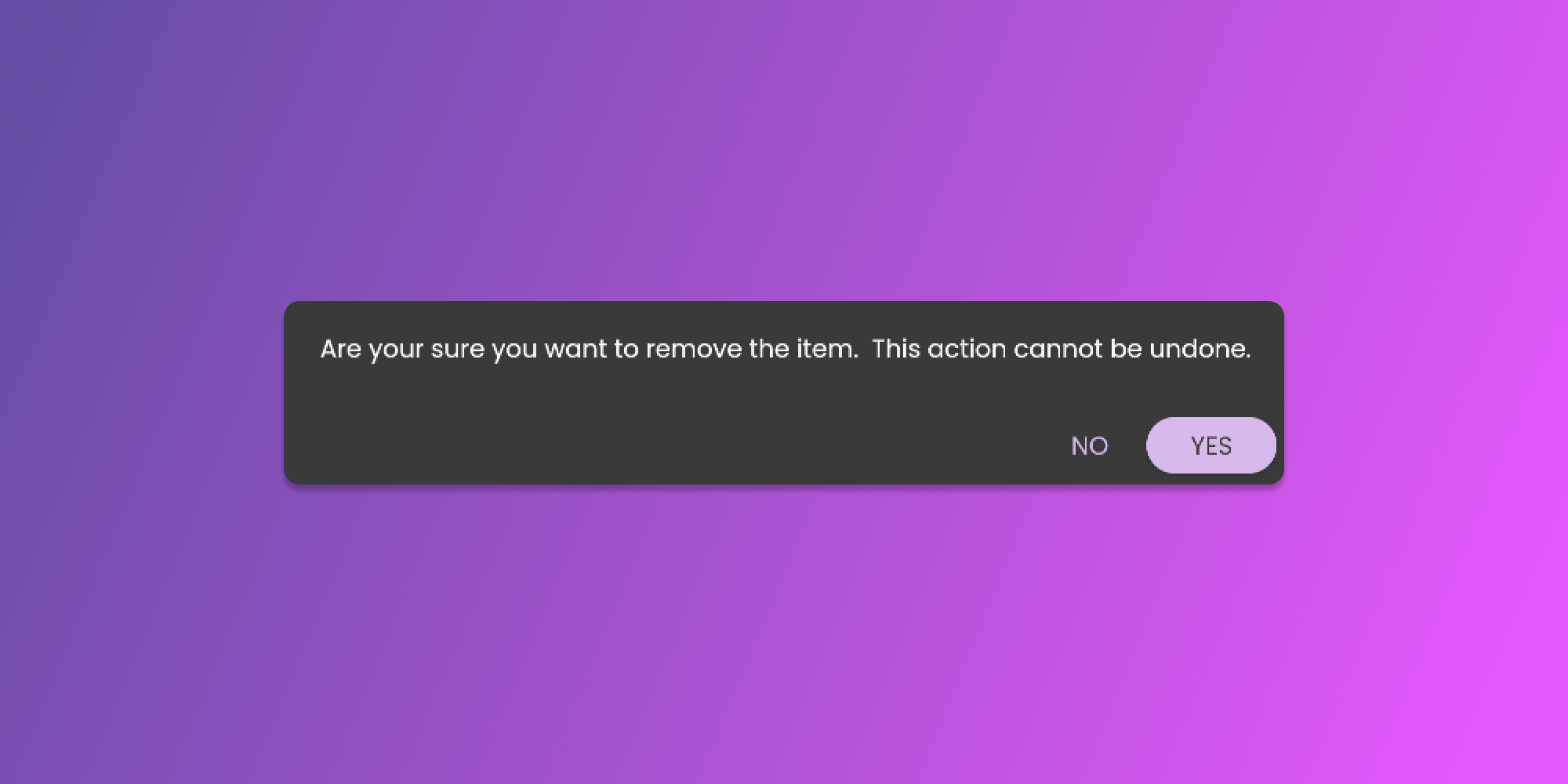
After clicking the delete button, there will be a confirmation pop-up that will require your attention before we remove the pet. See the image below.