> For the complete documentation index, see [llms.txt](https://docs.animaldietformulator.com/llms.txt). Markdown versions of documentation pages are available by appending `.md` to page URLs; this page is available as [Markdown](https://docs.animaldietformulator.com/members-area/invoices.md).
# Invoices
Here you can access your invoice history.
To access your invoices please be sure that you have signed in to your account.
{% hint style="info" %}
To log in with your account, follow the steps mentioned [here](/members-area/profile/login.md).
{% endhint %}
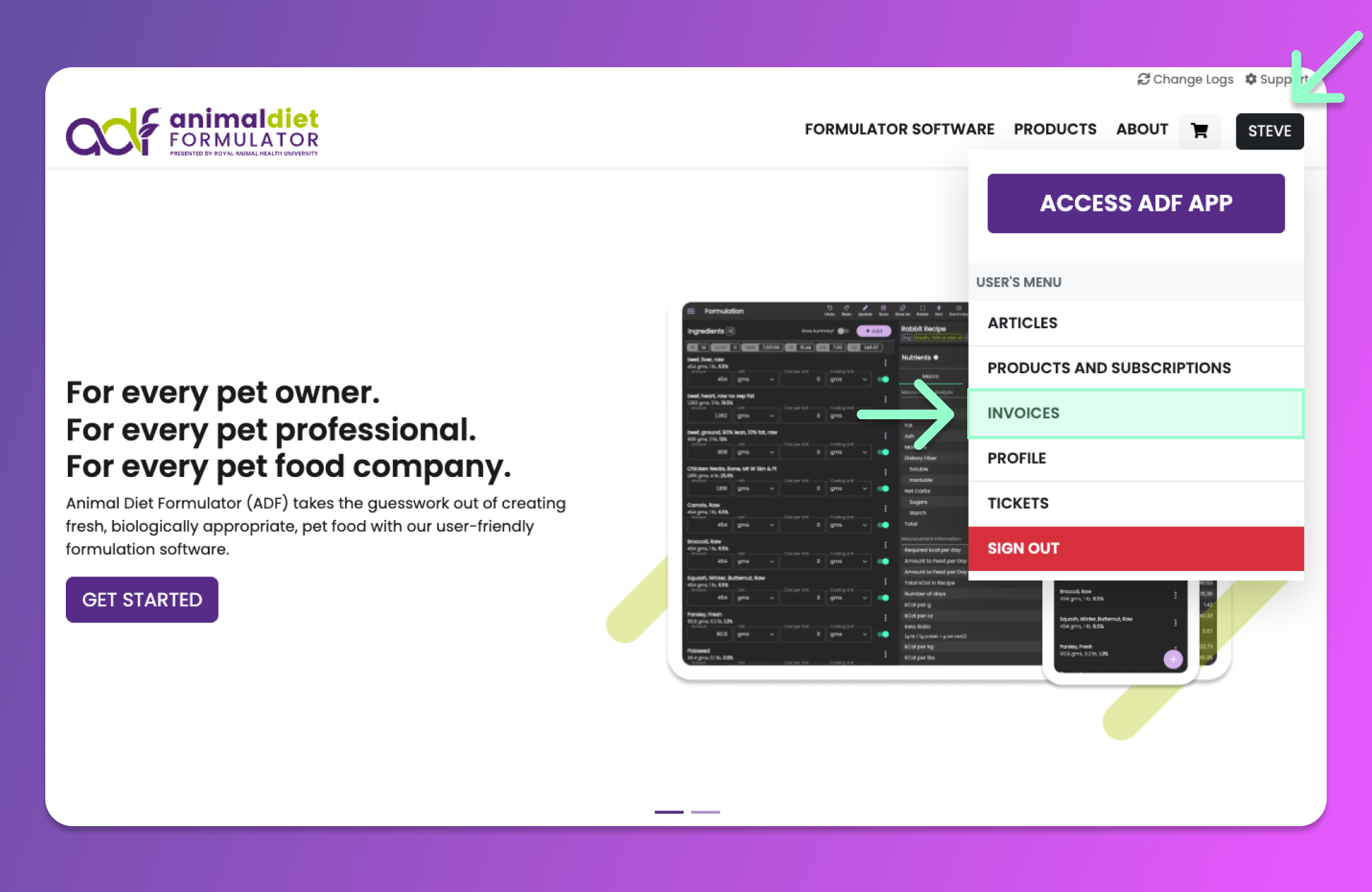
Access the User's Menu similar to the image below by hovering your mouse over your Name's button. Click the "Invoices" Menu item from the User's Menu to access the Invoices page.
{% hint style="info" %}
You can also access the User's Menu by going to the [User's Dashboard](/members-area/profile/user-dashboard.md).
{% endhint %}
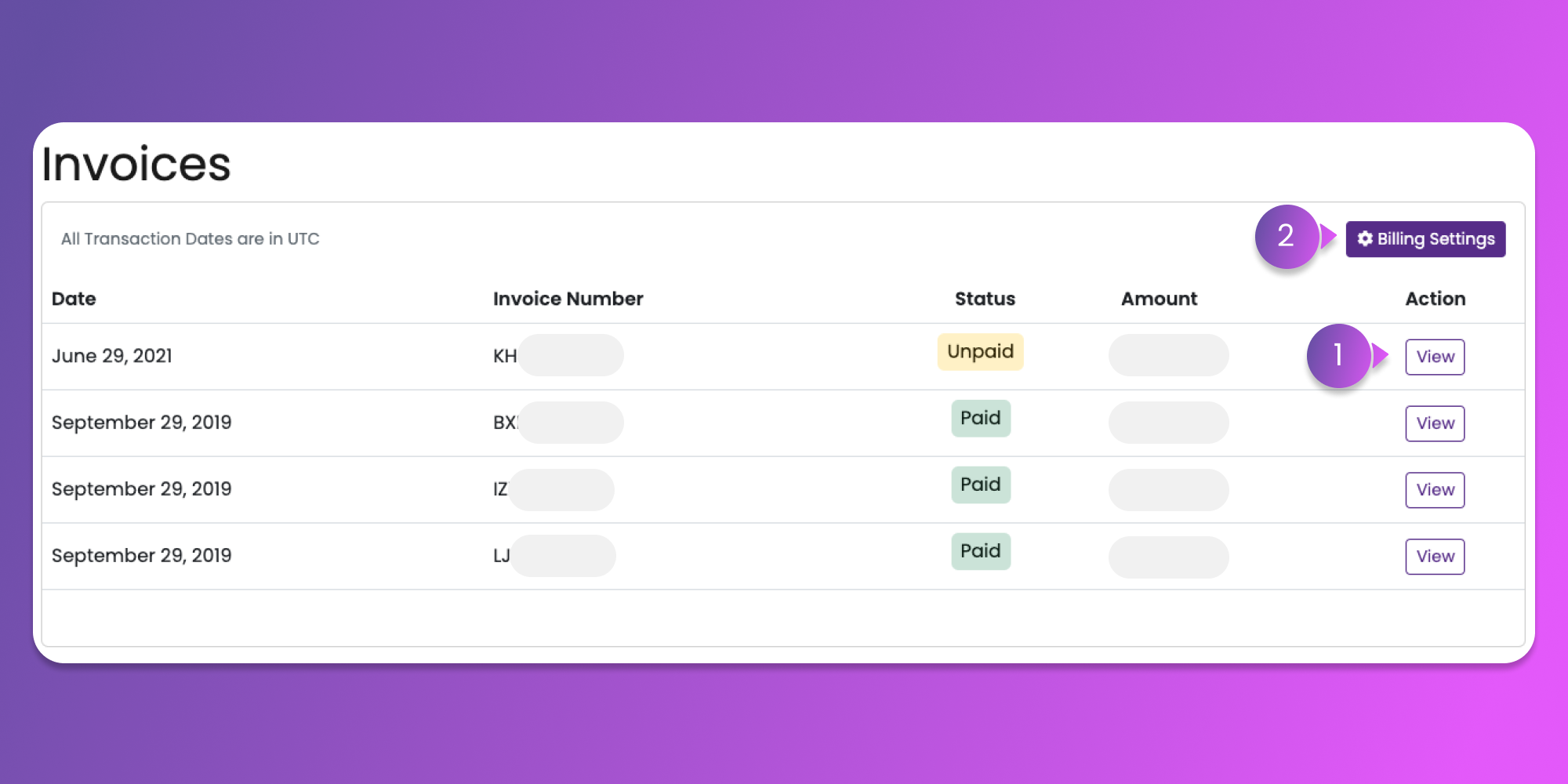
After clicking the menu item, you will be redirected to the Invoices page.
On this page, you can see the list of invoices related to your account. For each line of invoices, there is a corresponding View (Item 1) button for you to view the details of the Invoices.
Viewing the Invoices will also allow you to download the invoice in PDF Format.
You can also find the Billing Settings (Item 2) button at the top right corner of the page. This button will redirect you to the Billing Settings page.
### Billing Settings
{% hint style="info" %}
Please note that this is applicable for Stripe customers only. To view PayPal settings, read more [here](https://app.gitbook.com/o/HgW28x3hIOhQ49B1It3P/s/hG0lTGiTkuSbi8Obg8K2/~/changes/72/members-area/billing-settings).
{% endhint %}
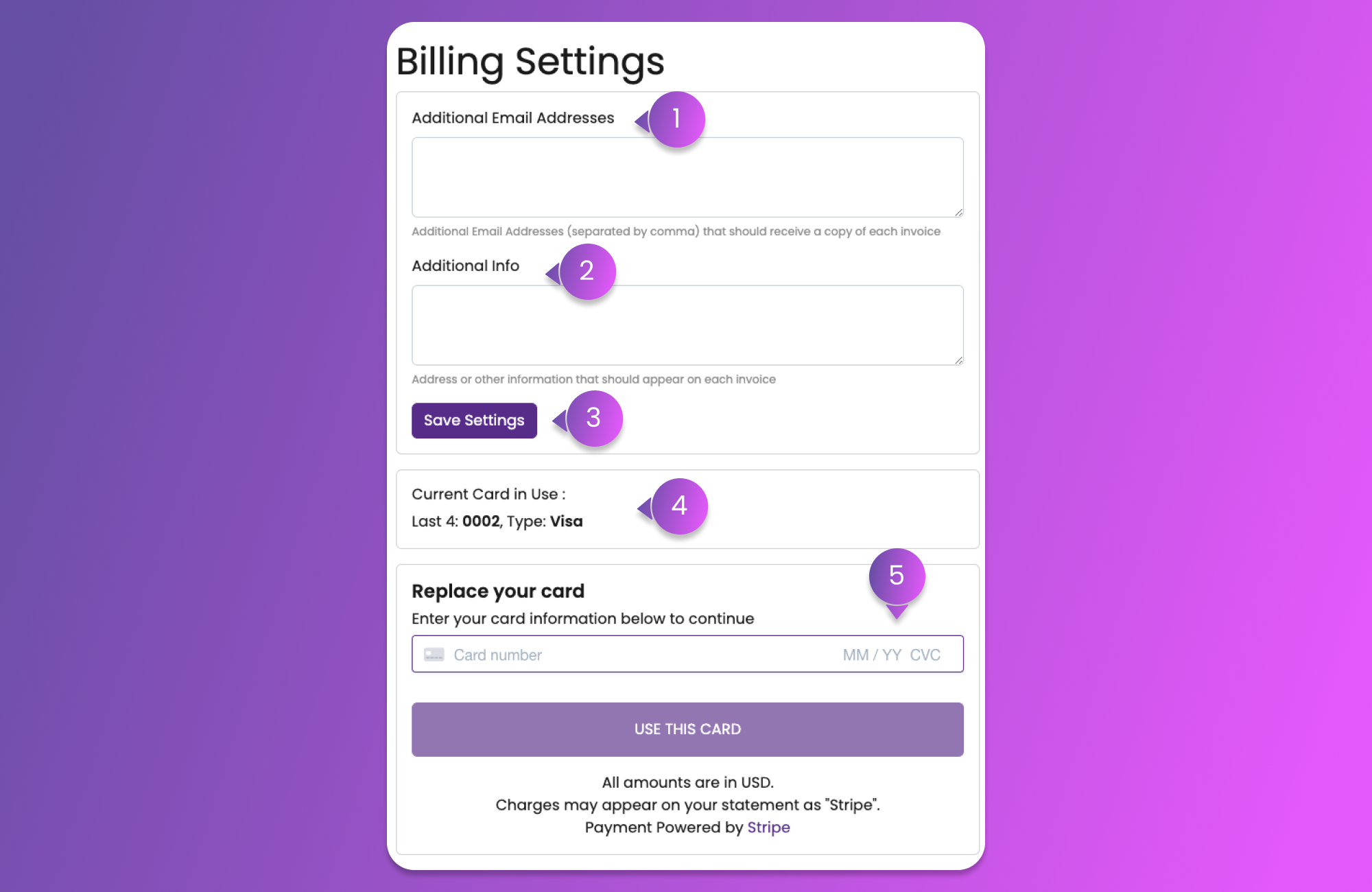
Add additional information to invoices here
#### 1. Additional Email Addresses
All the email addresses inserted here will receive the new invoices.
#### 2. Additional Info
Information provided here will be included in the new invoices.
#### 3. Save Settings
This button will save all the changes made in the Additional Email Addresses and Additional Info.
#### 4. Card Information
If you are paying through Stripe for your current subscription, the credit card used for payment will be shown here.
#### 5. New Card Input Field
In this form, you can update the credit card payment method used for your current subscription.