> For the complete documentation index, see [llms.txt](https://docs.animaldietformulator.com/llms.txt). Markdown versions of documentation pages are available by appending `.md` to page URLs; this page is available as [Markdown](https://docs.animaldietformulator.com/animal-diet-formulator/ingredients.md).
# Ingredients
This is the section where you can manage your Ingredients and verify the details of each Animal Diet Formulator Ingredient
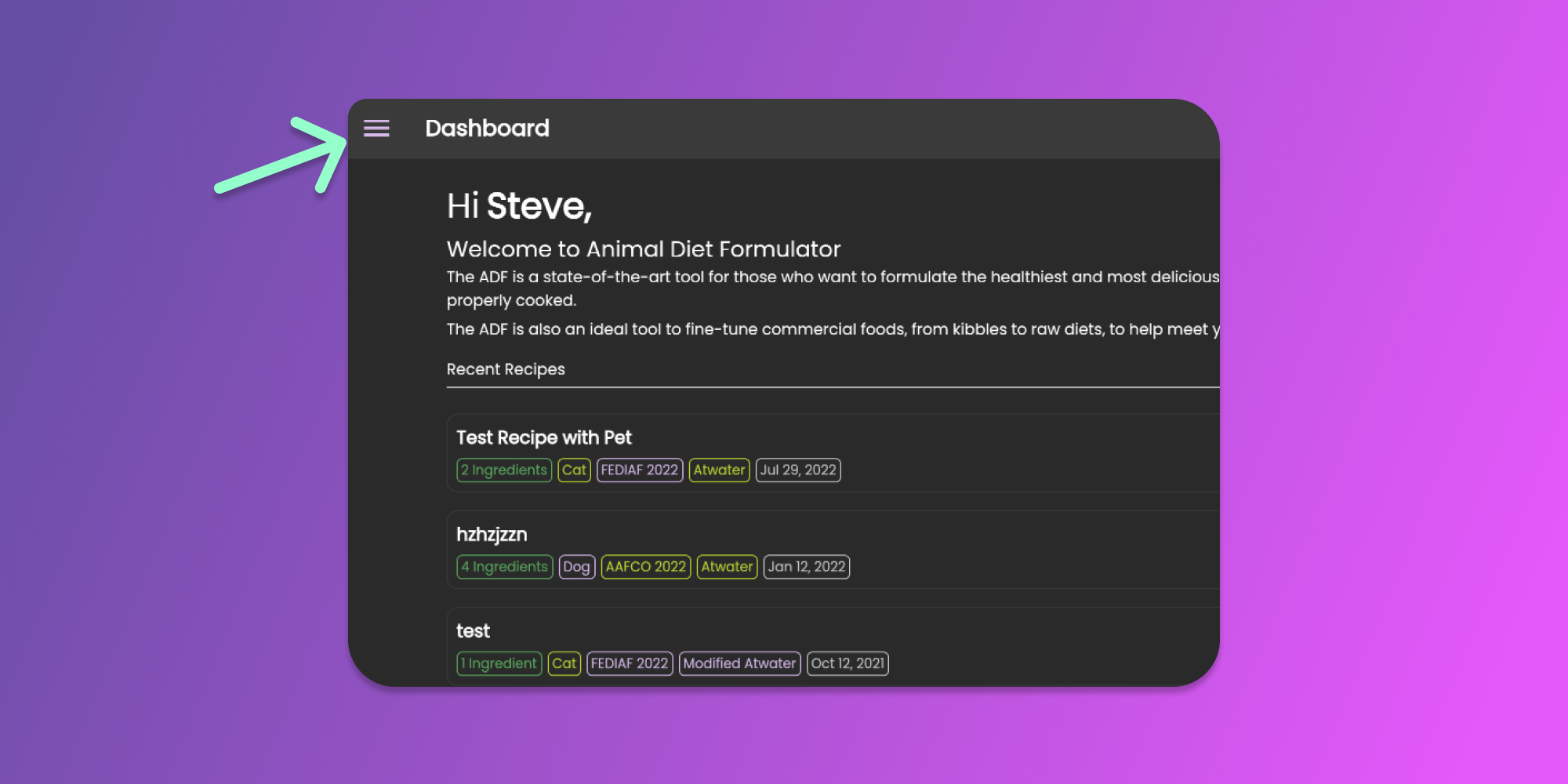
To start managing your ingredients, you can go to Main Menu by clicking the similar icon below.
Click to Enlarge
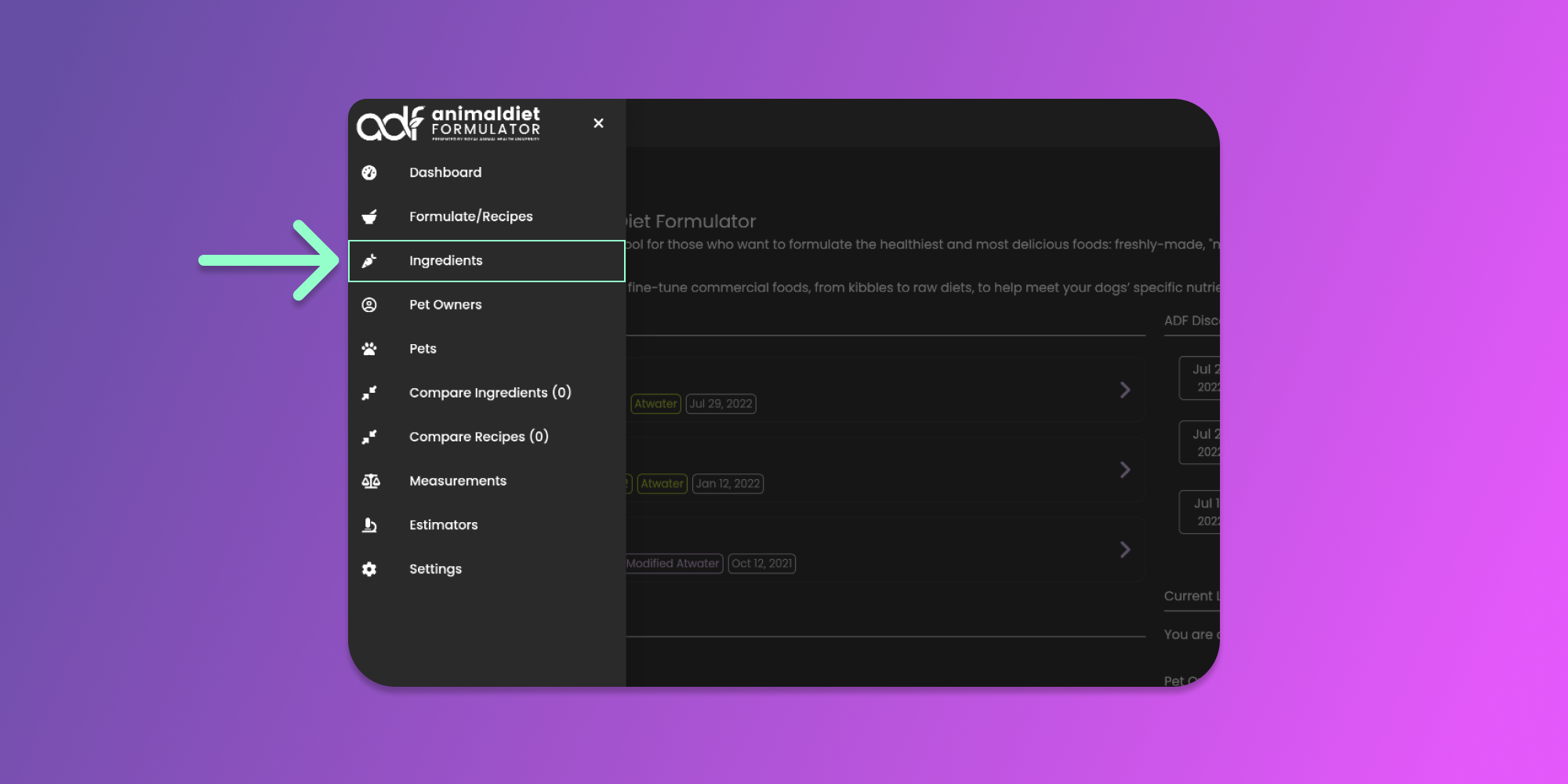
Then click the Ingredients menu item from the Main Menu.
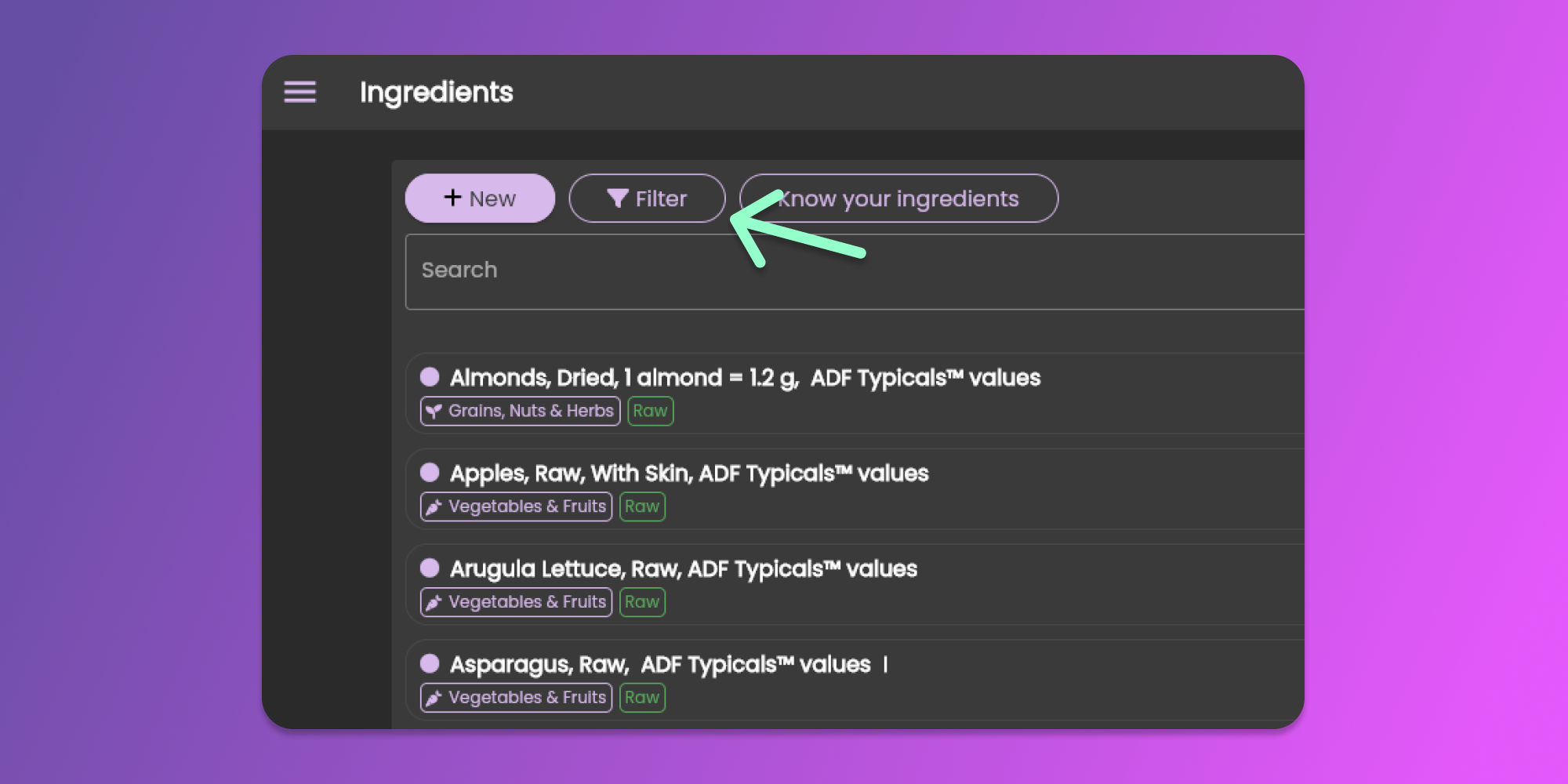
From the Ingredients page, you can now create, update or delete your ingredients. This page also lists all the ingredients that you created.
### Filter the Ingredients
When you want to search for the ingredients that you want to update or delete, you can utilize the filter feature. Click the filter button similar to the image below.
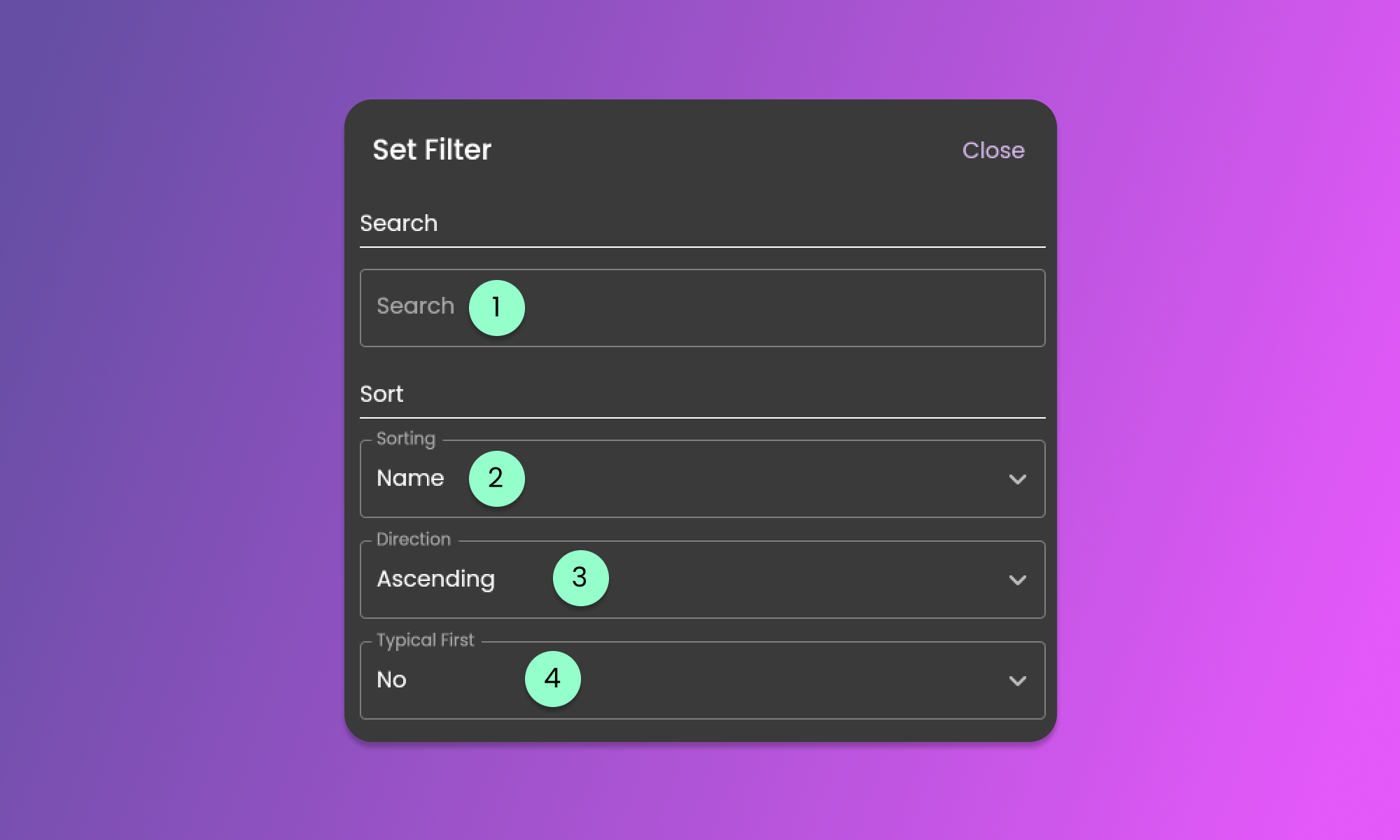
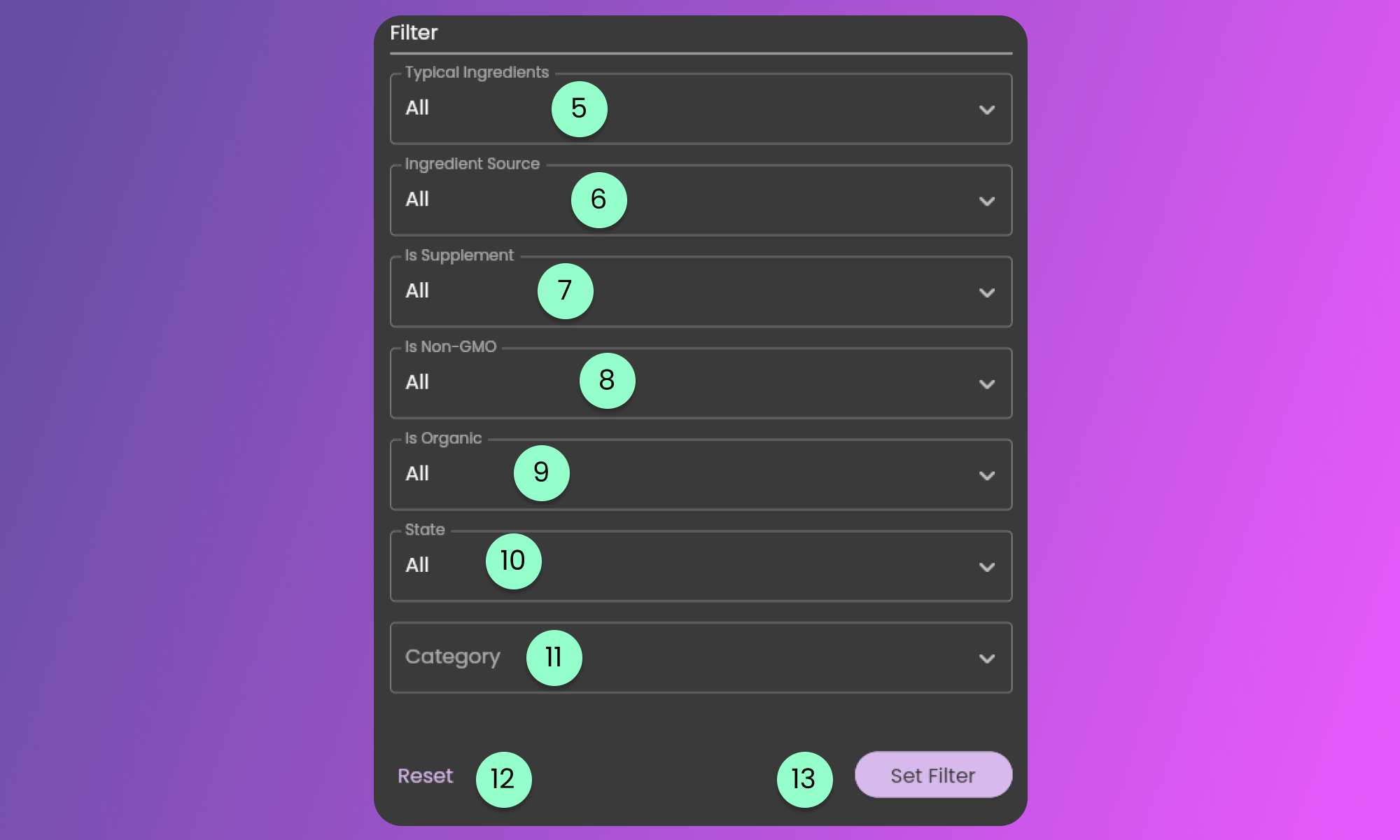
The filter form will be available for you to modify the default filter settings.
The filter form contains the following fields.
1. Search
* This field will look for the term in the ingredient's name.
2. Sorting
* You can sort the items based on the selected option for sorting.
3. Sorting Direction
* This will control the direction of sorting of the selected information in the Sorting field.
4. Typical First
* This field will sort all the ingredients based on the tag if the ingredient is an ADF Typical. To learn more about ADF Typicals, [click here](https://animaldietformulator.com/why-we-built-the-typical-ingredients).
5. Typical Ingredients
* This field will filter the list of ingredients based on the selected value if the ingredient is an ADF Typicals.
6. Ingredient Source
* This field will allow you to filter the ingredients by whether it is created by Animal Diet Formulator or by yourself.
7. Is Supplement
* This field will filter the list of ingredients if it is tagged as Supplement or not.
8. Is Non-GMO
* This field will filter the list of ingredients if it is tagged as Non-GMO or not.
9. Is Organic
* This field will filter the list of ingredients if it is tagged as Organic or not.
10. State
* This field will filter the list of ingredients based on the selected state value.
11. Category
* This will filter the ingredients based on the category selected.
12. Reset
* Clicking this button will reset all the changes made.
13. Set Filter
* Clicking this button will apply the preferred filters.
### Easy Filter of Ingredients you created
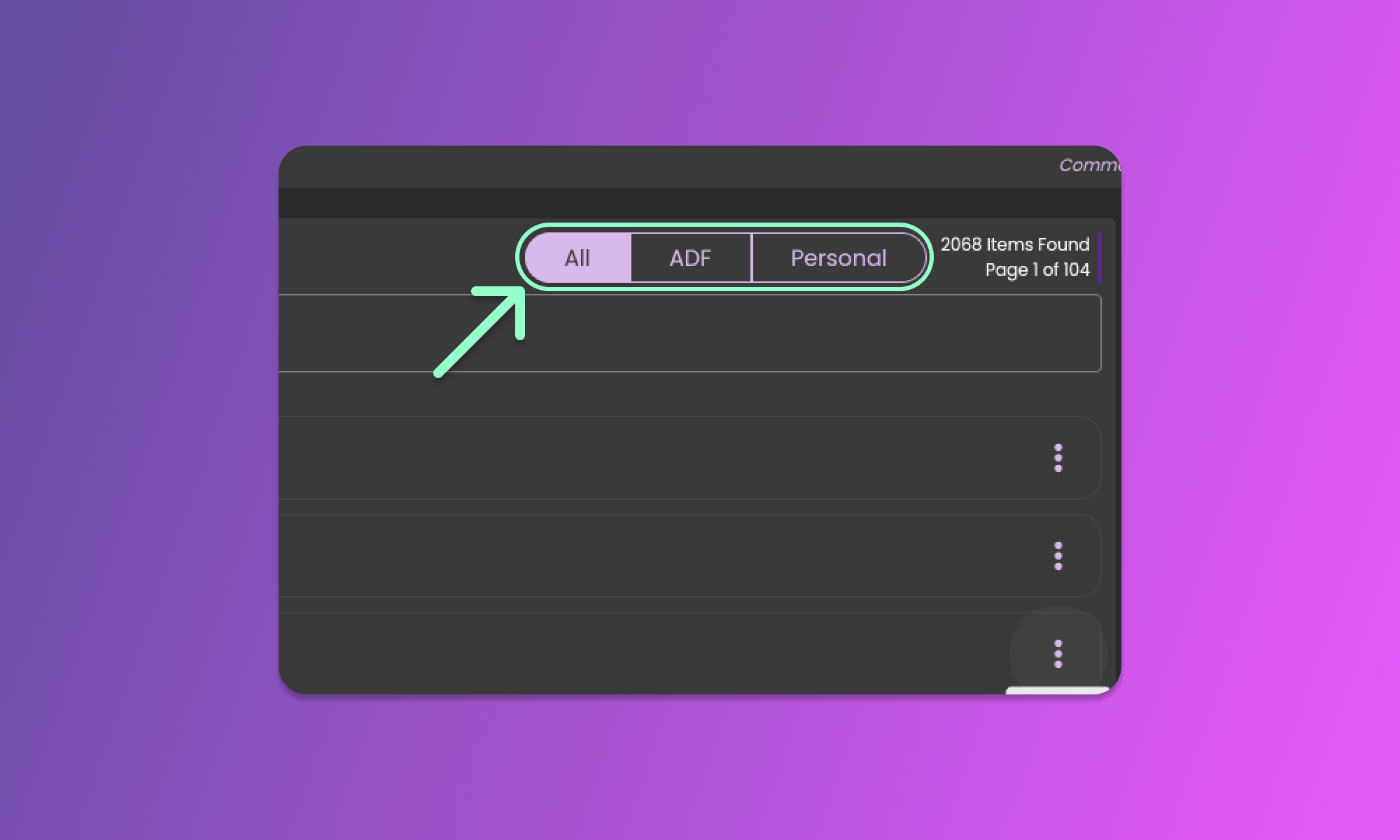
While at the listing page of Ingredients, you can filter the ingredients by clicking the Ingredient Source buttons similar to the image below.
### Creating Ingredients
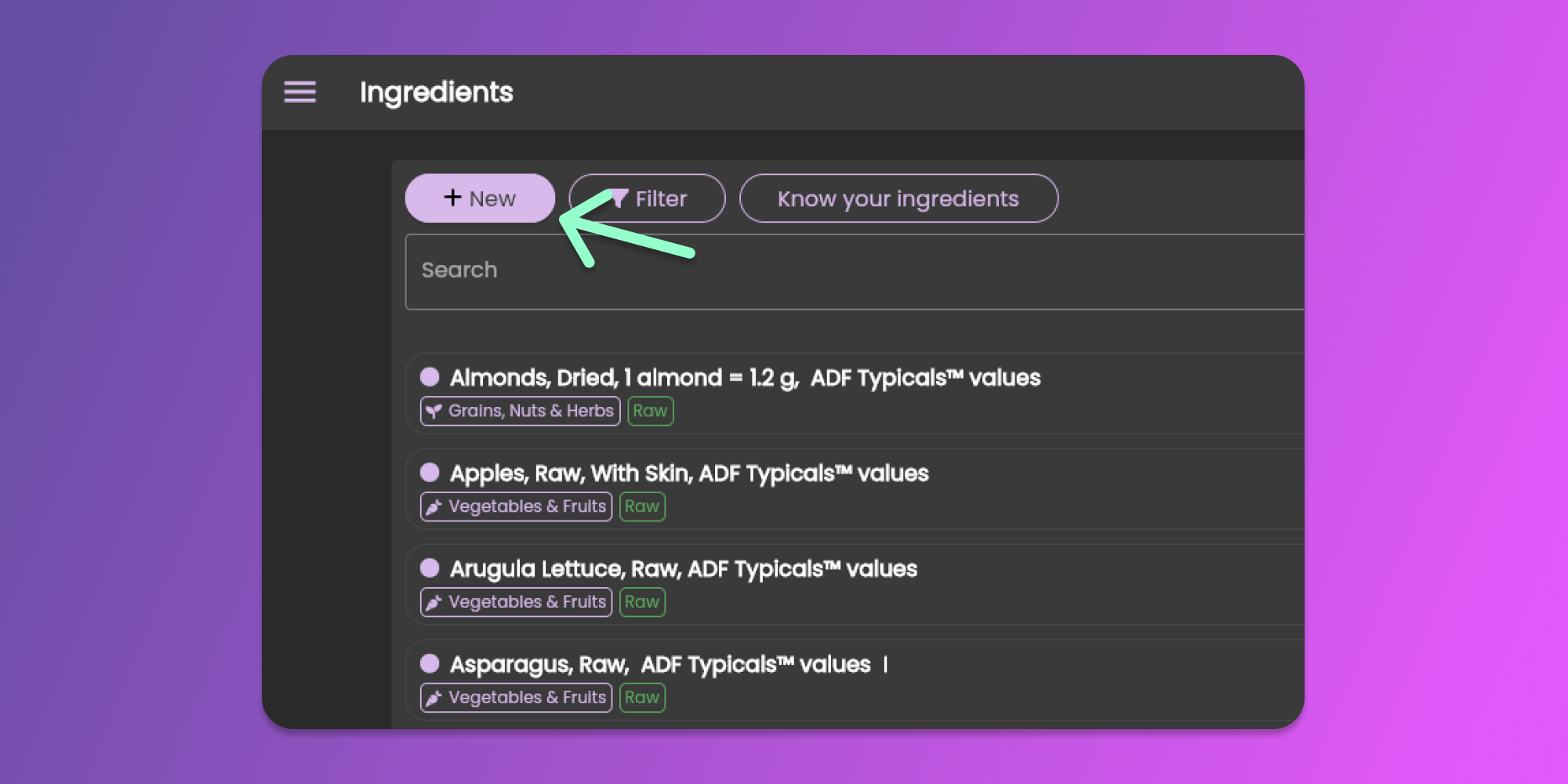
Start creating your ingredients by clicking the **New** button at the top left corner of the page.
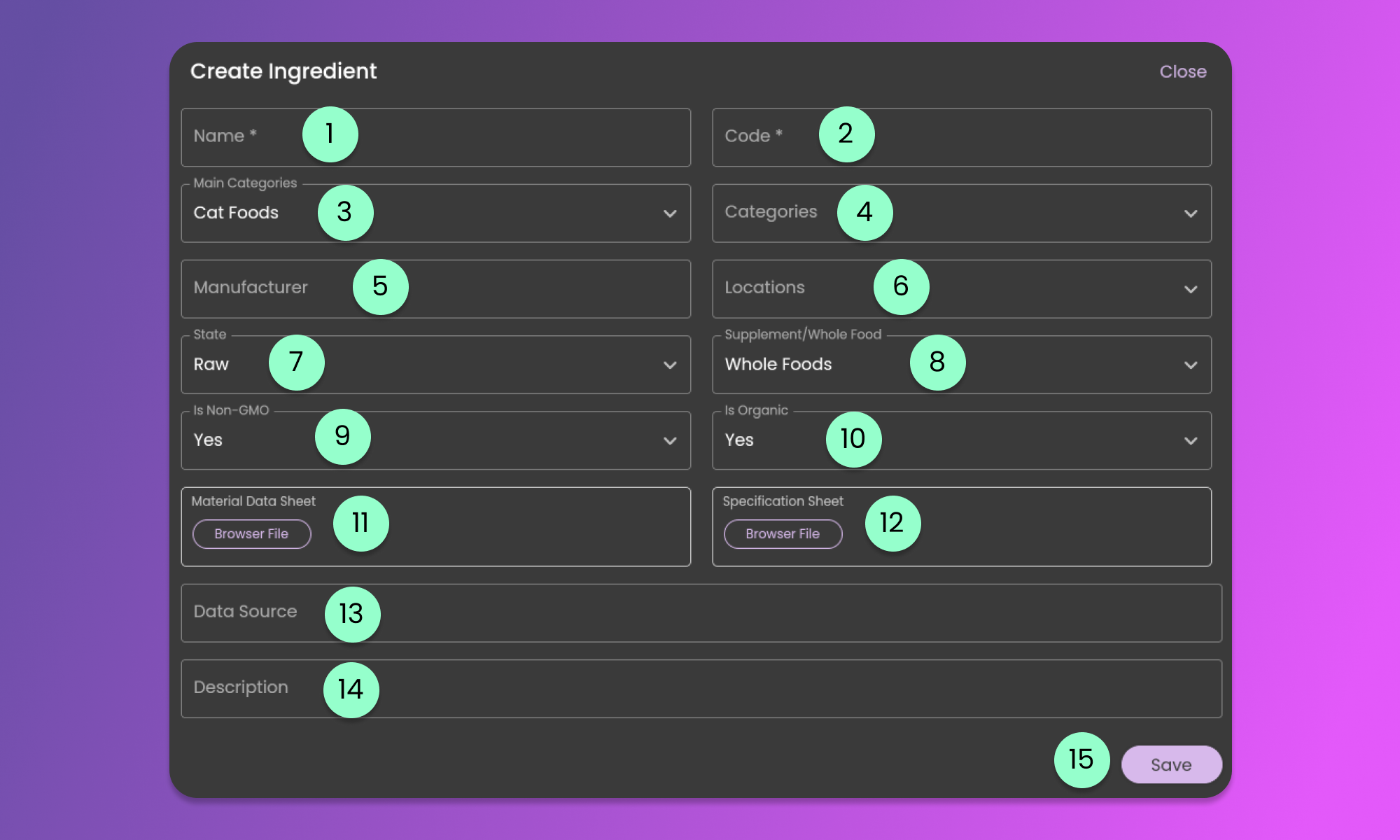
When creating ingredients, provide the details specified in the form below.
1. Name
* Required. Used to identify the ingredient.
2. Code
* Required. Used as a sub-name of identification if there are two or more ingredients with the same name.
3. Main Categories
* Required. The information provided will be used to categorize the ingredients and provide the Ingredient Summary information when formulating any recipe.
4. Categories
* Optional. The information below will be helpful to filter the ingredients. Multiple values are accepted.
5. Manufacturer
* Optional. The information will be utilized as a reference for the manufacturer of the ingredient.
6. Locations
* Optional. The countries where the ingredient is sourced from or is available. Multiple values are accepted.
7. State
* Required. This field will tag ingredients about their state. Values can be Raw, Cooked, Powder, Oil/Liquid, Dried/Dehydrated/Freeze-Dried(FD)
8. Supplement/Whole Food
* Required. This field will tag the ingredients if it is a Supplement or Whole Food.
9. Is Non-GMO
* Required. This field will tag the ingredients if it is a Non-GMO or not.
10. Is Organic
* Required. This field will tag the ingredients if it is an Organic Ingredients or not.
11. Material Data Sheet
* Optional. This will be used as a reference only for the ingredient material information. You can upload an image or PDF.
12. Specification Sheet
* Optional. This will be used as a reference only for the ingredient specification. You can upload an image or PDF.
13. Data Source
* Optional. You can provide a URL for the manufacturer information.
14. Description
* Optional. This is the field where you can provide additional information about the ingredient.
15. Save Button
* Click the button to Save the Ingredient's Details
After you created the ingredient, you will have the option to set and update the nutrient value of the ingredient. To do this action we suggest filtering the ingredients that you created. See [instructions here](#filter-the-ingredients).
### Ingredient Nutrients
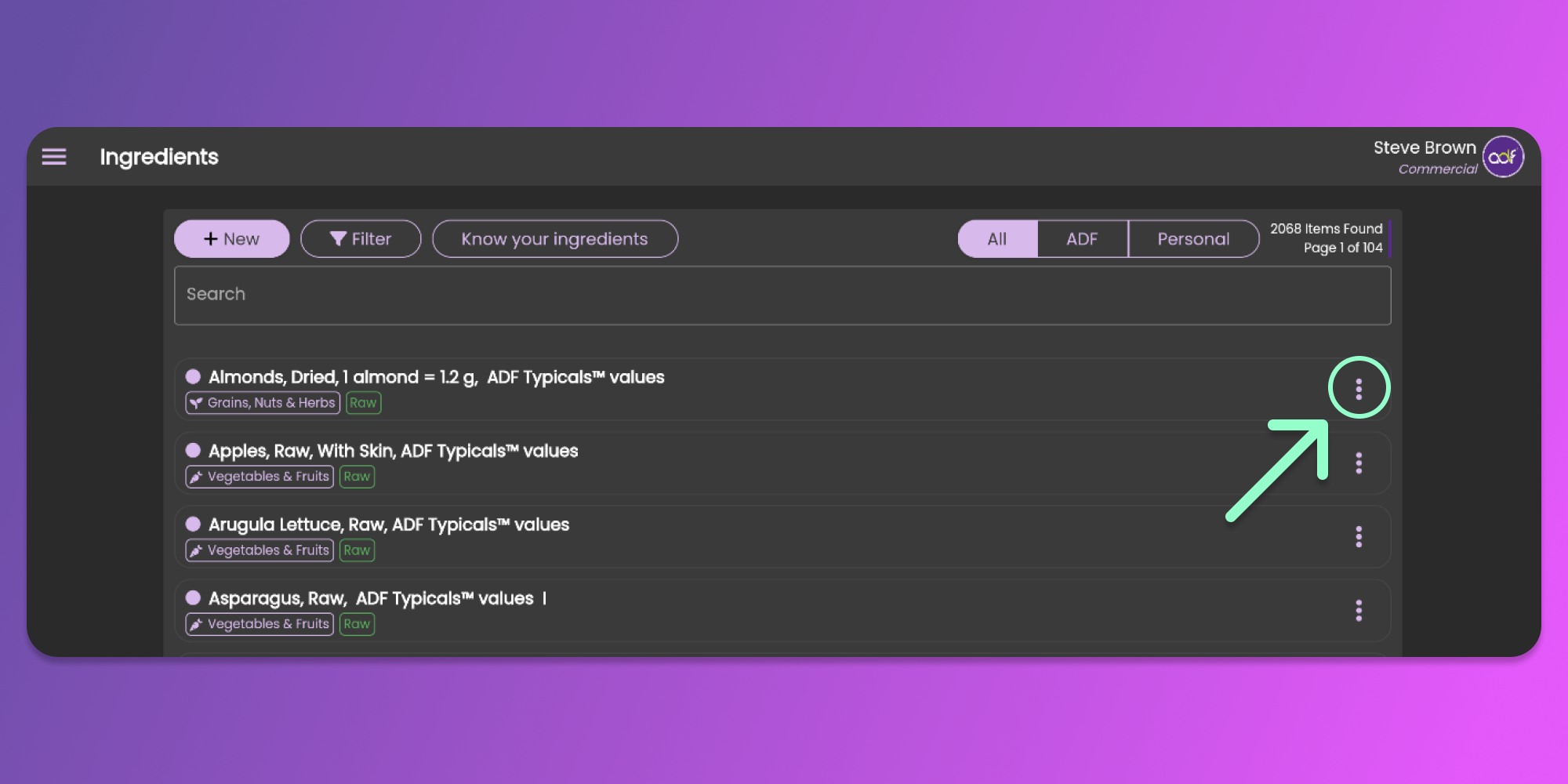
After you enter the ingredient details, click the three horizontal dots icon (known as Item Menu) to enter nutrient values. See the image below.
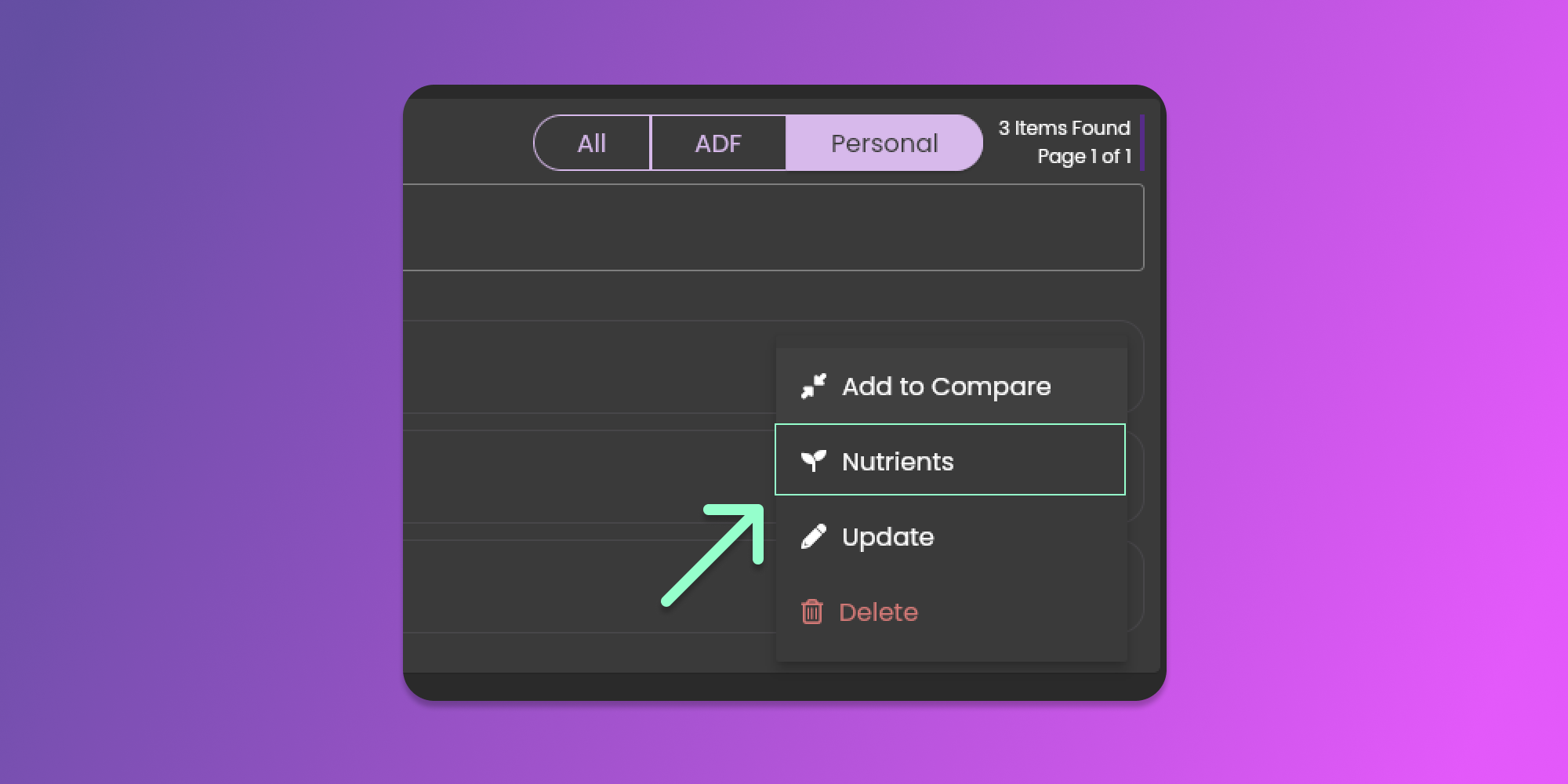
After clicking the horizontal dots icon, you can click the nutrients button to view the form
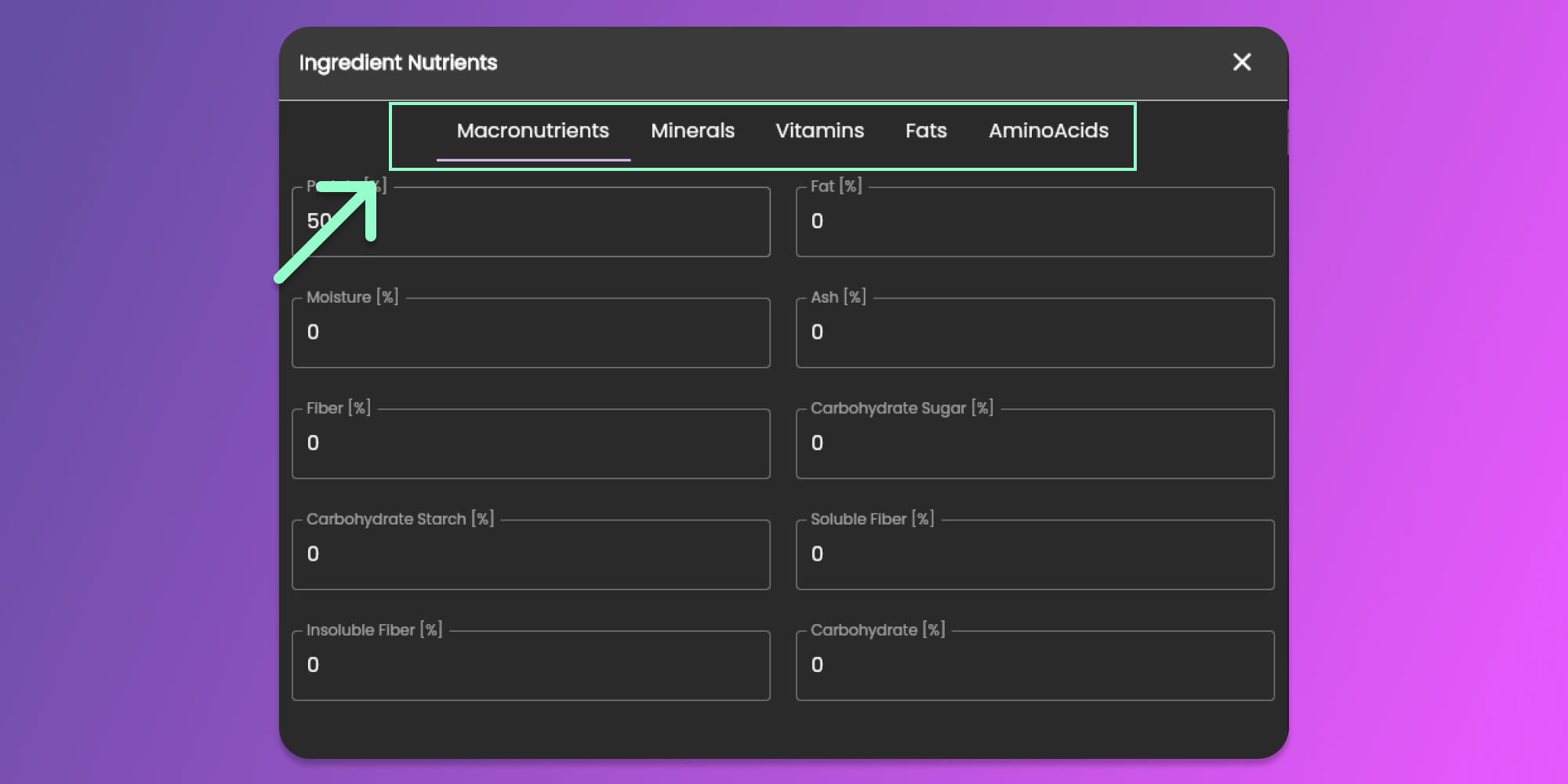
The form will load the form for you to set and update the nutrients, you can select the preferred section that you want to update.
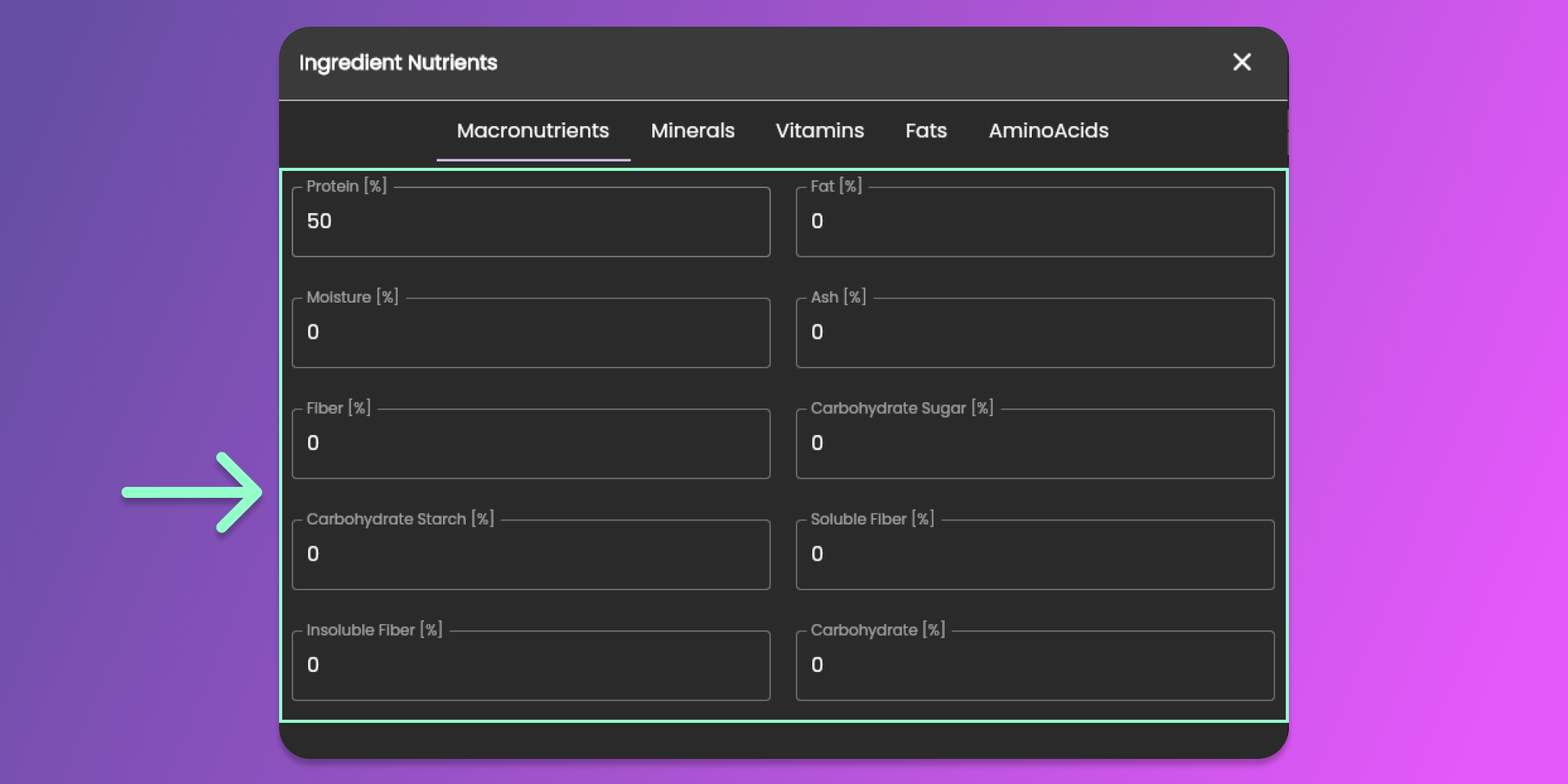
After you selected a section, you can provide the value for each nutrient.
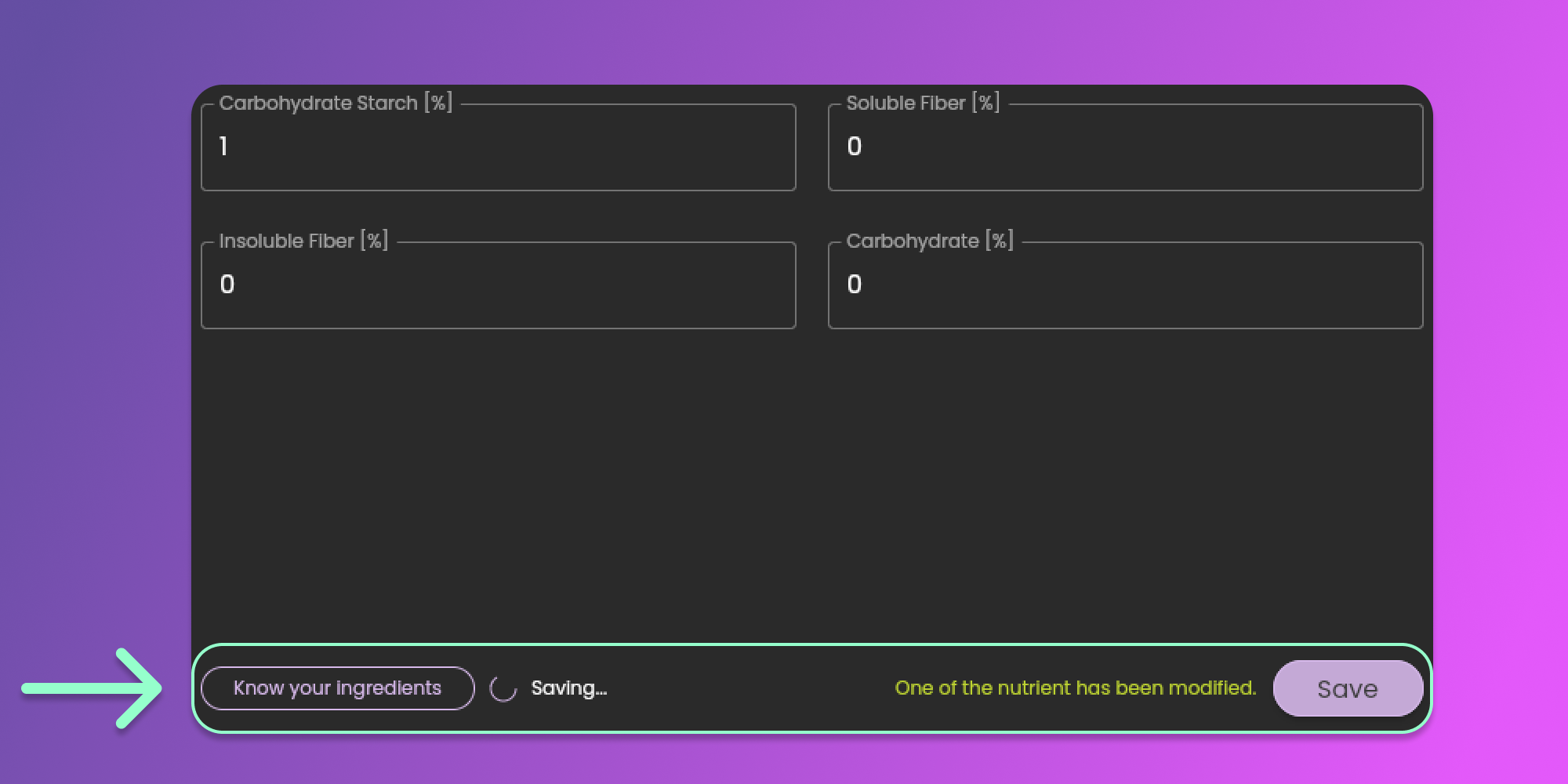
After you've made the changes, you can click the **Save** button to save the information that you added.
{% hint style="info" %}
These fields will be disabled for Animal Diet Formulator ingredients
{% endhint %}
### Updating Ingredients
You might want to update the ingredient information. To do this, you need to be on the Ingredients Page. To go to the ingredients page, follow the steps mentioned [here](/animal-diet-formulator/ingredients.md).
{% hint style="info" %}
You can only update the ingredients that you created.
{% endhint %}
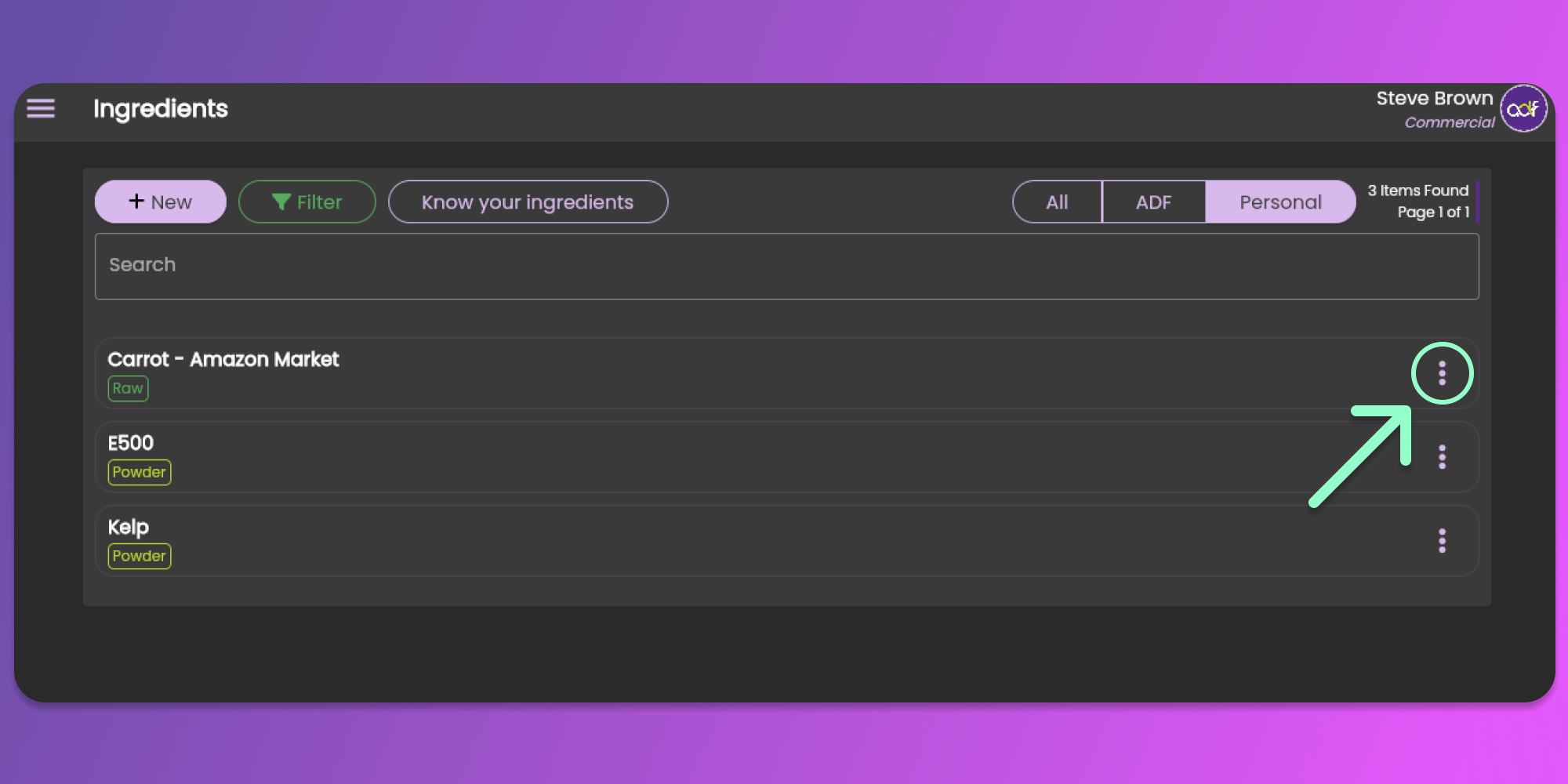
When you are on the ingredients page, you can see the list of all ingredients. Click the three horizontal dots icon (known as Item Menu) to update the ingredient. See the image below.
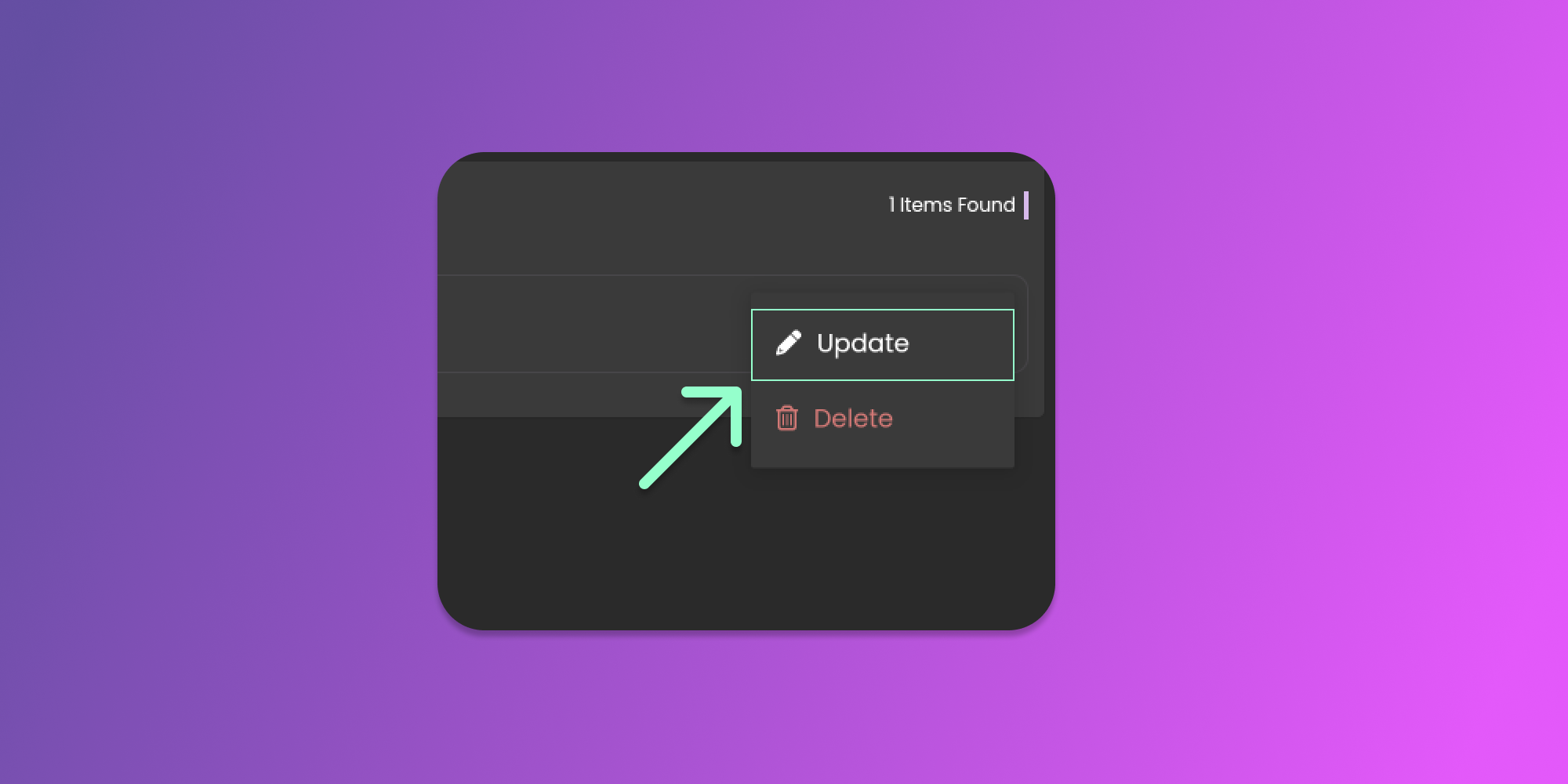
After clicking the horizontal dots icon, you can click the update button to view the form.
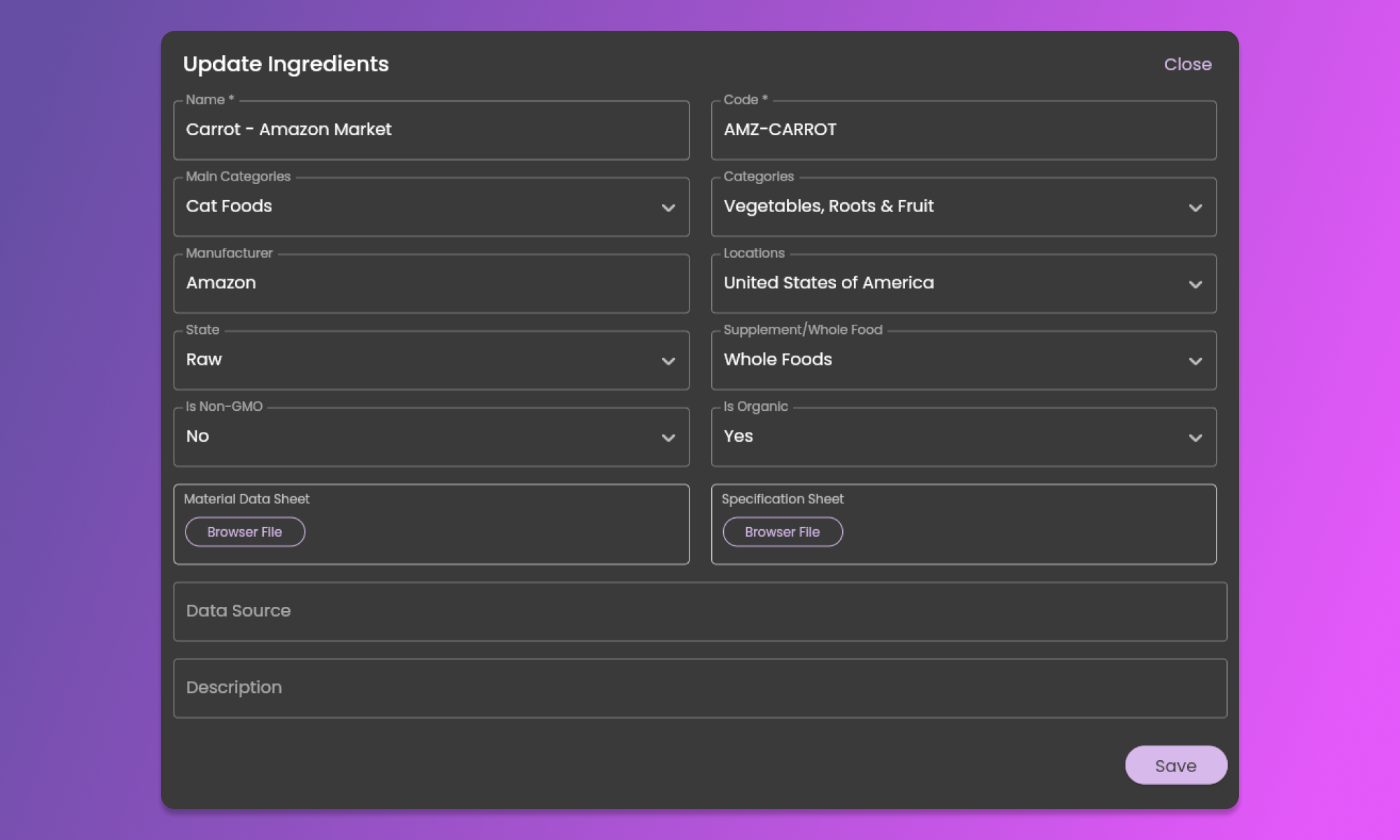
The Ingredients form will show pre-filled with information based on the Ingredient that you want to update. See the image below
After updating the field that you want to modify, click the save button at the bottom right part of the form.
### Deleting Ingredients
You may wish to remove an ingredient that you are not using.
To remove the ingredient, you need to be on the Ingredients Page. To go to the ingredients page, follow the steps mentioned [here](/animal-diet-formulator/ingredients.md).
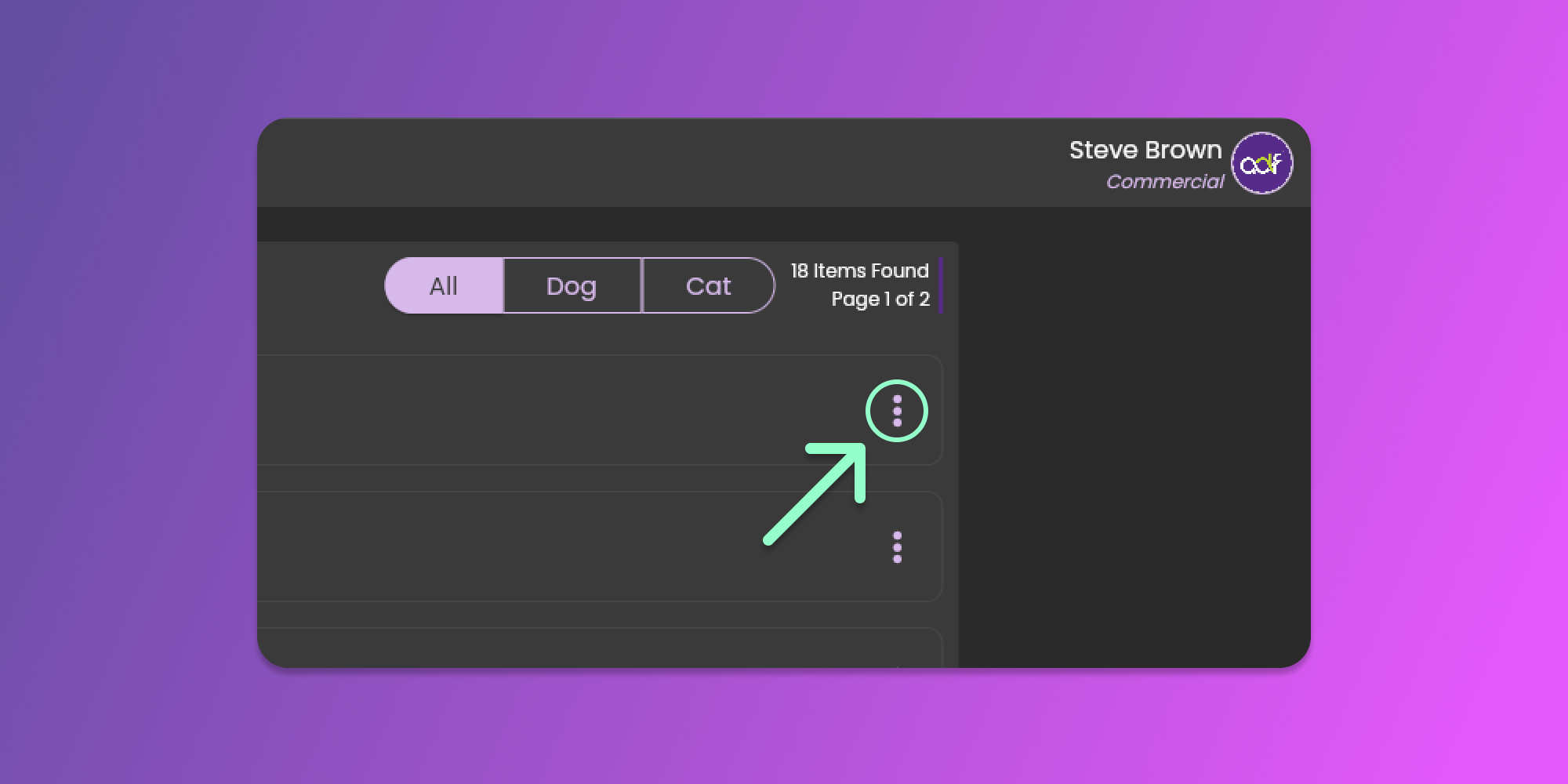
When you are on the ingredients page, you can see the list of all ingredients. Click the three horizontal dots icon (known as Item Menu) to delete the ingredient. See the image below.
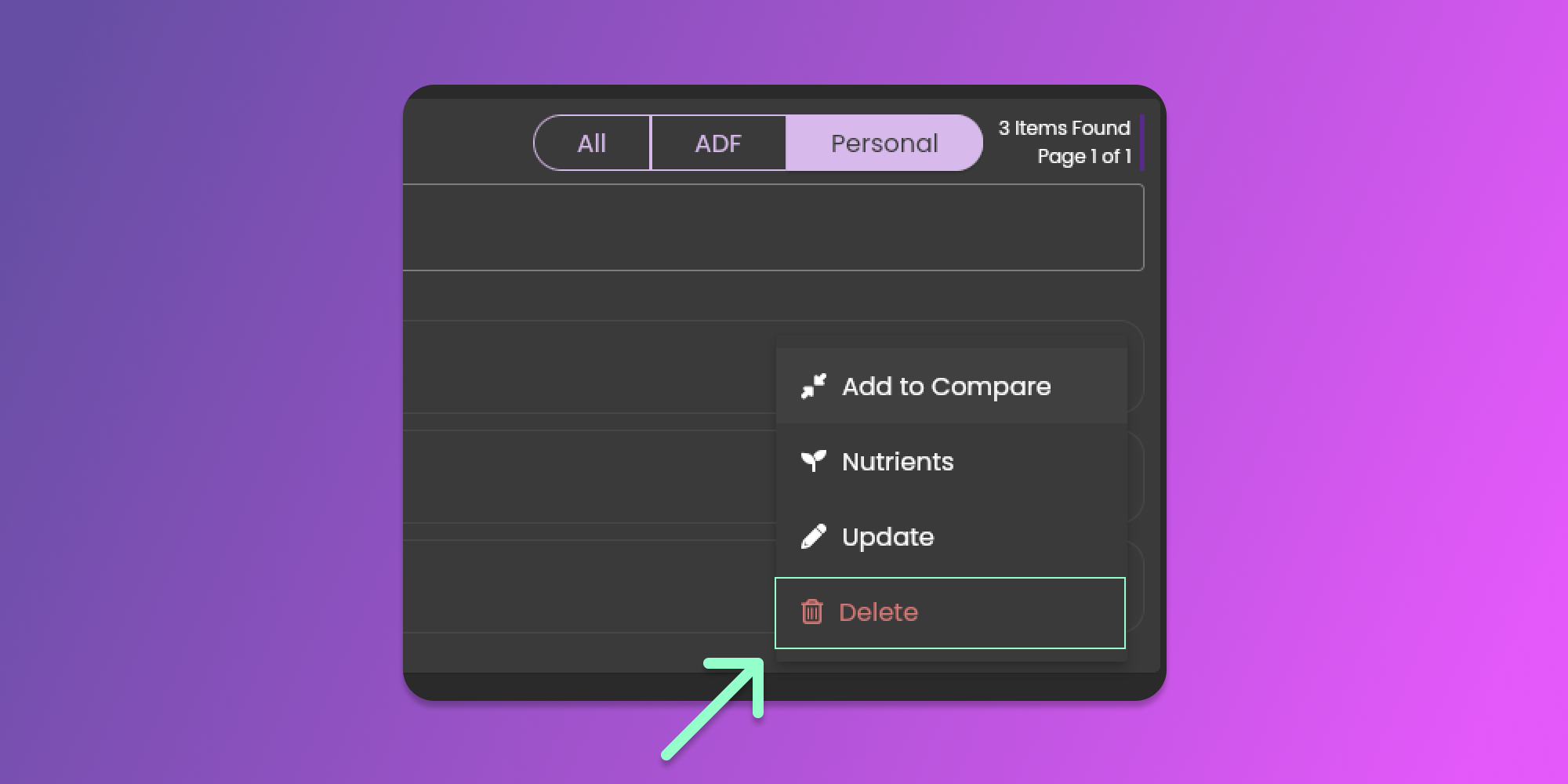
After clicking the horizontal dots icon, you can click the delete button to remove the ingredient.
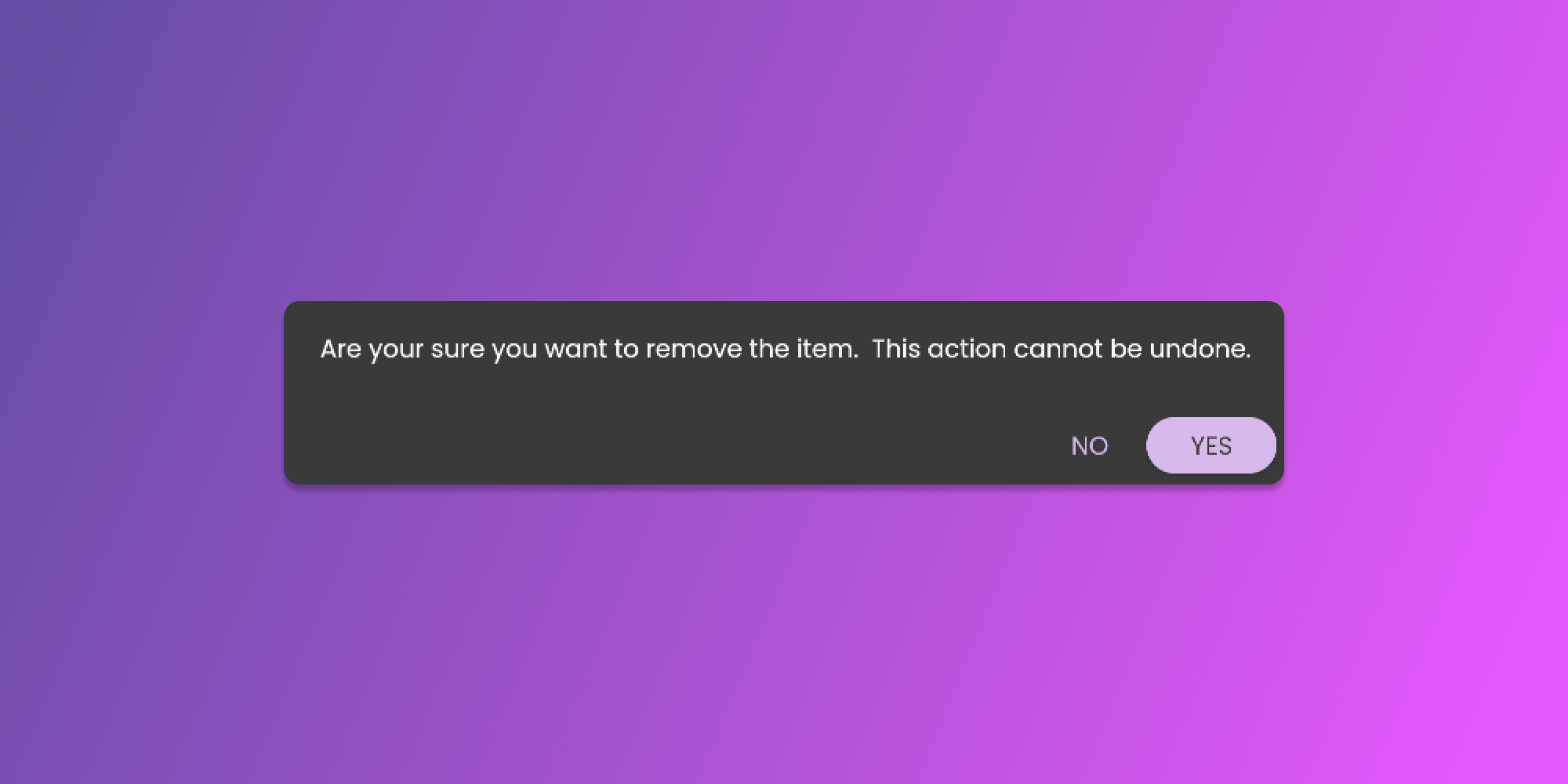
After clicking the delete button, there will be a confirmation pop-up that will require your attention before we remove the ingredient. See the image below.
### Duplicating Ingredients
Duplicate any personal or ADF ingredient to modify and treat as a new Ingredient.
To do this action, you need to be on the Ingredients Page. To go to the page, follow the steps mentioned [here](/animal-diet-formulator/ingredients.md).
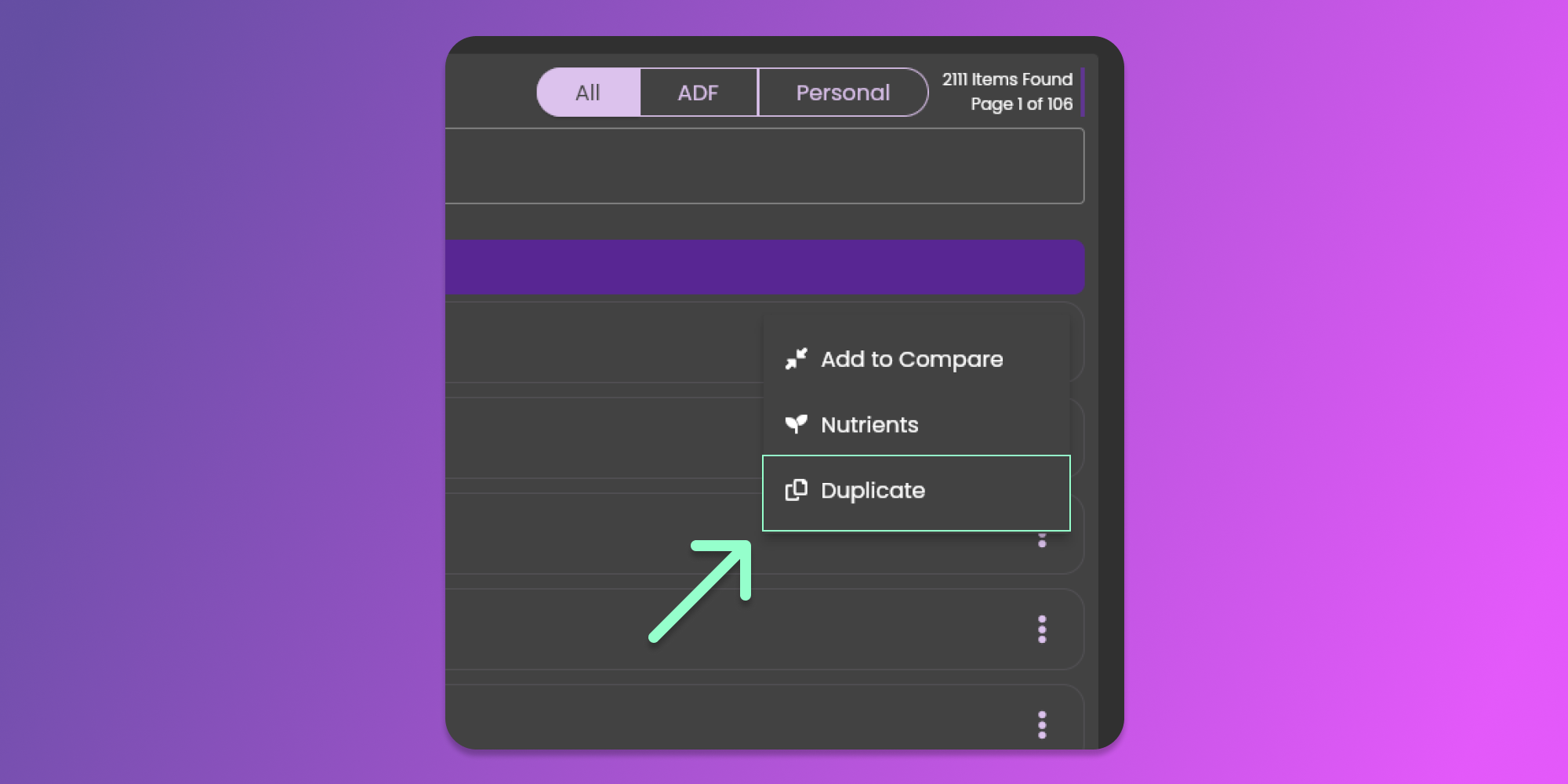
When you are on the ingredients page, click the three horizontal dots icon (known as Item Menu) to select duplicate. See the image below.
After clicking the horizontal dots icon, you can click the Duplicate button to re-create the ingredient.
After clicking the duplicate button, there will be a confirmation pop-up that will require your attention before we create the ingredient. See the image below.
By confirming the duplication, the software will copy the specific ingredient with a suffix of "Copy" in its name.