> For the complete documentation index, see [llms.txt](https://docs.animaldietformulator.com/llms.txt). Markdown versions of documentation pages are available by appending `.md` to page URLs; this page is available as [Markdown](https://docs.animaldietformulator.com/animal-diet-formulator/recipes/formulation-view-settings.md).
# Formulation View Settings
We added a new layout or view for the Nutrients that aligns with Steve Brown's Presentation Layout. We also added some toggles to hide or show selected Macronutrient information.
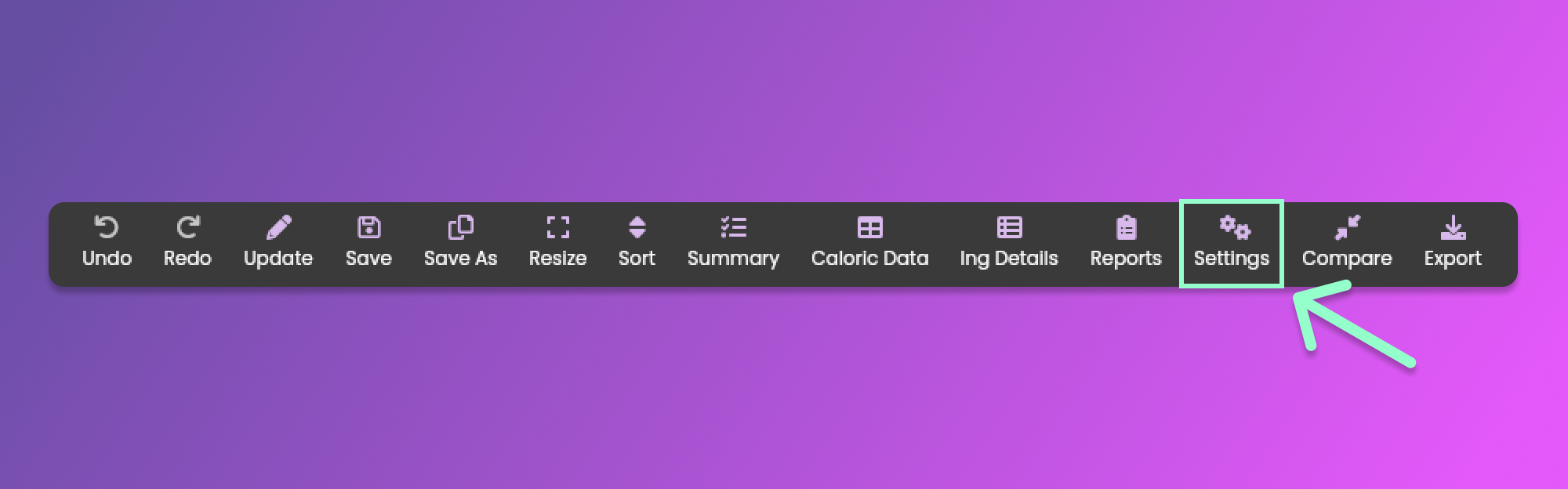
To view the settings for the new views, click the "Settings" menu item from the [Formulation Menu](/animal-diet-formulator/recipes/formulation.md#formulation-menu-section) Section.
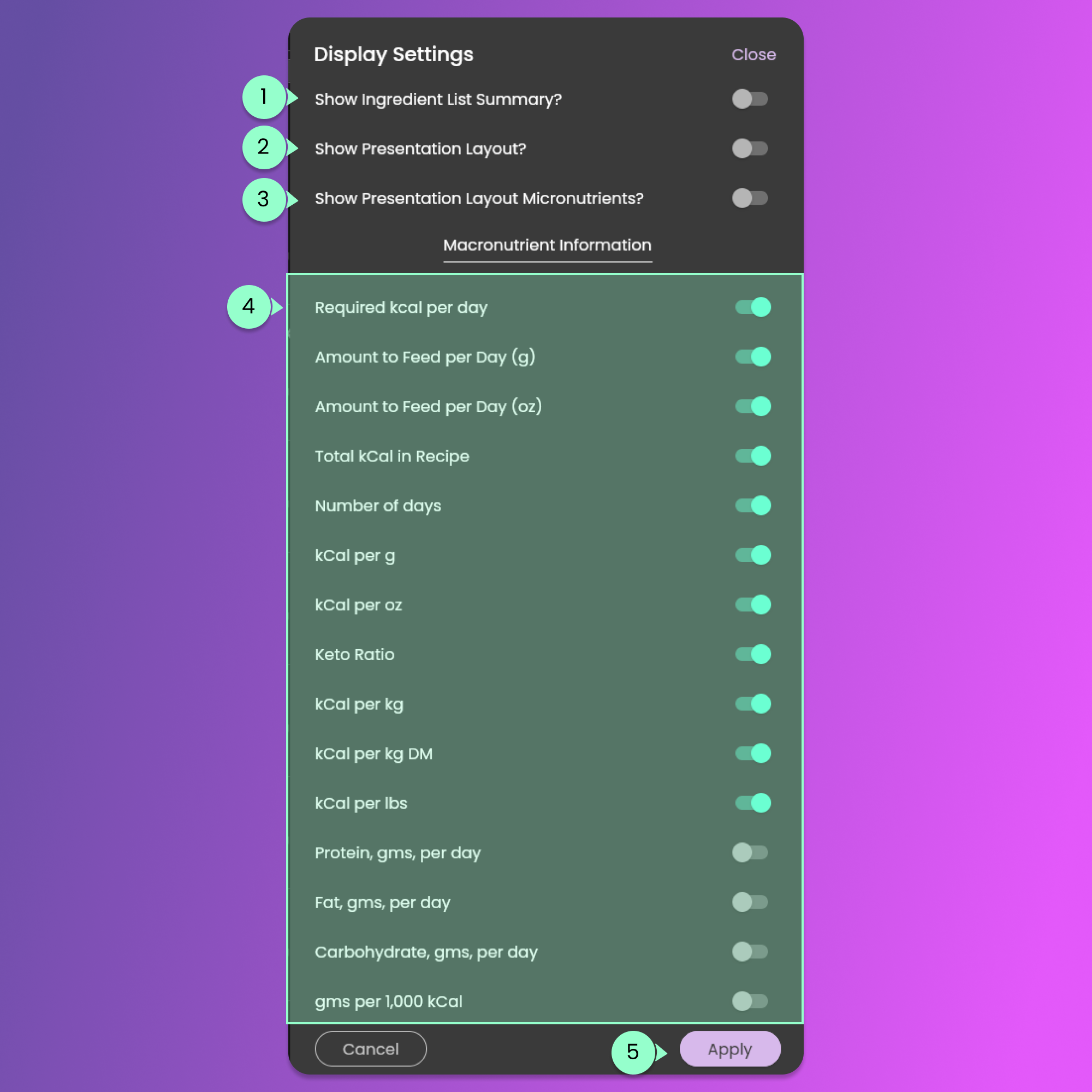
After clicking the button, the View Settings pop-up will show up.
#### 1. Show Ingredient List Summary
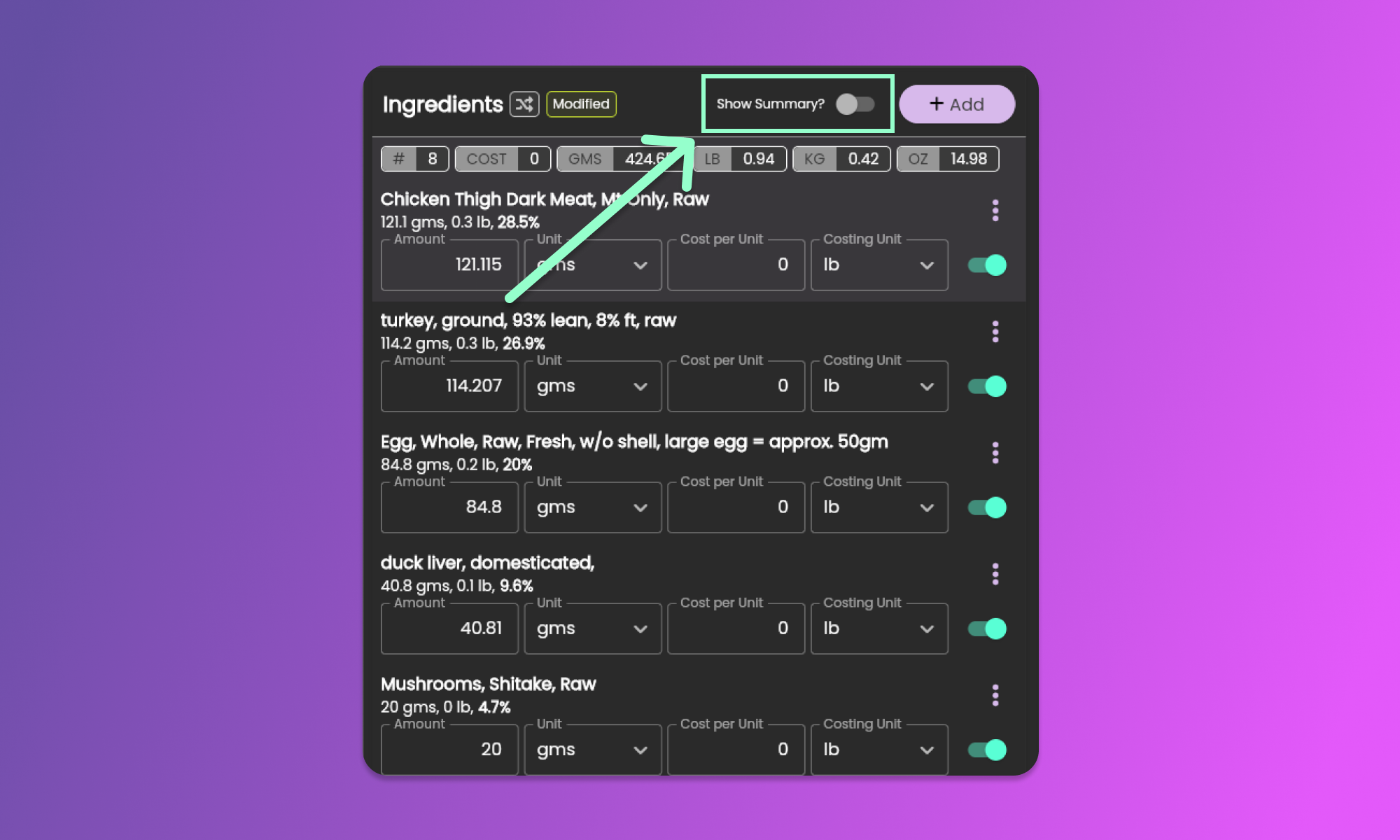
This toggle button is to show/hide the compact list of ingredients in the [Ingredients Section.](/animal-diet-formulator/recipes/formulation.md#ingredients-section)
The same toggle button is also in the [Ingredients Section.](/animal-diet-formulator/recipes/formulation.md#ingredients-section) Please see the below image.
Press (Ctrl *⊞* or Cmd ) + A, to toggle the Ingredient List Summary
#### 2. Show / Hide Presentation Layout
This layout is also known as Steve's Presentation Layout. Turning on this view will change the [Nutrients Tab Sections](/animal-diet-formulator/recipes/formulation.md#nutrients-section).
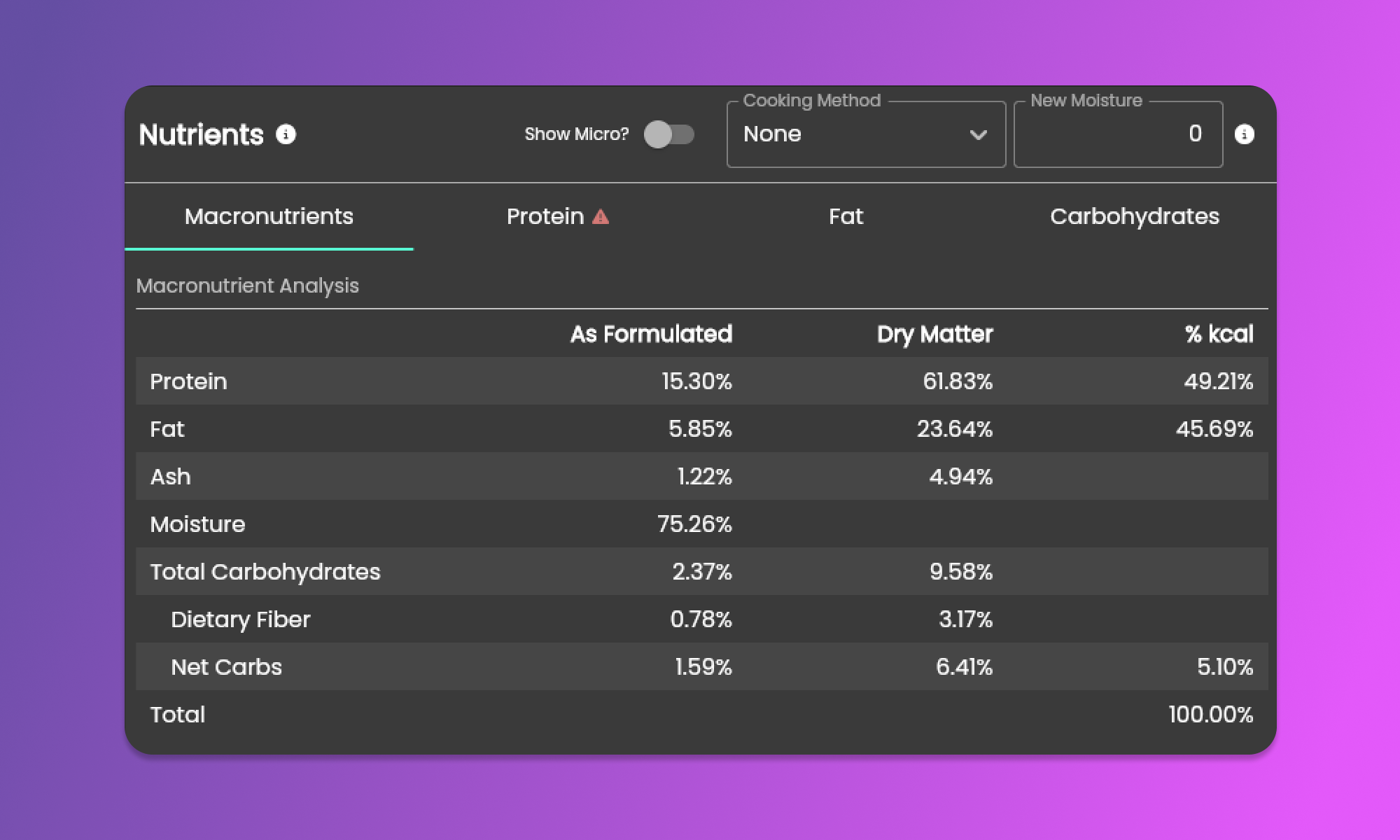
By default, it will show the macronutrients. Please see the image below.
#### 3. Show / Hide Presentation Layout Micronutrients
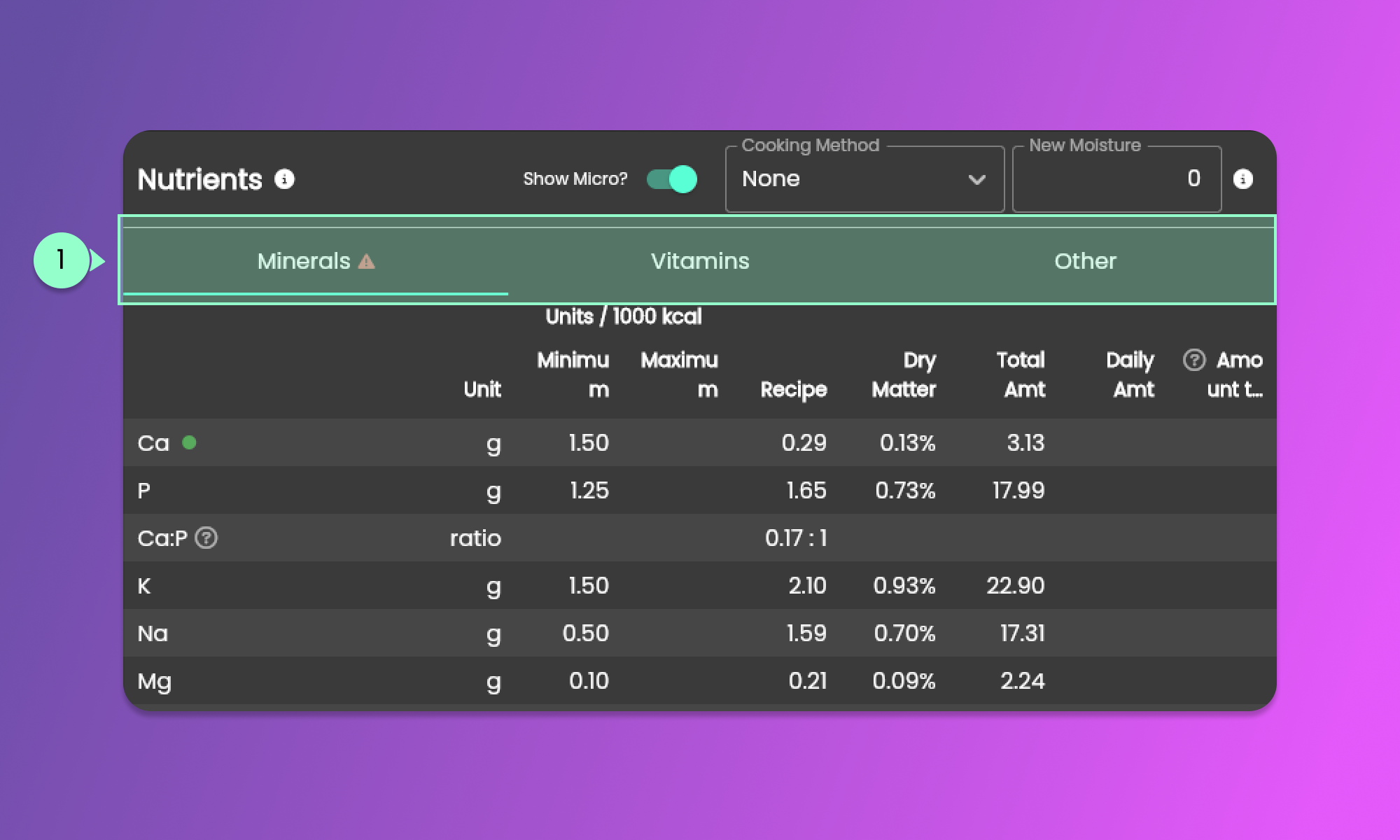
This toggle will only take effect if you turn on the [Presentation Layout](#2.-show-hide-presentation-layout). Since the default view is macronutrients, this toggle button will allow you to view the micronutrients.
#### 4. Macronutrient Information Toggles
These toggle buttons allow you to view the other macronutrient information for your analysis.
#### 5. Apply button
After completing changes in the view setting, click the "Apply" button to apply the changes.
### New Presentation Layout
This layout is also known as Steve's Presentation Layout. Turning on this view will change the [Nutrients Tab Sections](/animal-diet-formulator/recipes/formulation.md#nutrients-section).
#### Macronutrients
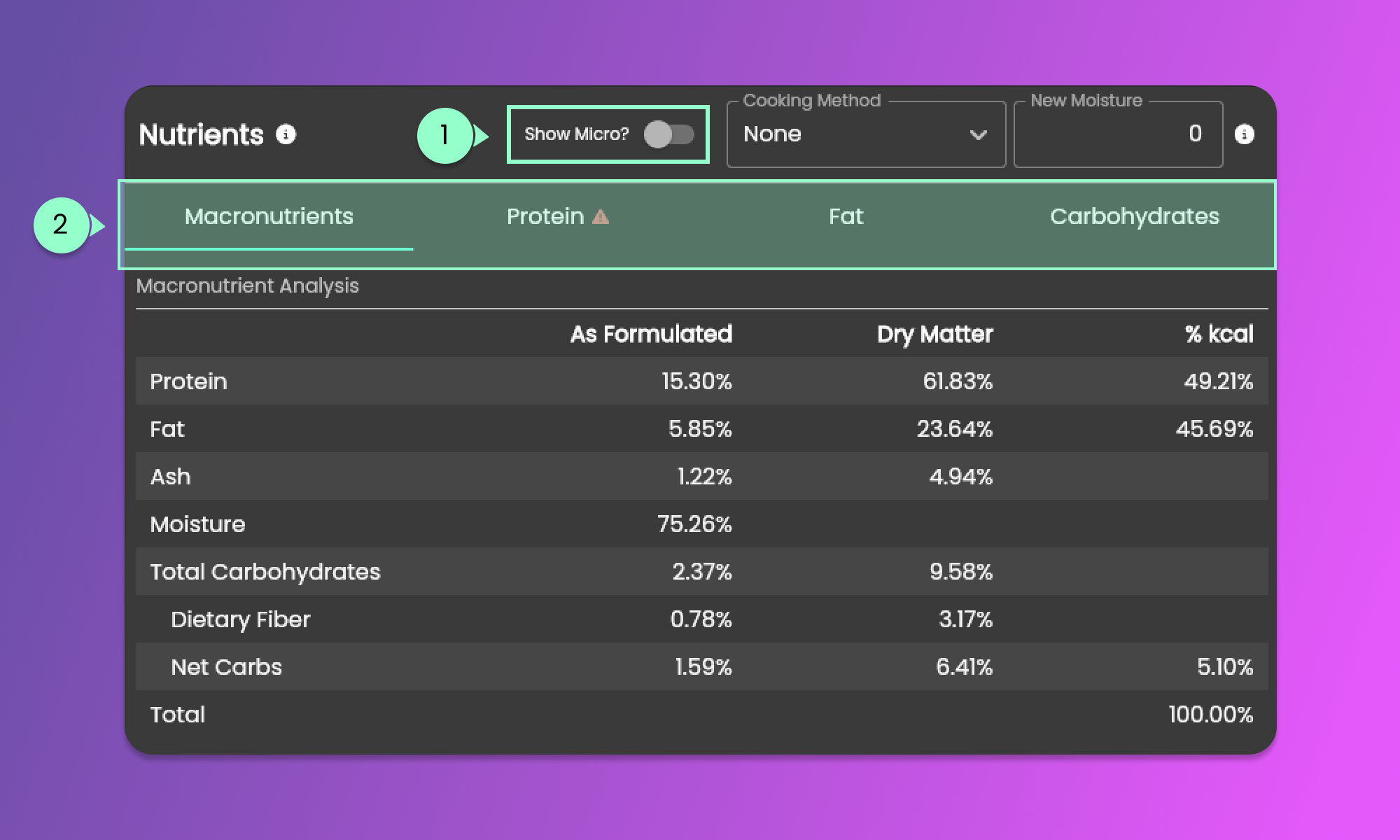
By default, it will show the macronutrients. In the Macronutrients View, the tab sections are Macronutrients, Protein, Fat, and Carbohydrates. These sections are shown in Item 2 in the Image below.
Clicking the toggle button from Item 1 in the image above will show the Macronutrients.
#### Micronutrients
When in the Micronutrients view, the new tab sections are Minerals, Vitamins, and Other.