> For the complete documentation index, see [llms.txt](https://docs.animaldietformulator.com/llms.txt). Markdown versions of documentation pages are available by appending `.md` to page URLs; this page is available as [Markdown](https://docs.animaldietformulator.com/members-area/billing-settings.md).
# Billing Settings
This section will provide you information on how to change default payment methods
### Stripe
If you subscribed using Stripe, follow the steps below to change default payment method:
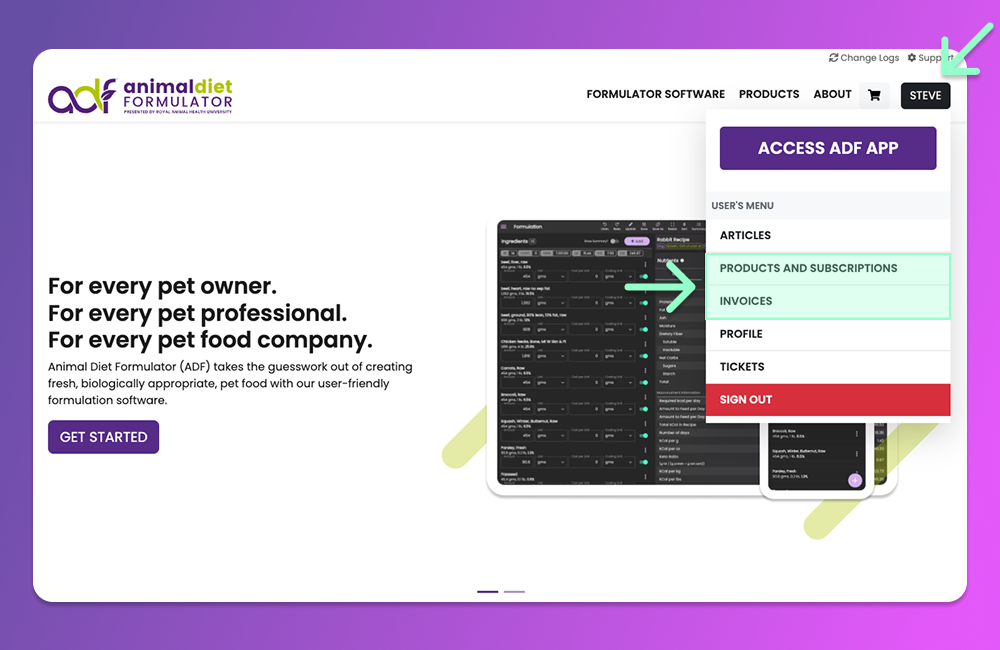
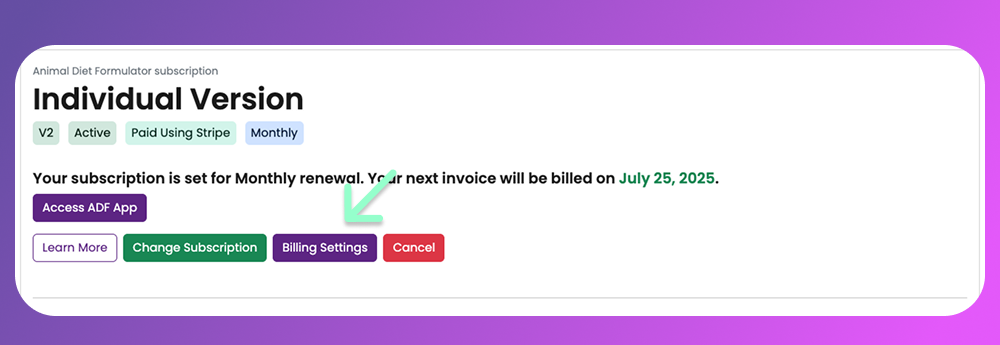
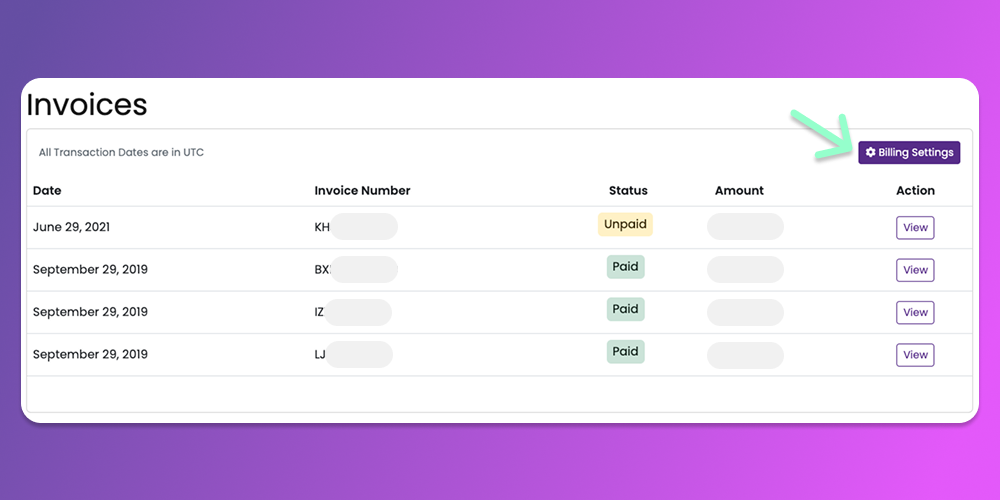
1. Hover to your account name on the top right, and click on either **Products and Subscriptions** tab or the **Invoices** tab
2. Click the **Billing Settings**
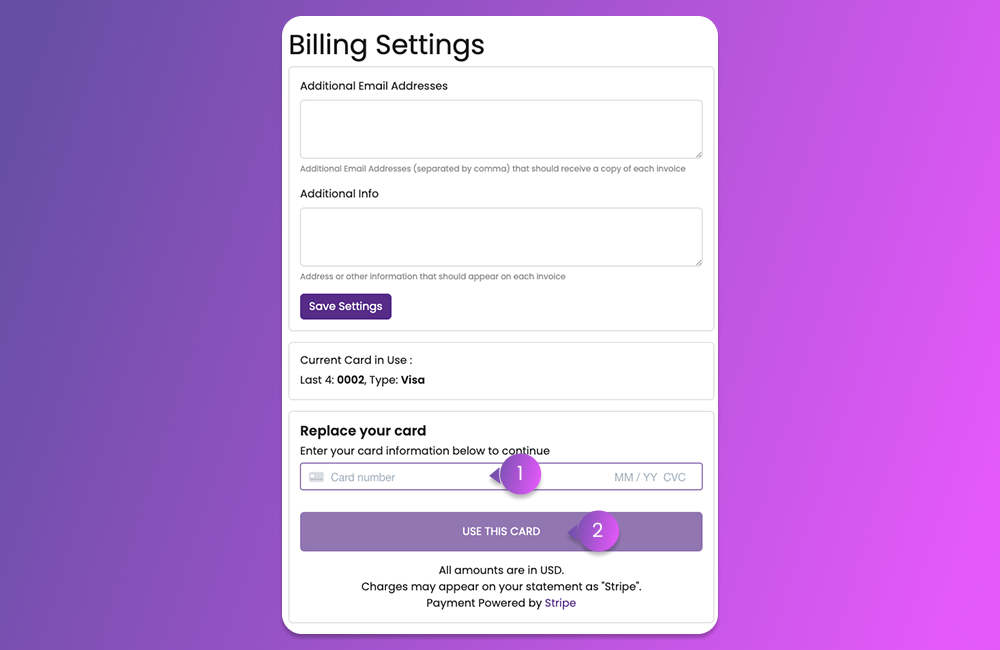
3. Input your new card number, expiry date and cvv and click on **Use this card**. Follow the onscreen instructions and confirm that your payment method has changed.
### PayPal
If you subscribed using PayPal, follow the steps below to change default payment method:
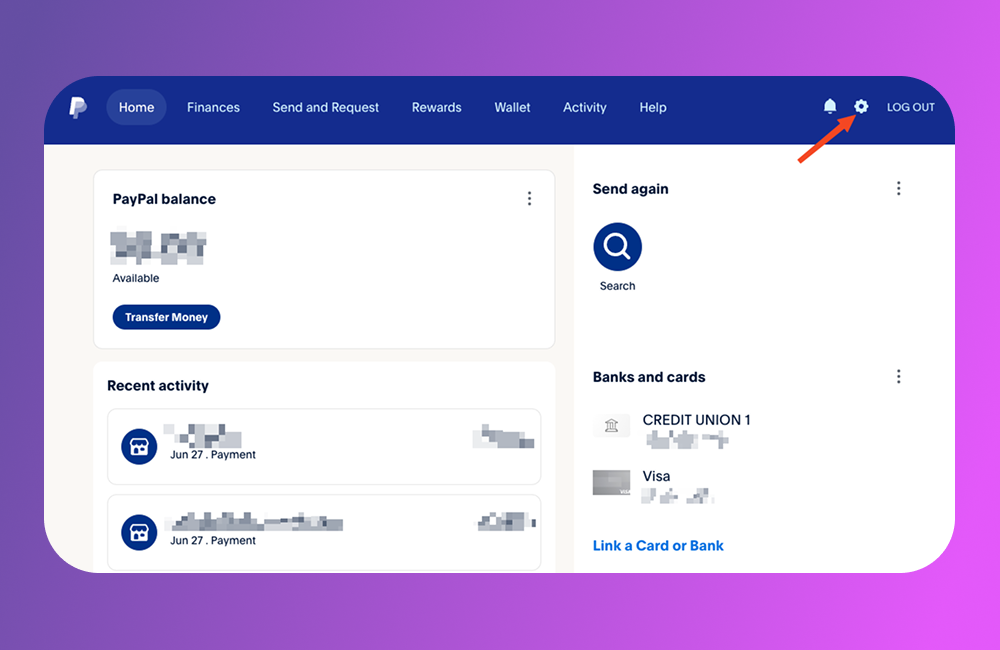
1. Go to the PayPal website and login to your account. Once logged in, click on the **Settings** (gear icon :gear:) on the top right
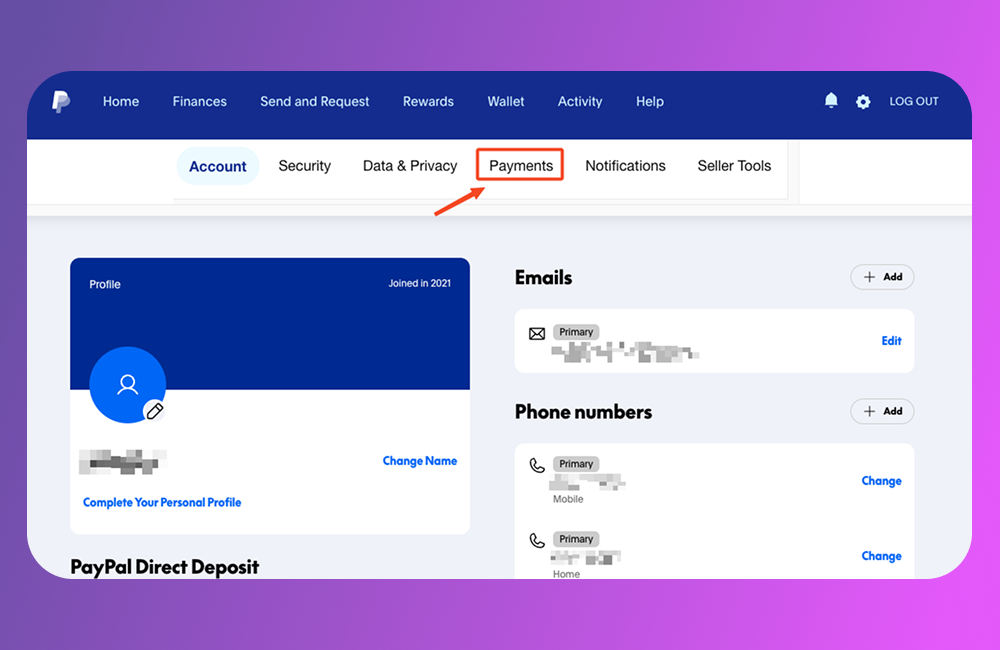
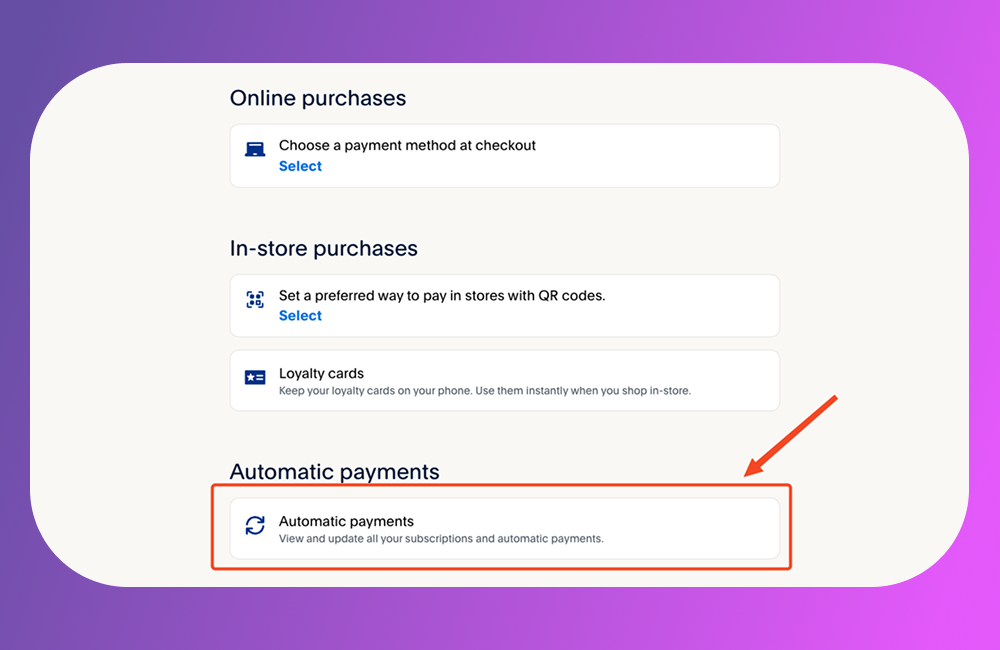
2. Next, click on the **Payments** tab, then click on **Automatic Payments**
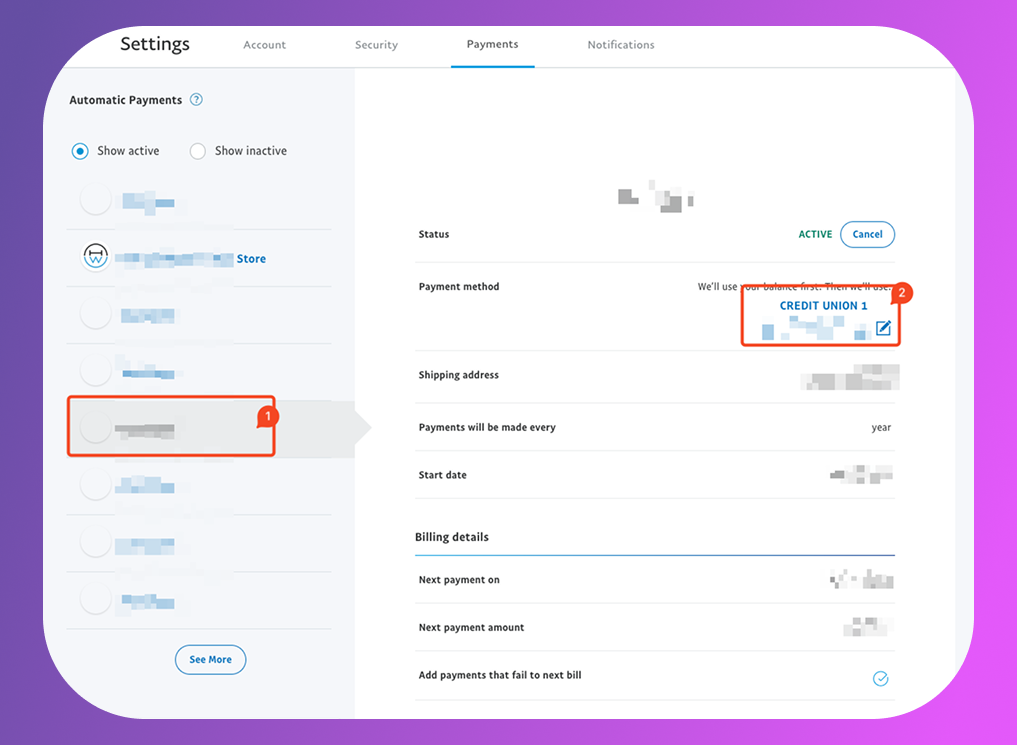
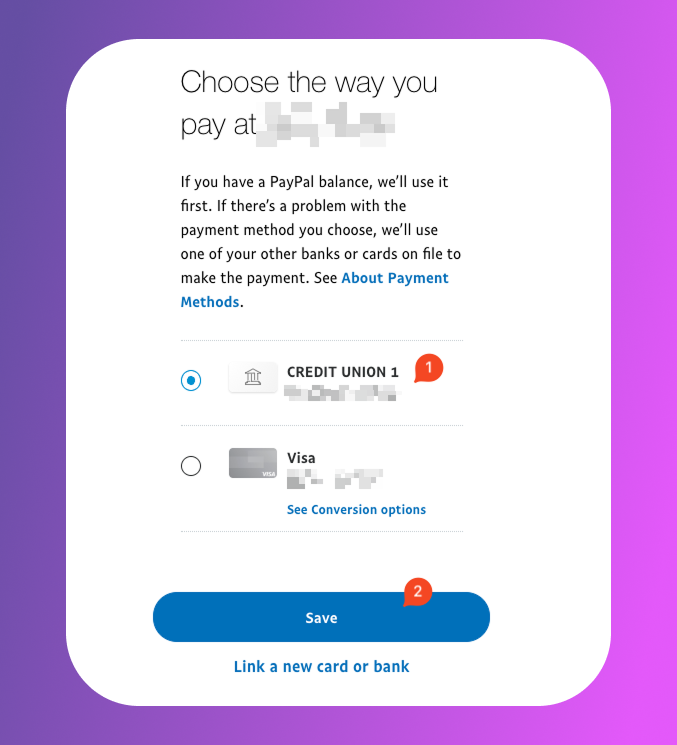
3. On the right sidebar, you'll see a list of merchants (**1**) that you currently have subscription. Select the subscription you'd like to change then click on the **Edit** button on the **Payment method** field (**2**)
4. Select the payment method you would like to use and click **Save**