> For the complete documentation index, see [llms.txt](https://docs.animaldietformulator.com/llms.txt). Markdown versions of documentation pages are available by appending `.md` to page URLs; this page is available as [Markdown](https://docs.animaldietformulator.com/members-area/invoices/additional-information.md).
# Additional Information
This section provides step-by-step guidance on how to add supporting details to your invoices, ensuring clarity and completeness for your records and recipients.
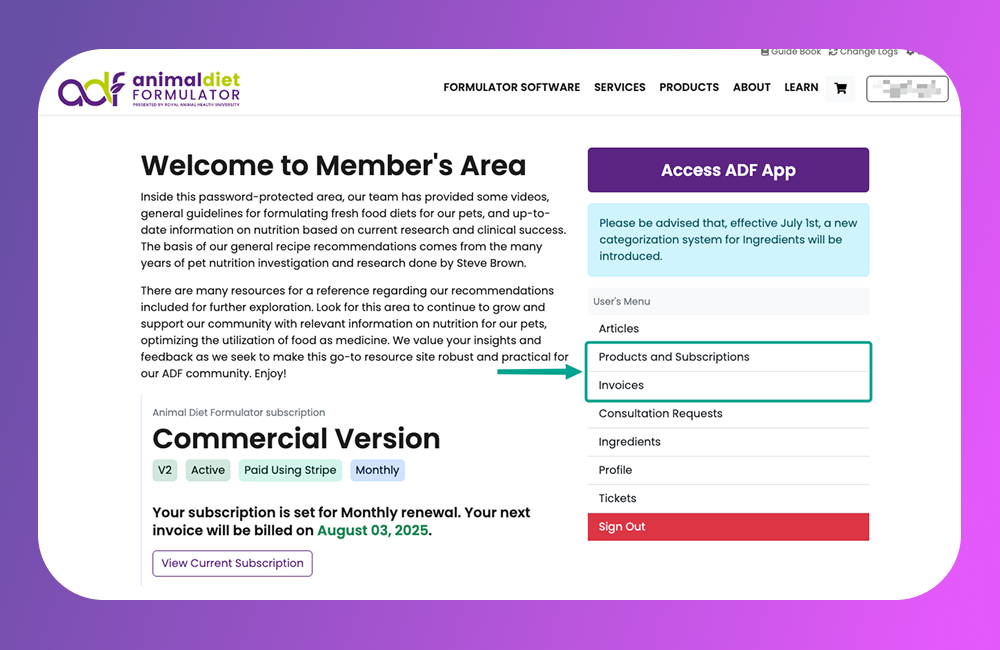
1. To include additional information on your invoices, navigate to the Billing Settings. From your dashboard, you can access this by clicking either the **Products and Subscriptions** tab or the **Invoices** tab.
Dashboard Page
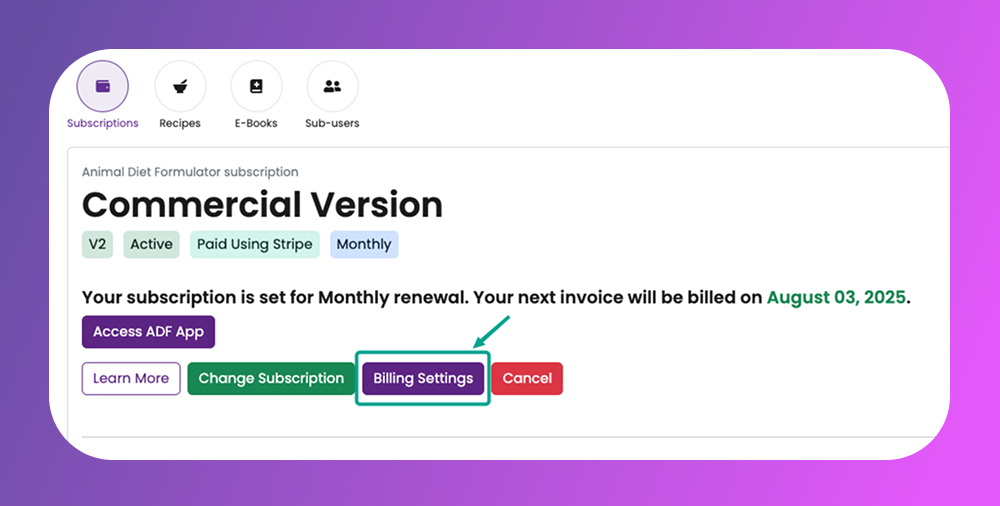
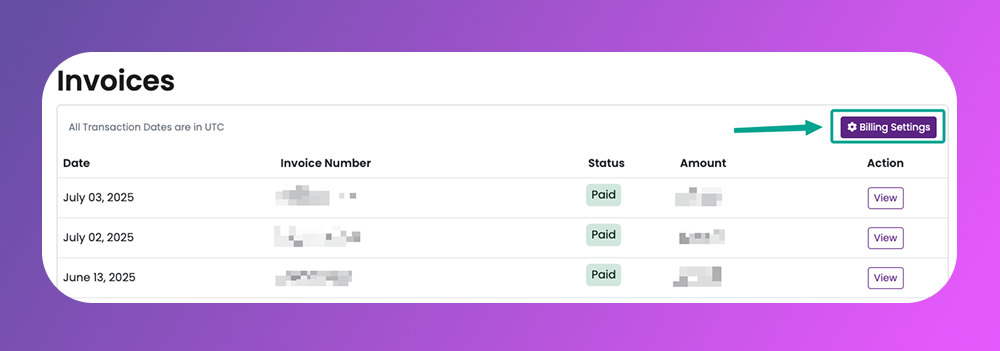
2. Next, click on the **Billing Settings** button
Products and Subscriptions Page
Invoices Page
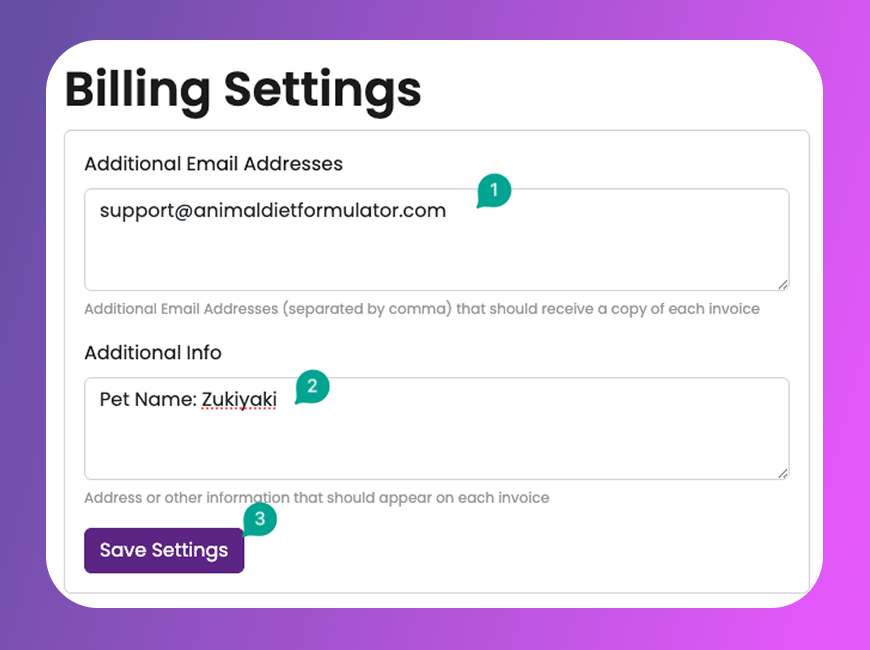
3. On the Billing Settings page, you will see the following fields:
* **Additional Email Addresses** (1) - Comma separated email addresses, these emails will receive a copy of the invoices being sent to you
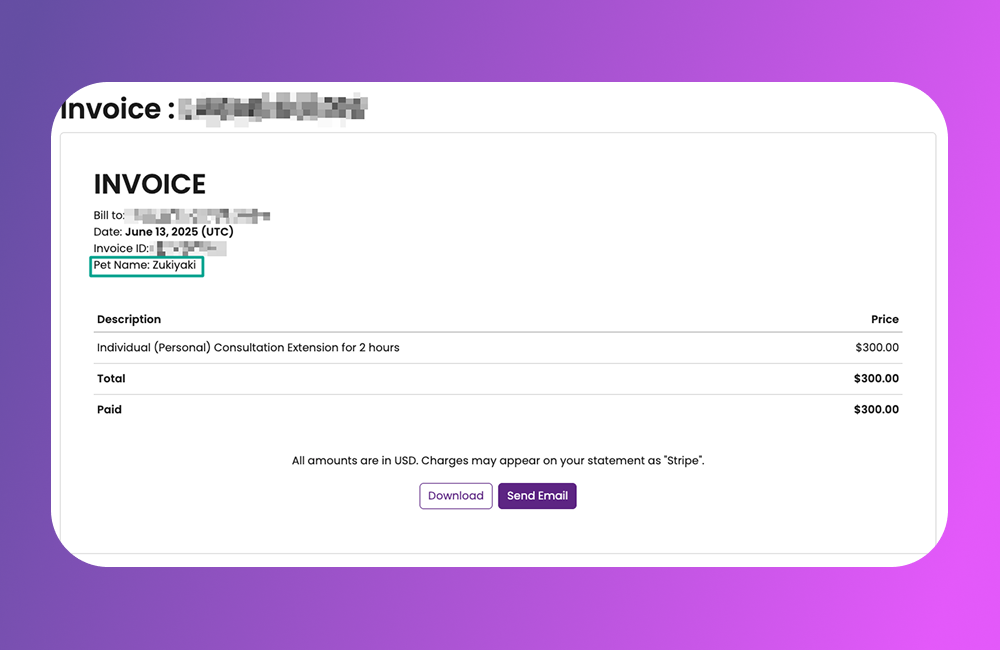
* **Additional Info** (2) - Any information provided here will be included on each invoice
4. Once you're done, click on **Save Settings** button. You will see a success message upon completion.
Billing Settings Page
5. Go back to the **Invoices** page, view any invoice, and the additional information should reflect