> For the complete documentation index, see [llms.txt](https://docs.animaldietformulator.com/llms.txt). Markdown versions of documentation pages are available by appending `.md` to page URLs; this page is available as [Markdown](https://docs.animaldietformulator.com/members-area/profile/profile-information.md).
# Profile Information
Share and update your information for us to know you more.
To access your profile information please be sure that you have signed in to your account.
{% hint style="info" %}
To log in with your account, follow the steps mentioned [here](/members-area/profile/login.md).
{% endhint %}
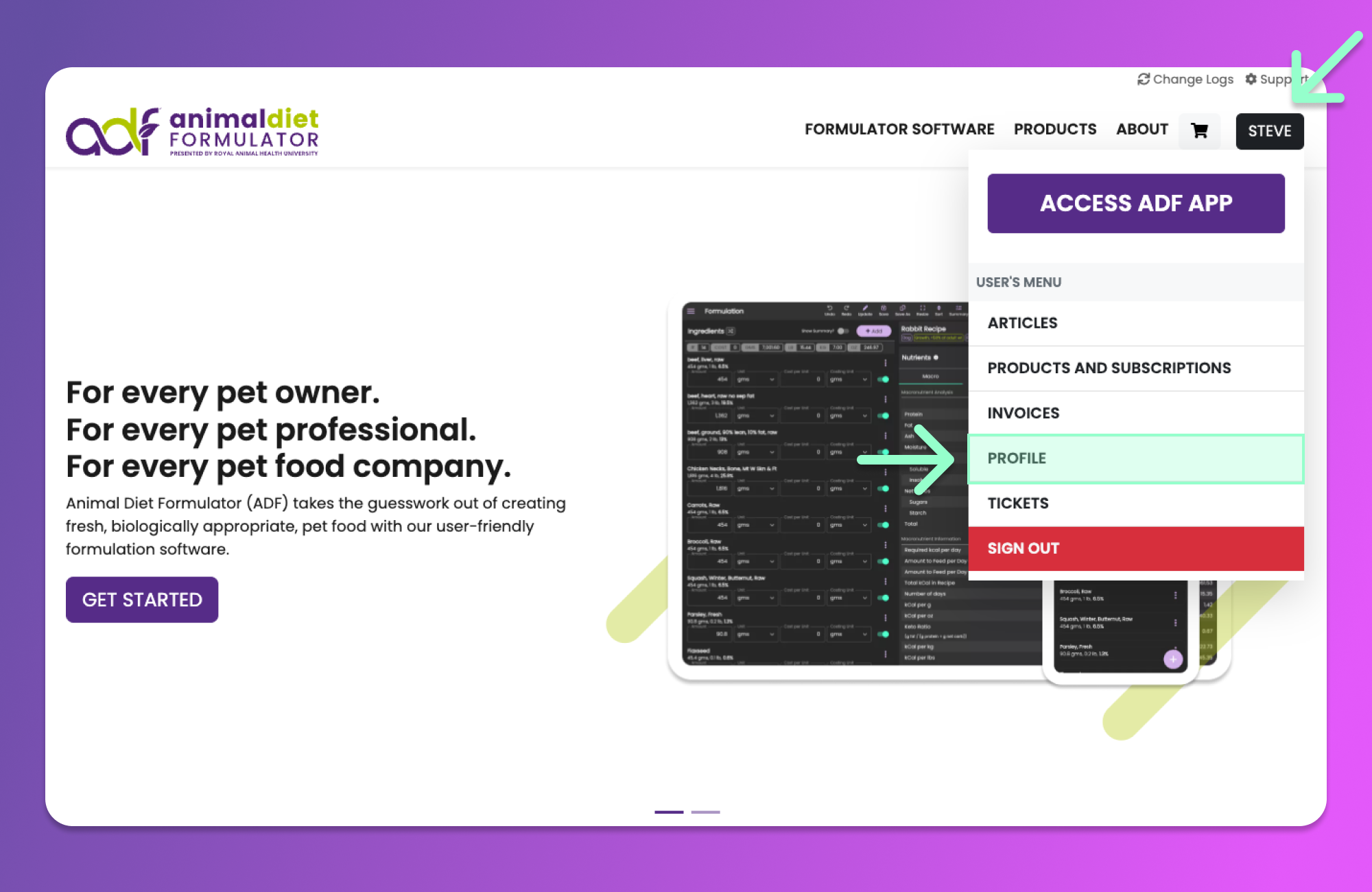
Access the User's Menu similar to the image below by hovering your mouse over your Name's button. Click the "Profile" Menu item from the User's Menu to access the Profile Information page.
{% hint style="info" %}
You can also access the User's Menu by going to the [User's Dashboard](/members-area/profile/user-dashboard.md).
{% endhint %}
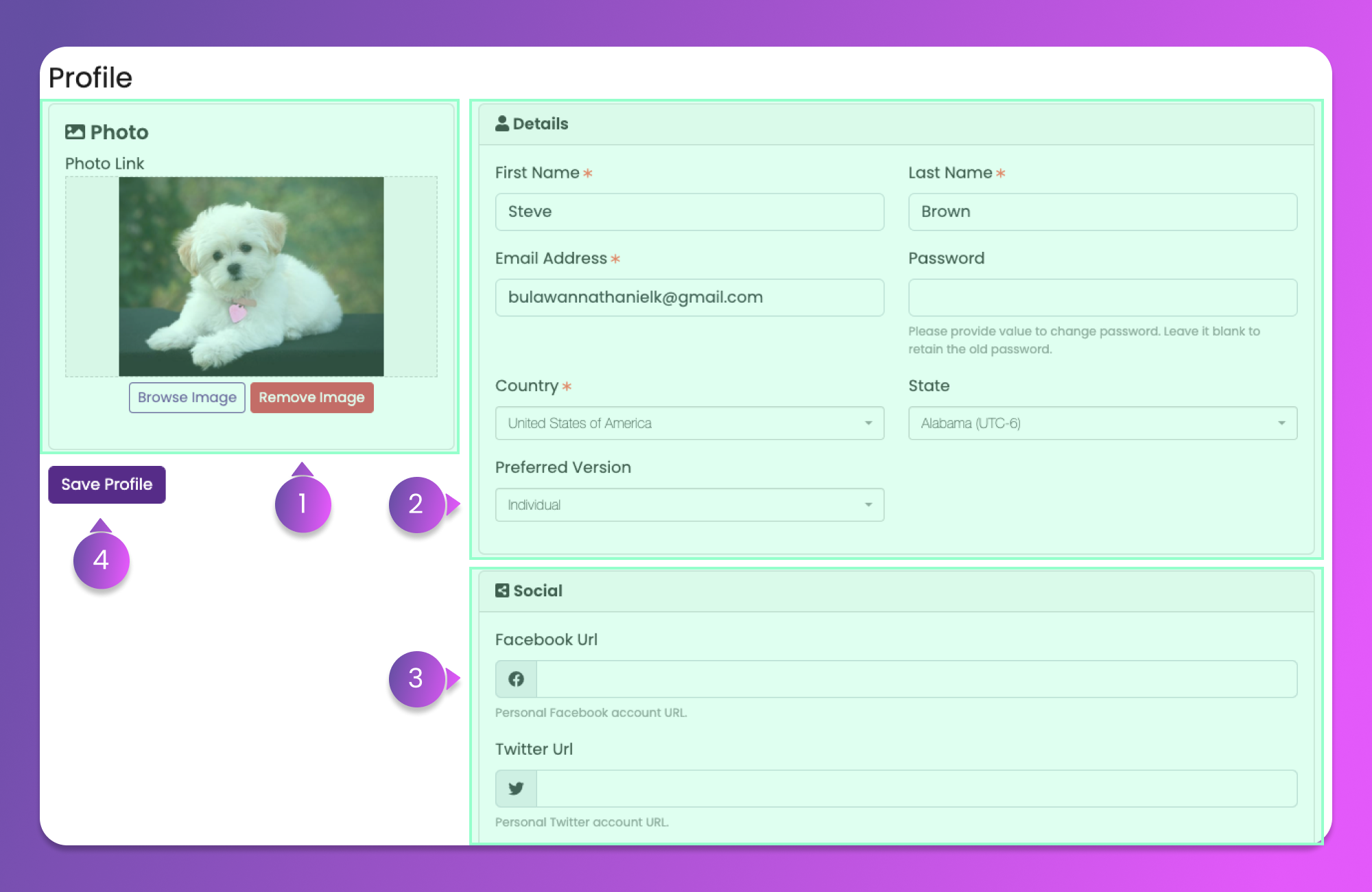
After clicking the "Profile" menu item, you will be redirected to the Profile Information Page similar to the image below.
### 1. Photo Section
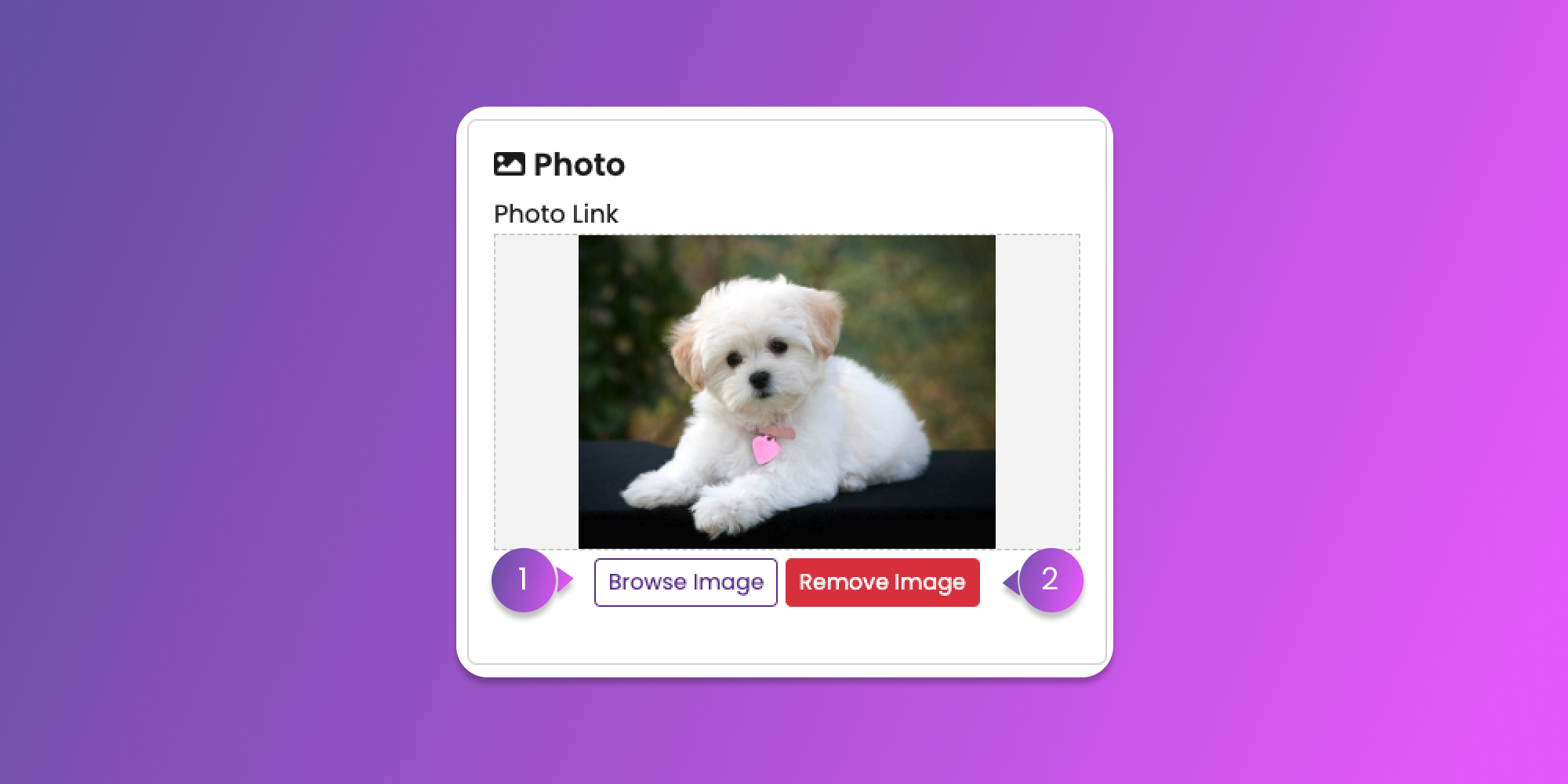
Upload or Remove your photos using this section.
1. Browse Image
* Click this button to open the File Dialog for you to choose the image that you want to use as your profile image.
2. Remove Image
* Click this button to Remove the current image. Saving without an image will load the default ADF Image icon.
{% hint style="info" %}
Be sure to click the [Save Profile button](#4.-save-profile-button) to save the changes that you made.
{% endhint %}
### 2. Details Section
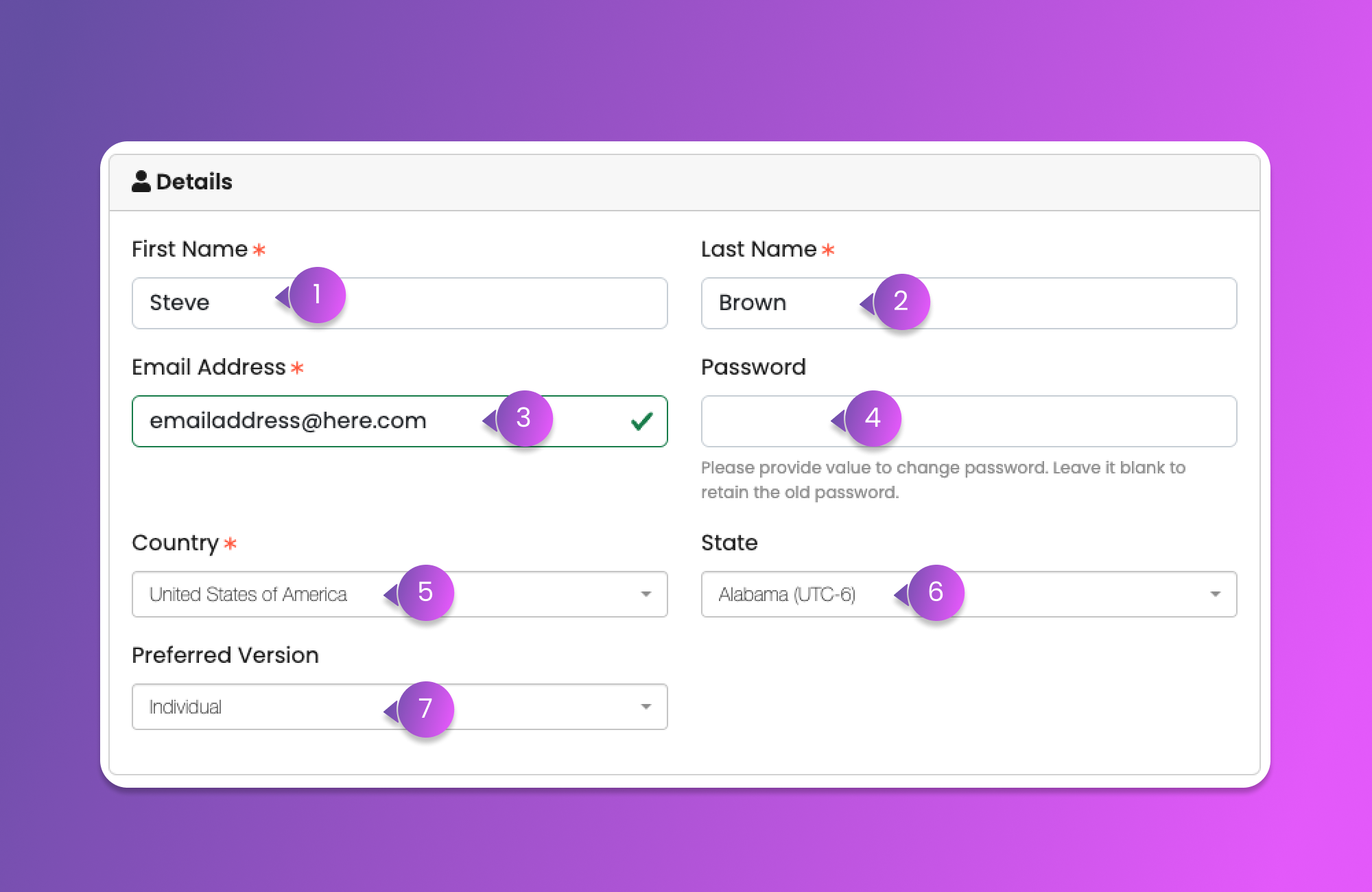
Update your primary information using the similar form below.
1. First Name
* Provide First Name.
2. Last Name
* Provide Last Name.
3. Email Address
* Provide the Email Address that you want to use as the primary identifier and username for signing in with your account.
4. Password
* Provide the password that you want to use when signing in with your account. Leave the field empty if you don't want to change your password.
5. Country
* Select your country.
6. State / TimeZone
* Select your state if you are in USA else select the Timezone.
7. Preferred Version
* Select the version of the software you are keen to subscribe to.
{% hint style="info" %}
Be sure to click the [Save Profile button](#4.-save-profile-button) to save the changes that you made.
{% endhint %}
### 3. Social Section
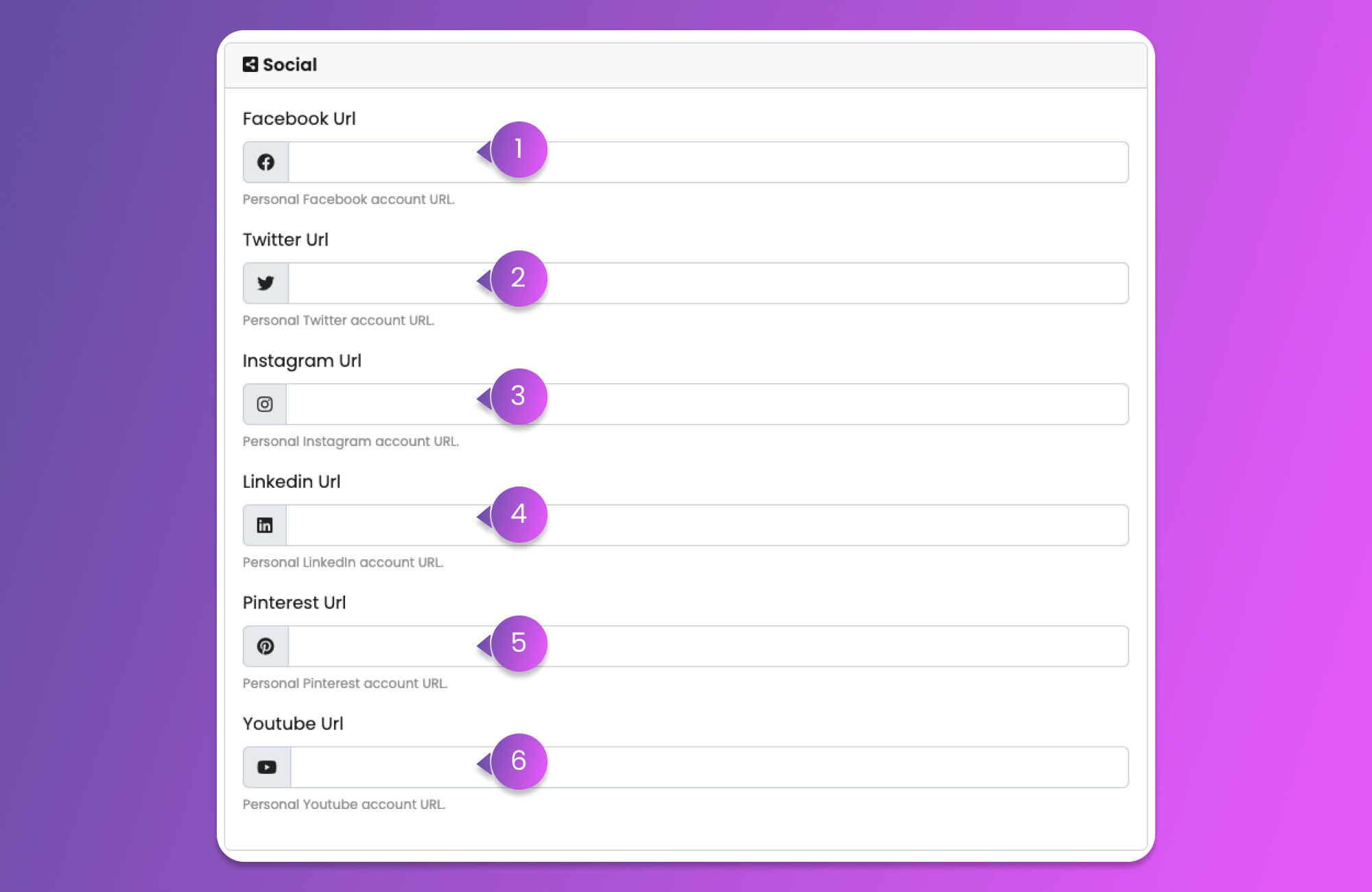
We would be happy to know more about you through your social media accounts. All fields are optional.
1. Facebook URL
2. Twitter URL
3. Instagram URL
4. LinkedIn URL
5. Pinterest URL
6. Youtube URL
{% hint style="info" %}
Be sure to click the [Save Profile button](#4.-save-profile-button) to save the changes that you made.
{% endhint %}
### 4. Save Profile button
Clicking this button will save all changes made in all the fields in each section mentioned above.