> For the complete documentation index, see [llms.txt](https://docs.animaldietformulator.com/llms.txt). Markdown versions of documentation pages are available by appending `.md` to page URLs; this page is available as [Markdown](https://docs.animaldietformulator.com/members-area/product-and-subscriptions/user-limits.md).
# User Limits
Monitor and increase the limits of your current subscription
{% hint style="info" %}
An increase in user limits is only available for Individual and Professional Versions.
{% endhint %}
To access the User Limits, please be sure that you have signed in to your account.
{% hint style="info" %}
To log in with your account, follow the steps mentioned [here](/members-area/profile/login.md).
{% endhint %}
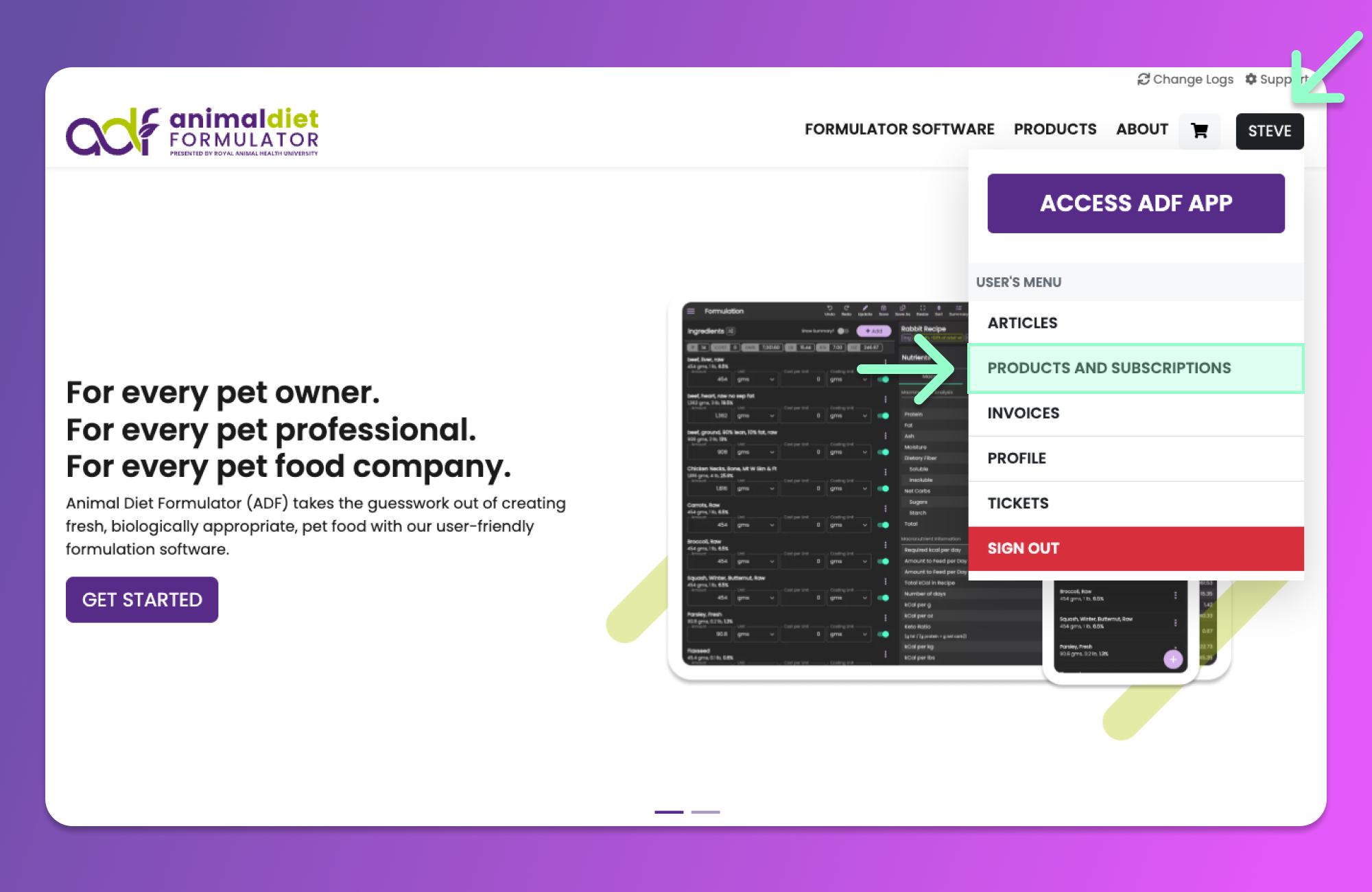
Access the User's Menu similar to the image below by hovering your mouse over your Name's button. Then click the "Products and Subscriptions" Menu item from the User's Menu.
{% hint style="info" %}
You can also access the User's Menu by going to the [User's Dashboard](/members-area/profile/user-dashboard.md).
{% endhint %}
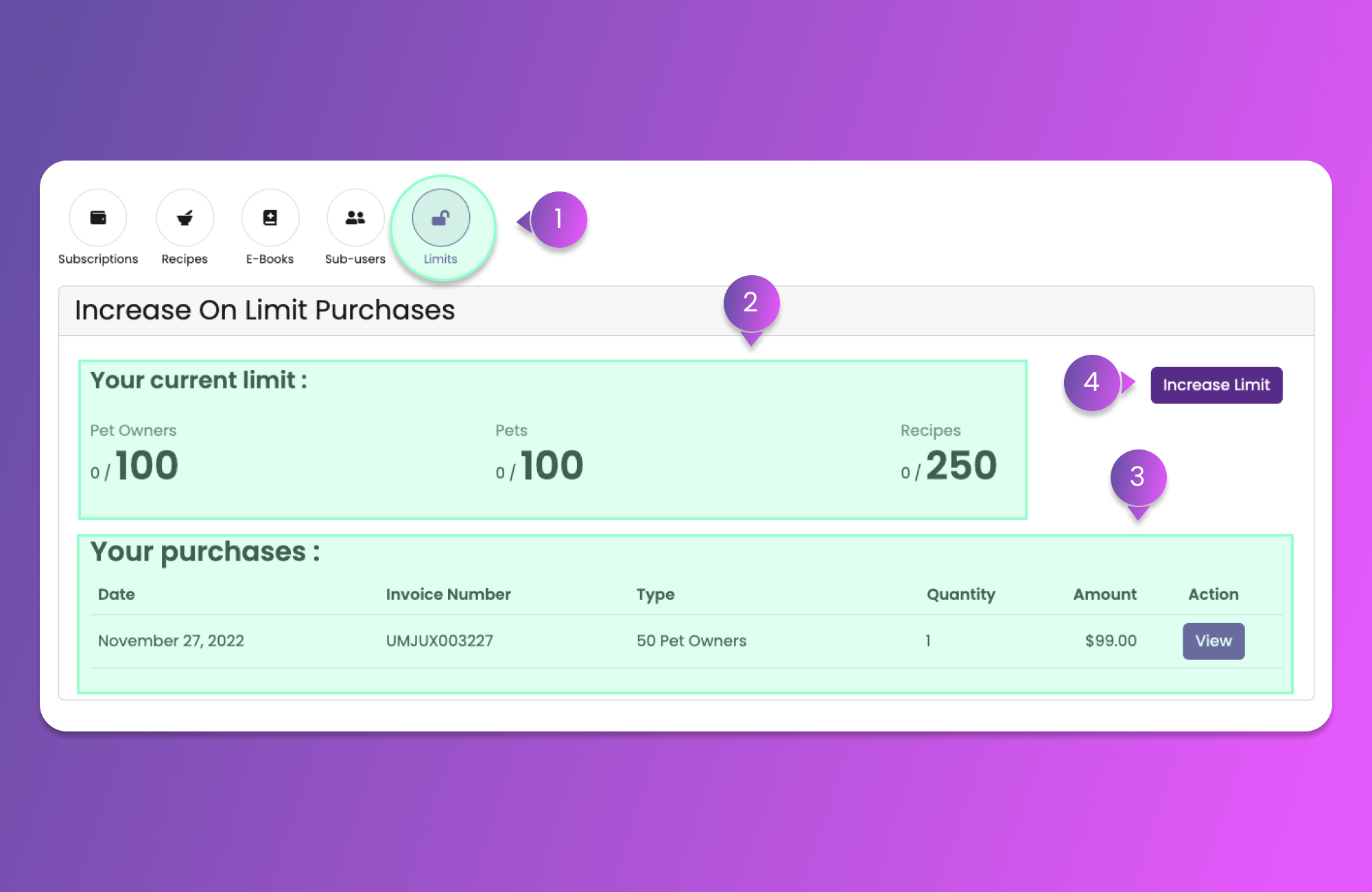
After clicking the Menu Item, you will be redirected to the Subscription Page. You can now click the "Limits" button (Item 1) similar to the button below.
Once redirected to the User Limits page, you will see the above information.
1. Limits button
* This will redirect you to the User Limits page.
2. Your Current Limit
* This will give you information about your current limitations.
3. Your purchases:
* This section will give you information about your purchases to increase your limits. You can also click the View to button to download the invoice.
4. Increase Limit button
* This button will redirect you to the page where you can then increase and purchase the limit.
### Purchase and Increase the User Limits
While on the User Limits page, you can increase the limit by clicking the "Purchase Limit" (Item 4) button at the top right corner of the page similar to the Image above.
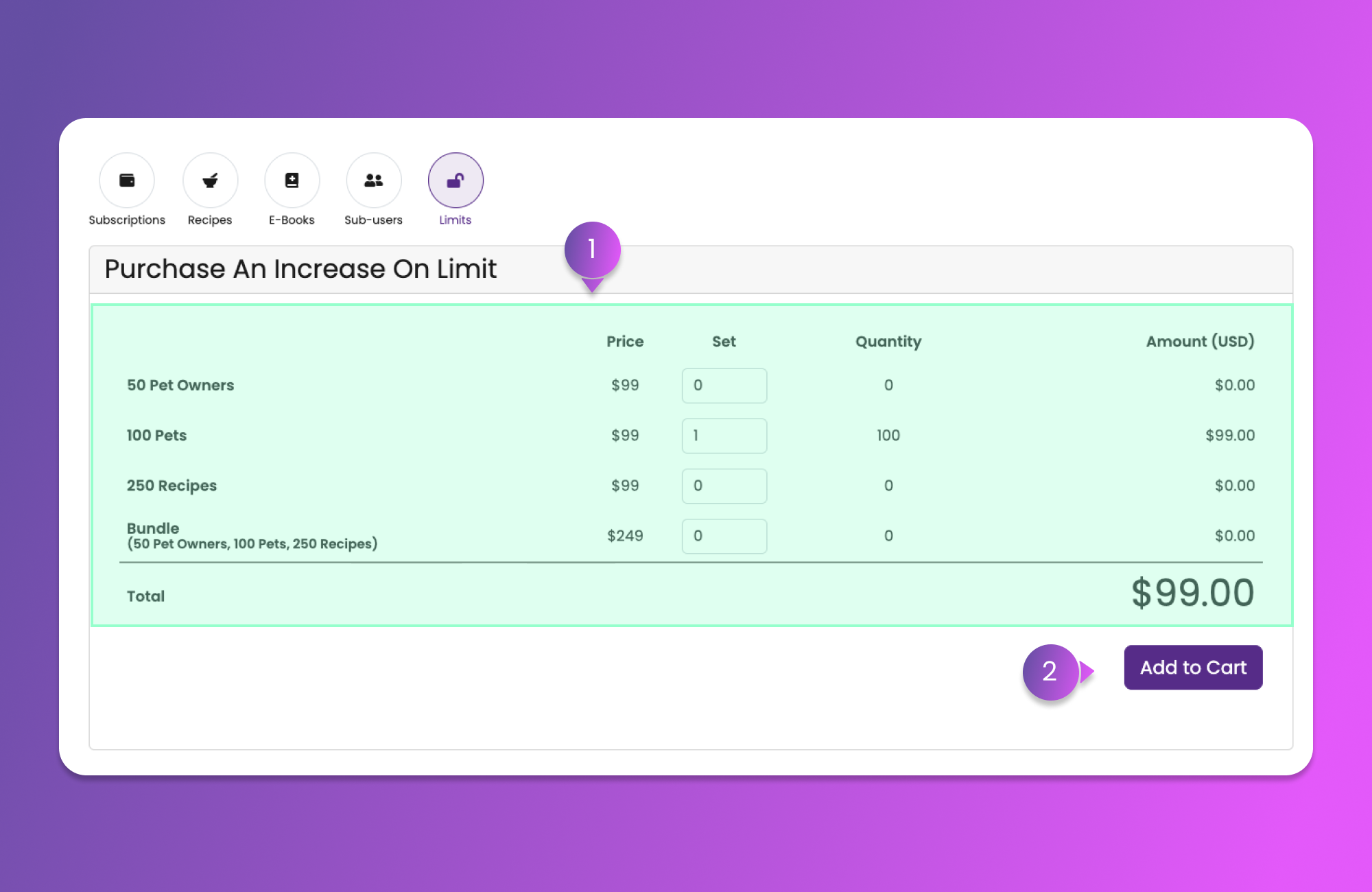
After clicking the button, you will be redirected to the Increase on Limit selection similar to the image below.
You can change the column "Set" to change the quantity to increase. You can see the dropdowns using the table (Item 1) similar to the image above.
After setting the quantity, click the "Add to Cart" button (Item 2) to add the selection to your cart.
### Paying for the Sub-User
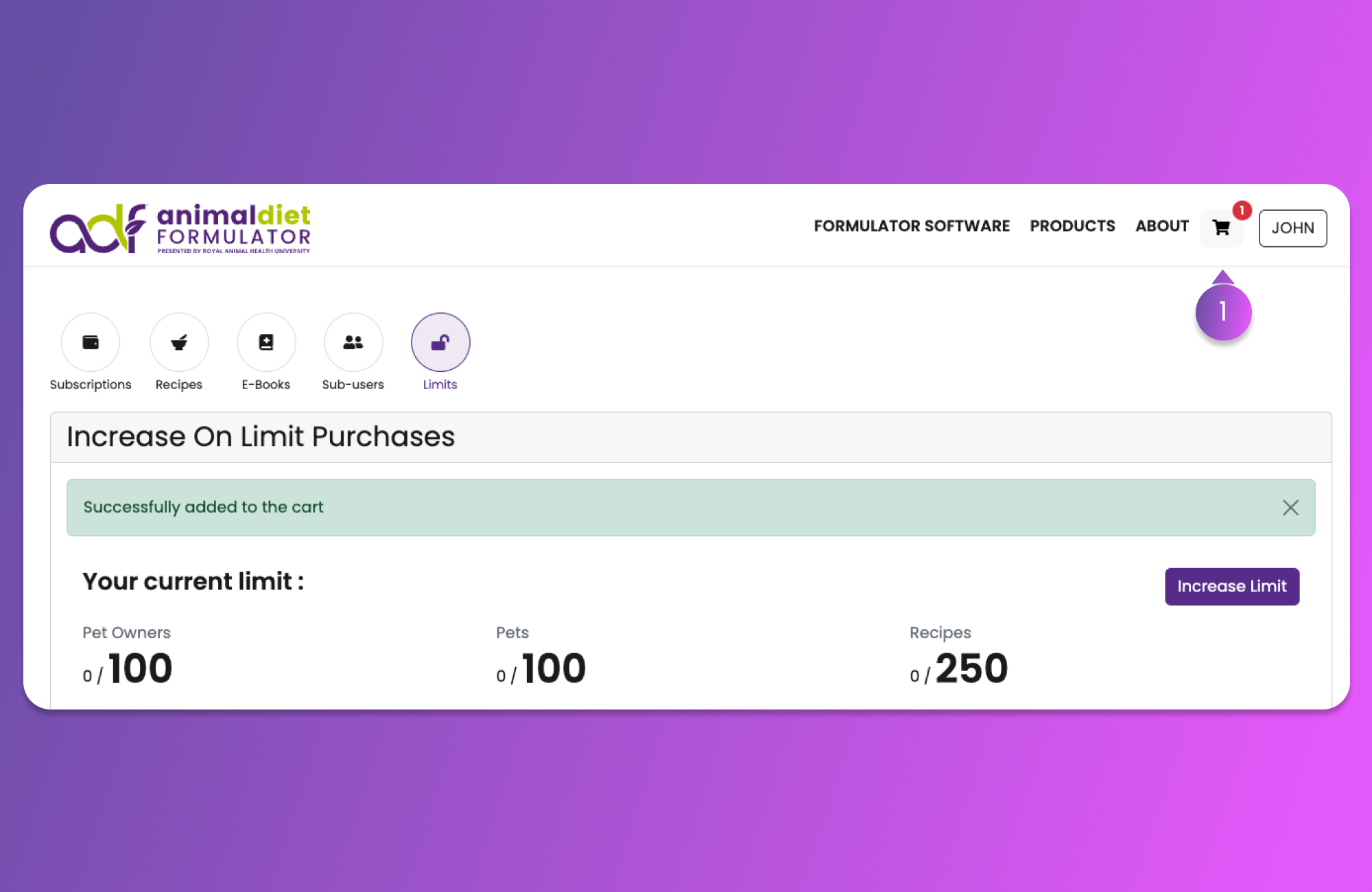
Once the selection of increase of limit has been added to the cart, you can click the cart icon (Item 1) button at the top right similar to the image below to view the cart and checkout.
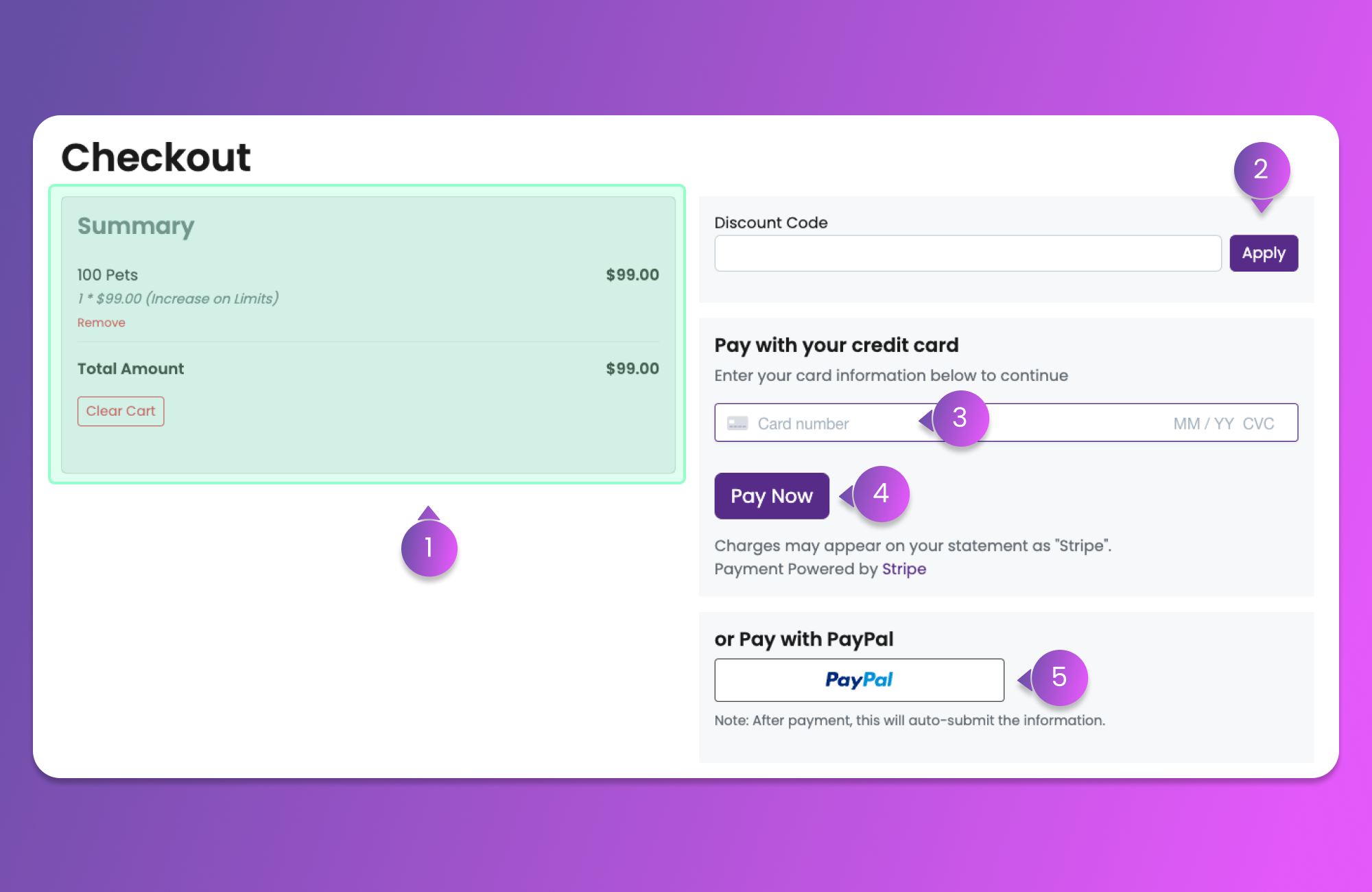
After clicking the Cart button, you will be redirected to the Checkout page similar to the image below.
The checkout cart consists of the following items:
1. Cart Summary
* In this section, you can view the items that you will be paying for.
2. Discount Code
* If you have a discount code provided by the ADF Team, you can use it here to apply the discount to your cart.
3. Card Details
* Provide your card details to continue with your payment. Our payment gateway is powered by Stripe.
4. Pay Now button
* After providing the card details, click Pay Now to process your cart.
5. PayPal button
* You can also purchase using PayPal by clicking this button and following the instruction that will pop up containing the PayPal payment dashboard.
{% hint style="info" %}
Do not close the browser when processing the PayPal Payment after confirmation from PayPal Dashboard.
{% endhint %}
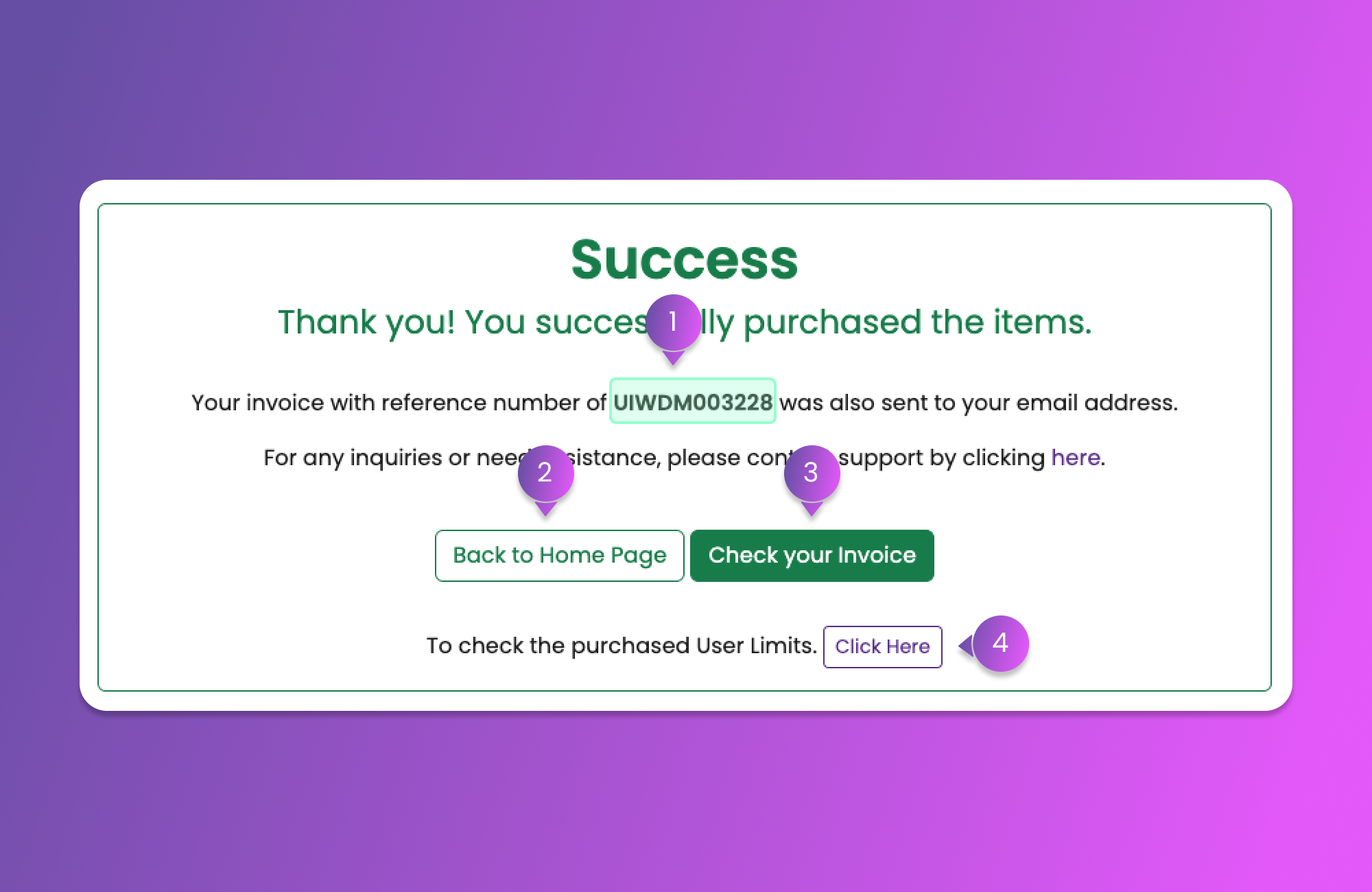
After a successful payment, you will be redirected to the success page. On this page, you can find the Reference number (Item 1) where you can refer to us if you have inquiries. You will have the option to go back to Home Page (Item 2) or check your invoice (Item 3) as may desire.
You can also go back to the User Limits page using the Item 4 button.