> For the complete documentation index, see [llms.txt](https://docs.animaldietformulator.com/llms.txt). Markdown versions of documentation pages are available by appending `.md` to page URLs; this page is available as [Markdown](https://docs.animaldietformulator.com/members-area/product-and-subscriptions/adf-subscription.md).
# ADF Subscription
View and monitor your subscription with the new Subscription Page
To access your subscription, please be sure that you have signed in to your account.
{% hint style="info" %}
To log in with your account, follow the steps mentioned [here](/members-area/profile/login.md).
{% endhint %}
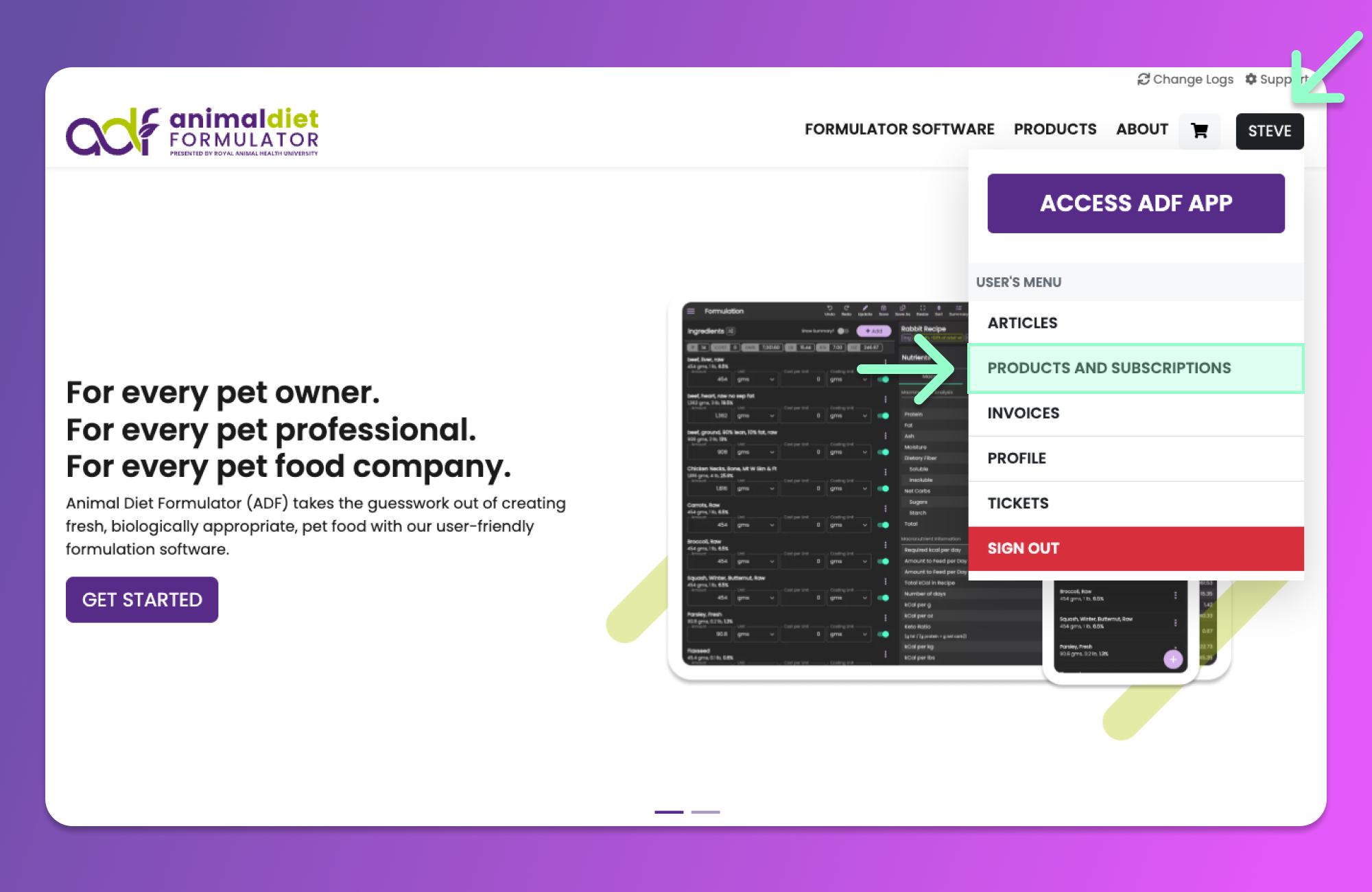
Access the User's Menu similar to the image below by hovering your mouse over your Name's button. Then click the "Products and Subscriptions" Menu item from the User's Menu.
{% hint style="info" %}
You can also access the User's Menu by going to the [User's Dashboard](/members-area/profile/user-dashboard.md).
{% endhint %}
## Subscription Information
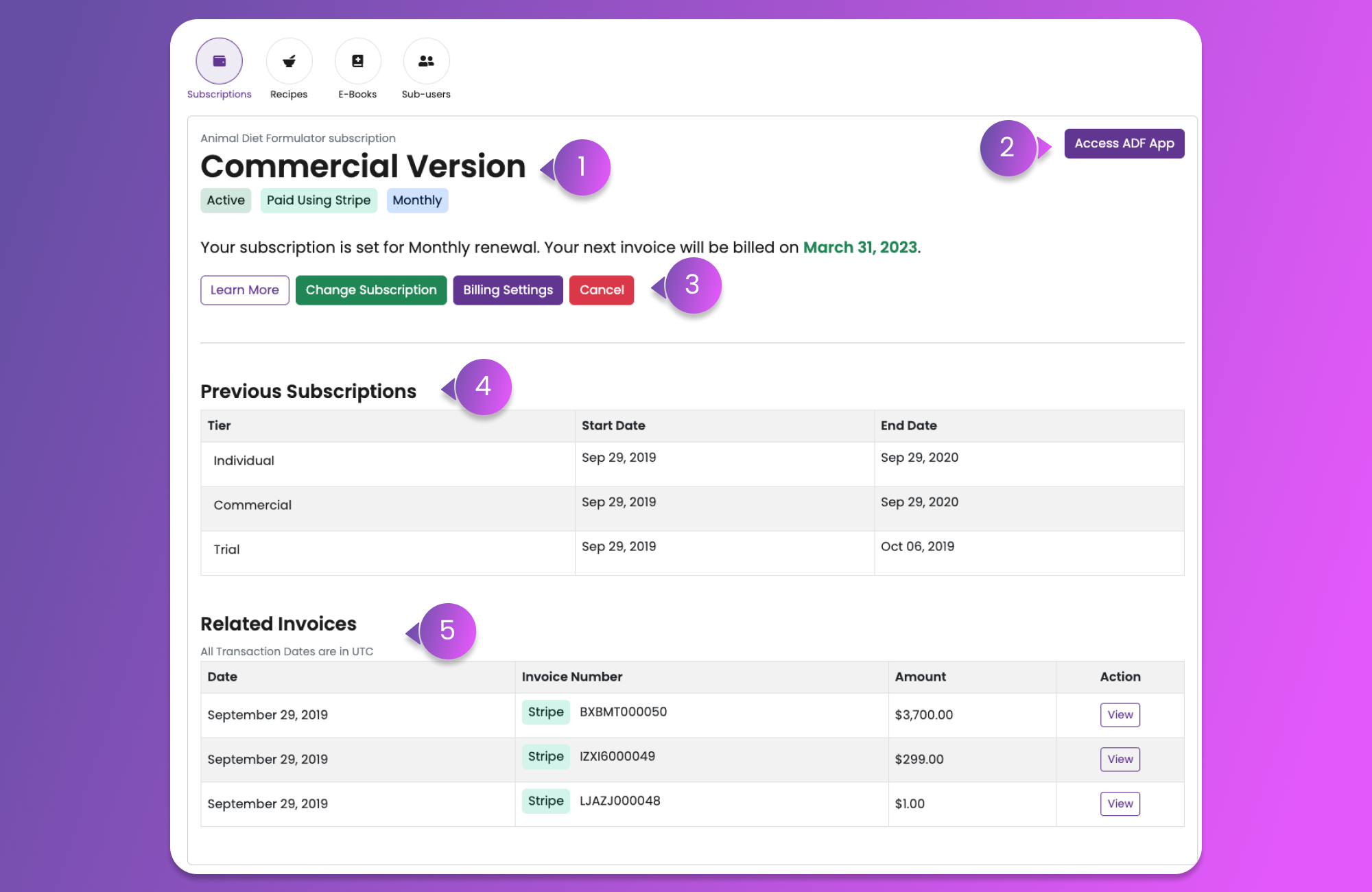
After clicking the Menu Item, you will be redirected to the Subscription Page. On this page, you can find the subscription Information.
1. Subscription Information
* In this section, the Status, Payment Method (Stripe or PayPal), Payment Frequency (Annual or Monthly), Version Tag, and other related tags for your subscription are shown here.
* Subscription version and renewal information are also mentioned in this section.
2. The "Access ADF App" button
* This button will allow you to open the Web version of the Software.
3. Actionable Buttons
* In this section, related buttons for your subscription are added here.
* Learn More - You will be redirected to the Subscription Page.
* Change Subscription - Downgrade or Upgrade your subscription using this button
* Billing Settings - This button will be available for you if you are paying through Stripe.
* View in PayPal - This button will open your PayPal Dashboard with related information about your paid subscription.
* Cancel - This button will redirect you to the Cancellation Page.
4. Previous Subscription
* This section will show the table of your previous subscriptions together with their tiers, start date, and end date.
5. Related Invoices
* This section will list the Invoices related to the Subscription. You can also view the invoices by clicking the corresponding "View" button at the right.
### Changing your current Subscription
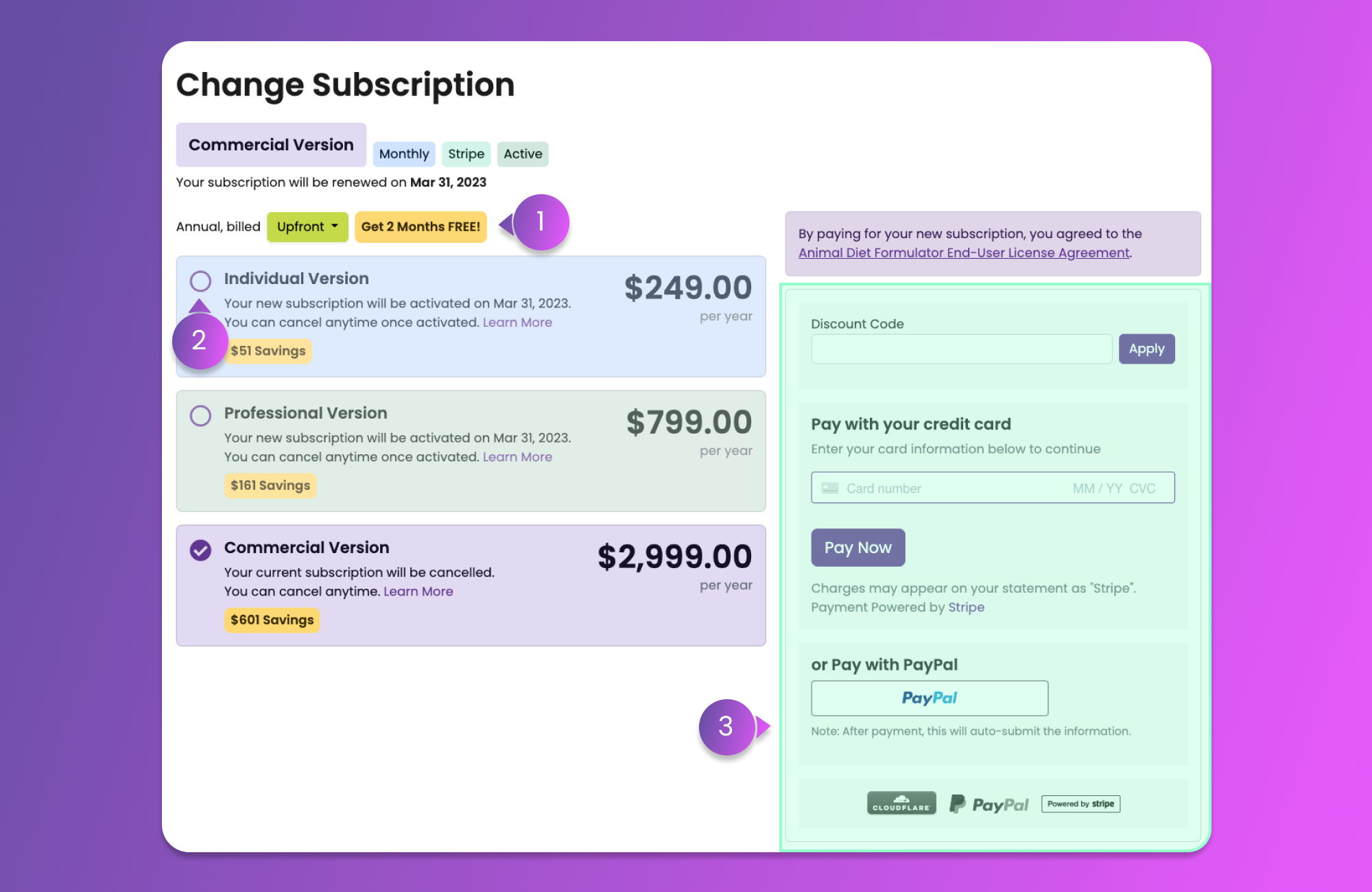
By clicking the "Change Subscription" button on the [subscription information](#subscription-information), you will be redirected to the Change Subscription page. On this page, you will have the option to downgrade or upgrade your current subscription.
To learn more about the conditions for upgrading and downgrading, [click here](/adf-v2-subscriptions.md#upgrading-subscription).
1. Payment Frequency Dropdown
* This dropdown will toggle the payment information from Upfront to Monthly and vice-versa.
2. Version Section Button
* This radio button will select and tag the subscription that you want to subscribe to.
3. Payment Section
* This section will allow you to provide your payment details and proceed with changing your subscription.
### Cancel your current Subscription
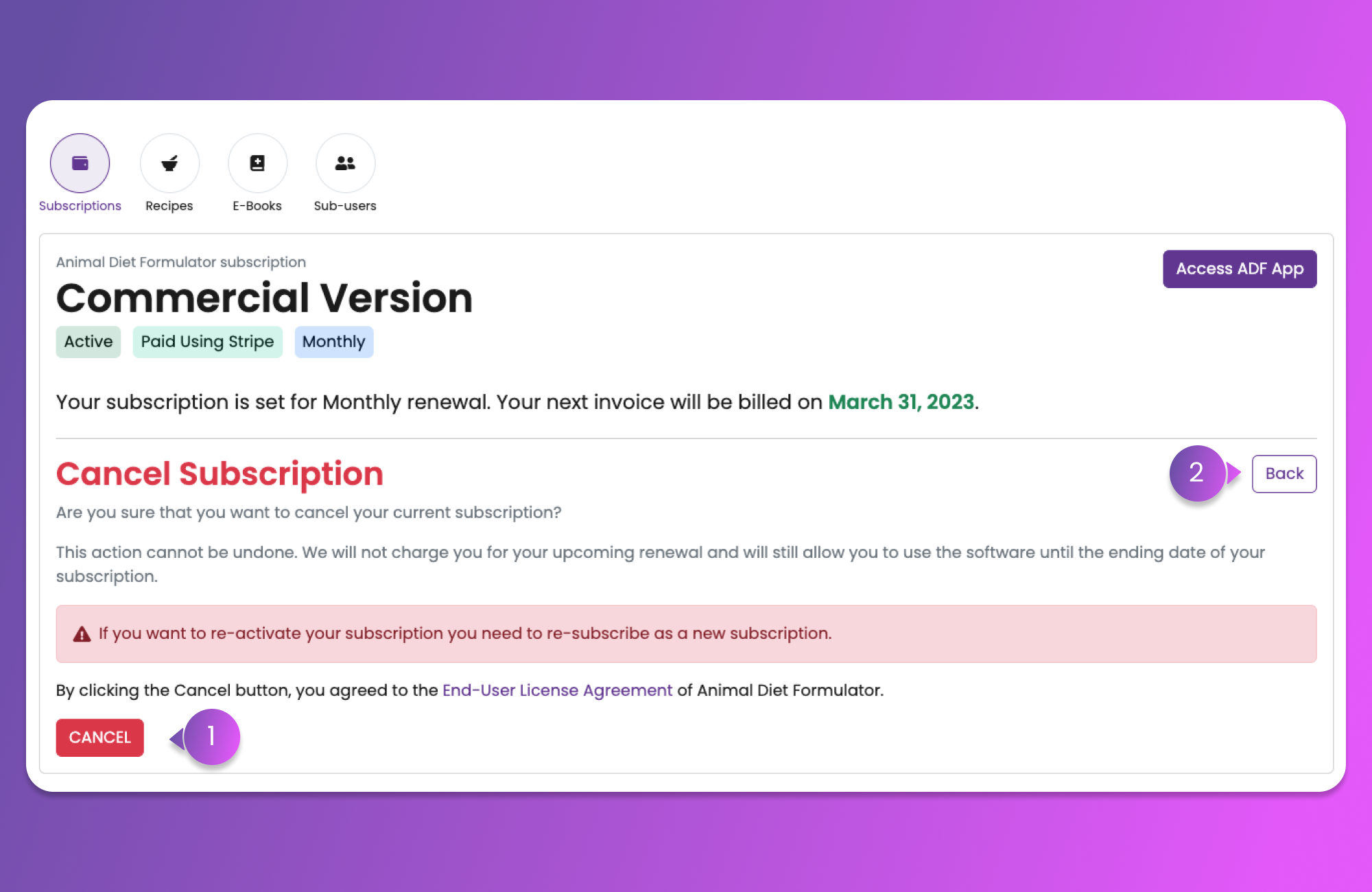
By clicking the Cancel button on the [subscription information](#subscription-information), you will be redirected to the Cancellation Page. On this page, you can read more about the terms and conditions when you cancel your current subscription.
1. Cancel Button
* This will process the cancellation of your subscription.
2. Back Button
* This button will redirect you to the subscription information.
{% hint style="danger" %}
A payment is required for the remaining months if you are paying "Annual, billed Monthly" and you want to cancel the subscription in less than a year.
{% endhint %}
##